
 数据结构
数据结构 网络
网络 RDBMS
RDBMS 操作系统
操作系统 Java
Java MS Excel
 iOS
iOS HTML
HTML CSS
CSS Android
 Python
 C 编程
C 编程 C++
C++ C#
C# MongoDB
 MySQL
MySQL Javascript
 PHP
PHP 物理学
物理学 化学
化学 生物学
生物学 数学
数学 英语
英语 经济学
经济学 心理学
心理学 社会学
社会学 服装设计
服装设计 法律研究
法律研究Python Tkinter PDF 阅读器
Python 以其大量的库和扩展而闻名,每个库和扩展都具有不同的功能、属性和用例。为了处理 PDF 文件,Python 提供了 **PyPDF2** 工具包,该工具包能够处理、提取、合并多个页面、加密 PDF 文件等等。对于管理和操作 PDF 等文件流,它是一个非常有用的包。使用 PyPDF2,我们将创建一个 Tkinter 应用程序,该应用程序通过要求用户从本地目录选择并打开 PDF 文件来读取 PDF 文件。
要创建应用程序,我们将按照以下步骤操作:
通过键入以下命令安装需求:
pip install PyPDF2
在命令行中。安装完成后,使用 **import Pypdf2** 在 Notebook 中导入库。导入 **filedialog** 以创建用于从本地目录选择文件的对话框。
创建一个文本小部件,并向其中添加一些菜单,例如打开、清除和退出。
为每个菜单定义一个函数。
定义一个打开文件的函数。在此函数中,首先,我们将使用 PdfFileReader(file) 读取文件。然后,从文件中提取页面。
将内容插入文本框。
定义退出菜单的函数。
示例
#Import the required Libraries
import PyPDF2
from tkinter import *
from tkinter import filedialog
#Create an instance of tkinter frame
win= Tk()
#Set the Geometry
win.geometry("750x450")
#Create a Text Box
text= Text(win,width= 80,height=30)
text.pack(pady=20)
#Define a function to clear the text
def clear_text():
   text.delete(1.0, END)
#Define a function to open the pdf file
def open_pdf():
   file= filedialog.askopenfilename(title="Select a PDF", filetype=(("PDF    Files","*.pdf"),("All Files","*.*")))
   if file:
      #Open the PDF File
      pdf_file= PyPDF2.PdfFileReader(file)
      #Select a Page to read
      page= pdf_file.getPage(0)
      #Get the content of the Page
      content=page.extractText()
      #Add the content to TextBox
      text.insert(1.0,content)

#Define function to Quit the window
def quit_app():
   win.destroy()
#Create a Menu
my_menu= Menu(win)
win.config(menu=my_menu)
#Add dropdown to the Menus
file_menu=Menu(my_menu,tearoff=False)
my_menu.add_cascade(label="File",menu= file_menu)
file_menu.add_command(label="Open",command=open_pdf)
file_menu.add_command(label="Clear",command=clear_text)
file_menu.add_command(label="Quit",command=quit_app)
win.mainloop()
输出
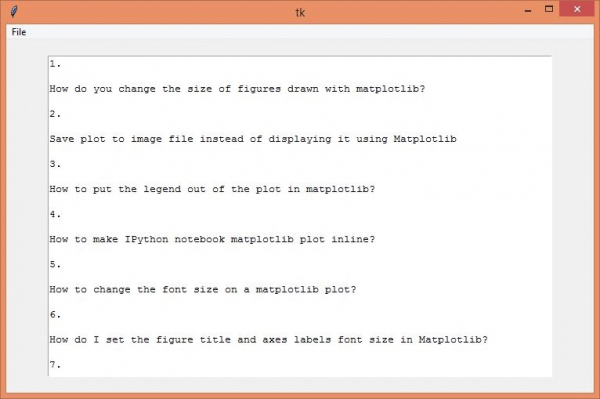
运行以上代码将显示一个功能齐全的 tkinter 应用程序。它具有打开文件、清除文件和退出以终止应用程序的功能。
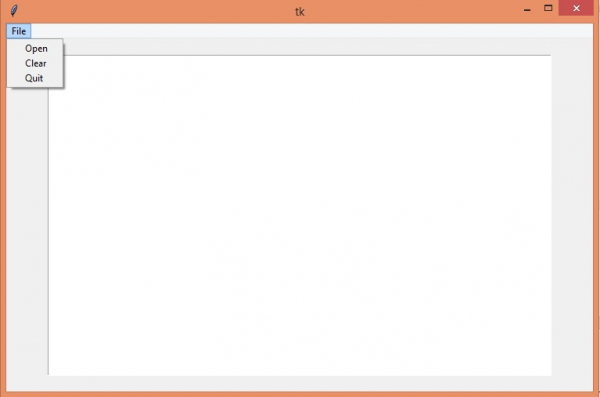
单击应用程序左上角的“文件”菜单,在文本框中打开一个新的 PDF 文件。

更新于: 2021年4月22日
6K+ 次浏览

广告