
 数据结构
数据结构 网络
网络 关系型数据库管理系统 (RDBMS)
 操作系统
操作系统 Java
Java MS Excel
 iOS
iOS HTML
HTML CSS
CSS Android
 Python
 C 编程
C 编程 C++
C++ C#
C# MongoDB
 MySQL
MySQL Javascript
 PHP
PHP 物理学
物理学 化学
化学 生物学
生物学 数学
数学 英语
英语 经济学
经济学 心理学
心理学 社会学
社会学 服装设计
服装设计 法律研究
法律研究启用 Tkinter Combobox 的多选功能
Tkinter 是一个功能强大且流行的 GUI 工具包,广泛用于在 Python 中创建桌面应用程序。任何 GUI 应用程序的关键组件之一是从列表中选择值的能力。Tkinter 为此提供了各种小部件,包括组合框,它是文本字段和下拉列表的组合。
默认情况下,Tkinter 中的组合框只允许从下拉列表中选择一个值。但是,在某些情况下,用户可能需要从列表中选择多个值。这可以通过启用组合框的多选功能在 Tkinter 中实现。
在本文中,我们将讨论两种实现从 tkinter 组合框中选择多个值的方法。
使用 Listbox 小部件
启用 tkinter 组合框中的多选的最简单方法是使用 Listbox 小部件。在这种方法中,我们创建一个 Listbox 小部件并将其添加到组合框中。Listbox 小部件将显示下拉列表,用户可以通过单击值从其中选择多个值。
示例
以下是一个演示此方法的示例代码:
import tkinter as tk
from tkinter import ttk

# create a tkinter window
window = tk.Tk()
window.geometry("720x250")
window.title("Multiple Selection Combobox using the Listbox widget")

# define the values for the dropdown list
values = ["Value 1", "Value 2", "Value 3", "Value 4", "Value 5"]

# create a label for the combobox
label = ttk.Label(window, text="Select values:")

# create a combobox
combobox = ttk.Combobox(window, state="readonly")

# create a Listbox widget for the dropdown list
listbox = tk.Listbox(window, selectmode="multiple", exportselection=0)
for value in values:
   listbox.insert(tk.END, value)

# define a function to update the combobox when the user selects or deselects a value
def update_combobox():
   # Get selected values from the Listbox widget
   selected_values = [listbox.get(idx) for idx in listbox.curselection()]

   # Update the combobox with the selected values
   combobox.configure(width=40, height=7)
   combobox.set(", ".join(selected_values))

# bind the update_combobox function to the Listbox widget
listbox.bind("<<ListboxSelect>>", lambda _: update_combobox())

# pack the label, combobox, and Listbox widget
label.pack(side="top", anchor="w", pady=30)
combobox.pack(side="top", pady=30)
listbox.pack(side="top")

# start the main loop
window.mainloop()
输出
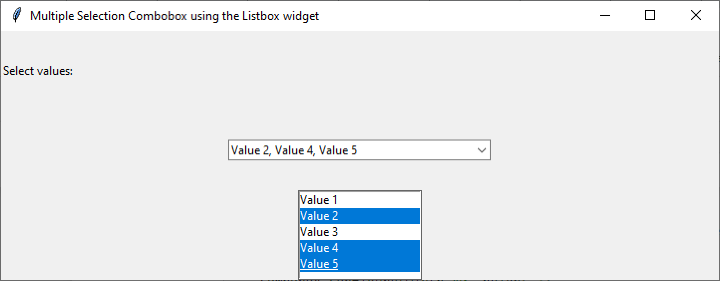
在上述实现中,我们创建了一个 **tkinter** 窗口、一个用于 **组合框** 的标签和一个 **组合框**。我们定义下拉列表的值并创建一个 Listbox 小部件来显示这些值。
我们将 **Listbox** 小部件的 **selectmode** 属性设置为“multiple”以允许用户选择多个值。我们使用 **insert()** 方法将值插入到 **Listbox** 小部件中。
我们还将 **Listbox** 小部件的 **exportselection** 属性设置为 0,以防止当用户单击 **Listbox** 外部时取消选择先前选择的项目。
为了在 **组合框** 中显示选定的值,我们定义了一个函数 **update_combobox()**,该函数从 **Listbox** 小部件中检索选定的值并相应地更新 **组合框** 的文本字段。当用户在 **Listbox** 小部件中选择或取消选择值时,将调用此函数。
我们将 **<<ListboxSelect>>** 事件绑定到一个匿名函数,该函数调用 **update_combobox()** 函数,以确保每当用户进行选择时 **组合框** 都被更新。
当用户从下拉列表中选择多个值时,它们将以逗号分隔的形式显示在 **组合框** 的文本字段中。
使用 Checkbutton 小部件
启用 tkinter 组合框中的多选的另一种方法是使用 Checkbutton 小部件。在这种方法中,我们为下拉列表中的每个值创建一个 Checkbutton 小部件并将其添加到组合框中。用户可以通过单击相应的 Checkbutton 来选择多个值。
示例
以下是一个演示此方法的示例代码:
import tkinter as tk
from tkinter import ttk

# create a tkinter window
window = tk.Tk()
window.geometry("720x250")
window.title("Multiple Selection Combobox using the Checkbox Widget")

# define the values for the dropdown list
values = ["Value 1", "Value 2", "Value 3", "Value 4", "Value 5"]

# create a label for the combobox
label = ttk.Label(window, text="Select values:")

# create a combobox
combobox = ttk.Combobox(window)

# create a list of BooleanVar objects to hold the state of the Checkbuttons
checkbuttons_vars = [tk.BooleanVar() for value in values]

# create a Checkbutton widget for each value in the dropdown list
checkbuttons = []
for index, value in enumerate(values):
   checkbutton = ttk.Checkbutton(window, text=value, variable=checkbuttons_vars[index])
   checkbutton.pack(side="top", anchor="w")
   checkbuttons.append(checkbutton)

# define a function to update the combobox when the user selects or deselects a value
def update_combobox():
   selected_values = [value for value, var in zip(values, checkbuttons_vars) if var.get()]
   combobox.configure(width=40, height=7)
   combobox.delete(0, tk.END)
   combobox.insert(0, ", ".join(selected_values))

# add a button to update the combobox
update_button = ttk.Button(window, text="Update", command=update_combobox)
update_button.pack(side="bottom")

# pack the label and combobox
label.pack(side="top", anchor="w", pady=30)
combobox.pack(side="top")

# start the main loop
window.mainloop()
输出

总的来说,这种方法为从 tkinter 组合框中选择多个值提供了更直观的用户界面,但需要更多代码来创建 Checkbutton 并更新组合框。
结论
总之,启用从 tkinter 组合框中选择多个值可以通过多种方式实现。我们在本文中讨论了两种方法:使用 Listbox 小部件和使用 Checkbutton 小部件。
使用 Listbox 小部件时,用户可以通过单击值来选择多个值。这种方法简单且代码量少,但对用户来说可能不那么直观。
使用 Checkbutton 小部件时,用户可以通过单击相应的 Checkbutton 来选择多个值。这种方法提供了更直观的用户界面,但需要更多代码来创建 Checkbutton 并更新组合框。
总的来说,在 tkinter 组合框中启用多选是一个有用的功能,可以增强 GUI 应用程序的功能和可用性。

4K+ 浏览量
