
 数据结构
数据结构 网络
网络 关系型数据库管理系统 (RDBMS)
 操作系统
操作系统 Java
Java MS Excel
 iOS
iOS HTML
HTML CSS
CSS Android
 Python
 C 编程
C 编程 C++
C++ C#
C# MongoDB
 MySQL
MySQL Javascript
 PHP
PHP 物理学
物理学 化学
化学 生物学
生物学 数学
数学 英语
英语 经济学
经济学 心理学
心理学 社会学
社会学 时尚研究
时尚研究 法律研究
法律研究ReactJS 搜索框中的固定选项
有时,开发人员在创建搜索栏时需要在搜索框中添加固定选项。例如,您正在开发一个 Web 应用程序,其中包含与汽车、自行车、其他车辆等相关的不同网页。此外,您需要在每个网页上添加一个搜索栏。因此,您可能需要在搜索栏中添加诸如汽车、自行车或某些汽车或自行车品牌的固定标签以突出显示。
在本教程中,我们将学习如何使用 Material UI 库的 AutoComplete 组件在 ReactJS 中的搜索框中添加固定选项。
用户可以在 React 项目中执行以下命令以安装 Material UI 库。
npm install @mui/material @mui/styled-engine-sc styled-components
语法
用户应遵循以下语法以使用 Material UI 的 AutoComplete 组件在搜索栏中添加固定选项。
<Autocomplete
   multiple
   onChange={(event, newValue) => {
      // set fixed and selected options
   }
   value={currentValues}
   options={searchOptions}
/>
在上述语法中,currentValues 包含所有选定的值和固定值。
示例 1
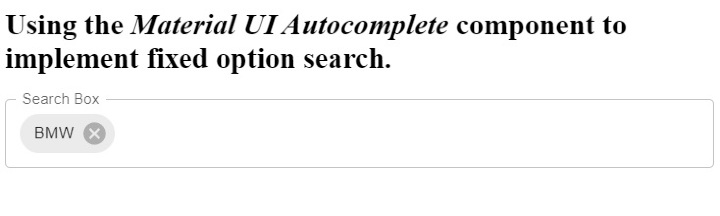
在下面的示例中,我们使用了 Material UI 的 AutoComplete 组件来实现搜索栏。我们将汽车品牌存储在数组中。此外,我们添加了“BMW”作为固定选项。
之后,我们将“multiple”属性传递给 AutoComplete 组件以允许用户选择多个值。我们使用“searchOptions”作为 AutoComplete 组件的选项。此外,每当用户从搜索栏中选择或删除选项时,我们都会通过添加选定选项和固定选项来更改“currentValues”的值。
在输出中,用户可以观察到“BMW”已预选,并且用户无法将其删除,因为它已禁用。
import React, { useState } from "react";
import TextField from "@mui/material/TextField";
import Autocomplete from "@mui/material/Autocomplete";
import { Chip } from "@mui/material";
export default function App() {
   // Adding different car brands in search options
   let searchOptions = [
      "BMW",
      "Audi",
      "Mercedes",
      "Toyota",
      "Honda",
      "Ford",
      "Huyndai",
      "Kia",
      "Nissan",
      "Mazda",
      "Chevrolet",
      "Jeep",
      "Fiat",
      "Volkswagen",
      "Renault",
      "Volvo",
      "Suzuki",
      "Scion",
      "Smart",
      "Tesla"
   ];
   let fixedOptions = ["BMW"];
   let [currentValues, setValue] = useState([...fixedOptions]);
   return (
      <div>
         <h2>
            {" "}
            Using the <i> Material UI Autocomplete </i> component to implement fixed
            option search.{" "}
         </h2>
         <Autocomplete
            multiple
            Style={{ width: 400 }}
            autoComplete
            autoHighlight
            freeSolo
            onChange={(event, newValue) => {
               setValue([
                  ...fixedOptions,
                  ...newValue.filter((option) => fixedOptions.indexOf(option) === -1)
               ]);
            }}
            value={currentValues}
            options={searchOptions}
            renderInput={(data) => (
               <TextField {...data} variant="outlined" label="Search Box" />
            )}
         />
      </div>
   );
}
输出
示例 2
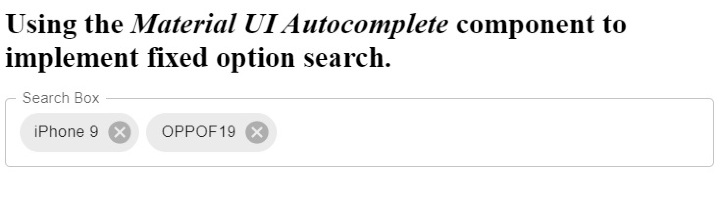
在下面的示例中,我们也使用了 AutoComplete 组件来实现搜索栏。在这里,我们从 API 中提取搜索选项的数据。从 API 中,我们获取多个产品作为响应,并使用产品的标题作为搜索选项。此外,我们为搜索选项固定了两个产品标题。
在输出中,用户可以观察到搜索栏中固定了两个产品标题。
import React, { useState, useEffect } from "react";
import TextField from "@mui/material/TextField";
import Autocomplete from "@mui/material/Autocomplete";
export default function App() {
   // using the fetch API to get the data from the https://dummyjson.com/products
   const [searchOptions, setSearchOptions] = useState([]);
   const fetchSearchOptions = async () => {
      const response = await fetch("https://dummyjson.com/products");
      const data = await response.json();
      for (let i = 0; i < data.products.length; i++) {
         setSearchOptions((prev) => [...prev, data.products[i].title]);
      }
   };
   useEffect(() => {
      fetchSearchOptions();
   }, []);
   let fixedOptions = ["iPhone 9","OPPOF19"];

   //   fixedOptions.push(searchOptions[0]);

   //   fixedOptions.push(searchOptions[1]);
   let [currentValues, setValue] = useState([...fixedOptions]);
   return (
      <div>
         <h2>
            {" "}
            Using the <i> Material UI Autocomplete </i> component to implement fixed
            option search. {" "}
         </h2>
         <Autocomplete
            multiple
            Style={{ width: 400 }}
            autoComplete
            autoHighlight
            freeSolo
            onChange = {(event, newValue) => {
               setValue([
                  ...fixedOptions,
                  ...newValue.filter((option) => fixedOptions.indexOf(option) === -1),
               ]);
            }}
            value = {currentValues}
            options = {searchOptions}
            renderInput = {(data) => (
               <TextField {...data} variant="outlined" label="Search Box" />
            )}
         />
      </div>
   );
}
输出
用户学习了如何在 ReactJS 中向搜索栏添加固定选项。在这里,我们使用了 AutoComplete 组件来实现搜索栏。用户还可以探索 Material UI 官方网站上的 Autocomplete 组件的其他变体。

67 次浏览
