
 数据结构
数据结构 网络
网络 RDBMS
RDBMS 操作系统
操作系统 Java
Java MS Excel
 iOS
iOS HTML
HTML CSS
CSS Android
 Python
 C 编程
C 编程 C++
C++ C#
C# MongoDB
 MySQL
MySQL Javascript
 PHP
PHP 物理学
物理学 化学
化学 生物学
生物学 数学
数学 英语
英语 经济学
经济学 心理学
心理学 社会学
社会学 时尚研究
时尚研究 法律研究
法律研究如何使用键盘快捷键或绑定激活 Tkinter 菜单和工具栏?
在提升用户体验方面,为菜单和工具栏项目提供键盘快捷键或绑定可以极大地提高可访问性和效率,而 Tkinter 则是 Python 中开发交互式应用程序的热门选择。
在本文中,我们将探讨使用键盘快捷键或绑定激活 Tkinter 菜单和工具栏的过程,使开发人员能够创建更直观和简化的应用程序。
如何使用键盘快捷键或绑定激活 Tkinter 菜单和工具栏?
要为激活 Tkinter 菜单和工具栏启用键盘快捷键或绑定,您可以在创建菜单项时使用 accelerator 参数。这允许您分配键盘快捷键。此外,通过使用根窗口的 bind 方法,您可以将特定函数与键盘事件相关联。因此,按下相应的键盘快捷键或按键将触发菜单项和工具栏按钮。
请按照以下步骤使用键盘快捷键或绑定激活 Tkinter 菜单和工具栏:
我们导入 tkinter 模块,它是 Tk GUI 工具包的标准 Python 接口。
之后,我们定义 create_menu() 函数,该函数创建主菜单及其子菜单并向其添加键盘快捷键或绑定。在此函数中,我们创建 Menu 小部件,它表示主菜单,并使用 config() 方法将其添加到顶级窗口。然后,我们使用 Menu 小部件再次创建两个子菜单,“文件”和“帮助”。我们使用 add_cascade() 方法将它们添加到主菜单。最后,我们为每个子菜单创建菜单项,使用 add_command() 方法,并使用 bind() 方法向其添加键盘快捷键或绑定。
接下来,我们定义 create_toolbar() 函数,该函数负责构建包含按钮的工具栏并向其分配绑定。在此函数中,我们生成 Frame 小部件,用作按钮的容器,并使用 config() 方法将其包含在顶级窗口中。然后,我们创建两个 Button 小部件,“打开”和“保存”,并使用 pack() 方法将它们添加到工具栏。最后,通过 bind() 方法为每个按钮分配绑定。
接下来,我们使用 Tk 类创建顶级窗口,并使用 title() 方法设置其标题。
我们调用或调用 create_menu() 和 create_toolbar() 函数分别生成主菜单和工具栏。
最后,我们使用 mainloop() 方法启动主事件循环,该方法等待事件(例如用户输入)并对其做出响应。
示例
import tkinter as tk

def open_file():
   print("Opening file...")

def save_file():
   print("Saving file...")

def cut_text():
   print("Cutting text...")

def copy_text():
   print("Copying text...")

def paste_text():
   print("Pasting text...")

def create_menu(root):
   menu = tk.Menu(root)

   # Create the "File" menu
   file_menu = tk.Menu(menu, tearoff=False)
   file_menu.add_command(label="Open", command=open_file, accelerator="Ctrl+O")
   file_menu.add_command(label="Save", command=save_file, accelerator="Ctrl+S")
   file_menu.add_separator()
   file_menu.add_command(label="Exit", command=root.quit, accelerator="Ctrl+Q")
   menu.add_cascade(label="File", menu=file_menu)

   # Create the "Edit" menu
   edit_menu = tk.Menu(menu, tearoff=False)
   edit_menu.add_command(label="Cut", command=cut_text, accelerator="Ctrl+X")
   edit_menu.add_command(label="Copy", command=copy_text, accelerator="Ctrl+C")
   edit_menu.add_command(label="Paste", command=paste_text, accelerator="Ctrl+V")
   menu.add_cascade(label="Edit", menu=edit_menu)

   # Add the menu to the root window
   root.config(menu=menu)

def create_toolbar(root):
   toolbar = tk.Frame(root)

   # Create toolbar buttons
   open_button = tk.Button(toolbar, text="Open", command=open_file)
   open_button.pack(side=tk.LEFT, padx=2, pady=2)

   save_button = tk.Button(toolbar, text="Save", command=save_file)
   save_button.pack(side=tk.LEFT, padx=2, pady=2)

   cut_button = tk.Button(toolbar, text="Cut", command=cut_text)
   cut_button.pack(side=tk.LEFT, padx=2, pady=2)

   copy_button = tk.Button(toolbar, text="Copy", command=copy_text)
   copy_button.pack(side=tk.LEFT, padx=2, pady=2)

   paste_button = tk.Button(toolbar, text="Paste", command=paste_text)
   paste_button.pack(side=tk.LEFT, padx=2, pady=2)

   # Add the toolbar to the root window
   toolbar.pack(side=tk.TOP, fill=tk.X)

def main():
   root = tk.Tk()
   root.title("Menu and Toolbar Example")
   create_menu(root)
   create_toolbar(root)

   # Configure keyboard shortcuts or bindings
   root.bind("<Control-o>", lambda e: open_file())
   root.bind("<Control-s>", lambda e: save_file())
   root.bind("<Control-x>", lambda e: cut_text())
   root.bind("<Control-c>", lambda e: copy_text())
   root.bind("<Control-v>", lambda e: paste_text())
   root.bind("<Control-q>", lambda e: root.quit())

   root.mainloop()

if __name__ == "__main__":
   main()
输出
Opening file...
Opening file...
Saving file...
Cutting text...
Copying text...
Pasting text...
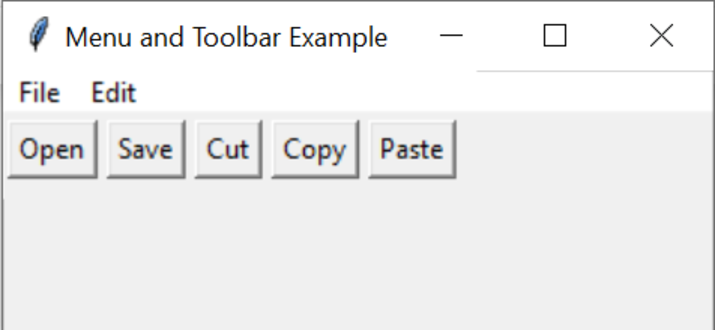
结论
总之,使用键盘快捷键或绑定激活 Tkinter 菜单和工具栏可以极大地增强应用程序的可用性和效率。通过使用 accelerator 参数分配键盘快捷键,并使用 bind 方法将键盘事件绑定到特定函数,用户可以快速访问菜单项和工具栏按钮。
这可以提供流畅的用户体验,使用户能够轻松便捷地执行操作。合并键盘快捷键和绑定是简化用户交互并改善基于 Tkinter 的应用程序整体功能的强大方法。

634 次查看
