
 数据结构
数据结构 网络
网络 关系数据库管理系统 (RDBMS)
 操作系统
操作系统 Java
Java MS Excel
 iOS
iOS HTML
HTML CSS
CSS Android
 Python
 C语言编程
C语言编程 C++
C++ C#
C# MongoDB
 MySQL
MySQL Javascript
 PHP
PHP 物理学
物理学 化学
化学 生物学
生物学 数学
数学 英语
英语 经济学
经济学 心理学
心理学 社会学
社会学 服装设计
服装设计 法律研究
法律研究如何在 Excel 中将重复行移动到另一张工作表?
您的工作表可能会被重复数据堵塞,这使得有效组织和检查数据变得具有挑战性。本视频将逐步引导您完成查找重复行并将其移动到另一张工作表的过程,以保持电子表格的整洁和组织性。
我们将研究利用 Excel 预建功能和功能来完成此任务的方法。无论您拥有何种程度的 Excel 技能,本课程都将为您提供成功处理重复数据和简化工作流程的知识和技能。
将重复行移动到另一张工作表
这里我们将首先创建一个 VBA 模块,然后选择单元格来完成任务。让我们来看一个简单的过程,学习如何在 Excel 中将重复行移动到另一张工作表。
步骤 1
考虑一个 Excel 工作表,其中工作表中包含重复行,类似于下图。
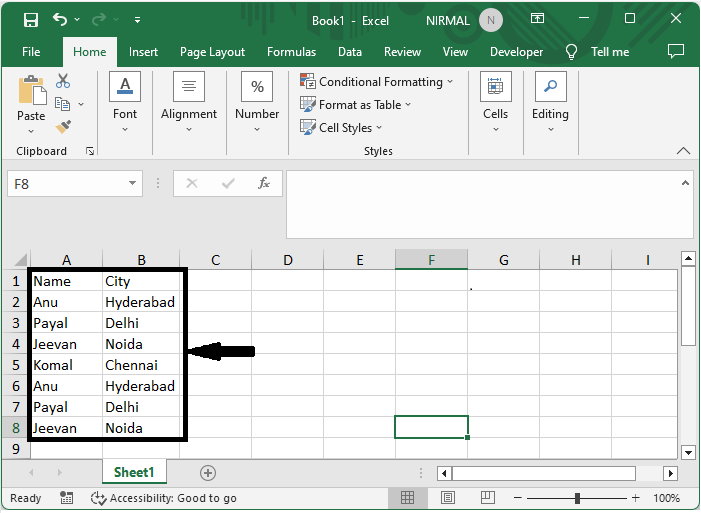
首先,右键单击工作表名称,然后选择“查看代码”以打开 VBA 应用程序。
右键单击 > 查看代码。
步骤 2
然后单击“插入”,选择“模块”,然后将以下代码复制到文本框中。
插入 > 模块 > 复制。
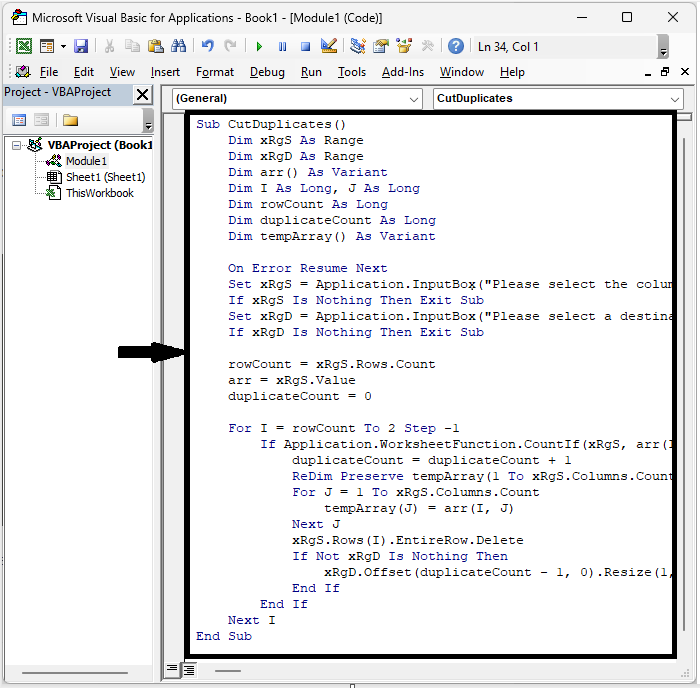
代码
Sub CutDuplicates()
   Dim xRgS As Range
   Dim xRgD As Range
   Dim I As Long, J As Long
   On Error Resume Next
   Set xRgS = Application.InputBox("Please select the column:", "Move Duplicate Rows", Selection.Address, , , , , 8)
   If xRgS Is Nothing Then Exit Sub
   Set xRgD = Application.InputBox("Please select a desitination cell:", "Move Duplicate Rows", , , , , , 8)
   If xRgD Is Nothing Then Exit Sub
   xRows = xRgS.Rows.Count
   J = 0
   For I = xRows To 1 Step -1
      If Application.WorksheetFunction.CountIf(xRgS, xRgS(I)) > 1 Then
         xRgS(I).EntireRow.Copy xRgD.Offset(J, 0)
         xRgS(I).EntireRow.Delete
         J = J + 1
      End If
   Next
End Sub
步骤 3
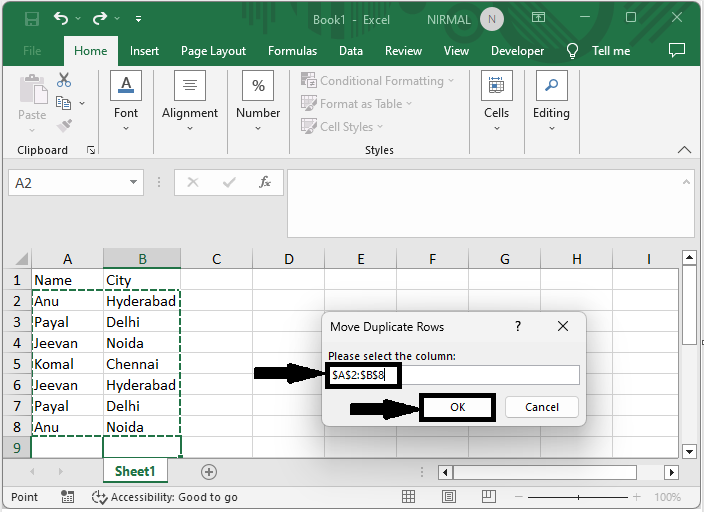
然后单击 F5 运行代码。然后选择一列并单击“确定”。
步骤 4
最后,选择一个单元格来粘贴数据,然后单击“确定”。
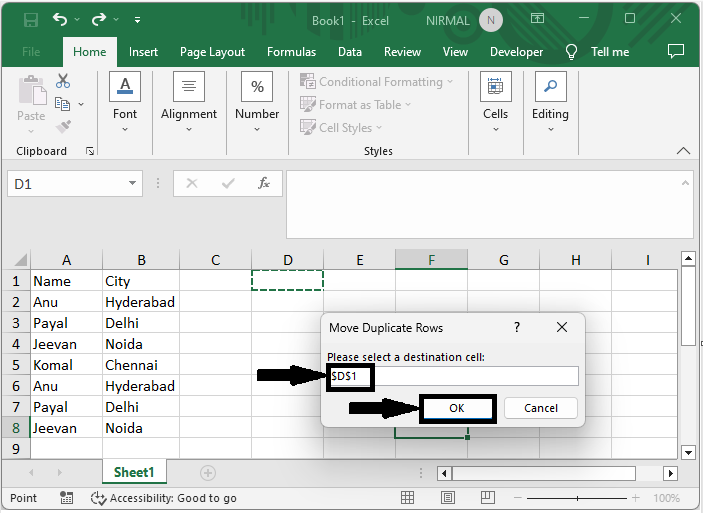
这就是如何在 Excel 中将重复行移动到另一张工作表的方法。
注意
如果要根据行移动行,请使用以下代码。
代码
Sub CutDuplicates()
   Dim xRgD As Range, xRgS As Range
   Dim I As Long, J As Long, K As Long, KK As Long
   On Error Resume Next
   Set xRgS = Application.InputBox("Please select the data range:", "Move Duplicate Rows", Selection.Address, , , , , 8)
   If xRgS Is Nothing Then Exit Sub
   Set xRgD = Application.InputBox("Please select a desitination cell:", " Move Duplicate Rows", , , , , , 8)
   If xRgD Is Nothing Then Exit Sub
   KK = 0
   For I = xRgS.Rows.Count To 1 Step -1
      For J = 1 To I - 1
         For K = 1 To xRgS.Columns.Count
            Debug.Print xRgS.Rows(I).Cells(, K).Value
            Debug.Print xRgS.Rows(J).Cells(, K).Value
            If xRgS.Rows(I).Cells(, K).Value <> xRgS.Rows(J).Cells(, K).Value Then Exit For
         Next
         If K = xRgS.Columns.Count + 1 Then
            xRgS.Rows(I).EntireRow.Copy xRgD.Offset(KK, 0).EntireRow
            xRgS.Rows(I).EntireRow.Delete
            KK = KK + 1
         End If
      Next
   Next
End Sub
结论
在本教程中,我们使用了一个简单的示例来演示如何在 Excel 中将重复行移动到另一张工作表以突出显示特定数据集。

更新于:2023年8月24日
827 次查看

广告