
 数据结构
数据结构 网络
网络 关系型数据库管理系统
 操作系统
操作系统 Java
Java MS Excel
 iOS
iOS HTML
HTML CSS
CSS Android
 Python
 C 编程
C 编程 C++
C++ C#
C# MongoDB
 MySQL
MySQL Javascript
 PHP
PHP 物理学
物理学 化学
化学 生物学
生物学 数学
数学 英语
英语 经济学
经济学 心理学
心理学 社会学
社会学 服装设计
服装设计 法律研究
法律研究如何在 tkinter 的 filedialog 中指定文件路径?
Tkinter 提供了几个内置函数和类库方法来构建应用程序的组件和用户可操作项目。filedialog 是 tkinter 模块之一,它提供类和库函数来创建文件/目录选择窗口。您可以在需要提示用户从系统浏览文件或目录的地方使用filedialog。
您还可以指定应从中提取特定文件的目录位置。要显示从特定位置开始的 filedialog,请在静态工厂函数 askopenfilename(initialdir=<location>) 中使用 initialdir = <location> 参数。此函数创建一个模态对话框,等待用户的选择并将所选文件的值返回给调用方。
示例
让我们创建一个应用程序,要求用户从系统目录中选择一个文件。
# Import required libraries
from tkinter import *
from tkinter import filedialog
from tkinter import ttk

# Create an instance of tkinter window
win = Tk()
win.geometry("700x350")

# Create an instance of style class
style=ttk.Style(win)

def open_win_diag():
   # Create a dialog box
   file=filedialog.askopenfilename(initialdir="C:/")
   f=open(win.file, 'r')

# Create a label widget
label=Label(win, text= "Click the button to browse the file", font='Arial 15 bold')
label.pack(pady= 20)

# Create a button to open the dialog box
button=ttk.Button(win, text="Open", command=open_win_diag)
button.pack(pady=5)

win.mainloop()
输出
运行以上代码将显示一个包含两个部件的窗口。
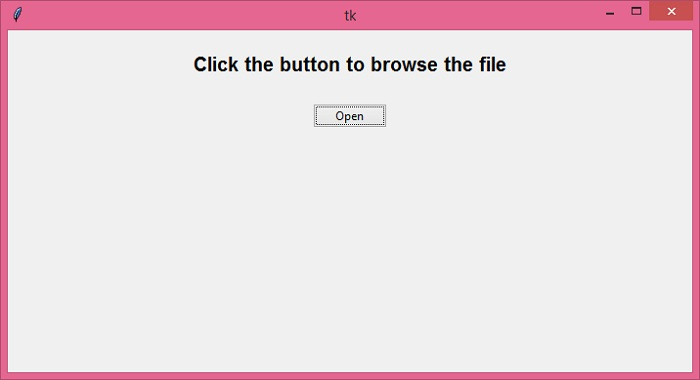
按钮部件触发文件对话框,提示用户从系统浏览文件。

我们在 askopenfilename() 函数中指定了 "initialdir=C:/"。因此,它将 C 盘作为初始目录打开。

更新于: 2021年12月22日
5K+ 次查看

广告