
 数据结构
数据结构 网络
网络 关系型数据库管理系统 (RDBMS)
 操作系统
操作系统 Java
Java MS Excel
 iOS
iOS HTML
HTML CSS
CSS Android
 Python
 C 语言编程
 C++
C++ C#
C# MongoDB
 MySQL
MySQL Javascript
 PHP
PHP 物理学
物理学 化学
化学 生物学
生物学 数学
数学 英语
英语 经济学
经济学 心理学
心理学 社会学
社会学 时尚研究
时尚研究 法学研究
法学研究MATLAB App 构建中的复选框
MATLAB 提供了一个集成的 App 构建工具箱,我们可以使用它来创建基于图形用户界面的应用程序,而无需编写任何代码。因此,MATLAB 允许用户只需通过拖放功能即可创建专业的应用程序。之后,用户可以编写 MATLAB 代码来定义应用程序选项的行为。
如上所述,本文主要用于在应用程序中创建用户界面,该界面提供一系列选项,用户可以从中选择任意数量的选择。此用户界面称为复选框。
复选框通常显示为一个小方块,允许用户通过选中或取消选中该框来选择或取消选择选项。
在 MATLAB App 中创建复选框的步骤
下面解释了在 MATLAB 应用程序中创建复选框的分步过程
步骤 1 - 打开 MATLAB 并选择“APPS”选项卡,然后选择功能区上的“设计 App”选项。

步骤 2 - 通过单击“新建”选项创建一个空白 App。将打开一个新窗口,其中包含许多组件,如下面的图所示。
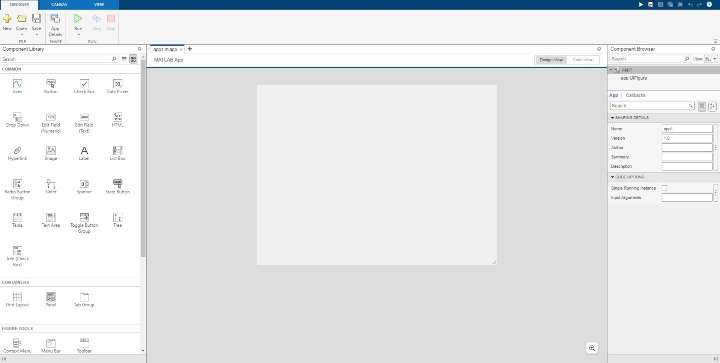
这里,组件库显示在左侧栏中,组件属性窗格显示在右侧栏中。
步骤 3 - 将“复选框”选项从组件库拖放到窗口中间显示的画布上。
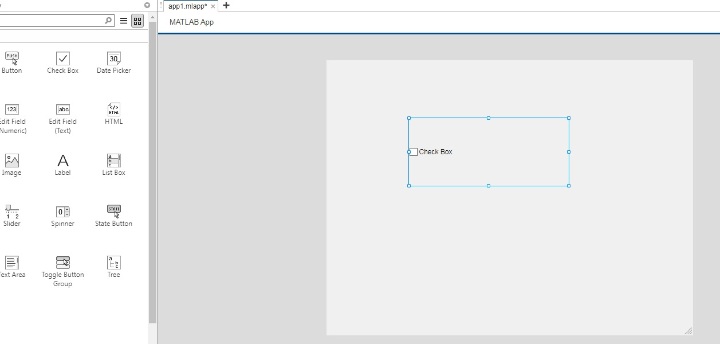
当我们这样做时,一个复选框将出现在画布上,并且一个用于自定义复选框属性的窗格将出现在右侧栏中。
步骤 4 - 定义复选框的各种属性
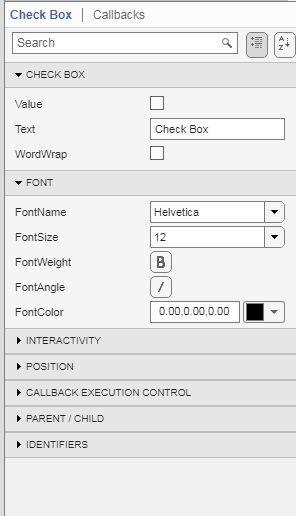
复选框 - 使用此属性,我们可以更改复选框的值和文本标签。
字体 - 使用此属性,我们可以更改复选框的字体、文本大小、文本颜色和文本角度。
交互性 - 此属性用于使复选框可见、启用、显示工具提示或创建上下文菜单。
位置 - 此属性允许我们更改复选框在画布上的位置和尺寸。
回调执行控制 - 此属性用于控制复选框的中断能力和繁忙操作。
父子关系 - 此属性控制复选框的句柄可见性。
标识符 - 此属性允许我们向复选框添加标签。
步骤 5 - 最后编写 MATLAB 代码来定义复选框的功能。
MATLAB 中的复选框创建示例
步骤 1 - 创建五个带有标签“教程”、“电子书”、“视频讲座”、“文章”和“证书课程”的复选框。
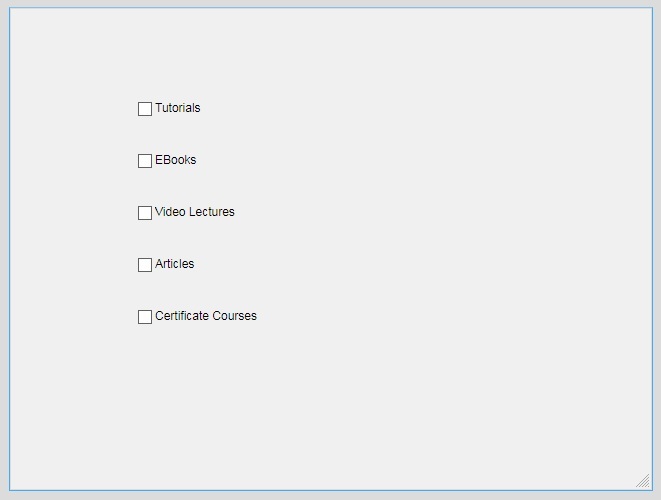
步骤 2 - 现在,编写 MATLAB 代码为每个复选框添加功能。为此,右键单击第一个复选框“教程”,然后单击“回调”选项,然后选择“添加 ValueChangedFcn 回调”选项。
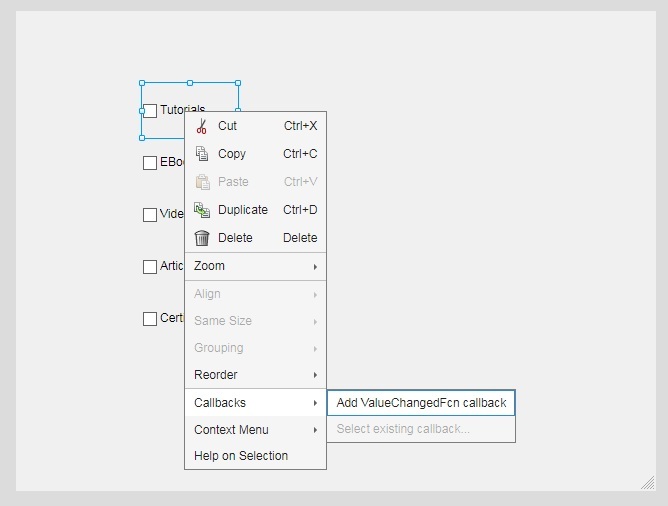
单击“添加 ValueChangedFcn 回调”选项后,它将带我们进入代码窗口,在该窗口中它添加一个名为“TutorialsCheckBoxValueChanged()”的函数。
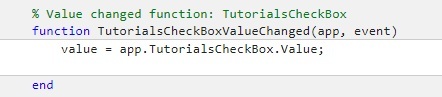
步骤 3 - 我们将在提供的空间中编写代码来添加功能。在这种情况下,我们正在定义以下功能
if value == 1
   fprintf(‘You have selected Tutorials);
end
我们将为每个复选框编写此代码。
示例
% MATLAB program to demonstrate adding checkboxes in an app
classdef app1 < matlab.apps.AppBase
   % Properties that correspond to app components
   properties (Access = public)
     UIFigure                    matlab.ui.Figure
     CertificateCoursesCheckBox  matlab.ui.control.CheckBox
     ArticlesCheckBox            matlab.ui.control.CheckBox
     VideoLecturesCheckBox       matlab.ui.control.CheckBox
     EBooksCheckBox              matlab.ui.control.CheckBox
     TutorialsCheckBox           matlab.ui.control.CheckBox
   end

   % Callbacks that handle component events
   methods (Access = private)

      % Value changed function: TutorialsCheckBox
      function TutorialsCheckBoxValueChanged(app, event)
         value = app.TutorialsCheckBox.Value;

         if value == 1
            fprintf('You have selected Tutorials');
         end
      end

      % Value changed function: EBooksCheckBox
      function EBooksCheckBoxValueChanged(app, event)
         value = app.EBooksCheckBox.Value;

         if value == 1
            fprintf('You have selected Ebooks');
         end
      end

      % Value changed function: VideoLecturesCheckBox
      function VideoLecturesCheckBoxValueChanged(app, event)
         value = app.VideoLecturesCheckBox.Value;

         if value == 1
             fprintf('You have selected Video Lectures');
            end
        end

      % Value changed function: ArticlesCheckBox
      function ArticlesCheckBoxValueChanged(app, event)
         value = app.ArticlesCheckBox.Value;

         if value == 1
            fprintf('You have selected Articles');
         end
     end

     % Value changed function: CertificateCoursesCheckBox
     function CertificateCoursesCheckBoxValueChanged(app, event)
         value = app.CertificateCoursesCheckBox.Value;

         if value == 1
           fprintf('You have selected Certificate Courses');
         end
      end
   end

   % Component initialization
   methods (Access = private)

      % Create UIFigure and components
      function createComponents(app)

         % Create UIFigure and hide until all components are created
         app.UIFigure = uifigure('Visible', 'off');
         app.UIFigure.Position = [100 100 640 480];
         app.UIFigure.Name = 'MATLAB App';

         % Show the figure after all components are created
         app.UIFigure.Visible = 'on';
      end
   end

   % App creation and deletion
   methods (Access = public)

      % Construct app
      function app = app1

         % Create UIFigure and components
         createComponents(app)

         % Register the app with App Designer
         registerApp(app, app.UIFigure)

         if nargout == 0
            clear app
         end
      end

      % Code that executes before app deletion
      function delete(app)

         % Delete UIFigure when app is deleted
         delete(app.UIFigure)
      end
   end
end
输出
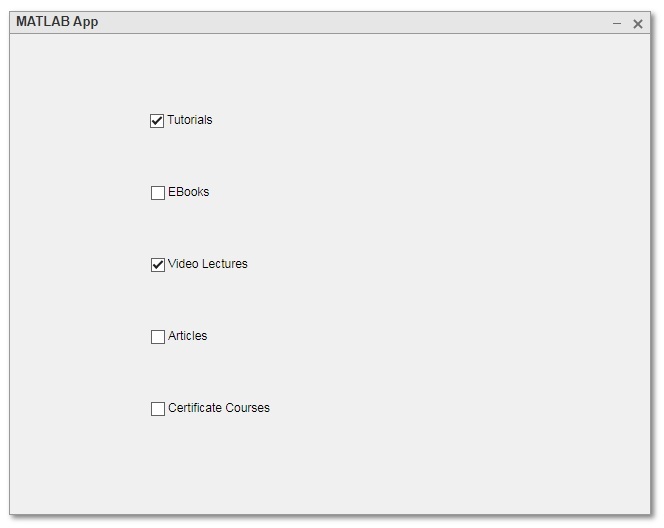
You have selected Tutorials
You have selected Video Lectures
通过这种方式,我们可以在 MATLAB 应用程序中创建复选框。

浏览量:187
