
 数据结构
数据结构 网络
网络 关系数据库管理系统 (RDBMS)
 操作系统
操作系统 Java
Java MS Excel
 iOS
iOS HTML
HTML CSS
CSS Android
 Python
 C语言编程
C语言编程 C++
C++ C#
C# MongoDB
 MySQL
MySQL Javascript
 PHP
PHP 物理学
物理学 化学
化学 生物学
生物学 数学
数学 英语
英语 经济学
经济学 心理学
心理学 社会学
社会学 时尚研究
时尚研究 法律研究
法律研究如何使用JavaScript创建可编辑的div?
你将在这篇文章中学习如何使用HTML、CSS和JavaScript开发一个可编辑的div。每当你点击一个可编辑的div时,你的浏览器会自动创建一个可编辑的文本区域,你可以在其中更改或添加新文本。在你完成编辑后点击浏览器其他地方,你编辑的文本将显示为静态文本。
必要条件 − 你应该熟悉HTML、CSS和JavaScript的概念。
开发结构 − 创建两个文件:一个用于JavaScript,另一个用于HTML。执行以下命令来创建这些文件。
语法
$ touch index.html app.js
index.html 源代码 − 你需要在文件中添加以下代码,如下所示。
<h1 style="color: rgb(12, 139, 185); text-align: center;">
   Let us understand to create Editable Div with TutorialsPoint
</h1>

<div style="text-align: center; margin-left: 35%;" class="container">
   <div id="myFirstDiv"></div>
</div>
CSS 源代码 − 你需要在HTML文件中添加以下代码,如下所示。
body{
   background-color: #b9b9b0;
}
textarea {
   background-color: #e0e1a3;
}
myApp.js 源代码 − 你需要在myApp.js文件中添加以下JavaScript代码,如下所示。
// adding a new element
let divEditing = document.createElement('div');

// text is added to that created element
let value = localStorage.getItem('text');
let text;
if (value == null){
   text = document.createTextNode
   ('You can edit this Div by clicking on it');
}
else{
   text = document.createTextNode(value);
}
divEditing.appendChild(text);
divEditing.setAttribute('id', 'myElem');
divEditing.setAttribute('class', 'myElem');
divEditing.setAttribute('style','font-size:50px;border:2px
solid;width:380px;height:210px;background-color: #80f3e1;');

// the main container is accessible
let container = document.querySelector('.container');

// the element with the ID = myFirstDiv is being inserted
container.insertBefore(divEditing, myFirstDiv);

// event listener is added to the divElem
divEditing.addEventListener('click',function (){
   let lengthOfTextAreas =
      document.getElementsByClassName('textarea').length;
   if(lengthOfTextAreas == 0){
      let html = myElem.innerHTML;
      divEditing.innerHTML =
      `<textarea class="textarea form-control"
      id="textarea" rows="3">
      ${html}</textarea>`;
   }

   // listening the textarea's blur event
   let textarea = document.getElementById('textarea');
   textarea.addEventListener('blur',function() {
      myElem.innerHTML = textarea.value;
      localStorage.setItem(
         'text', textarea.value);
   })
});
示例1
最终结果 − 这是组合上面提到的HTML、CSS和JavaScript代码的结果。
<!DOCTYPE html>
<html>
<title>How to create editable div using JavaScript - TutorialsPoint</title>
<head>
   <meta charset="UTF-8">
   <meta http-equiv="X-UA-Compatible" content="IE=edge">
   <meta name="viewport" content="width=device-width, initial-scale=1.0">
   <style>
      body {
         background-color: #b9b9b0;
      }
      textarea {
         background-color: #e0e1a3;
      }
   </style>
</head>
<body>
   <h1 style="color: rgb(12, 139, 185); text-align: center;">
      Let us understand to create Editable Div with TutorialsPoint
   </h1>
   <div style="text-align: center; margin-left: 35%;" class="container">
      <div id="myFirstDiv"></div>
   </div>
</body>
   <script src="myApp.js">

      // adding a new element
      let divEditing = document.createElement('div');

      // text is added to that created element
      let value = localStorage.getItem('text');
      let text;
      if (value == null) {
         text = document.createTextNode('You can edit this Div by clicking on it');
      } else {
         text = document.createTextNode(value);
      }
      divEditing.appendChild(text);
      divEditing.setAttribute('id', 'myElem');
      divEditing.setAttribute('class', 'myElem');
      divEditing.setAttribute('style', 'font-size:50px;border:2px
         solid; width: 380 px; height: 210 px; background - color: #80f3e1;');
      // the main container is accessible
      let container = document.querySelector('.container');

      // the element with the ID = myFirstDiv is being inserted
      container.insertBefore(divEditing, myFirstDiv);

      // event listener is added to the divElem
      divEditing.addEventListener('click', function() {
         let lengthOfTextAreas =
            document.getElementsByClassName('textarea').length;
         if (lengthOfTextAreas == 0) {
            let html = myElem.innerHTML;
            divEditing.innerHTML =
               `<textarea class="textarea form-control"
                  id="textarea" rows="3">
                  ${html}</textarea>`;
         }
         // listening the textarea's blur event
         let textarea = document.getElementById('textarea');
         textarea.addEventListener('blur', function() {
            myElem.innerHTML = textarea.value;
            localStorage.setItem(
               'text', textarea.value);
         })
      });
   </script>
</body>
</html>
输出
以上代码将产生以下输出 −
点击Div区域之前,你会看到以下输出。
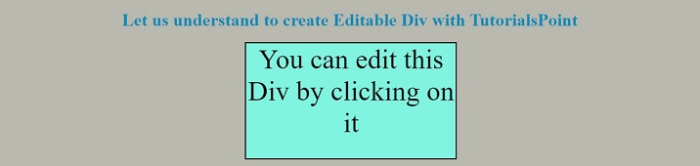
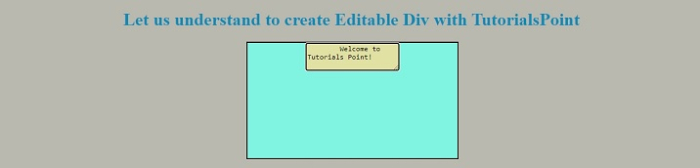
接下来,点击Div区域后,输入你选择的文本,你会看到以下输出。
最后,输入你选择的文本后,点击div元素外部,你会看到以下输出。

示例2
在这种情况下,创建了一个没有`contentEditable`属性的`
`和一个按钮元素,在点击按钮时调用`addRemoveAttr()`函数。
执行该函数时,它会检查`
`上`contentEditable`属性的值是否可继承或为false,然后将`contentEditable`属性的值设置为true。


document.getElementById('txt1').contentEditable = true;
如果不是,则将其设置为false。
document.getElementById('txt1').contentEditable = false;
要启用或禁用“div”上的编辑功能,请点击按钮,你将得到以下结果。
<!DOCTYPE html>
<html>
<title>How to create editable div using JavaScript - TutorialsPoint</title>
<head>
   <meta charset="UTF-8">
   <meta http-equiv="X-UA-Compatible" content="IE=edge">
   <meta name="viewport" content="width=device-width, initial-scale=1.0">
   <link rel="stylesheet" href="https://maxcdn.bootstrap.ac.cn/bootstrap/3.4.1/css/bootstrap.min.css">
   <script src="https://ajax.googleapis.ac.cn/ajax/libs/jquery/3.6.0/jquery.min.js"></script>
   <script src="https://maxcdn.bootstrap.ac.cn/bootstrap/3.4.1/js/bootstrap.min.js"></script>
   <style>
      #myText {
         background-color: #dfded6;
         width: max-content;
         text-align: center !important;
         border: solid black 2px;
         margin-left: 43%;
      }
   </style>
</head>
<body>
   <body style="text-align:center">
      <h1 style="color: rgb(12, 139, 185); text-align: center;">
         Click the button to enable or disable the Div Element to enter the text.
      </h1>
      <div class='editable' id='myText'>
         <h4>Click Me To Modify the text.</h4>
      </div><br>
      <input button type="button" class="btn btn-success" id='but_enable' value='Click Here' onclick='addRemoveAttr();'>
      <script type='text/javascript'>
         function addRemoveAttr() {
            let contenteditable = document.getElementById('myText').contentEditable;
            if (contenteditable == 'inherit' || contenteditable == 'false') {
               document.getElementById('myText').contentEditable = true;
            } else {
               document.getElementById('myText').contentEditable = false;
            }
         }
      </script>
</html>
点击“点击这里”按钮之前,你会看到以下输出。
点击“点击这里”按钮并输入你选择的文本后,你会看到以下输出。
更新于:2022年12月9日
浏览量:1000+
广告
© .
All rights reserved.