
 数据结构
数据结构 网络
网络 关系数据库管理系统
 操作系统
操作系统 Java
Java MS Excel
 iOS
iOS HTML
HTML CSS
CSS Android
 Python
 C语言编程
C语言编程 C++
C++ C#
C# MongoDB
 MySQL
MySQL Javascript
 PHP
PHP 物理学
物理学 化学
化学 生物学
生物学 数学
数学 英语
英语 经济学
经济学 心理学
心理学 社会学
社会学 时尚研究
时尚研究 法律研究
法律研究如何在Android中获取Wi-Fi连接状态?
此示例演示了如何在Android中获取Wi-Fi连接状态。
步骤 1 - 在Android Studio中创建一个新项目,转到文件 ⇒ 新建项目,并填写所有必需的详细信息以创建新项目。
步骤 2 - 将以下代码添加到res/layout/activity_main.xml。
<?xml version = "1.0" encoding = "utf-8"?>
<LinearLayout xmlns:android = "http://schemas.android.com/apk/res/android"
   xmlns:app = "http://schemas.android.com/apk/res-auto"
   xmlns:tools = "http://schemas.android.com/tools"
   android:layout_width = "match_parent"
   android:gravity = "center"
   android:layout_height = "match_parent"
   tools:context = ".MainActivity">
   <TextView
      android:id = "@+id/text"
      android:textSize = "30sp"
      android:layout_width = "match_parent"
      android:layout_height = "match_parent" />
</LinearLayout>
在上面的代码中,我们使用了TextView来显示Wi-Fi连接状态。
步骤 3 - 将以下代码添加到src/MainActivity.java
package com.example.myapplication;
import android.content.Context;
import android.net.ConnectivityManager;
import android.net.NetworkInfo;
import android.os.Build;
import android.os.Bundle;
import android.support.annotation.RequiresApi;
import android.support.v7.app.AppCompatActivity;
import android.widget.TextView;
public class MainActivity extends AppCompatActivity {
   TextView textView;
   @RequiresApi(api = Build.VERSION_CODES.N)
   @Override
   protected void onCreate(Bundle savedInstanceState) {
      super.onCreate(savedInstanceState);
      setContentView(R.layout.activity_main);
      textView = findViewById(R.id.text);
      ConnectivityManager connManager = (ConnectivityManager)    getSystemService(Context.CONNECTIVITY_SERVICE);
      NetworkInfo networkInfo = connManager.getNetworkInfo(ConnectivityManager.TYPE_WIFI);
      textView.setText("" + networkInfo.getDetailedState());
   }
   @Override
   protected void onStop() {
      super.onStop();
   }
   @Override
   protected void onResume() {
      super.onResume();
   }
}
步骤 4 - 将以下代码添加到AndroidManifest.xml
<?xml version = "1.0" encoding = "utf-8"?>
<manifest xmlns:android = "http://schemas.android.com/apk/res/android"
   package = "com.example.myapplication">
   <uses-permission android:name = "android.permission.ACCESS_NETWORK_STATE" />
   <uses-permission android:name = "android.permission.ACCESS_WIFI_STATE" />
   <application
      android:allowBackup = "true"
      android:icon = "@mipmap/ic_launcher"
      android:label = "@string/app_name"
      android:roundIcon = "@mipmap/ic_launcher_round"
      android:supportsRtl = "true"
      android:theme = "@style/AppTheme">
      <activity android:name = ".MainActivity">
         <intent-filter>
            <action android:name = "android.intent.action.MAIN" />
            <action android:name = "android.net.conn.CONNECTIVITY_CHANGE" />
            <category android:name = "android.intent.category.LAUNCHER" />
         </intent-filter>
      </activity>
   </application>
</manifest>
让我们尝试运行您的应用程序。我假设您已将您的实际Android移动设备连接到您的计算机。要从Android Studio运行应用程序,请打开项目中的一个活动文件,然后单击工具栏中的运行  图标。选择您的移动设备作为选项,然后检查您的移动设备,它将显示您的默认屏幕 -
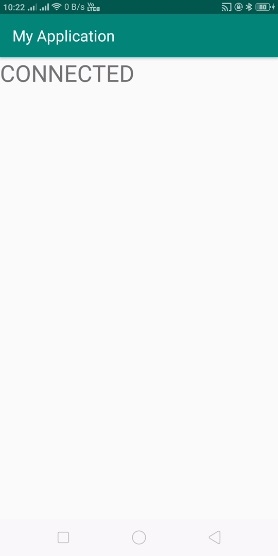
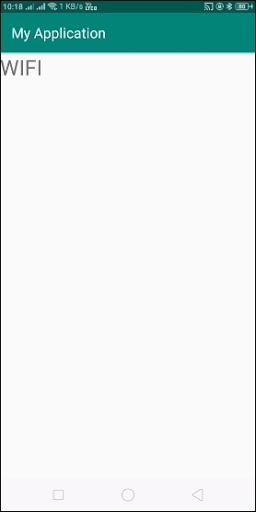
点击这里下载项目代码

更新于: 2019年7月30日
514 次浏览

广告