
 数据结构
数据结构 网络
网络 关系数据库管理系统 (RDBMS)
 操作系统
操作系统 Java
Java MS Excel
 iOS
iOS HTML
HTML CSS
CSS Android
 Python
 C 编程
C 编程 C++
C++ C#
C# MongoDB
 MySQL
MySQL Javascript
 PHP
PHP 物理学
物理学 化学
化学 生物学
生物学 数学
数学 英语
英语 经济学
经济学 心理学
心理学 社会学
社会学 服装设计
服装设计 法学
法学如何在 Excel 中将多个文本文件导入到多个工作表?
Microsoft Excel 在管理和分析海量数据方面的效率广受好评。然而,将多个文本文件导入到 Excel 中的不同工作表中,乍一看似乎是一项艰巨的任务。幸运的是,Excel 本身提供了一个简单而强大的解决方案,可以无缝地实现这一点。本文将逐步介绍将多个文本文件导入到不同工作表中的技术,以增强组织结构并促进对数据集的有效分析。
一旦您掌握了这些方法,您将能够更好地将数据从多个文本文件导入到 Excel 中,从而在处理大型数据集时节省时间和精力。无论您是处理来自各种来源的数据,还是需要整合来自多个文本文件的的信息,Excel 多功能的导入功能都将使您能够简化工作流程。让我们深入了解在 Excel 中导入文本文件的世界,并发现能够增强您的数据管理技能的实用技术。
使用 VBA 宏导入多个文本文件
如果您熟悉 Excel VBA(Visual Basic for Applications),您可以利用其编程功能将多个文本文件导入到单独的工作表中。这种方法为处理特定需求提供了灵活性和自定义选项。
要启用 Excel 中的 VBA,请按照以下说明操作:
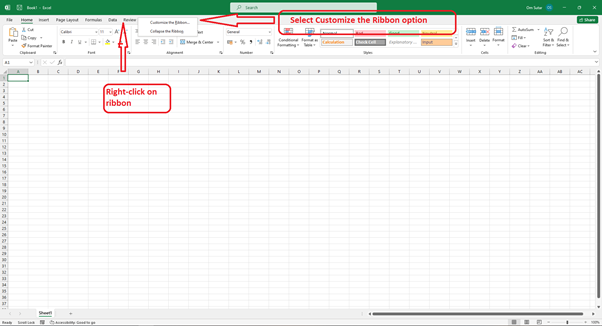
右键单击功能区,然后选择“自定义功能区”选项。
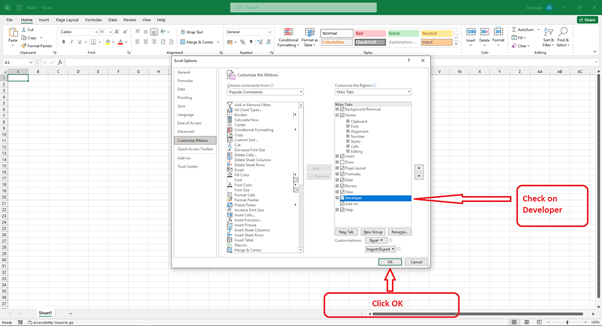
选中“开发工具”框,然后单击“确定”。
方法一:通过选择包含所有所需文本文件的文件夹,使用 VBA 宏导入多个文本文件
如果您熟悉 Excel VBA(Visual Basic for Applications),您可以利用其编程功能将多个文本文件导入到单独的工作表中。这种方法为处理特定需求提供了灵活性和自定义选项。
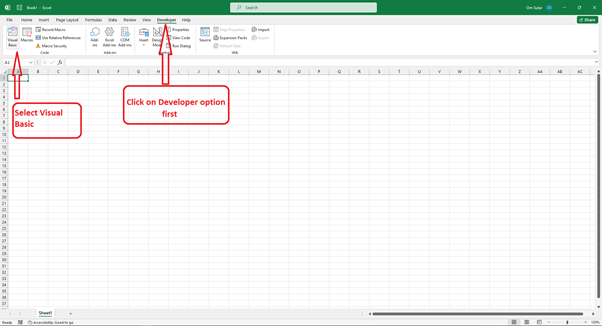
步骤 1 - 在 Excel 中打开 Visual Basic 编辑器。您可以按“Alt+F11”或导航到功能区中的“开发工具”选项卡,然后选择“Visual Basic”选项。
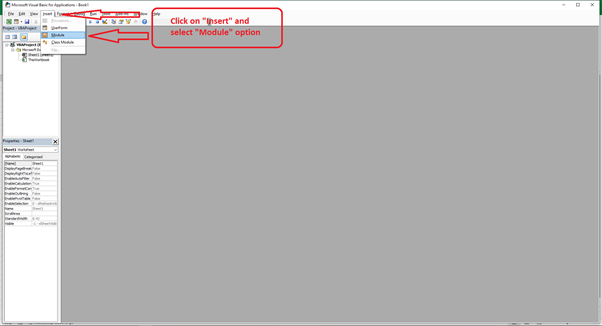
步骤 2 - 在 Visual Basic 编辑器中,单击“插入”,然后选择“模块”以插入一个新模块。
步骤 3 - 在模块中,粘贴以下 VBA 代码 -
Sub LoadPipeDelimitedFiles()
   'UpdatebyExtendoffice20181010
   Dim xStrPath As String
   Dim xFileDialog As FileDialog
   Dim xFile As String
   Dim xSheetCount As Long
   Dim xWS As Worksheet
   Dim xRow As Long ' Added variable for row reference

   On Error GoTo ErrHandler
   Set xFileDialog = Application.FileDialog(msoFileDialogFolderPicker)
   xFileDialog.AllowMultiSelect = True
   xFileDialog.Title = "Select a folder [Kutools for Excel]"
   If xFileDialog.Show = -1 Then
      xStrPath = xFileDialog.SelectedItems(1)
   End If
   If xStrPath = "" Then Exit Sub

   ' Ask the user for the number of copies
   xSheetCount = InputBox("Enter the number of sheets:", "Number of Copies")
   If Not IsNumeric(xSheetCount) Or xSheetCount < 1 Then
      MsgBox "Invalid number of copies. Please enter a positive number.", vbExclamation, "Invalid Input"
      Exit Sub
   End If

   Application.ScreenUpdating = False
   Set xWS = Sheets.Add(After:=Sheets(Sheets.Count))
   xWS.Name = "Sheet 1"
   xRow = 1 ' Start with row 1

   xFile = Dir(xStrPath & "\*.txt*")
   Do While xFile <> ""
      With xWS.QueryTables.Add(Connection:="TEXT;" & xStrPath & "" & xFile, Destination:=xWS.Cells(xRow, 1)) ' Update destination range
         .Name = "a" & xSheetCount
         .FieldNames = True
         .RowNumbers = False
         .FillAdjacentFormulas = False
         .PreserveFormatting = True
         .RefreshOnFileOpen = False
         .RefreshStyle = xlInsertDeleteCells
         .SavePassword = False
         .SaveData = True
         .AdjustColumnWidth = True
         .RefreshPeriod = 0
         .TextFilePromptOnRefresh = False
         .TextFilePlatform = 437
         .TextFileStartRow = 1
         .TextFileParseType = xlDelimited
         .TextFileTextQualifier = xlTextQualifierDoubleQuote
         .TextFileConsecutiveDelimiter = False
         .TextFileTabDelimiter = False
         .TextFileSemicolonDelimiter = False
         .TextFileCommaDelimiter = False
         .TextFileSpaceDelimiter = False
         .TextFileOtherDelimiter = "|"
         .TextFileColumnDataTypes = Array(1, 1, 1)
         .TextFileTrailingMinusNumbers = True
         .Refresh BackgroundQuery:=False
      End With
      xFile = Dir
      xRow = xRow + 1 ' Increment row reference
   Loop

   ' Create copies of the sheet
   For i = 2 To xSheetCount
      xWS.Copy After:=Sheets(Sheets.Count)
      Sheets(Sheets.Count).Name = "Sheet " & i
   Next i

   Application.ScreenUpdating = True
   Exit Sub

ErrHandler:
   MsgBox "No txt files found.", , "Kutools for Excel"
End Sub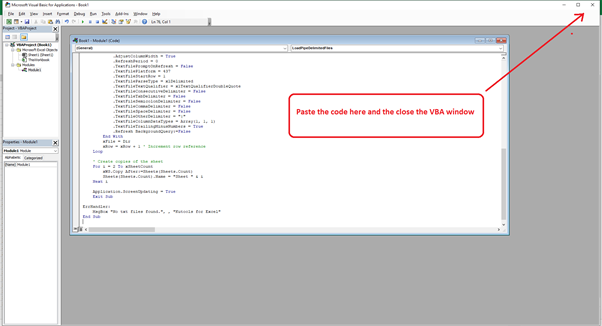
步骤 4 - 选择“宏”选项卡。
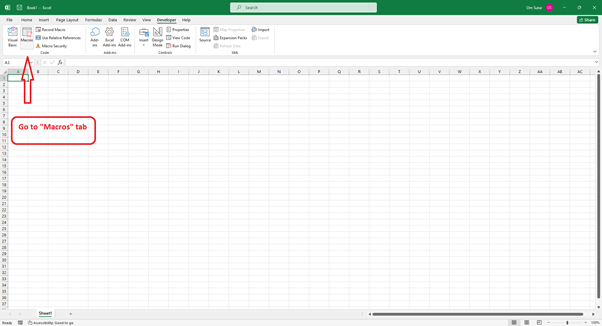
步骤 5 - 选择可用的宏,然后单击“运行”。
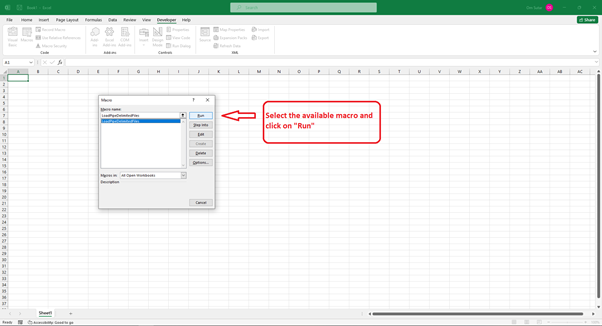
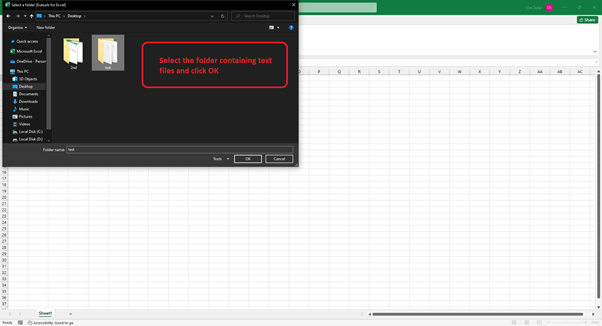
步骤 6 - 它将打开一个窗口以选择包含文本文件的文件夹。
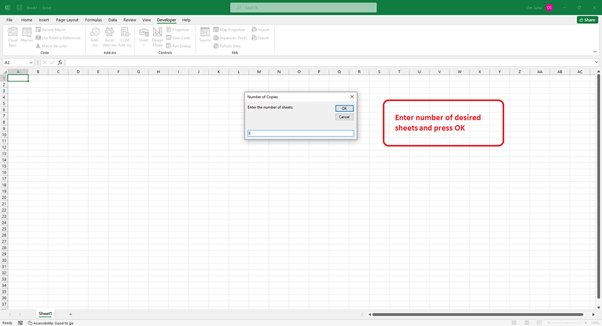
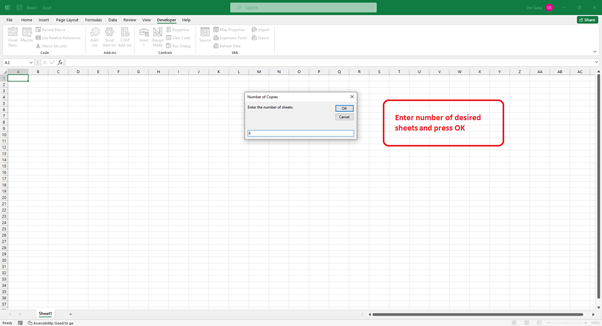
步骤 7 - 它将询问您需要的表数。输入所需的数字,然后单击“确定”。
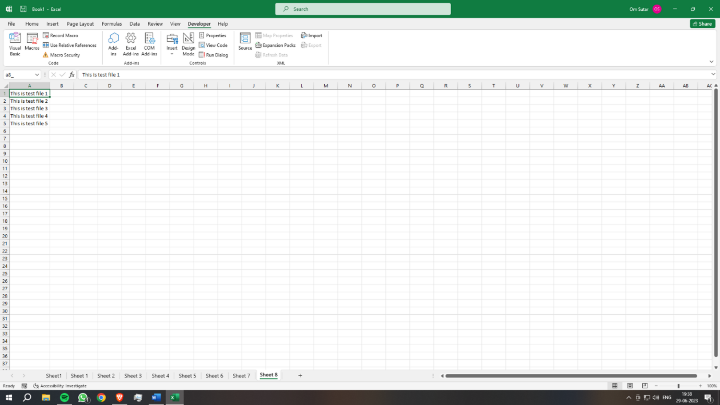
Excel 将把数据从文本文件导入到单独的工作表中。
方法二:通过选择所需的文本文件,使用 VBA 宏导入多个文本文件
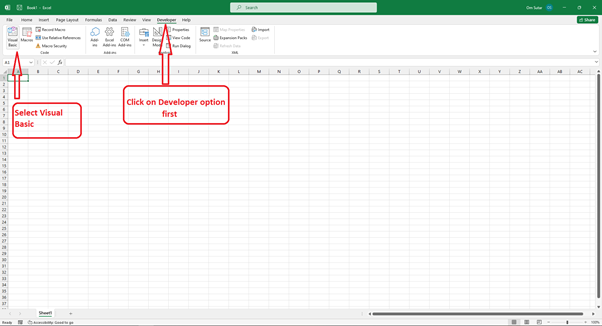
步骤 1 - 要在 Excel 中打开 Visual Basic 编辑器,您可以按“Alt+F11”。或者,您可以在功能区中打开“开发工具”选项卡,然后选择“Visual Basic”选项。
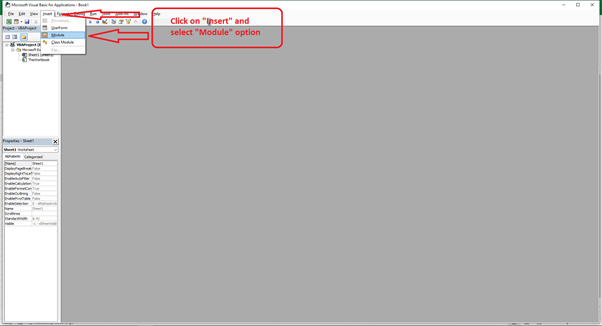
步骤 2 - 在 Visual Basic 编辑器中,单击“插入”,然后选择“模块”以插入一个新模块。
步骤 3 - 在模块中,粘贴以下 VBA 代码 -
Sub LoadPipeDelimitedFiles()
   'UpdatebyExtendoffice20181010
   Dim xFileDialog As FileDialog
   Dim xFile As Variant
   Dim xSheetCount As Long
   Dim xWS As Worksheet
   Dim xRow As Long ' Added variable for row reference
   Dim i As Long ' Added variable for loop counter

   On Error GoTo ErrHandler
   Set xFileDialog = Application.FileDialog(msoFileDialogFilePicker)
   xFileDialog.AllowMultiSelect = True
   xFileDialog.Title = "Select text files [Kutools for Excel]"
   xFileDialog.Filters.Clear
   xFileDialog.Filters.Add "Text Files", "*.txt"

   If xFileDialog.Show = -1 Then
      xSheetCount = InputBox("Enter the number of sheets:", "Number of Copies")
      If Not IsNumeric(xSheetCount) Or xSheetCount < 1 Then
         MsgBox "Invalid number of copies. Please enter a positive number.", vbExclamation, "Invalid Input"
         Exit Sub
      End If

      Application.ScreenUpdating = False
      Set xWS = Sheets.Add(After:=Sheets(Sheets.Count))
      xWS.Name = "Sheet 1"
      xRow = 1 ' Start with row 1

      For Each xFile In xFileDialog.SelectedItems
         With xWS.QueryTables.Add(Connection:="TEXT;" & xFile, Destination:=xWS.Cells(xRow, 1)) ' Update destination range
            .Name = "a" & xSheetCount
            .FieldNames = True
            .RowNumbers = False
            .FillAdjacentFormulas = False
            .PreserveFormatting = True
            .RefreshOnFileOpen = False
            .RefreshStyle = xlInsertDeleteCells
            .SavePassword = False
            .SaveData = True
            .AdjustColumnWidth = True
            .RefreshPeriod = 0
            .TextFilePromptOnRefresh = False
            .TextFilePlatform = 437
            .TextFileStartRow = 1
            .TextFileParseType = xlDelimited
            .TextFileTextQualifier = xlTextQualifierDoubleQuote
            .TextFileConsecutiveDelimiter = False
            .TextFileTabDelimiter = False
            .TextFileSemicolonDelimiter = False
            .TextFileCommaDelimiter = False
            .TextFileSpaceDelimiter = False
            .TextFileOtherDelimiter = "|"
            .TextFileColumnDataTypes = Array(1, 1, 1)
            .TextFileTrailingMinusNumbers = True
            .Refresh BackgroundQuery:=False
         End With
         xRow = xRow + 1 ' Increment row reference
      Next xFile

      ' Create copies of the sheet
      For i = 2 To xSheetCount
         xWS.Copy After:=Sheets(Sheets.Count)
         Sheets(Sheets.Count).Name = "Sheet " & i
      Next i

      Application.ScreenUpdating = True
      Exit Sub
   End If

ErrHandler:
   MsgBox "No text files selected.", , "Kutools for Excel"
End Sub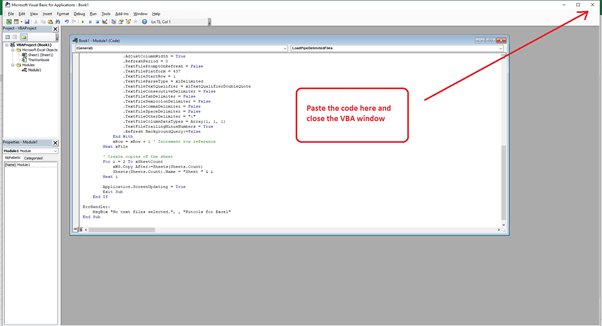
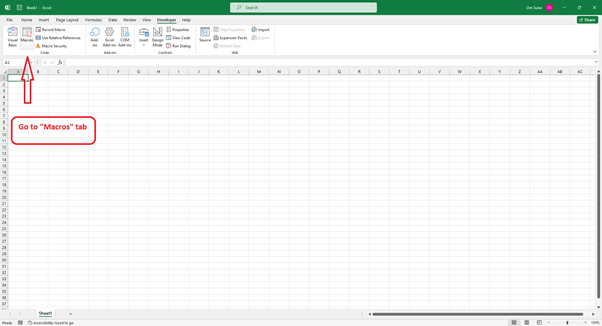
步骤 4 - 选择“宏”选项卡。
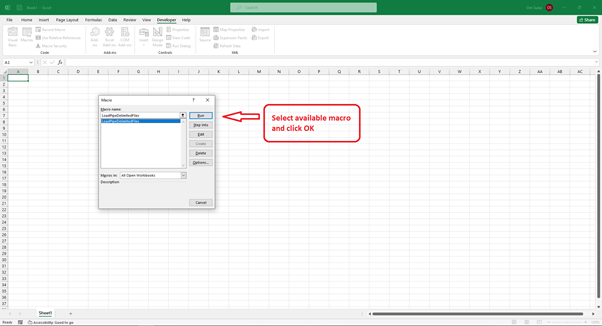
步骤 5 - 选择可用的宏,然后单击“运行”。
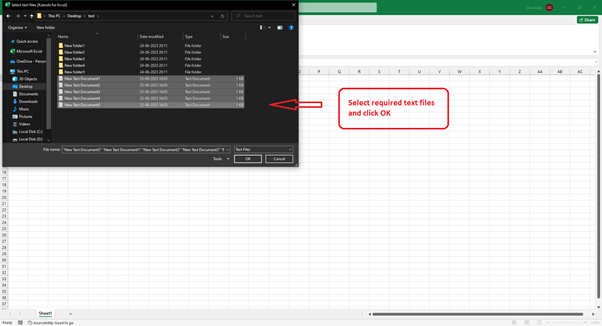
步骤 6 - 它将打开一个选择文本文件的窗口。按住“Ctrl”键并单击您想要的文件来选择多个文本文件,然后按“确定”。
步骤 7 - 它将询问您需要的表数。输入所需的数字,然后单击“确定”。
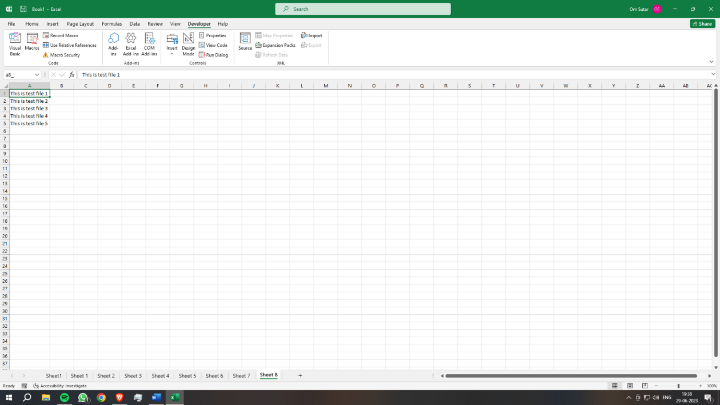
Excel 将把数据从文本文件导入到单独的工作表中。
结论
将多个文本文件导入 Excel 的多个工作表中是一项非常有效的功能,它极大地提高了您高效管理和分析数据的能力。在本文中,我们研究了两种成功完成此任务的方法。第一种方法使用了 Excel 的 Power Query 编辑器,允许您轻松地从多个文本文件导入和转换数据。第二种方法涉及使用 VBA 宏来自动化导入过程,为特定需求提供自定义选项。
将这些技术融入您的 Excel 工作流程中,以简化文本文件的导入,节省时间并提高数据管理能力。Excel 多功能的导入功能使您可以无缝地处理来自各种来源的数据,从而促进数据分析和决策过程。

1K+ 次浏览
