
 数据结构
数据结构 网络
网络 关系数据库管理系统 (RDBMS)
 操作系统
操作系统 Java
Java MS Excel
 iOS
iOS HTML
HTML CSS
CSS Android
 Python
 C语言编程
C语言编程 C++
C++ C#
C# MongoDB
 MySQL
MySQL Javascript
 PHP
PHP 物理学
物理学 化学
化学 生物学
生物学 数学
数学 英语
英语 经济学
经济学 心理学
心理学 社会学
社会学 时尚研究
时尚研究 法学研究
法学研究如何在Android系统中通过彩信发送图片?
介绍
多媒体信息服务 (MMS) 是一种通过手机向不同联系人发送图片和其他媒体文件以及文本的好方法。如果您想将图片发送给您的联系人,那么 MMS 是发送给朋友和家人的好方法。在本文中,我们将了解如何在 Android 系统中通过 MMS 发送图片。
实现
我们将创建一个简单的应用程序,其中我们将创建一个文本视图来显示应用程序的标题。之后,我们将创建一个图像视图来显示从图库中选择的图片。之后,我们将显示一个按钮,用于从图库中选择要发送的图片。然后,我们将创建一个编辑文本,用于添加 MMS 的短信正文。之后,我们将显示一个按钮,我们将使用它来发送 MMS。现在让我们转向 Android Studio 来创建一个新的 Android Studio 项目。
步骤 1:在 Android Studio 中创建一个新项目
导航到 Android Studio,如下面的屏幕所示。在下面的屏幕中,单击“新建项目”以创建一个新的 Android Studio 项目。
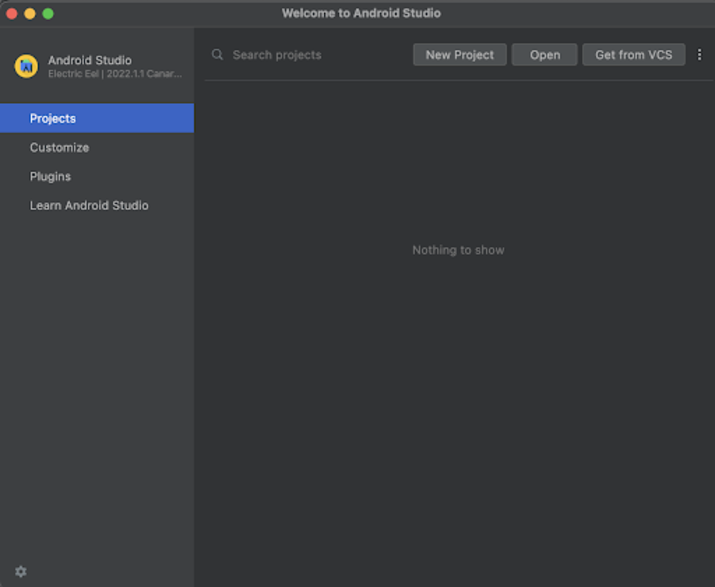
单击“新建项目”后,您将看到下面的屏幕。
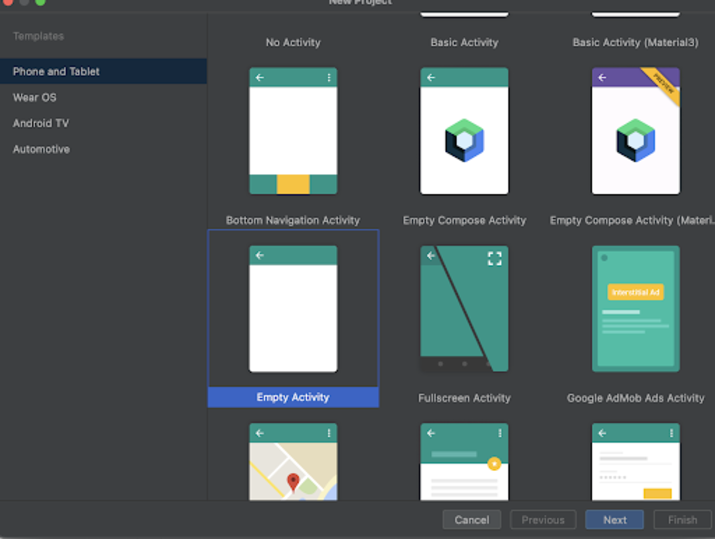
在这个屏幕中,我们只需选择“空活动”,然后单击“下一步”。单击“下一步”后,您将看到下面的屏幕。
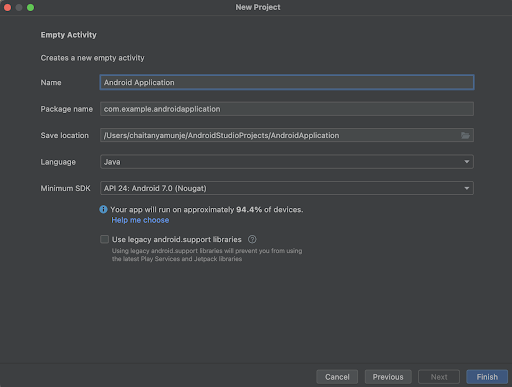
在这个屏幕中,我们只需指定项目名称。然后包名将自动生成。
注意:确保选择 Java 作为语言。
指定所有详细信息后,单击“完成”以创建一个新的 Android Studio 项目。
项目创建完成后,我们将看到打开的两个文件:activity_main.xml 和 MainActivity.java 文件。
步骤 2:使用 activity_main.xml
导航到 activity_main.xml。如果此文件不可见,要打开此文件,请在左侧窗格中导航到 app>res>layout>activity_main.xml 以打开此文件。打开此文件后,向其中添加以下代码。代码中添加了注释以详细了解。
<?xml version="1.0" encoding="utf-8"?>
<RelativeLayout xmlns:android="http://schemas.android.com/apk/res/android"
   xmlns:app="http://schemas.android.com/apk/res-auto"
   xmlns:tools="http://schemas.android.com/tools"
   android:layout_width="match_parent"
   android:layout_height="match_parent">

   <!-- on below line creating the heading of our application -->
   <TextView
       android:id="@+id/idTVHeading"
       android:layout_width="match_parent"
       android:layout_height="wrap_content"
       android:layout_above="@id/idIVImage"
       android:layout_margin="10dp"
       android:layout_marginTop="90dp"
       android:padding="8dp"
       android:text="Send image via MMS in Android"
       android:textAlignment="center"
       android:textColor="@color/black"
       android:textSize="20sp"
       android:textStyle="bold" />

   <!-- on below line creating image view for displaying the image picked from gallery -->
   <ImageView
       android:id="@+id/idIVImage"
       android:layout_width="200dp"
       android:layout_height="200dp"
       android:layout_above="@id/idBtnChooseImage"
       android:layout_centerHorizontal="true"
       android:layout_margin="10dp" />

   <!-- on below line creating a button to pick image from internal storage -->
   <Button
       android:id="@+id/idBtnChooseImage"
       android:layout_width="match_parent"
       android:layout_height="wrap_content"
       android:layout_centerInParent="true"
       android:layout_margin="20dp"
       android:text="Choose Image"
       android:textAllCaps="false" />

   <!--on below line creating edit text for entering sms body -->
   <EditText
       android:id="@+id/idEdtBody"
       android:layout_width="match_parent"
       android:layout_height="wrap_content"
       android:layout_below="@id/idBtnChooseImage"
       android:layout_margin="10dp"
       android:hint="Enter SMS Body" />

   <!-- on below line creating a button to send sms -->
   <Button
       android:id="@+id/idBtnSendMMS"
       android:layout_width="match_parent"
       android:layout_height="wrap_content"
       android:layout_below="@id/idEdtBody"
       android:layout_margin="20dp"
       android:text="Send MMS"
       android:textAllCaps="false" />
</RelativeLayout>
说明:在上面的代码中,我们创建了一个根布局作为相对布局。在这个布局中,我们创建一个文本视图,用于显示应用程序的标题。之后,我们创建一个图像视图,用于显示用户选择的图片。在这个图像视图之后,我们显示一个用于选择该图片的按钮。然后,我们显示一个编辑文本,用于输入短信正文。之后,我们显示另一个按钮,用于通过手机中的默认短信应用程序发送 MMS 消息。
步骤 3:在 AndroidManifest.xml 文件中添加权限
导航到 app>AndroidManifest.xml 文件,并在 manifest 标签中添加以下权限,以读取外部存储中的图片并发送短信。
<uses-permission android:name="android.permission.READ_EXTERNAL_STORAGE"/>
<uses-permission android:name="android.permission.SEND_SMS"/>
步骤 4:使用 MainActivity.java 文件
导航到 MainActivity.java。如果此文件不可见,要打开此文件,请在左侧窗格中导航到 app>res>layout>MainActivity.java 以打开此文件。打开此文件后,向其中添加以下代码。代码中添加了注释以详细了解。
package com.example.java_test_application;
import android.content.Intent;
import android.net.Uri;
import android.os.Bundle;
import android.view.View;
import android.widget.Button;
import android.widget.EditText;
import android.widget.ImageView;
import android.widget.ListView;
import android.widget.TextView;
import android.widget.Toast;
import androidx.annotation.Nullable;
import androidx.appcompat.app.AppCompatActivity;
public class MainActivity extends AppCompatActivity {
   // creating variable for button on below line.
   private Button chooseImgBtn, sendMMSBtn;
   // creating variable for image view on below line.
   private ImageView imageView;
   // creating variable for image uri on below line.
   private String imageUri = "";
   // creating variable for edit text on below line.
   private EditText msgEdt;
   @Override
   protected void onCreate(Bundle savedInstanceState) {
       super.onCreate(savedInstanceState);
       setContentView(R.layout.activity_main);
       // initializing variables for button on below line.
       chooseImgBtn = findViewById(R.id.idBtnChooseImage);
       sendMMSBtn = findViewById(R.id.idBtnSendMMS);
       // initializing variable for image view on below line.
       imageView = findViewById(R.id.idIVImage);
       // initializing variable for edit text on below line.
       msgEdt = findViewById(R.id.idEdtBody);
       // on below line adding click listner for choose image button.
       chooseImgBtn.setOnClickListener(new View.OnClickListener() {
           @Override
           public void onClick(View v) {
               // on below line choosing image using intent.
               Intent i = new Intent();
               // on below line setting intent type.
               i.setType("image/*");
               // on below line setting action for intent.
               i.setAction(Intent.ACTION_GET_CONTENT);
               // on below line starting activity for result to select the image..
               startActivityForResult(Intent.createChooser(i, "Select Picture"), 100);
           }
       });
       // on below line adding click listener for send mms button.
       sendMMSBtn.setOnClickListener(new View.OnClickListener() {
           @Override
           public void onClick(View v) {
               // on below line checking if the edit text field is empty.
               if (msgEdt.getText().toString().isEmpty()) {
                   // if edit text field is empty displaying a toast message.
                   Toast.makeText(MainActivity.this, "Please enter MMS Body", Toast.LENGTH_SHORT).show();
               } else {
                   // on below line creating an intent to send sms
                   Intent sendIntent = new Intent(Intent.ACTION_SEND);
                   // on below line putting extra as sms body with the data from edit text
                   sendIntent.putExtra("sms_body", msgEdt.getText().toString());
                   // on below line putting extra as image uri
                   sendIntent.putExtra(Intent.EXTRA_STREAM, Uri.parse(imageUri));
                   // on below line setting intent type.
                   sendIntent.setType("image/png");
                   // on below line starting activity to send sms.
                   startActivity(sendIntent);
               }
           }
       });
   }
   // calling on activity result method.
   @Override
   protected void onActivityResult(int requestCode, int resultCode, @Nullable Intent data) {
       super.onActivityResult(requestCode, resultCode, data);
       // on below line checking if result is ok.
       if (resultCode == RESULT_OK) {
           // on below line checking for request code.
           if (requestCode == 100) {
               // on below line getting the selected image uri.
               Uri selectedImageUri = data.getData();
               // on below line checking if selected image uri is not null.
               if (null != selectedImageUri) {
                   // setting image uri in our variable.
                   imageUri = selectedImageUri.toString();
                   // loading the image from image uri in the image view
                   imageView.setImageURI(selectedImageUri);
               }
           }
       }
   }
}
说明:在上面的代码中,我们首先为按钮、编辑文本、图像视图和一个用于存储图像 URI 的字符串创建变量。现在我们将看到 onCreate 方法。这是每个 Android 应用程序的默认方法。当创建应用程序视图时,将调用此方法。在此方法中,我们将设置内容视图,即名为 activity_main.xml 的布局文件,以设置该文件中的 UI。在 onCreate 方法中,我们使用我们在 activity_main.xml 文件中指定的 ID 初始化不同的变量,例如文本按钮、图像视图和编辑文本。
之后,我们为“选择图片”按钮添加一个点击监听器。在此方法中,我们调用一个意图,该意图用于通过调用 startActivityForResult 方法从设备存储中选择图片。现在,在 activityResult 方法中,我们获取图像 URI,并在我们的图像视图中设置来自该图像 URI 的图像。之后,我们为“发送 MMS”按钮添加一个点击监听器。在此按钮的点击监听器中,我们首先验证短信正文文本是否为空,然后调用意图来发送包含附加图片的 MMS 消息。
添加上述代码后,我们只需单击顶部的绿色图标即可在移动设备上运行我们的应用程序。
注意:确保已连接到您的真实设备或模拟器。
输出
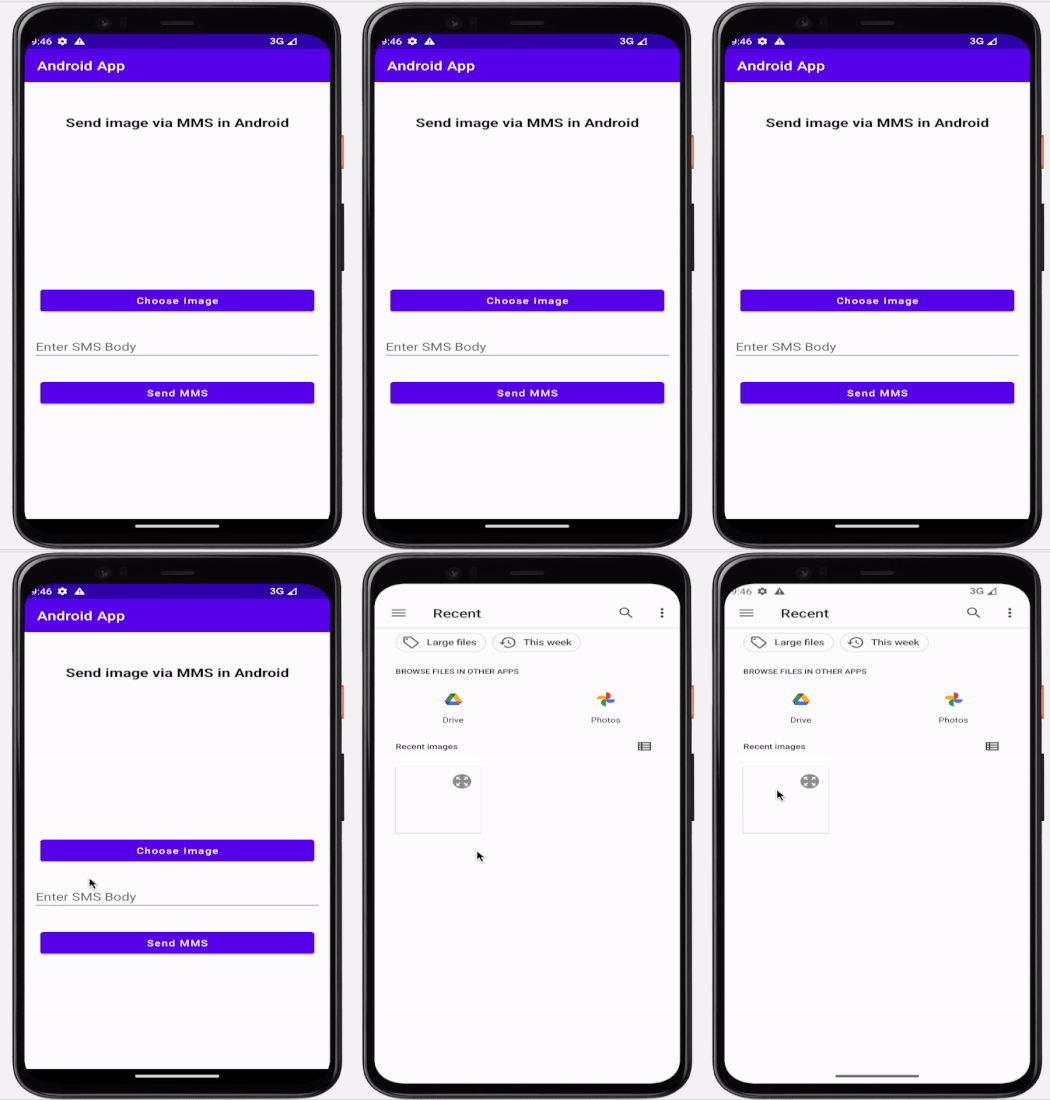
注意:由于设备是模拟器,因此我们无法发送 MMS 消息,但我们可以在真实设备上发送相同的消息。
结论
在本文中,我们了解了如何在 Android 系统中通过 MMS 发送图片。

1K+ 次浏览
