
使用预训练模型进行图像分类
在本课中,您将学习如何使用预训练模型来检测给定图像中的对象。您将使用squeezenet预训练模块,该模块可以高精度地检测和分类给定图像中的对象。
打开一个新的Juypter notebook并按照步骤开发此图像分类应用程序。
导入库
首先,我们使用以下代码导入所需的包:
from caffe2.proto import caffe2_pb2
from caffe2.python import core, workspace, models
import numpy as np
import skimage.io
import skimage.transform
from matplotlib import pyplot
import os
import urllib.request as urllib2
import operator
接下来,我们设置一些变量:
INPUT_IMAGE_SIZE = 227
mean = 128
用于训练的图像显然会有各种尺寸。为了进行准确的训练,所有这些图像都必须转换为固定尺寸。同样,测试图像和您希望在生产环境中预测的图像也必须转换为与训练期间使用的相同的尺寸。因此,我们在上面创建了一个名为INPUT_IMAGE_SIZE的变量,其值为227。因此,在将所有图像用于分类器之前,我们将将其转换为227x227尺寸。
我们还声明了一个名为mean的变量,其值为128,稍后用于改进分类结果。
接下来,我们将开发两个用于处理图像的函数。
图像处理
图像处理包括两个步骤。第一个是调整图像大小,第二个是中央裁剪图像。对于这两个步骤,我们将编写两个用于调整大小和裁剪的函数。
图像大小调整
首先,我们将编写一个用于调整图像大小的函数。如前所述,我们将图像大小调整为227x227。因此,让我们定义如下resize函数:
def resize(img, input_height, input_width):
我们通过将宽度除以高度来获得图像的纵横比。
original_aspect = img.shape[1]/float(img.shape[0])
如果纵横比大于1,则表示图像较宽,也就是说它是横向模式。我们现在调整图像高度并使用以下代码返回调整大小后的图像:
if(original_aspect>1):
   new_height = int(original_aspect * input_height)
   return skimage.transform.resize(img, (input_width,
   new_height), mode='constant', anti_aliasing=True, anti_aliasing_sigma=None)
如果纵横比小于1,则表示纵向模式。我们现在使用以下代码调整宽度:
if(original_aspect<1):
   new_width = int(input_width/original_aspect)
   return skimage.transform.resize(img, (new_width,
   input_height), mode='constant', anti_aliasing=True, anti_aliasing_sigma=None)
如果纵横比等于1,则我们不会进行任何高度/宽度调整。
if(original_aspect == 1):
   return skimage.transform.resize(img, (input_width,
   input_height), mode='constant', anti_aliasing=True, anti_aliasing_sigma=None)
为了方便您快速参考,下面给出了完整的函数代码:
def resize(img, input_height, input_width):
   original_aspect = img.shape[1]/float(img.shape[0])
   if(original_aspect>1):
      new_height = int(original_aspect * input_height)
      return skimage.transform.resize(img, (input_width,
	   new_height), mode='constant', anti_aliasing=True, anti_aliasing_sigma=None)
   if(original_aspect<1):
         new_width = int(input_width/original_aspect)
         return skimage.transform.resize(img, (new_width,
         input_height), mode='constant', anti_aliasing=True, anti_aliasing_sigma=None)
   if(original_aspect == 1):
         return skimage.transform.resize(img, (input_width,
         input_height), mode='constant', anti_aliasing=True, anti_aliasing_sigma=None)
现在,我们将编写一个用于裁剪图像中心的函数。
图像裁剪
我们如下声明crop_image函数:
def crop_image(img,cropx,cropy):
我们使用以下语句提取图像的尺寸:
y,x,c = img.shape
我们使用以下两行代码创建图像的新起点:
startx = x//2-(cropx//2)
starty = y//2-(cropy//2)
最后,我们通过使用新的尺寸创建一个图像对象来返回裁剪后的图像:
return img[starty:starty+cropy,startx:startx+cropx]
为了方便您快速参考,下面给出了整个函数代码:
def crop_image(img,cropx,cropy):
   y,x,c = img.shape
   startx = x//2-(cropx//2)
   starty = y//2-(cropy//2)
   return img[starty:starty+cropy,startx:startx+cropx]
现在,我们将编写代码来测试这些函数。
处理图像
首先,将图像文件复制到项目目录中的images子文件夹中。tree.jpg文件已复制到项目中。以下 Python 代码加载图像并将其显示在控制台上:
img = skimage.img_as_float(skimage.io.imread("images/tree.jpg")).astype(np.float32)
print("Original Image Shape: " , img.shape)
pyplot.figure()
pyplot.imshow(img)
pyplot.title('Original image')
输出如下:

请注意,原始图像的大小为600 x 960。我们需要将其调整为我们的规范227 x 227。调用我们之前定义的resize函数可以完成此操作。
img = resize(img, INPUT_IMAGE_SIZE, INPUT_IMAGE_SIZE)
print("Image Shape after resizing: " , img.shape)
pyplot.figure()
pyplot.imshow(img)
pyplot.title('Resized image')
输出如下所示:
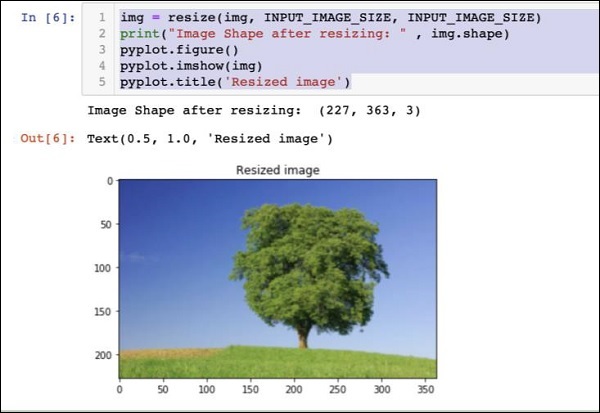
请注意,现在图像大小为227 x 363。我们需要将其裁剪为227 x 227,以便最终馈送到我们的算法中。为此,我们调用之前定义的裁剪函数。
img = crop_image(img, INPUT_IMAGE_SIZE, INPUT_IMAGE_SIZE)
print("Image Shape after cropping: " , img.shape)
pyplot.figure()
pyplot.imshow(img)
pyplot.title('Center Cropped')
下面是代码的输出:

此时,图像大小为227 x 227,并已准备好进行进一步处理。我们现在交换图像轴以将三种颜色提取到三个不同的区域。
img = img.swapaxes(1, 2).swapaxes(0, 1)
print("CHW Image Shape: " , img.shape)
输出如下所示:
CHW Image Shape: (3, 227, 227)
请注意,最后一个轴现在已成为数组中的第一个维度。我们现在将使用以下代码绘制三个通道:
pyplot.figure()
for i in range(3):
   pyplot.subplot(1, 3, i+1)
   pyplot.imshow(img[i])
   pyplot.axis('off')
   pyplot.title('RGB channel %d' % (i+1))
输出如下所示:
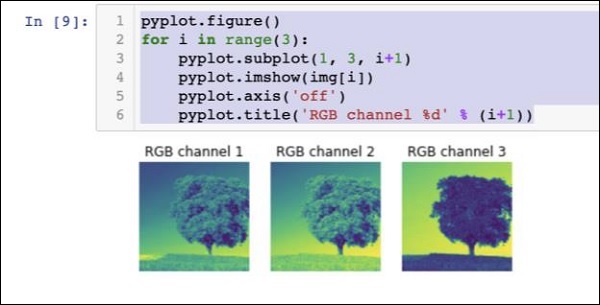
最后,我们对图像进行一些额外的处理,例如将红绿蓝转换为蓝绿红 (RGB to BGR),去除均值以获得更好的结果,并使用以下三行代码添加批次大小轴:
# convert RGB --> BGR
img = img[(2, 1, 0), :, :]
# remove mean
img = img * 255 - mean
# add batch size axis
img = img[np.newaxis, :, :, :].astype(np.float32)
此时,您的图像已采用NCHW格式,并已准备好馈送到我们的网络中。接下来,我们将加载我们的预训练模型文件并将上述图像馈送到其中进行预测。
预测处理后的图像中的对象
我们首先为Caffe预训练模型中定义的init和predict网络设置路径。
设置模型文件路径
请记住,我们之前讨论过,所有预训练模型都安装在models文件夹中。我们如下设置此文件夹的路径:
CAFFE_MODELS = os.path.expanduser("/anaconda3/lib/python3.7/site-packages/caffe2/python/models")
我们如下设置squeezenet模型的init_net protobuf 文件的路径:
INIT_NET = os.path.join(CAFFE_MODELS, 'squeezenet', 'init_net.pb')
同样,我们如下设置predict_net protobuf 文件的路径:
PREDICT_NET = os.path.join(CAFFE_MODELS, 'squeezenet', 'predict_net.pb')
我们打印这两条路径以进行诊断:
print(INIT_NET)
print(PREDICT_NET)
为了方便您快速参考,此处提供了上述代码及其输出:
CAFFE_MODELS = os.path.expanduser("/anaconda3/lib/python3.7/site-packages/caffe2/python/models")
INIT_NET = os.path.join(CAFFE_MODELS, 'squeezenet', 'init_net.pb')
PREDICT_NET = os.path.join(CAFFE_MODELS, 'squeezenet', 'predict_net.pb')
print(INIT_NET)
print(PREDICT_NET)
输出如下所示:
/anaconda3/lib/python3.7/site-packages/caffe2/python/models/squeezenet/init_net.pb
/anaconda3/lib/python3.7/site-packages/caffe2/python/models/squeezenet/predict_net.pb
接下来,我们将创建一个预测器。
创建预测器
我们使用以下两条语句读取模型文件:
with open(INIT_NET, "rb") as f:
   init_net = f.read()
with open(PREDICT_NET, "rb") as f:
   predict_net = f.read()
通过将指向这两个文件的指针作为参数传递给Predictor函数来创建预测器。
p = workspace.Predictor(init_net, predict_net)
p对象是预测器,用于预测任何给定图像中的对象。请注意,每个输入图像都必须采用NCHW格式,就像我们之前对tree.jpg文件所做的那样。
预测对象
预测给定图像中的对象非常简单 - 只需执行一行命令即可。我们对predictor对象调用run方法以在给定图像中进行对象检测。
results = p.run({'data': img})
预测结果现在可在results对象中获得,为了便于阅读,我们将将其转换为数组。
results = np.asarray(results)
使用以下语句打印数组的维度,以方便您理解:
print("results shape: ", results.shape)
输出如下所示:
results shape: (1, 1, 1000, 1, 1)
现在我们将删除不必要的轴:
preds = np.squeeze(results)
现在可以通过获取preds数组中的max值来检索最顶层的预测。
curr_pred, curr_conf = max(enumerate(preds), key=operator.itemgetter(1))
print("Prediction: ", curr_pred)
print("Confidence: ", curr_conf)
输出如下:
Prediction: 984
Confidence: 0.89235985
如您所见,模型已预测到索引值为984、置信度为89%的对象。索引984对于我们理解检测到的对象类型没有多大意义。我们需要使用其索引值获取对象的字符串化名称。模型识别的对象类型及其对应的索引值可在github存储库中找到。
现在,我们将了解如何检索索引值为984的对象的名称。
字符串化结果
我们如下创建指向github存储库的URL对象:
codes = "https://gist.githubusercontent.com/aaronmarkham/cd3a6b6ac0
71eca6f7b4a6e40e6038aa/raw/9edb4038a37da6b5a44c3b5bc52e448ff09bfe5b/alexnet_codes"
我们读取URL的内容:
response = urllib2.urlopen(codes)
响应将包含所有代码及其描述的列表。为了方便您了解其包含的内容,下面显示了响应的几行:
5: 'electric ray, crampfish, numbfish, torpedo',
6: 'stingray',
7: 'cock',
8: 'hen',
9: 'ostrich, Struthio camelus',
10: 'brambling, Fringilla montifringilla',
我们现在使用for循环迭代整个数组,以找到我们所需的代码984:
for line in response:
   mystring = line.decode('ascii')
   code, result = mystring.partition(":")[::2]
   code = code.strip()
   result = result.replace("'", "")
   if (code == str(curr_pred)):
      name = result.split(",")[0][1:]
      print("Model predicts", name, "with", curr_conf, "confidence")
运行代码后,您将看到以下输出:
Model predicts rapeseed with 0.89235985 confidence
您现在可以尝试在其他图像上使用模型。
预测不同的图像
要预测另一幅图像,只需将图像文件复制到项目目录的images文件夹中即可。这是我们之前存储tree.jpg文件的目录。在代码中更改图像文件的名称。只需更改一行代码,如下所示
img = skimage.img_as_float(skimage.io.imread("images/pretzel.jpg")).astype(np.float32)
原始图片和预测结果如下所示:

输出如下所示:
Model predicts pretzel with 0.99999976 confidence
如您所见,预训练模型能够以极高的准确度检测给定图像中的对象。
完整源代码
为了方便您快速参考,此处提供了上述使用预训练模型在给定图像中进行对象检测的代码的完整源代码:
def crop_image(img,cropx,cropy):
   y,x,c = img.shape
   startx = x//2-(cropx//2)
   starty = y//2-(cropy//2)
   return img[starty:starty+cropy,startx:startx+cropx]
img = skimage.img_as_float(skimage.io.imread("images/pretzel.jpg")).astype(np.float32)
print("Original Image Shape: " , img.shape)
pyplot.figure()
pyplot.imshow(img)
pyplot.title('Original image')
img = resize(img, INPUT_IMAGE_SIZE, INPUT_IMAGE_SIZE)
print("Image Shape after resizing: " , img.shape)
pyplot.figure()
pyplot.imshow(img)
pyplot.title('Resized image')
img = crop_image(img, INPUT_IMAGE_SIZE, INPUT_IMAGE_SIZE)
print("Image Shape after cropping: " , img.shape)
pyplot.figure()
pyplot.imshow(img)
pyplot.title('Center Cropped')
img = img.swapaxes(1, 2).swapaxes(0, 1)
print("CHW Image Shape: " , img.shape)
pyplot.figure()
for i in range(3):
pyplot.subplot(1, 3, i+1)
pyplot.imshow(img[i])
pyplot.axis('off')
pyplot.title('RGB channel %d' % (i+1))
# convert RGB --> BGR
img = img[(2, 1, 0), :, :]
# remove mean
img = img * 255 - mean
# add batch size axis
img = img[np.newaxis, :, :, :].astype(np.float32)
CAFFE_MODELS = os.path.expanduser("/anaconda3/lib/python3.7/site-packages/caffe2/python/models")
INIT_NET = os.path.join(CAFFE_MODELS, 'squeezenet', 'init_net.pb')
PREDICT_NET = os.path.join(CAFFE_MODELS, 'squeezenet', 'predict_net.pb')
print(INIT_NET)
print(PREDICT_NET)
with open(INIT_NET, "rb") as f:
   init_net = f.read()
with open(PREDICT_NET, "rb") as f:
   predict_net = f.read()
p = workspace.Predictor(init_net, predict_net)
results = p.run({'data': img})
results = np.asarray(results)
print("results shape: ", results.shape)
preds = np.squeeze(results)
curr_pred, curr_conf = max(enumerate(preds), key=operator.itemgetter(1))
print("Prediction: ", curr_pred)
print("Confidence: ", curr_conf)
codes = "https://gist.githubusercontent.com/aaronmarkham/cd3a6b6ac071eca6f7b4a6e40e6038aa/raw/9edb4038a37da6b5a44c3b5bc52e448ff09bfe5b/alexnet_codes"
response = urllib2.urlopen(codes)
for line in response:
   mystring = line.decode('ascii')
   code, result = mystring.partition(":")[::2]
   code = code.strip()
   result = result.replace("'", "")
   if (code == str(curr_pred)):
      name = result.split(",")[0][1:]
      print("Model predicts", name, "with", curr_conf, "confidence")
至此,您已经了解了如何使用预训练模型对数据集进行预测。
接下来,我们将学习如何在Caffe2中定义神经网络 (NN)架构并在您的数据集上对其进行训练。现在,我们将学习如何创建一个简单的单层神经网络。