
 数据结构
数据结构 网络
网络 关系型数据库管理系统
 操作系统
操作系统 Java
Java MS Excel
 iOS
iOS HTML
HTML CSS
CSS Android
 Python
 C 编程
C 编程 C++
C++ C#
C# MongoDB
 MySQL
MySQL Javascript
 PHP
PHP 物理学
物理学 化学
化学 生物学
生物学 数学
数学 英语
英语 经济学
经济学 心理学
心理学 社会学
社会学 时尚研究
时尚研究 法律研究
法律研究在 Swift 中以编程方式更改 UIButton 的文本
要更改 Swift 中 UIButton 的文本,可以使用按钮的 setTitle() 方法。此方法接受一个参数来为特定状态设置按钮标题。通常,我们使用普通按钮状态。
我们将通过以下步骤以编程方式更改按钮的文本:
步骤 1 − 在此步骤中,我们将创建两个按钮(登录和条款与条件)并添加基本自定义。
步骤 2 − 在此步骤中,我们将更改登录按钮的文本。
步骤 3 − 在此步骤中,我们将更改条款和条件按钮的文本。
示例
在此示例中,我们将创建两个按钮。第一个用于设置普通文本,另一个用于设置属性文本。在此步骤中,我们将添加和自定义按钮。之后,我们将向这两个按钮添加约束。以下是代码。
import UIKit
class TestController: UIViewController {
   private let loginButton = UIButton()
   private let termsConditionButton = UIButton()
   override func viewDidLoad() {
      super.viewDidLoad()
      initialSetup()
   }
   private func initialSetup() {
      // basic setup
      view.backgroundColor = .white
      navigationItem.title = "UIButton"

      // login button customization
      loginButton.backgroundColor = UIColor.gray
      loginButton.setTitleColor(.white, for: .normal)
      loginButton.layer.cornerRadius = 8
      loginButton.clipsToBounds = true

      // terms and conditions button customization
      termsConditionButton.backgroundColor = UIColor.gray
      termsConditionButton.setTitleColor(.white, for: .normal)
      termsConditionButton.layer.cornerRadius = 8
      termsConditionButton.clipsToBounds = true

      // adding the constraints to login button
      view.addSubview(loginButton)
      loginButton.translatesAutoresizingMaskIntoConstraints = false
      loginButton.centerYAnchor.constraint(equalTo: view.centerYAnchor).isActive = true
      loginButton.centerXAnchor.constraint(equalTo: view.centerXAnchor).isActive = true
      loginButton.heightAnchor.constraint(equalToConstant: 50).isActive = true
      loginButton.widthAnchor.constraint(equalToConstant: 280).isActive = true

      // adding the constraints to the terms & conditions button
      view.addSubview(termsConditionButton)
      termsConditionButton.translatesAutoresizingMaskIntoConstraints = false
      termsConditionButton.centerXAnchor.constraint(equalTo: view.centerXAnchor).isActive = true
      termsConditionButton.heightAnchor.constraint(equalToConstant: 50).isActive = true
      termsConditionButton.widthAnchor.constraint(equalToConstant: 280).isActive = true
      termsConditionButton.topAnchor.constraint(equalTo: loginButton.bottomAnchor, constant: 30).isActive = true
   }
}
输出
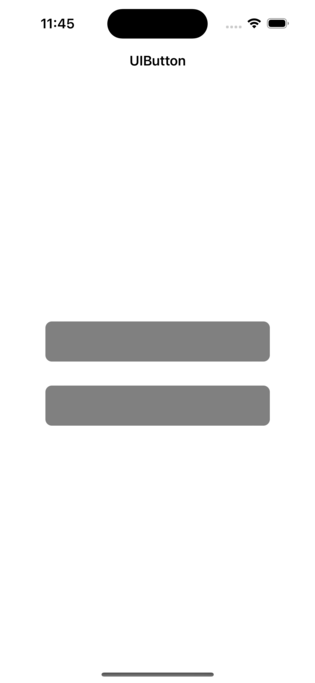
在上面的示例中,两个按钮都已通过编程约束自定义并添加到视图中。现在,我们将设置文本。
更改登录按钮的文本
在下面的示例中,我们将使用 setTitle() 方法更改文本。这是一个示例。
示例
private func initialSetup() {
   // other statements
   setLoginButtonTitle()
}
private func setLoginButtonTitle() {
   loginButton.setTitle("Login", for: .normal)
}
输出
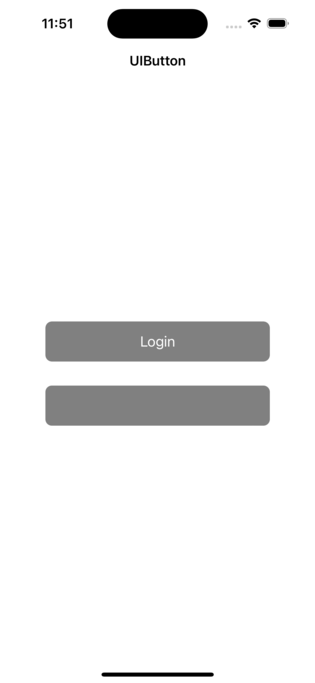
在上面的代码中,我们通过调用 setTitle() 方法设置按钮的文本。在此方法中,我们传递要设置文本的按钮状态。这是因为按钮元素中提供了不同的状态。但大多数情况下,我们处理的是普通状态。按钮处于正常模式下的默认状态。对于不同的状态,将使用相同的方法来设置文本。
更改条款和条件按钮的文本
在此示例中,我们将设置按钮的属性标题。这是一个示例。
示例
private func initialSetup() {
   // other statements
   setConditionsButtonTitle()
}
private func setConditionsButtonTitle() {
   termsConditionButton.backgroundColor = .clear
   let attributes: [NSAttributedString.Key: Any] = [
      .foregroundColor: UIColor.blue,
      .font: UIFont.systemFont(ofSize: 18, weight: .semibold),
      .underlineStyle: NSUnderlineStyle.single.rawValue
   ]
   let attributedText = NSAttributedString(string: "Terms & Conditions", attributes: attributes)
   termsConditionButton.setAttributedTitle(attributedText, for: .normal)
}
输出
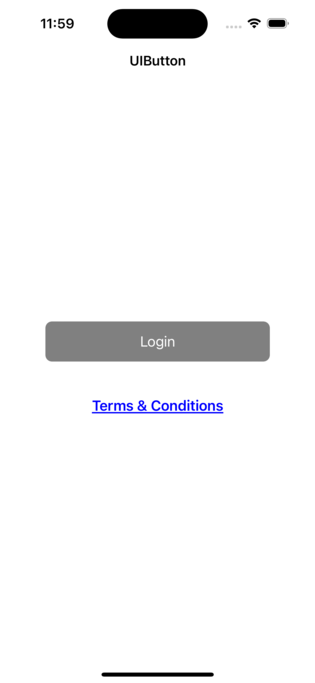
在上面的代码中,我们设置了按钮的属性标题。我们将前景色和下划线样式应用于按钮。
结论
在本文中,您了解了设置文本和属性文本的 setTitle() 方法。可以使用相同的方法应用文本。您可以使用相同的方法为不同的状态设置标题。

更新于: 2023年2月28日
7K+ 浏览量

广告