
 数据结构
数据结构 网络
网络 关系数据库管理系统(RDBMS)
 操作系统
操作系统 Java
Java MS Excel
 iOS
iOS HTML
HTML CSS
CSS Android
 Python
 C语言编程
C语言编程 C++
C++ C#
C# MongoDB
 MySQL
MySQL Javascript
 PHP
PHP 物理
物理 化学
化学 生物
生物 数学
数学 英语
英语 经济学
经济学 心理学
心理学 社会学
社会学 时尚研究
时尚研究 法学研究
法学研究使用pack几何管理器创建自动隐藏Tkinter画布滚动条
Tkinter是Python的标准GUI工具包,它提供了一套多功能的工具来构建图形用户界面。在Tkinter画布中处理大量数据或内容时,实现滚动条对于有效的导航至关重要。在本文中,我们将探讨在Tkinter画布中自动隐藏滚动条的概念,特别是使用pack几何管理器。自动隐藏滚动条通过仅在需要时出现来增强用户体验,提供了一个干净整洁的界面。
自动隐藏滚动条的概念
自动隐藏滚动条是一个用户友好的功能,它根据Tkinter画布中的内容动态调整滚动条的可见性。其目标是仅当内容超过可见区域时才显示滚动条,从而优化屏幕空间并减少视觉干扰。实现此功能需要监控画布尺寸并智能地切换滚动条的可见性。Tkinter中的pack几何管理器允许直接组织和放置窗口部件,使其成为实现自动隐藏滚动条的合适选择。
分步实施
让我们看看使用pack几何管理器在Tkinter画布中实现自动隐藏滚动条的方法。
步骤1:设置Tkinter画布
让我们首先使用pack几何管理器创建一个带有Canvas窗口部件的Tkinter窗口。我们将使用滚动区域配置画布,添加水平和垂直滚动条,并将它们的可见性绑定到画布尺寸。此外,我们将设置事件绑定以在画布调整大小事件或鼠标滚轮滚动时触发操作。
import tkinter as tk

def on_canvas_configure(event):
   ----------
   ----------
def check_scrollbar_visibility():
   ----------
   ----------

def on_mousewheel(event):
   ----------
   ----------
# Create Tkinter window
root = tk.Tk()
root.title("Auto-Hide Scrollbars Using Pack Geometry")
# Set window dimensions
root.geometry("720x250")

# Create a canvas
canvas = tk.Canvas(root, bg="white", width=300, height=200, scrollregion=(0, 0, 500, 500))
canvas.pack(expand=True, fill="both")

# Create vertical scrollbar
y_scrollbar = tk.Scrollbar(root, orient="vertical", command=canvas.yview)

# Create horizontal scrollbar
x_scrollbar = tk.Scrollbar(root, orient="horizontal", command=canvas.xview)

# Configure canvas to use the scrollbars
canvas.configure(yscrollcommand=y_scrollbar.set, xscrollcommand=x_scrollbar.set)

# Bind events
canvas.bind("<Configure>", on_canvas_configure)
canvas.bind("<MouseWheel>", on_mousewheel)

# Initial check for scrollbar visibility
check_scrollbar_visibility()

# Add some content to the canvas
for i in range(50):
   canvas.create_text(20, 20 * i, text=f"Item {i+1}", anchor="w")

# Start the Tkinter event loop
root.mainloop()
步骤2:实现自动隐藏滚动条
自动隐藏滚动条的核心在于根据画布内容动态确定何时显示或隐藏它们。on_canvas_configure函数在画布调整大小事件上更新滚动区域,check_scrollbar_visibility函数根据画布尺寸与内容大小智能地切换滚动条的可见性。
def on_canvas_configure(event):
   canvas.configure(scrollregion=canvas.bbox("all"))
   check_scrollbar_visibility()

def check_scrollbar_visibility():
   # Check and set visibility for vertical scrollbar
   if canvas.winfo_reqheight() < canvas.winfo_height():
      y_scrollbar.pack_forget()  # Hide the scrollbar
   else:
      y_scrollbar.pack(side="right", fill="y")

   # Check and set visibility for horizontal scrollbar
   if canvas.winfo_reqwidth() < canvas.winfo_width():
      x_scrollbar.pack_forget()  # Hide the scrollbar
   else:
      x_scrollbar.pack(side="bottom", fill="x")
步骤3:处理用户交互
为了增强用户交互,我们实现了使用鼠标滚轮的滚动功能。on_mousewheel函数绑定到Canvas窗口部件,允许用户使用鼠标滚轮垂直滚动。
def on_mousewheel(event):
   canvas.yview_scroll(-1 * (event.delta // 120), "units")
步骤4:启动Tkinter事件循环
最后,我们需要启动Tkinter事件循环,如下所示:
root.mainloop()
示例
让我们将这些步骤组合在一起,以获得完整的实现代码:
import tkinter as tk

def on_canvas_configure(event):
   canvas.configure(scrollregion=canvas.bbox("all"))
   check_scrollbar_visibility()

def check_scrollbar_visibility():
   # Check and set visibility for vertical scrollbar
   if canvas.winfo_reqheight() < canvas.winfo_height():
      y_scrollbar.pack_forget()  # Hide the scrollbar
   else:
      y_scrollbar.pack(side="right", fill="y")

   # Check and set visibility for horizontal scrollbar
   if canvas.winfo_reqwidth() < canvas.winfo_width():
      x_scrollbar.pack_forget()  # Hide the scrollbar
   else:
      x_scrollbar.pack(side="bottom", fill="x")

def on_mousewheel(event):
   canvas.yview_scroll(-1 * (event.delta // 120), "units")

# Create Tkinter window
root = tk.Tk()
root.title("Auto-Hide Scrollbars Using Pack Geometry")
# Set window dimensions
root.geometry("720x250")

# Create a canvas
canvas = tk.Canvas(root, bg="white", width=300, height=200, scrollregion=(0, 0, 500, 500))
canvas.pack(expand=True, fill="both")

# Create vertical scrollbar
y_scrollbar = tk.Scrollbar(root, orient="vertical", command=canvas.yview)

# Create horizontal scrollbar
x_scrollbar = tk.Scrollbar(root, orient="horizontal", command=canvas.xview)

# Configure canvas to use the scrollbars
canvas.configure(yscrollcommand=y_scrollbar.set, xscrollcommand=x_scrollbar.set)

# Bind events
canvas.bind("<Configure>", on_canvas_configure)
canvas.bind("<MouseWheel>", on_mousewheel)

# Initial check for scrollbar visibility
check_scrollbar_visibility()

# Add some content to the canvas
for i in range(50):
   canvas.create_text(20, 20 * i, text=f"Item {i+1}", anchor="w")

# Start the Tkinter event loop
root.mainloop()
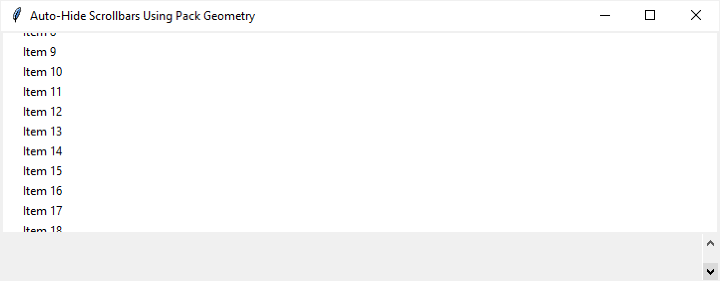
此示例演示了一个带有画布的Tkinter窗口,包括垂直和水平滚动条,以及根据画布内容检查和调整滚动条可见性的函数。
输出
结论
总之,使用pack几何管理器将自动隐藏滚动条集成到Tkinter画布中,为创建直观且节省空间的界面提供了一种优雅的解决方案。分步指南以及Python代码阐明了实现细节,强调了Tkinter和pack几何管理器之间的协同作用。通过采用这种方法,开发人员可以无缝优化屏幕空间,从而为Tkinter应用程序带来完善且以用户为中心的使用体验。这种动态滚动条解决方案不仅简化了对大量内容的导航,而且还有助于创建精致美观的图形用户界面。

335 次浏览
