
 数据结构
数据结构 网络
网络 关系数据库管理系统
 操作系统
操作系统 Java
Java MS Excel
 iOS
iOS HTML
HTML CSS
CSS Android
 Python
 C 编程
C 编程 C++
C++ C#
C# MongoDB
 MySQL
MySQL Javascript
 PHP
PHP 物理
物理 化学
化学 生物
生物 数学
数学 英语
英语 经济学
经济学 心理学
心理学 社会研究
社会研究 时尚研究
时尚研究 法律研究
法律研究如何用鼠标移动 Tkinter 画布?
Tkinter 画布小部件是 Tkinter 库中的一个功能多样的小部件。它用于创建不同的图形、图像和动画对象。我们可以使用**move() **方法在画布小部件上特定方向移动图像。
在 move(Image, x,y) 方法中定义图像和坐标作为参数以在画布中移动对象。我们全局声明图像以便移动或更改位置。
我们可以按照以下步骤让图像在画布内移动:
首先,定义画布小部件并向其添加图像。
定义 move() 函数以允许图像在画布内动态变化。
将鼠标按钮与允许图像在画布内移动的函数进行绑定。
示例
# Import the required libraries
from tkinter import *
from PIL import Image, ImageTk

# Create an instance of tkinter frame
win = Tk()

# Set the size of the tkinter window
win.geometry("700x350")

# Define a Canvas widget
canvas = Canvas(win, width=600, height=400, bg="white")
canvas.pack(pady=20)

# Add Images to Canvas widget
image = ImageTk.PhotoImage(Image.open('logo.png'))
img = canvas.create_image(250, 120, anchor=NW, image=image)

def left(e):
   x = -20
   y = 0
   canvas.move(img, x, y)

def right(e):
   x = 20
   y = 0
   canvas.move(img, x, y)

def up(e):
   x = 0
   y = -20
   canvas.move(img, x, y)

def down(e):
   x = 0
   y = 20
   canvas.move(img, x, y)

# Define a function to allow the image to move within the canvas
def move(e):
   global image
   image = ImageTk.PhotoImage(Image.open('logo.png'))
   img = canvas.create_image(e.x, e.y, image=image)

# Bind the move function
canvas.bind("<B1-Motion>", move)

win.mainloop()
输出
运行以上代码将显示一个窗口,其中包含一个可以使用鼠标按钮在窗口内进行移动的图像。
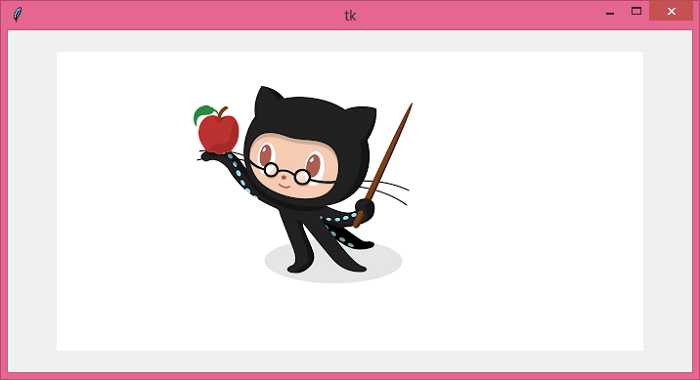
现在,单击画布并用鼠标将对象拖动到周围。

更新时间:2021 年 6 月 18 日
5000+ 浏览量

广告