- .NET Core 教程
- .NET Core - 首页
- .NET Core - 概述
- .NET Core - 先决条件
- .NET Core - 环境设置
- .NET Core - 入门
- .NET Core - 数值
- .NET Core - 垃圾回收
- .NET Core - 代码执行
- .NET Core - 模块化
- .NET Core - 项目文件
- .NET Core - 包引用
- 使用 .NET Core 创建 UWP 应用
- .NET Core - MSBuild
- .NET Core - 元包
- Windows 运行时和扩展 SDK
- 创建 .NET Standard 库
- .NET Core - 可移植类库
- 向库添加引用
- 共享 .NET Core 库
- 创建 Xamarin.Forms 项目
- .NET Core - PCL 故障排除
- .NET Core - 创建测试项目
- 在 Visual Studio 中运行测试
- .NET Core - 测试库
- 托管可扩展性框架
- .NET Core - SDK
- .NET Core - MSBuild 和 project.json
- 还原和构建以及 MSBuild
- .NET Core - 迁移
- .NET Core 有用资源
- .NET Core - 快速指南
- .NET Core - 有用资源
- .NET Core - 讨论
.NET Core - 创建 UWP 应用
在本章中,我们将讨论如何使用 .NET Core 创建 UWP 应用程序。UWP 也称为 Windows 10 UWP 应用程序。此应用程序无法在早期版本的 Windows 上运行,而只能在未来版本的 Windows 上运行。
以下是一些 UWP 可以顺利运行的例外情况。
如果要本地运行它,则必须拥有 Windows 10,您也可以在 Windows 8 上进行开发,然后需要在模拟器上运行它,但建议使用 Windows 10。
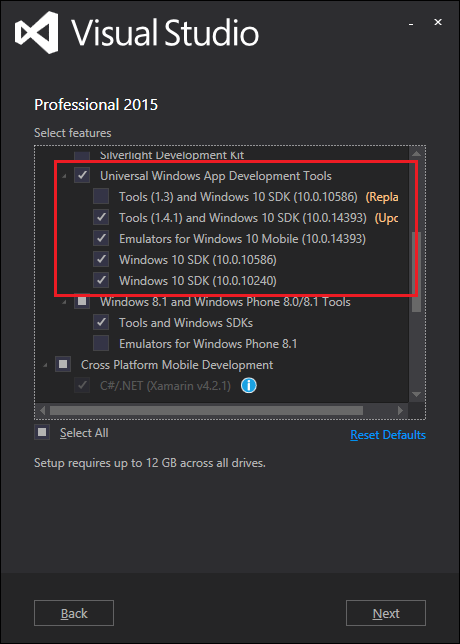
对于 UWP 应用程序,您还需要 Windows 10 SDK。让我们打开 Visual Studio 2015 设置,然后修改 Visual Studio。
在“选择功能”页面上,向下滚动,您将看到“通用 Windows 应用开发工具”,选中该选项,如下所示。
在这里,您可以看到 SDK 的不同版本以及工具的最新更新,单击“下一步”。
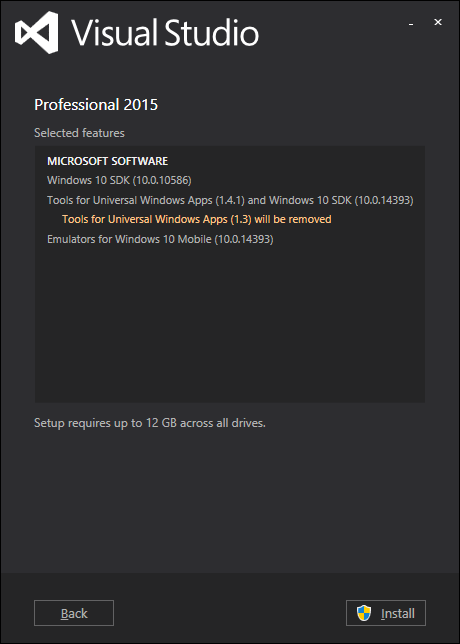
现在,单击“安装”按钮。
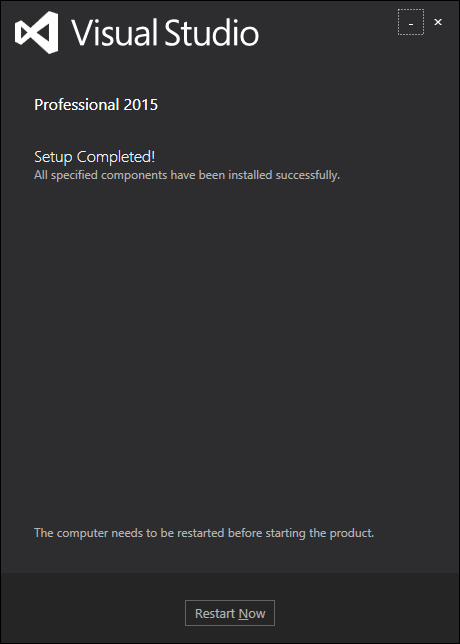
安装完成后,您需要重新启动系统。
现在让我们按照以下步骤实现 UWP。
首先,启动 Visual Studio 2015。
单击“文件”菜单,然后选择“新建”→“项目”;将显示“新建项目”对话框。您可以在对话框的左侧窗格中看到不同类型的模板。
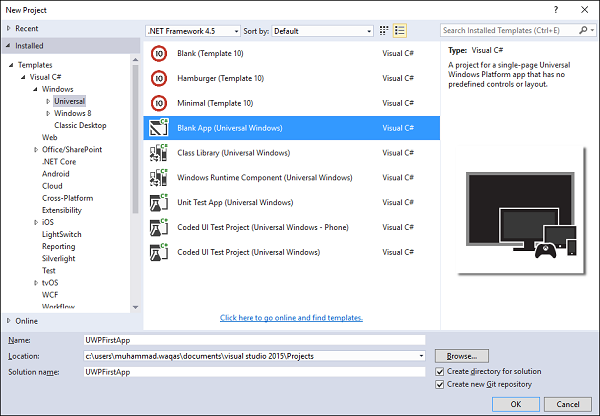
在左侧窗格中,您可以看到树形视图,现在从“模板”→“Visual C#”→“Windows”中选择“通用”模板。
在中间窗格中,选择“空白应用(通用 Windows)”模板。
在“名称”字段中键入UWPFirstApp,为项目命名,然后单击“确定”。
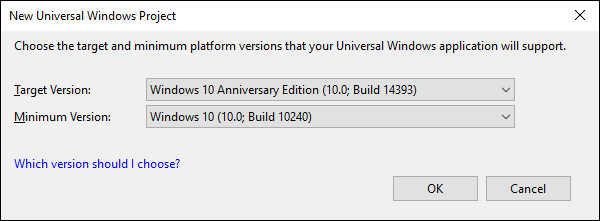
将出现目标版本/最低版本对话框。对于本教程,默认设置是可以的,因此选择“确定”以创建项目。
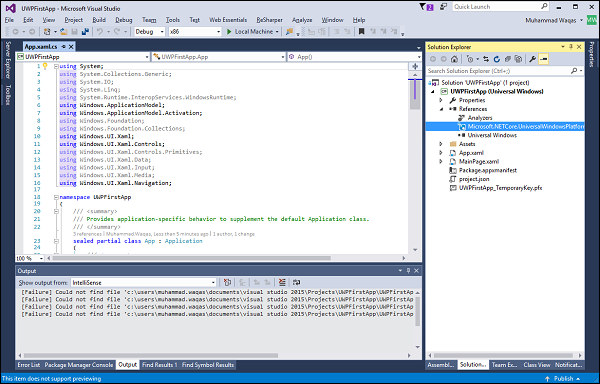
在这里,我们有一个可以针对所有 Windows 10 设备的单个项目,您会注意到 .NET Core 和 UWP 都是多目标的简化。
当新项目打开时,其文件将显示在解决方案资源管理器窗格的右侧。您可能需要选择解决方案资源管理器选项卡而不是属性选项卡才能查看您的文件。
尽管“空白应用(通用窗口)”是一个最小的模板,但它仍然包含很多文件。这些文件对于所有使用 C# 的 UWP 应用都是必不可少的。您在 Visual Studio 中创建的每个项目都包含这些文件。
要查看运行示例,让我们打开 MainPage.XAML 并添加以下代码。
<Page
   x:Class = "UWPFirstApp.MainPage"
   xmlns = "http://schemas.microsoft.com/winfx/2006/xaml/presentation"
   xmlns:x = "http://schemas.microsoft.com/winfx/2006/xaml"
   xmlns:local = "using:UWPFirstApp"
   xmlns:d = "http://schemas.microsoft.com/expression/blend/2008"
   xmlns:mc = "http://schemas.openxmlformats.org/markup-compatibility/2006"
   mc:Ignorable = "d">

   <Grid Background = "{ThemeResource ApplicationPageBackgroundThemeBrush}">
      <StackPanel HorizontalAlignment = "Center">
         <TextBlock Text = "Hello, world!"
            Margin = "20"
            Width = "200"
            HorizontalAlignment = "Left"/>
         <TextBlock Text = "Write your name."
            Margin = "20"
            Width = "200"
            HorizontalAlignment = "Left"/>
         <TextBox x:Name = "txtbox"
            Width = "280"
            Margin = "20"
            HorizontalAlignment = "Left"/>
         <Button x:Name = "button" Content = "Click Me"
            Margin = "20"
            Click = "button_Click"/>
         <TextBlock x:Name = "txtblock"
            HorizontalAlignment = "Left"
            Margin = "20"/>
      </StackPanel>
   </Grid>

</Page>
以下是 C# 中按钮的单击事件。
using System;
using System.Collections.Generic;
using System.IO;
using System.Linq;
using System.Runtime.InteropServices.WindowsRuntime;

using Windows.Foundation;
using Windows.Foundation.Collections;

using Windows.UI.Xaml;
using Windows.UI.Xaml.Controls;
using Windows.UI.Xaml.Controls.Primitives;
using Windows.UI.Xaml.Data;
using Windows.UI.Xaml.Input;
using Windows.UI.Xaml.Media;
using Windows.UI.Xaml.Navigation;

// The Blank Page item template is documented at
// http://go.microsoft.com/fwlink/?LinkId=402352&clcid=0x409

namespace UWPHellowWorld {
   /// <summary>
   /// An empty page that can be used on its own or navigated to within a Frame.
   /// </summary>
   public sealed partial class MainPage : Page {
      public MainPage() {
         this.InitializeComponent();
      }
      private void button_Click(object sender, RoutedEventArgs e) {
         if (txtbox.Text != "")
            txtblock.Text = "Hello: " + txtbox.Text;
         else
            txtblock.Text = "You have not write your name";
      }
   }
}
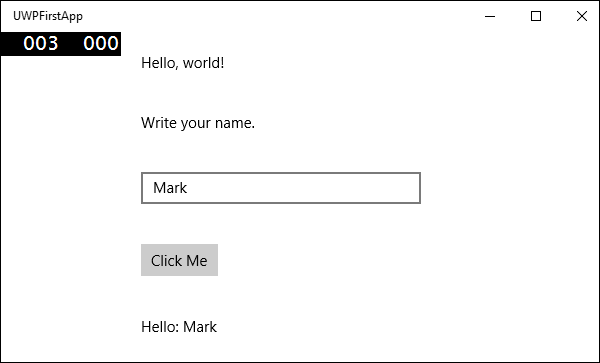
现在让我们在本地计算机上运行以上代码,您将看到以下窗口。现在在文本框中输入任何名称,然后按“单击我”按钮。