
 数据结构
数据结构 网络
网络 关系型数据库管理系统
 操作系统
操作系统 Java
Java MS Excel
 iOS
iOS HTML
HTML CSS
CSS Android
 Python
 C 语言编程
 C++
C++ C#
C# MongoDB
 MySQL
MySQL Javascript
 PHP
PHP 物理
物理 化学
化学 生物
生物 数学
数学 英语
英语 经济学
经济学 心理学
心理学 社会科学
社会科学 时尚研究
时尚研究 法律研究
法律研究将 matplotlib 动画嵌入到 tkinter 框架中
要将 matplotlib 动画嵌入到 tkinter 框架中,我们可以采取以下步骤
步骤
设置图形尺寸并调整子图之间的边距和周围的边距。
创建 Tk 的一个顶级窗口小部件,它主要表示应用程序的主窗口
设置此小部件的标题。
向当前图形添加一个坐标系并使其成为当前坐标系。
创建一个新图形或激活一个现有的图形。
将 'ax' 作为子图排列的一部分添加到图形中。
使用 linewidth=2 画一个虚拟的线状图。
创建图形呈现的画布。
创建用于操作的图形画布。
创建一个 keypress 事件来退出 tkinter 冬天。
通过反复调用函数 *animate* 来创建动画。
要显示图形,使用 Show() 方法。
示例
import tkinter
from matplotlib.backends.backend_tkagg import (
    FigureCanvasTkAgg, NavigationToolbar2Tk)
from matplotlib.backend_bases import key_press_handler
from matplotlib import pyplot as plt, animation
import numpy as np

plt.rcParams["figure.figsize"] = [7.00, 3.50]
plt.rcParams["figure.autolayout"] = True

root = tkinter.Tk()
root.wm_title("Embedding in Tk")

plt.axes(xlim=(0, 2), ylim=(-2, 2))
fig = plt.Figure(dpi=100)
ax = fig.add_subplot(xlim=(0, 2), ylim=(-1, 1))
line, = ax.plot([], [], lw=2)

canvas = FigureCanvasTkAgg(fig, master=root)
canvas.draw()

toolbar = NavigationToolbar2Tk(canvas, root, pack_toolbar=False)
toolbar.update()

canvas.mpl_connect(
    "key_press_event", lambda event: print(f"you pressed {event.key}"))
canvas.mpl_connect("key_press_event", key_press_handler)

button = tkinter.Button(master=root, text="Quit", command=root.quit)
button.pack(side=tkinter.BOTTOM)

toolbar.pack(side=tkinter.BOTTOM, fill=tkinter.X)
canvas.get_tk_widget().pack(side=tkinter.TOP, fill=tkinter.BOTH, expand=1)

def init():
    line.set_data([], [])
    return line,

def animate(i):
    x = np.linspace(0, 2, 1000)
    y = np.sin(2 * np.pi * (x - 0.01 * i))
    line.set_data(x, y)
    return line,

anim = animation.FuncAnimation(fig, animate, init_func=init,frames=200, interval=20, blit=True)

tkinter.mainloop()
输出
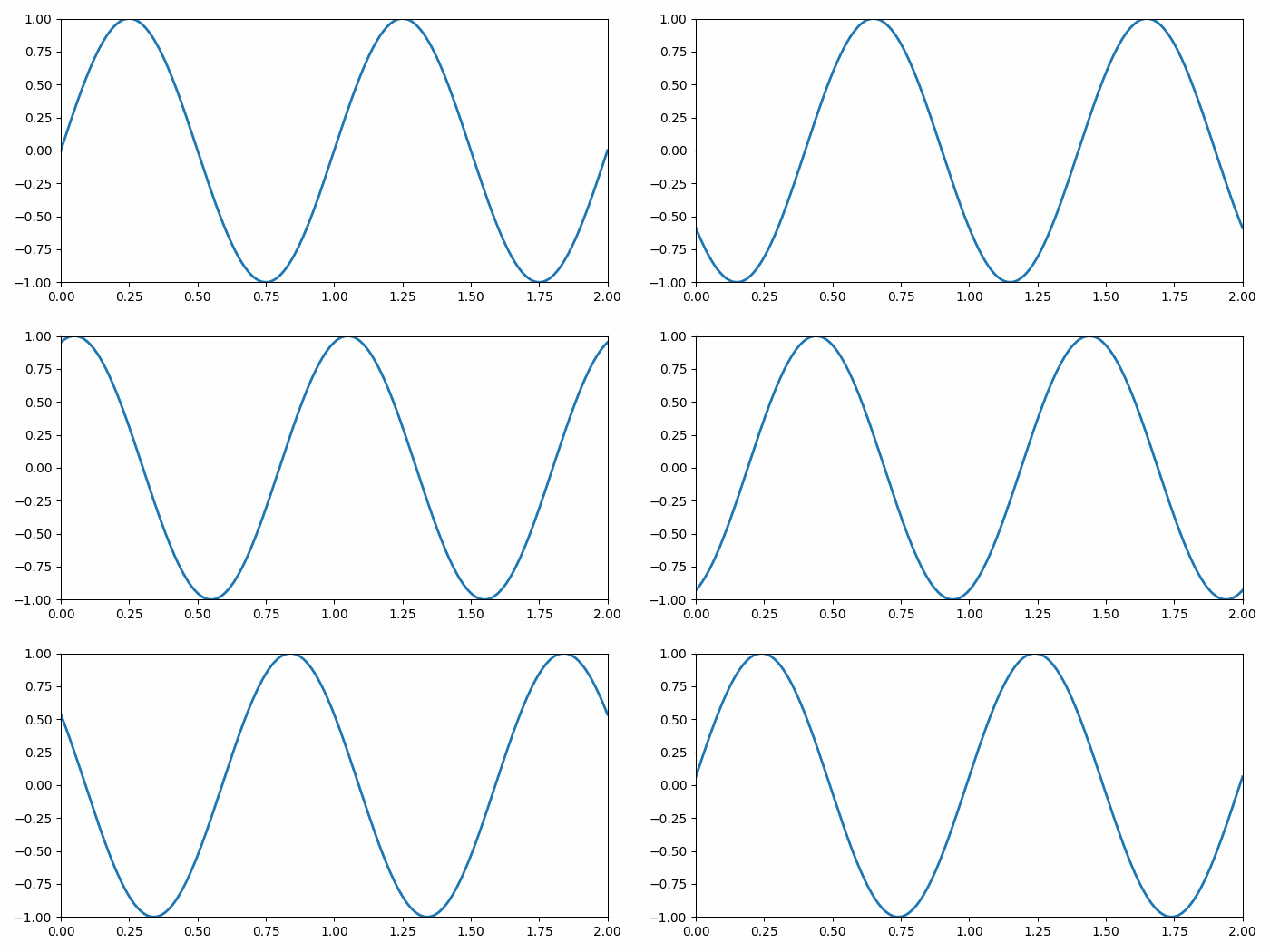
它将产生以下输出 -

更新于: 09-10-2021
4 千次以上浏览

广告