
 数据结构
数据结构 网络
网络 关系型数据库管理系统
 操作系统
操作系统 Java
Java MS Excel
 iOS
iOS HTML
HTML CSS
CSS Android
 Python
 C 编程
C 编程 C++
C++ C#
C# MongoDB
 MySQL
MySQL Javascript
 PHP
PHP 物理
物理 化学
化学 生物
生物 数学
数学 英语
英语 经济学
经济学 心理学
心理学 社会学
社会学 时尚研究
时尚研究 法律研究
法律研究如何在 iOS Swift 应用中为背景视图应用渐变?
在 iOS 中,有一个名为 CAGradientLayer 的类可以将渐变颜色应用于视图。在本文中,我们将了解如何使用 CAGradientLayer 类将渐变应用于 iOS 中视图的背景。CAGradientLayer 类提供了不同的属性,例如颜色、位置、点、框架等。我们将使用它们将渐变应用于视图。最后,我们将使用 insertSublayer 方法将渐变层添加到父视图。
要将渐变应用于 iOS Swift 应用的背景视图,您可以按照以下步骤操作:
步骤 1 - 创建一个新的渐变层
let gradientLayer = CAGradientLayer()
使用 CAGradientLayer,您可以轻松创建对象以将渐变应用于背景
步骤 2 - 设置渐变层的颜色和位置:
gradientLayer.colors = [UIColor.blue.cgColor, UIColor.red.cgColor]
gradientLayer.locations = [0.0, 1.0]
CAGradientLayer 提供了一些属性,用于使用约束控制绘图。可以将 UIColor 类型的数组传递给“colors”属性。您可以根据需要指定多个颜色。
另一个名为“location”的属性提供了绘制渐变颜色的位置。渐变位置也可以使用数字数组定义。渐变位置的范围将为 0 到 1。根据您的需要,您可以将位置划分为 N 个数字。
步骤 3 - 设置渐变层的起始点和结束点
gradientLayer.startPoint = CGPoint(x: 0.0, y: 0.0)
gradientLayer.endPoint = CGPoint(x: 1.0, y: 1.0)
起始点和结束点定义渐变的方向。在本例中,我们将起始点设置为视图的左上角 (0.0, 0.0),并将结束点设置为视图的右下角 (1.0, 1.0),因此渐变将从左上角到右下角。
步骤 4 - 将框架设置为图层
gradientLayer.frame = view.frame
为了使渐变可见,您必须提供其框架。
步骤 5 - 将渐变层作为子层添加到背景视图
view.layer.insertSublayer(gradientLayer, at: 0)
insertSublayer(_:at:) 方法是 iOS 中 CALayer 类的**一个方法**。它用于在指定索引处将子层添加到父层。
当您在父层上执行此方法时,提供的子层将在指定索引处作为子层插入。如果索引大于或等于现有子层的数量,则新的子层将附加到子层数组的末尾。
以下是将渐变应用于视图的完整代码片段
示例
import UIKit
class TestController: UIViewController {

   override func viewDidLoad() {
      super.viewDidLoad()
      initialSetup()
   }

   private func initialSetup() {

      // basic setup
      view.backgroundColor = .white
      navigationItem.title = "Gradient View"

      // Create a new gradient layer
      let gradientLayer = CAGradientLayer()
      // Set the colors and locations for the gradient layer
      gradientLayer.colors = [UIColor.blue.cgColor, UIColor.red.cgColor]
      gradientLayer.locations = [0.0, 1.0]

      // Set the start and end points for the gradient layer
      gradientLayer.startPoint = CGPoint(x: 0.0, y: 0.0)
      gradientLayer.endPoint = CGPoint(x: 1.0, y: 1.0)

      // Set the frame to the layer
      gradientLayer.frame = view.frame

      // Add the gradient layer as a sublayer to the background view
      view.layer.insertSublayer(gradientLayer, at: 0)
   }
}
输出
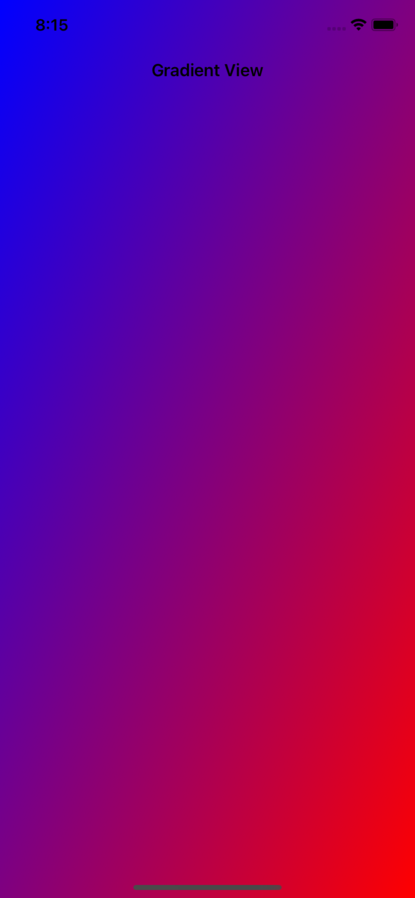
如您所见,在本例中,渐变层已应用于控制器的视图。它从视图的左上角到右下角对角线放置。我们使用 colors 属性应用渐变颜色。
以下是如何应用多个颜色的另一个示例
示例
import UIKit
class TestController: UIViewController {

   override func viewDidLoad() {
      super.viewDidLoad()
      initialSetup()
   }

   private func initialSetup() {

      // basic setup
      view.backgroundColor = .white
      navigationItem.title = "Gradient View"

      // Create a new gradient layer
      let gradientLayer = CAGradientLayer()
      // Set the colors and locations for the gradient layer
      gradientLayer.colors = [UIColor.green.cgColor, UIColor.yellow.cgColor, UIColor.red.cgColor]
      gradientLayer.locations = [0.0, 0.5, 1.0]

      // Set the start and end points for the gradient layer
      gradientLayer.startPoint = CGPoint(x: 0.0, y: 0.0)
      gradientLayer.endPoint = CGPoint(x: 0.0, y: 1.0)

      // Set the frame to the layer
      gradientLayer.frame = view.frame

      // Add the gradient layer as a sublayer to the background view
      view.layer.insertSublayer(gradientLayer, at: 0)
   }
}
输出
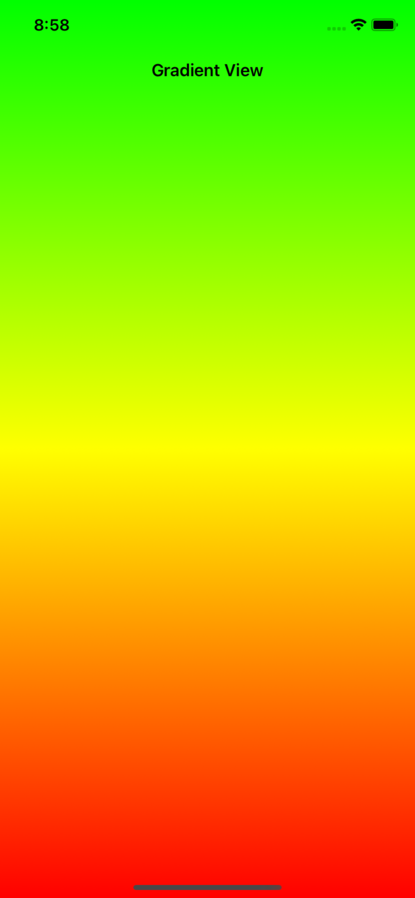
在上面的示例中,您可以看到我们应用了三种不同的颜色和自定义位置。在本例中,我们正在从上到下应用线性渐变。
推荐方法
例如,您必须在 iOS 应用中将渐变应用于多个视图。为了最大程度地减少代码重复,始终建议创建 UIView 的扩展。以下是如何创建扩展的示例:
extension UIView {
   func addGradient(_ colors: [UIColor], locations: [NSNumber], frame: CGRect = .zero) {

      // Create a new gradient layer
      let gradientLayer = CAGradientLayer()

      // Set the colors and locations for the gradient layer
      gradientLayer.colors = colors.map{ $0.cgColor }
      gradientLayer.locations = locations

      // Set the start and end points for the gradient layer
      gradientLayer.startPoint = CGPoint(x: 0.0, y: 0.0)
      gradientLayer.endPoint = CGPoint(x: 0.0, y: 1.0)

      // Set the frame to the layer
      gradientLayer.frame = frame

      // Add the gradient layer as a sublayer to the background view
      layer.insertSublayer(gradientLayer, at: 0)
   }
}
以下是如何使用上述扩展的代码
view.addGradient([UIColor.green, UIColor.yellow, UIColor.red], locations: [0.0, 0.5, 1.0],frame: view.frame)
结论
要将渐变添加到 iOS Swift 项目的背景视图,请使用 Core Animation 的 CAGradientLayer 类。您可以执行以下基本操作:
CAGradientLayer 用于创建一个新的渐变层 ()。
使用 colors 和 locations 属性自定义渐变层的颜色和位置。
startPoint 和 endPoint 属性用于提供渐变层的起始位置和结束位置。
startPoint 和 endPoint 属性用于提供渐变层的起始位置和结束位置。

9K+ 浏览量
