
 数据结构
数据结构 网络
网络 关系数据库管理系统(RDBMS)
 操作系统
操作系统 Java
Java MS Excel
 iOS
iOS HTML
HTML CSS
CSS Android
 Python
 C语言编程
C语言编程 C++
C++ C#
C# MongoDB
 MySQL
MySQL Javascript
 PHP
PHP 物理学
物理学 化学
化学 生物学
生物学 数学
数学 英语
英语 经济学
经济学 心理学
心理学 社会学
社会学 服装设计
服装设计 法学
法学使用Python的tkinter构建简单的GUI计算器
介绍
在Python中,我们使用tkinter库创建GUI组件并设计更好的用户界面。
在本文中,您将学习构建基于GUI的简单计算器应用程序的方法。
开始
在我们开始之前,我们需要先准备一些东西。
让我们首先下载Python的图像库,我们将使用它从本地系统获取图像。为了安装PIL(Pillow),启动终端并输入以下命令。
pip install Pillow
现在您已经安装了包。您需要下载计算器所需的图标。
您可以访问谷歌图片并下载所需的图标。但是,如果您想要与我本项目中使用的图标相同的图标集,您可以从以下地址下载:
https://www.dropbox.com/sh/0zqd6zd9b8asmor/AAC3d2iOvMRl8INkbCuMUo_ya?dl=0。
确保您将所有图标下载到名为“asset”的文件夹中。
接下来,我们需要导入所需的模块。
from tkinter import *
from PIL import Image # pip install Pillow
from PIL import ImageTk
就是这样。您现在应该已经准备好所有东西并可以开始使用了。
创建函数
首先,我们必须创建GUI组件将使用的函数。
主要有三个函数:按下数字或符号时调用一个函数,按下等号按钮时调用另一个函数,最后按下清除按钮时调用一个函数。
让我们首先初始化一些全局变量:
txt = ""
res = False
ans = 0
示例
按下数字键时调用的函数:
def press(num):
   global txt, ans, res
   if (res==True):
      txt = ans
      res = False
   txt = txt + str(num)
   equation.set(txt)
示例1
按下等号按钮时调用的函数:
def equal():
   try:
      global txt, ans, res
      ans = str(eval(txt))
      equation.set(ans)
      res = True
   except:
      equation.set("ERROR : Invalid Equation")
      txt=""
按下清除按钮时调用的函数:
示例
def clear():
   global txt, ans, res
   txt = ""
   equation.set("")
   res = False
现在我们已经定义了函数,我们可以启动主函数并开始处理GUI组件。
if __name__ == "__main__":
   window = Tk()
   window.configure(background="black")
   window.title("Calculator")
   window.iconbitmap("assets\Calculator\Logo.ico")
   window.geometry("343x417")
   window.resizable(0,0)
以上代码行将构建一个完美的计算器。
注意 - 为了避免出现错误,请确保您遵循与上述代码相同的精确文件结构。将logo图标保存在Calculator文件夹中,该文件夹位于assets文件夹内。
请按照以下格式:
+---Working Directory
   +---Calculator.py
   +---assets
      +---Calculator
         +---All the icons.
接下来,让我们设计一个文本字段,用于显示数字。
equation = StringVar()

txt_field = Entry(relief=RIDGE,textvariable=equation,bd=10,font=("Aerial",20),bg="powder blue")

txt_field.grid(columnspan=4,ipady=10,ipadx=10,sticky="nsew")
现在,我们将重复添加图标到GUI窗口的过程,一次一个。下面是一个例子,请按照此步骤操作其余部分,或者直接从本文末尾的完整代码中复制。
示例
width=80
height=80
img1 = Image.open("assets/Calculator/one.PNG")
img1 = img1.resize((width,height))
oneImage = ImageTk.PhotoImage(img1)
button1 = Button(window, image=oneImage,bg="white",command = lambda:press(1),height=height,width=width)
button1.grid(row=2,column=0,sticky="nsew")
与以上代码行类似,对button2、button3等按钮重复此操作,直到涵盖所有数字和符号。
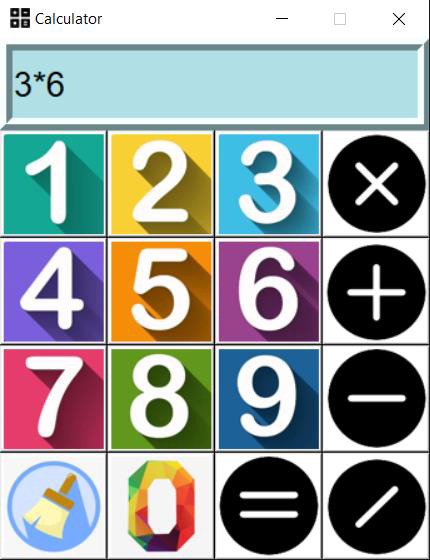
就是这样。如果您现在运行程序,您应该会看到一个非常抽象的计算器。
如果您无法按照步骤操作,您可以从下面获取完整的代码。
示例
from tkinter import *
from PIL import Image
from PIL import ImageTk

txt = ""
res = False
ans = 0

def press(num):
   global txt, ans, res
   if (res==True):
      txt = ans
      res = False
   txt = txt + str(num)
   equation.set(txt)
def equal():
   try:
      global txt, ans, res
      ans = str(eval(txt))
      equation.set(ans)
      res = True
   except:
      equation.set("ERROR : Invalid Equation")
      txt=""
def clear():
   global txt, ans, res
   txt = ""
   equation.set("")
   res = False
if __name__ == "__main__":
   window = Tk()
   window.configure(background="black")
   window.title("Calculator")
   window.iconbitmap("assets\Calculator\Logo.ico")
   window.geometry("343x417")
   window.resizable(0,0)
   equation = StringVar()
   txt_field = Entry(relief=RIDGE,textvariable=equation,bd=10,font=("Aerial",20),bg="powder blue")
   txt_field.grid(columnspan=4,ipady=10,ipadx=10,sticky="nsew")
   width=80
   height=80
   img1 = Image.open("assets/Calculator/one.PNG")
   img1 = img1.resize((width,height))
   oneImage = ImageTk.PhotoImage(img1)
   button1 = Button(window, image=oneImage,bg="white",command =          lambda:press(1),height=height,width=width)
   button1.grid(row=2,column=0,sticky="nsew")
   img2 = Image.open("assets/Calculator/two.PNG")
   img2 = img2.resize((width,height))
   twoImage = ImageTk.PhotoImage(img2)
   button2 = Button(window, image=twoImage,bg="white",command =    lambda:press(2),height=height,width=width)
   button2.grid(row=2,column=1,sticky="nsew")
   img3 = Image.open("assets/Calculator/three.PNG")
   img3 = img3.resize((width,height))
   threeImage = ImageTk.PhotoImage(img3)
   button3 = Button(window, image=threeImage,bg="white",command =    lambda:press(3),height=height,width=width)
   button3.grid(row=2,column=2,sticky="nsew")
   img4 = Image.open("assets/Calculator/four.PNG")
   img4 = img4.resize((width,height))
   fourImage = ImageTk.PhotoImage(img4)
   button4 = Button(window, image=fourImage,bg="white",command =    lambda:press(4),height=height,width=width)
   button4.grid(row=3,column=0,sticky="nsew")
   img5 = Image.open("assets/Calculator/five.PNG")
   img5 = img5.resize((width,height))
   fiveImage = ImageTk.PhotoImage(img5)
   button5 = Button(window, image=fiveImage,bg="white",command =    lambda:press(5),height=height,width=width)
   button5.grid(row=3,column=1,sticky="nsew")
   img6 = Image.open("assets/Calculator/six.PNG")
   img6 = img6.resize((width,height))
   sixImage = ImageTk.PhotoImage(img6)
   button6 = Button(window, image=sixImage,bg="white",command =    lambda:press(6),height=height,width=width)
   button6.grid(row=3,column=2,sticky="nsew")
   img7 = Image.open("assets/Calculator/seven.PNG")
   img7 = img7.resize((width,height))
   sevenImage = ImageTk.PhotoImage(img7)
   button7 = Button(window, image=sevenImage,bg="white",command =    lambda:press(7),height=height,width=width)
   button7.grid(row=4,column=0,sticky="nsew")
   img8 = Image.open("assets/Calculator/eight.PNG")
   img8 = img8.resize((width,height))
   eightImage = ImageTk.PhotoImage(img8)
   button8 = Button(window, image=eightImage,bg="white",command =    lambda:press(8),height=height,width=width)
   button8.grid(row=4,column=1,sticky="nsew")
   img9 = Image.open("assets/Calculator/nine.PNG")
   img9 = img9.resize((width,height))
   nineImage = ImageTk.PhotoImage(img9)
   button9 = Button(window, image=nineImage,bg="white",command =    lambda:press(9),height=height,width=width)
   button9.grid(row=4,column=2,sticky="nsew")
   img0 = Image.open("assets/Calculator/zero.PNG")
   img0 = img0.resize((width,height))
   zeroImage = ImageTk.PhotoImage(img0)
   button0 = Button(window, image=zeroImage,bg="white",command =    lambda:press(0),height=height,width=width)
   button0.grid(row=5,column=1,sticky="nsew")
   imgx = Image.open("assets/Calculator/multiply.PNG")
   imgx = imgx.resize((width,height))
   multiplyImage = ImageTk.PhotoImage(imgx)
   buttonx = Button(window, image=multiplyImage,bg="white",command =    lambda:press("*"),height=height,width=width)
   buttonx.grid(row=2,column=3,sticky="nsew")
   imgadd = Image.open("assets/Calculator/add.PNG")
   imgadd = imgadd.resize((width,height))
   addImage = ImageTk.PhotoImage(imgadd)
   buttonadd = Button(window, image=addImage,bg="white",command =    lambda:press("+"),height=height,width=width)
   buttonadd.grid(row=3,column=3,sticky="nsew")
   imgdiv = Image.open("assets/Calculator/divide.PNG")
   imgdiv = imgdiv.resize((width,height))
   divImage = ImageTk.PhotoImage(imgdiv)
   buttondiv = Button(window, image=divImage,bg="white",command =    lambda:press("/"),height=height,width=width)
   buttondiv.grid(row=5,column=3,sticky="nsew")
   imgsub = Image.open("assets/Calculator/subtract.PNG")
   imgsub = imgsub.resize((width,height))
   subImage = ImageTk.PhotoImage(imgsub)
   buttonsub = Button(window, image=subImage,bg="white",command = lambda:press("-   "),height=height,width=width)
   buttonsub.grid(row=4,column=3,sticky="nsew")
   imgeq = Image.open("assets/Calculator/equal.PNG")
   imgeq = imgeq.resize((width,height))
   eqImage = ImageTk.PhotoImage(imgeq)
   buttoneq = Button(window, image=eqImage,bg="white",command = equal,height=height,width=width)
   buttoneq.grid(row=5,column=2,sticky="nsew")
   imgclear = Image.open("assets/Calculator/clear.PNG")
   imgclear = imgclear.resize((width,height))
   clearImage = ImageTk.PhotoImage(imgclear)
   buttonclear = Button(window, image=clearImage,bg="white",command =    clear,height=height,width=width)
buttonclear.grid(row=5,column=0,sticky="nsew")

window.mainloop()如果您在上述程序中遇到格式问题,也可以从https://github.com/SVijayB/PyHub/blob/master/Graphics/Simple%20Calculator.py获取。
输出

698 次浏览
