
 数据结构
数据结构 网络
网络 关系数据库管理系统 (RDBMS)
 操作系统
操作系统 Java
Java MS Excel
 iOS
iOS HTML
HTML CSS
CSS Android
 Python
 C语言编程
C语言编程 C++
C++ C#
C# MongoDB
 MySQL
MySQL Javascript
 PHP
PHP 物理学
物理学 化学
化学 生物学
生物学 数学
数学 英语
英语 经济学
经济学 心理学
心理学 社会学
社会学 服装设计
服装设计 法学
法学如何在Android中使用CardView创建圆形ImageView?
Android中的圆形ImageView指的是以圆形显示图像的ImageView组件。它是通过将圆形蒙版应用于ImageView并将图像裁剪以适应圆形边界来实现的。这产生了一种视觉上吸引人的效果,通常用于显示个人资料图片或圆形图标。通过使用CardView容器,开发人员可以通过将ImageView的圆角设置为其宽度或高度的一半来轻松创建圆形ImageView,从而有效地将其转换为圆形。这种方法提供了一种简单而强大的方法,可以在Android应用程序中实现圆形图像显示。
使用的方法
手动实现
手动实现
要在Android中使用CardView创建圆形ImageView,您需要通过代码自定义ImageView的外观和行为来手动实现它。手动实现是指通过编程方式定义和控制ImageView的属性,而不是仅仅依赖预定义的组件或库。这包括为ImageView创建一个圆形形状,设置必要的属性(如尺寸和背景颜色),并将其应用于CardView以获得额外的样式和提升效果。这种方法允许开发人员精确控制ImageView的圆形形状和其他视觉方面,从而创建自定义且视觉上吸引人的用户界面。
算法
创建一个包含CardView和ImageView的布局文件(XML)。设置CardView的基本属性,例如背景颜色和高度。
在您的Java代码中,使用findViewById()方法获取对ImageView的引用,并将其分配给一个变量。
通过创建一个具有圆形形状的自定义形状drawable资源文件,将ImageView的形状设置为圆形。您可以使用`
`标签在XML中定义形状,并将形状类型设置为“oval”或“circle”。 使用setImageDrawable()或setBackground()方法(取决于所需的结果)将圆形形状应用于ImageView。将自定义形状作为参数传递。
可选地,您可以自定义CardView的外观以增强圆形效果。例如,您可以调整CardView的圆角或添加填充。
使用setImageResource()或setImageURI()方法(取决于图像来源)更新ImageView中的指定图像。将图像的资源ID或URI作为参数传递。
根据应用程序的需求处理与圆形ImageView相关的任何额外逻辑或功能。例如,您可以添加点击监听器或在ImageView被点击时执行操作。
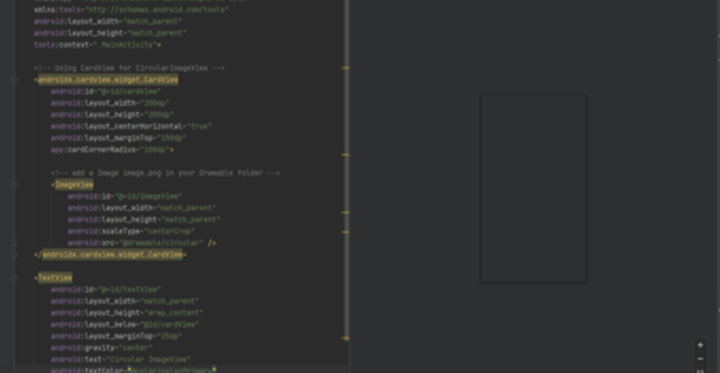
构建并运行应用程序以查看活动中的圆形ImageView。ImageView应该在CardView内显示为圆形。
程序
添加依赖项
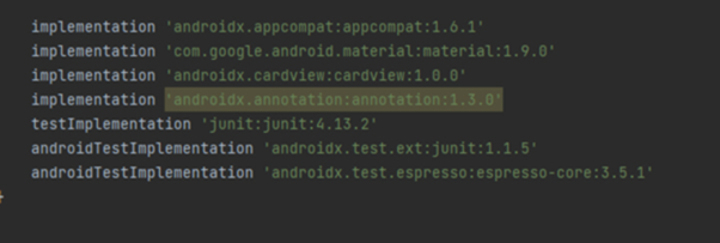
打开模块的build.gradle文件,并将行`implementation 'androidx.cardview:cardview:1.0.0'`添加到依赖项列表中。保存文件;然后,单击“立即同步”按钮同步项目。这将确保导入并使用所需的库。此外,找到`activity_main.xml`文件中的代码段,打开它,并将`android:src="@drawable/your_image"`更改为相应图像资源的名称。结果,指定区域中的新图像将显示在更新后的UI中。
implementation 'androidx.cardview:cardview:1.0.0'
XML程序
<?xml version="1.0" encoding="utf-8"?>
<androidx.constraintlayout.widget.ConstraintLayout
   xmlns:android="http://schemas.android.com/apk/res/android"
   xmlns:app="http://schemas.android.com/apk/res-auto"
   android:layout_width="match_parent"
   android:layout_height="match_parent"
   android:background="@android:color/white"
   tools:context=".MainActivity">

   <androidx.cardview.widget.CardView
       android:id="@+id/cardView"
       android:layout_width="200dp"
       android:layout_height="200dp"
       android:layout_marginTop="150dp"
       android:layout_marginBottom="16dp"
       android:layout_marginStart="16dp"
       android:layout_marginEnd="16dp"
       app:cardCornerRadius="100dp"
       app:layout_constraintBottom_toTopOf="@+id/button"
       app:layout_constraintEnd_toEndOf="parent"
       app:layout_constraintStart_toStartOf="parent"
       app:layout_constraintTop_toTopOf="parent">

       <ImageView
           android:id="@+id/imageView"
           android:layout_width="match_parent"
           android:layout_height="match_parent"
           android:scaleType="centerCrop"
           android:src="@drawable/my_image"
           android:contentDescription="@string/image_description" />
   </androidx.cardview.widget.CardView>

   <Button
       android:id="@+id/button"
       android:layout_width="wrap_content"
       android:layout_height="wrap_content"
       android:layout_marginBottom="16dp"
       android:text="@string/click_me"
       android:textSize="16sp"
       app:layout_constraintBottom_toTopOf="@+id/textView"
       app:layout_constraintEnd_toEndOf="parent"
       app:layout_constraintStart_toStartOf="parent" />

   <TextView
       android:id="@+id/textView"
       android:layout_width="match_parent"
       android:layout_height="wrap_content"
       android:layout_marginBottom="16dp"
       android:gravity="center"
       android:text="@string/circular_image_view"
       android:textColor="@android:color/black"
       android:textSize="20sp"
       android:textStyle="bold"
       app:layout_constraintBottom_toBottomOf="parent"
       app:layout_constraintEnd_toEndOf="parent"
       app:layout_constraintStart_toStartOf="parent" />

</androidx.constraintlayout.widget.ConstraintLayout>
主要Java程序
private ImageView circularImageView;

@Override
protected void onCreate(Bundle savedInstanceState) {
   super.onCreate(savedInstanceState);
   setContentView(R.layout.activity_circular_image_view);

   circularImageView = findViewById(R.id.circularImageView);

   // Set click listener for the circularImageView
   circularImageView.setOnClickListener(new View.OnClickListener() {
       @Override
       public void onClick(View v) {
           showToast("This is a Circular ImageView");
       }
   });
}

/**
 * Display a Toast message.
 *
 * @rati message The message to be displayed.
 */
private void showToast(String message) {
   Toast.makeText(this, message, Toast.LENGTH_SHORT).show();
}
输出

结论
本文提供了一个分步教程,讲解如何在Android中使用CardView显示圆形图像。它阐明了圆形图像背后的概念以及在显示个人资料图片或圆形图标时提供的视觉吸引力。重点介绍了手动实现方法,使开发人员能够精确控制ImageView的圆形形状和其他视觉方面。本文结合了算法和代码片段,演示了如何修改ImageView的设置,应用圆形形状以及响应点击事件。总的来说,它提供了对在Android应用程序中实现圆形图像外观的深入解释和实际应用。

1K+ 次浏览
