
 数据结构
数据结构 网络
网络 关系型数据库管理系统
 操作系统
操作系统 Java
Java MS Excel
 iOS
iOS HTML
HTML CSS
CSS Android
 Python
 C 编程
C 编程 C++
C++ C#
C# MongoDB
 MySQL
MySQL Javascript
 PHP
PHP 物理学
物理学 化学
化学 生物学
生物学 数学
数学 英语
英语 经济学
经济学 心理学
心理学 社会学
社会学 服装设计
服装设计 法律研究
法律研究如何在 ReactJS 中创建动态搜索框?
搜索是网站最重要的功能之一。它允许用户过滤产品并在网站上搜索特定内容,从而减少用户在网站上查找特定内容所需的时间。
例如,您可以在此页面顶部看到一个搜索栏。每当我们输入任何搜索内容时,它都会通过根据搜索结果过滤课程和教程来显示搜索结果。
本教程将教会我们如何在 ReactJS 中从头开始实现动态搜索。
使用 Material UI 的 AutoComplete 组件
Material UI 库包含各种内置组件,我们可以在 React 应用中直接使用。它还包含“AutoComplete”组件,我们可以将其用作 React 应用中的搜索功能。它接收各种值作为 props,并根据我们传递的 props 进行相应的行为。
语法
用户可以按照以下语法使用 MaterialUI 的 AutoComplete 组件来实现动态搜索。
<Autocomplete
   autoComplete
   options={myOptions}
   renderInput={(data) => (
      <TextField {...data} variant="outlined" label="Search Box" />
   )}
/>
在以上语法中,我们传递了 Textfield 进行渲染,并使用 myOptions 作为所有搜索选项。
示例
在下面的示例中,我们使用了 useEffect() hook 从 API 获取所有数据。之后,使用 API 数据,我们创建了包含标签的对象。myOptions 数组中所有对象的标签都应该是唯一的,我们可以在搜索组件中搜索这些标签。
import React, { useEffect, useState } from "react";
import TextField from "@mui/material/TextField";
import Autocomplete from "@mui/material/Autocomplete";
export default function App() {
   const [myOptions, setMyOptions] = useState([]);
   function getData() {

      // fetch data
      fetch("https://jsonplaceholder.typicode.com/users")
      .then((response) => {
         return response.json();
      })
      .then((res) => {
         for (var i = 0; i < res.length; i++) {
            if (!myOptions.some((obj) => obj.label == res[i].name)) {

               // create an object with a label
               let object = {
                  label: res[i].name,
                  usersName: res[i].username,
               };
               myOptions.push(object);
            }
         }
         setMyOptions(myOptions);
      });
   }
   useEffect(() => getData(), [myOptions]);
   return (
      <div>
         <h2>
         {" "}
         Using the <i> Material UI Autocomplete </i> component to implement search. </h2>
         <Autocomplete
            Style = {{ width: 400 }}
            autoComplete
            autoHighlight
            freeSolo
            options = {myOptions}
            renderInput = {(data) => (
               <TextField {...data} variant = "outlined" label = "Search Box"/>
            )}
         />
      </div>
   );
}
输出

使用 ReactJS 从头开始创建动态搜索
我们可以在 ReactJS 中创建一个包含所有值或对象数组。之后,当用户搜索任何值时,我们可以使用 filter() 方法从匹配搜索输入值的数组中过滤所有对象。我们可以使用 match() 方法检查输入是否与当前对象属性匹配。
语法
用户可以按照以下语法根据搜索输入值过滤数组中的对象。
let filteredCountries = countries.filter((country) => {
   return country.name.match(searchInput.toLowerCase());
});
const filtered = filteredCountries?.map((country) => (

   // return mapped values
));
在以上语法中,我们使用了 filter() 和 match() 方法根据搜索值过滤所有对象,然后使用 map() 方法将对象值映射到数组中。
示例
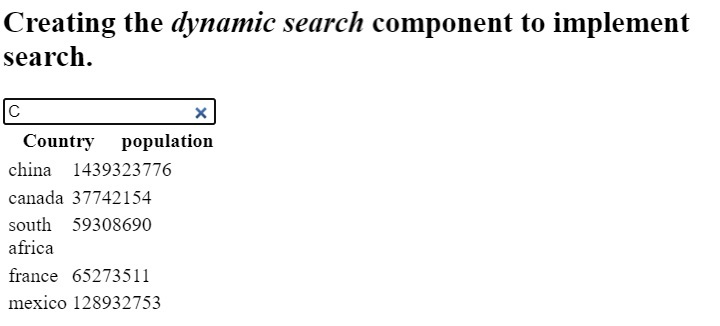
在下面的示例中,我们创建了一个包含国家/地区对象的数组,这些对象具有名称和人口属性。之后,每当用户更改输入时,我们都会调用 handleChange() 函数,该函数会根据搜索值过滤对象。
接下来,我们使用 map() 方法将过滤后的值映射到表格列。在组件中,我们调用了 searchList() 函数,该函数返回所有过滤后的国家/地区。
import React, { useState } from "react";
export default function App() {
   const [searchInput, setSearchInput] = useState("");
   let countries = [
      { name: "china", population: 1439323776 },
      { name: "india", population: 1380004385 },
      { name: "usa", population: 331002651 },
      { name: "indonesia", population: 273523615 },
      { name: "pakistan", population: 220892340 },
      { name: "canada", population: 37742154 },
      { name: "new zealand", population: 4822233 },
      { name: "italy", population: 60461826 },
      { name: "south africa", population: 59308690 },
      { name: "rusia", population: 154934462 },
      { name: "egypt", population: 102334404 },
      { name: "iran", population: 83992949 },
      { name: "france", population: 65273511 },
      { name: "mexico", population: 128932753 },
      { name: "spain", population: 46754778 },
      { name: "senegal", population: 16743927 },
      { name: "brazil", population: 212559417 },
      { name: "denmark", population: 5792202 },
      { name: "sudan", population: 43849260 },
      { name: "iraq", population: 40222493 },
      { name: "peru", population: 32971854 },
      { name: "bangladesh", population: 164689383 },
      { name: "portugal", population: 10196709 },
   ];
   const handleChange = (e) => {
      e.preventDefault();
      setSearchInput(e.target.value);
   };
   function searchList() {

      // filter countries according to search values
      let filteredCountries = countries.filter((country) => {
         return country.name.match(searchInput.toLowerCase());
      });

      // create table rows
      const filtered = filteredCountries?.map((country) => (
         <tr>
            <td> {country.name}</td>
            <td> {country.population} </td>
         </tr>
      ));
      return <div> {filtered} </div>;
   }
   return (
      <div>
         <h2>
            {" "}
            Creating the <i> dynamic search </i> component to implement search.
         </h2>
         <input
            Type="search"
            placeholder="Search here"
            onChange={handleChange}
            value={searchInput}
         />
         <table style={{ tableLayout: "fixed", width: "11rem" }}>
            <tr>
               <th> Country </th>
               <th> population </th>
            </tr>
            {searchList()}
         </table>
      </div>
   );
}
输出
用户学习了如何使用 Material UI 和纯 JavaScript 创建动态搜索组件。Material UI AutoComplete 组件包含各种 props 用于操作组件,因此用户可以使用它。对于 Material UI 未提供的更多自定义需求,用户可以使用第二种方法创建自己的搜索功能。

3K+ 阅读量
