
 数据结构
数据结构 网络
网络 关系型数据库管理系统
 操作系统
操作系统 Java
Java MS Excel
 iOS
iOS HTML
HTML CSS
CSS 安卓
安卓 Python
 C 编程
C 编程 C++
C++ C#
C# MongoDB
 MySQL
MySQL Javascript
 PHP
PHP 物理
物理 化学
化学 生物
生物 数学
数学 英语
英语 经济
经济 心理学
心理学 社会学
社会学 时尚研究
时尚研究 法律研究
法律研究如何在安卓中播放铃声/闹钟/通知声音?
本文档介绍如何如何在安卓中播放铃声/闹钟/通知声音。
步骤 1 − 在 Android Studio 中创建一个新项目,转至文件 ⇒ 新项目,并填写所有必需的信息以创建新项目。
步骤 2 − 将以下代码添加到 res/layout/activity_main.xml。
<? xml version= "1.0" encoding= "utf-8" ?>
<android.support.constraint.ConstraintLayout
   xmlns: android = "http://schemas.android.com/apk/res/android"
   xmlns: app = "http://schemas.android.com/apk/res-auto"
   xmlns: tools = "http://schemas.android.com/tools"
   android :layout_width= "match_parent"
   android :layout_height= "match_parent"
   android :padding= "16dp"
   tools :context= ".MainActivity" >
   <Button
      android :id= "@+id/btnCreateNotification"
      android :layout_width= "0dp"
      android :layout_height= "wrap_content"
      android :text= "Create notification"
      app :layout_constraintBottom_toBottomOf= "parent"
      app :layout_constraintEnd_toEndOf= "parent"
      app :layout_constraintStart_toStartOf= "parent"
      app :layout_constraintTop_toTopOf= "parent" />
</android.support.constraint.ConstraintLayout>
步骤 3 − 将以下代码添加到 src/MainActivity.java
package app.tutorialspoint.com.notifyme;
import android.app.NotificationManager;
import android.content.Context;
import android.media.MediaPlayer;
import android.media.RingtoneManager;
import android.net.Uri;
import android.support.v4.app.NotificationCompat;
import android.support.v7.app.AppCompatActivity;
import android.os.Bundle;
import android.view.View;
import android.widget.Button;
import java.util.Objects;
public class MainActivity extends AppCompatActivity {
   private final static String default_notification_channel_id = "default";
   @Override
   protected void onCreate (Bundle savedInstanceState) {
      super .onCreate(savedInstanceState);
      setContentView(R.layout. activity_main );
      Button btnCreateNotification = findViewById(R.id. btnCreateNotification );
      btnCreateNotification.setOnClickListener( new View.OnClickListener() {
      @Override
      public void onClick (View v) {
         Uri alarmSound =
         RingtoneManager. getDefaultUri (RingtoneManager. TYPE_NOTIFICATION );
         MediaPlayer mp = MediaPlayer. create (getApplicationContext(), alarmSound);
         mp.start();
         NotificationCompat.Builder mBuilder =
            new NotificationCompat.Builder(MainActivity. this, default_notification_channel_id )
            .setSmallIcon(R.drawable. ic_launcher_foreground )
            .setContentTitle( "Test" )
            .setContentText( "Hello! This is my first push notification" ) ;
            NotificationManager mNotificationManager = (NotificationManager)
               getSystemService(Context. NOTIFICATION_SERVICE );
            mNotificationManager.notify(( int ) System. currentTimeMillis () ,
               mBuilder.build());
         }
      });
   }
}
步骤 4 − 将以下代码添加到 androidManifest.xml
<? xml version= "1.0" encoding= "utf-8" ?>
<manifest xmlns: android = "http://schemas.android.com/apk/res/android"
   package= "app.tutorialspoint.com.notifyme" >
   <uses-permission android :name= "android.permission.VIBRATE" />
   <application
      android :allowBackup= "true"
      android :icon= "@mipmap/ic_launcher"
      android :label= "@string/app_name"
      android :roundIcon= "@mipmap/ic_launcher_round"
      android :supportsRtl= "true"
      android :theme= "@style/AppTheme" >
      <activity android :name= ".MainActivity" >
         <intent-filter>
            <action android :name= "android.intent.action.MAIN" />
            <category android :name= "android.intent.category.LAUNCHER" />
         </intent-filter>
      </activity>
      <service
         android :name= ".MyFirebaseMessagingService"
         android :exported= "false" >
         <intent-filter>
            <action android :name= "com.google.firebase.MESSAGING_EVENT" />
         </intent-filter>
      </service>
   </application>
</manifest>
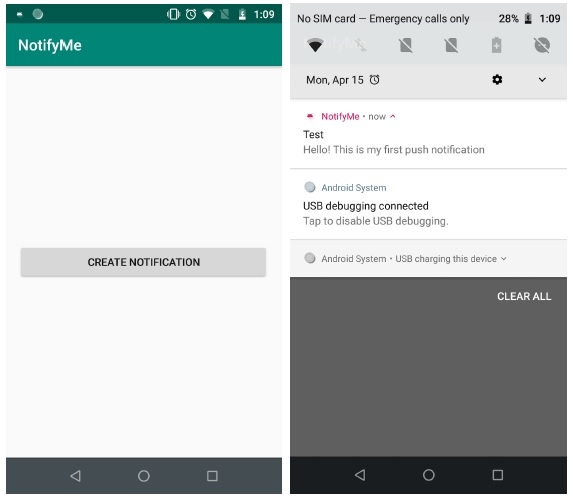
让我们试着运行你的应用程序。我假设你已将实际的安卓移动设备连接到你的计算机。要从安卓工作室运行应用,打开你的一个项目活动文件,并单击工具栏中的运行  图标。以选项的形式选择你的移动设备,然后检查你的移动设备,它将显示你的默认屏幕 –

更新于: 2020-07-03
3K+ 次查看

广告