
 数据结构
数据结构 网络
网络 关系数据库管理系统 (RDBMS)
 操作系统
操作系统 Java
Java MS Excel
 iOS
iOS HTML
HTML CSS
CSS Android
 Python
 C语言编程
C语言编程 C++
C++ C#
C# MongoDB
 MySQL
MySQL Javascript
 PHP
PHP 物理学
物理学 化学
化学 生物学
生物学 数学
数学 英语
英语 经济学
经济学 心理学
心理学 社会学
社会学 服装设计
服装设计 法学
法学如何使用Selenium根据索引在XPath节点集中选择指定的节点?
我们可以使用Selenium webdriver根据索引在XPath节点集中选择特定的节点。我们可以借助其包含在[]中的索引号来提及特定节点。
让我们看一下下面HTML代码中具有子元素的元素。具有标签名ul的元素具有多个标签名为li的子元素。如果我们想识别具有文本“软件质量管理”的父元素的第二个子元素,则带有节点索引的XPath表达式应为//ul[@class='list']li[2]。
识别父元素ul的第二个子元素的XPath表达式也可以借助XPath中的position()函数创建。为了精确找到第二个元素,我们必须将position()=2附加到XPath。因此,完整的XPath表达式应为//ul[@class='list']/li[position()=2]。
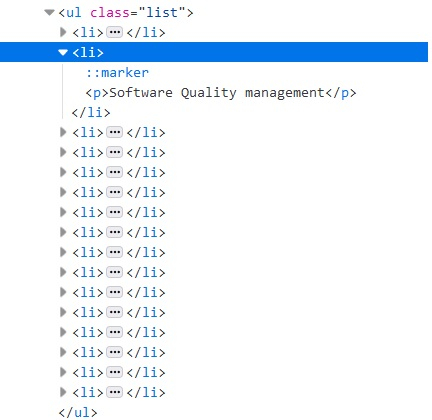
示例
使用带有索引的XPath的代码实现
import org.openqa.selenium.By;
import org.openqa.selenium.WebDriver;
import org.openqa.selenium.WebElement;
import org.openqa.selenium.chrome.ChromeDriver;
import java.util.concurrent.TimeUnit;
public class ElementIndex{
   public static void main(String[] args) {
      System.setProperty("webdriver.chrome.driver", "C:\Users\ghs6kor\Desktop\Java\chromedriver.exe");
      WebDriver driver = new ChromeDriver();
      driver.manage().timeouts().implicitlyWait(5, TimeUnit.SECONDS);
      driver.get("https://tutorialspoint.com/about/tutorials_writing.htm");
      // identify element with xpath having index
      WebElement t = driver.findElement(By.xpath("//ul[@class='list']/li[2]"));
      //getText to get element text
      System.out.println("The element is: " + t.getText());
      driver.close();
   }
}
使用带有position()的XPath的代码实现
import org.openqa.selenium.By;
import org.openqa.selenium.WebDriver;
import org.openqa.selenium.WebElement;
import org.openqa.selenium.chrome.ChromeDriver;
import java.util.concurrent.TimeUnit;
public class ElementPosition{
   public static void main(String[] args) {
      System.setProperty("webdriver.chrome.driver", "C:\Users\ghs6kor\Desktop\Java\chromedriver.exe");
      WebDriver driver = new ChromeDriver();
      driver.manage().timeouts().implicitlyWait(5, TimeUnit.SECONDS);
      driver.get("https://tutorialspoint.com/about/tutorials_writing.htm");
      // identify element with xpath having position()
      WebElement t = driver.findElement(By.xpath("//ul[@class='list']/li[position()=2]"));
      //getText to get element text
      System.out.println("The element is: " + t.getText());
      driver.close();
   }
}
输出


更新于:2020年10月26日
6000+ 次浏览

广告