
 数据结构
数据结构 网络
网络 关系数据库管理系统
 操作系统
操作系统 Java
Java MS Excel
 iOS
iOS HTML
HTML CSS
CSS Android
 Python
 C 编程
C 编程 C++
C++ C#
C# MongoDB
 MySQL
MySQL Javascript
 PHP
PHP 物理学
物理学 化学
化学 生物学
生物学 数学
数学 英语
英语 经济学
经济学 心理学
心理学 社会学
社会学 服装设计
服装设计 法律研究
法律研究如何在 Tkinter 中正确设置画布大小?
图形用户界面 (GUI) 在软件开发中发挥着至关重要的作用,使用户能够以直观的方式与程序交互。Tkinter 是 Python 的标准 GUI 工具包,简化了 GUI 应用程序的创建。Tkinter 编程的一个重要方面是管理画布大小,因为它直接影响图形元素的布局和呈现。在本文中,我们将深入探讨在 Tkinter 中正确设置画布大小的细节。
什么是 Tkinter 画布?
Tkinter 画布就像一个空白画布,您可以在其中放置和操作图形元素。要控制其大小,您可以在创建它时调整宽度和高度选项。让我们来看一个基本的示例 -
示例
# Import the necessary libraries
import tkinter as tk

# Create the main window
root = tk.Tk()
root.title("Simple Canvas Example")

# Set window dimensions
root.geometry("720x250")

# Set the canvas size
canvas_width = 500
canvas_height = 400

canvas = tk.Canvas(root, width=canvas_width, height=canvas_height, bg="white")
canvas.pack()

# Run the Tkinter event loop
root.mainloop()
在此示例中,我们创建一个窗口,向其中添加一个具有指定宽度和高度的画布,并设置白色背景。调整 canvas_width 和 canvas_height 变量以获得所需的画布大小。
输出
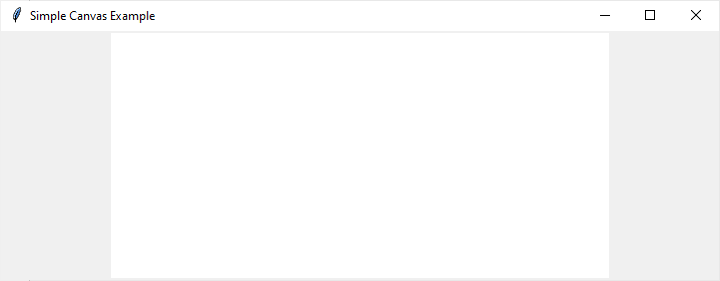
还有两种调整画布大小的方法:动态和比例画布调整大小。让我们详细了解一下 -
动态画布调整大小
通常,您可能需要动态调整画布大小,尤其是在您的应用程序涉及用户交互时。以下是如何实现这一点的简单方法。
示例
# Import the necessary libraries
import tkinter as tk
# Defining the function for resizing cavas size dynamically
def resize_canvas(new_width, new_height):
   canvas.config(width=new_width, height=new_height)

# Create the main window
root = tk.Tk()
root.title("Dynamic Canvas Resizing")
# Set window dimensions
root.geometry("720x450")

# Set the initial canvas size
canvas_width = 400
canvas_height = 300

canvas = tk.Canvas(root, width=canvas_width, height=canvas_height, bg="white")
canvas.pack()

# Button to trigger canvas resizing
resize_button = tk.Button(root, text="Resize Canvas", command=lambda: resize_canvas(600, 400))
resize_button.pack()

# Run the Tkinter event loop
root.mainloop()
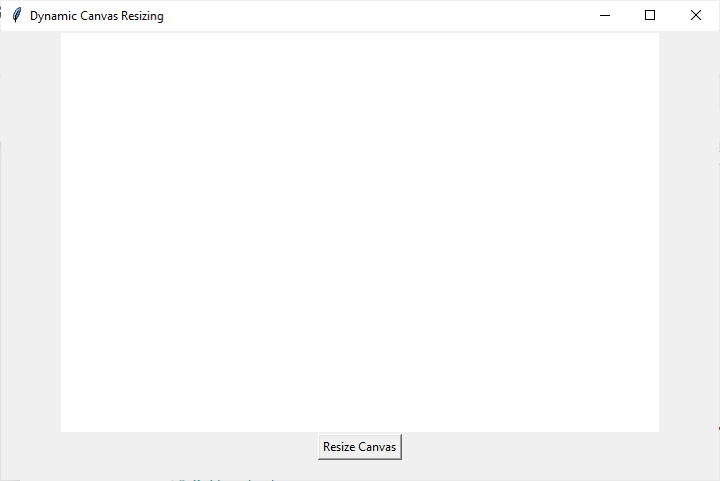
在上面的示例中,我们定义了一个函数 resize_canvas,它接受新的宽度和高度值并相应地更新画布。按钮触发此函数,允许动态调整大小。
输出
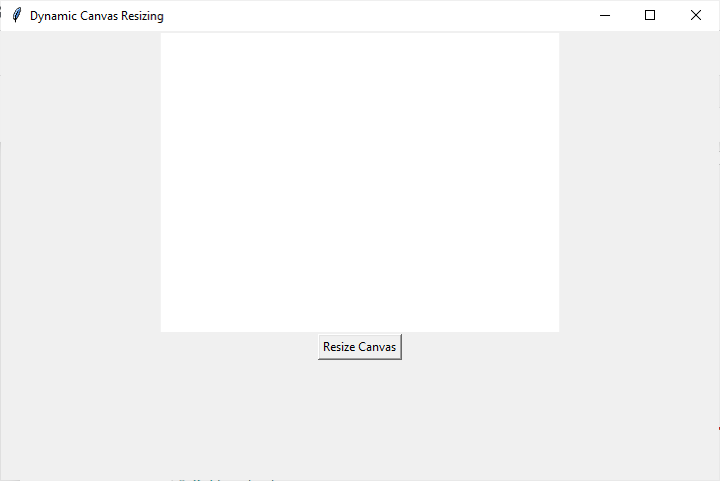
下一个输出显示单击“调整画布大小”按钮后画布尺寸增大的情况。
比例调整大小
保持画布的纵横比对于防止变形至关重要。以下是如何实现比例调整大小的简单方法。
示例
# Import the necessary libraries
import tkinter as tk
# Defining the function to resize the canvas proportinally
def proportional_resize(new_width, new_height):
   aspect_ratio = canvas_width / canvas_height

   # Adjust the width and height while preserving the aspect ratio
   if new_width / new_height > aspect_ratio:
      new_width = int(new_height * aspect_ratio)
   else:
      new_height = int(new_width / aspect_ratio)

   canvas.config(width=new_width, height=new_height)

# Create the main window
root = tk.Tk()
root.title("Proportional Canvas Resizing")
# Set window dimensions
root.geometry("720x450")

# Set the initial canvas size
canvas_width = 400
canvas_height = 300

canvas = tk.Canvas(root, width=canvas_width, height=canvas_height, bg="white")
canvas.pack()

# Button to trigger proportional resizing
resize_button = tk.Button(root, text="Proportional Resize", command=lambda: proportional_resize(600, 400))
resize_button.pack()

# Run the Tkinter event loop
root.mainloop()
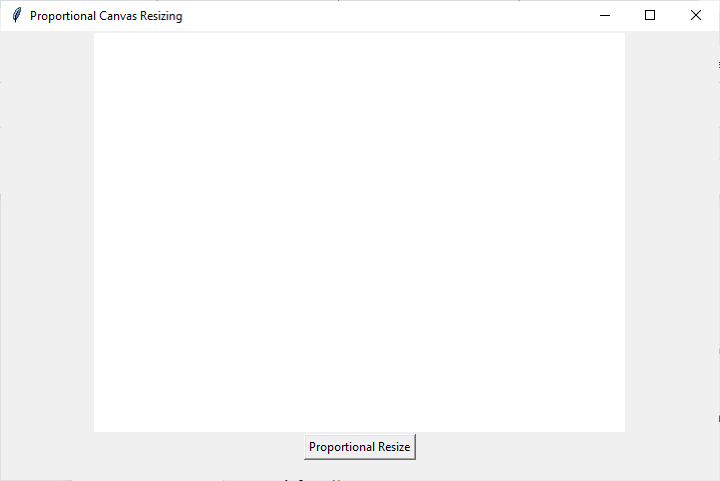
在上面的示例中,proportional_resize 函数在保持原始纵横比的同时计算新的宽度和高度。
输出
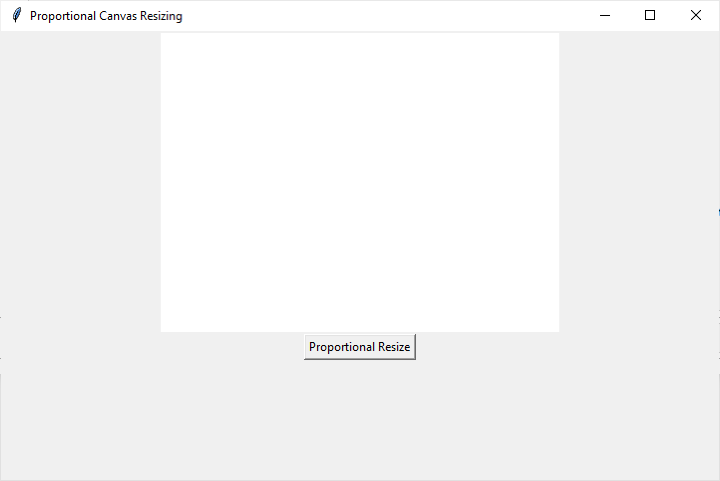
下一个输出显示单击“比例调整大小”按钮后画布尺寸增大的情况。
结论
正确设置画布大小是 Tkinter 编程的一个基本方面,它会影响 GUI 应用程序的视觉布局和响应能力。无论您需要固定大小、动态调整大小、比例调整还是约束,Tkinter 都提供了有效管理画布尺寸的工具。
通过了解这些技术,您可以在 Python 中创建更强大、更友好的图形界面。尝试使用这些概念并根据您的特定应用程序需求对其进行调整,以增强 Tkinter 项目的用户体验。

3K+ 浏览量
