
- Postman 教程
- Postman - 首页
- Postman - 简介
- Postman - 环境设置
- Postman - 环境变量
- Postman - 授权
- Postman - 工作流程
- Postman - GET 请求
- Postman - POST 请求
- Postman - PUT 请求
- Postman - DELETE 请求
- Postman - 为 CRUD 创建测试
- Postman - 创建集合
- Postman - 参数化请求
- Postman - 集合运行器
- Postman - 断言
- Postman - 模拟服务器
- Postman - Cookie
- Postman - 会话
- Postman - Newman 概述
- Postman - 使用 Newman 运行集合
- Postman - OAuth 2.0 授权
- Postman 有用资源
- Postman - 快速指南
- Postman - 有用资源
- Postman - 讨论
Postman - 参数化请求
我们可以参数化 Postman 请求以使用各种数据集执行相同的请求。这是借助变量和参数实现的。参数是 URL 的一部分,用于向服务器传递更多信息。
数据可以以数据文件或环境变量的形式使用。参数化是 Postman 的一项重要功能,有助于消除冗余测试。参数用双大括号 {{parameter}} 括起来。
示例
让我们以一个 URL 为例 − https://tutorialspoint.com/index.htm。我们将创建一个名为 url 的变量,然后将其用于请求的参数化。我们可以在 Postman 中以 {{url}} 的格式引用它。
参数采用键值对的形式。因此,要指向 URL:https://tutorialspoint.com/index.htm,我们可以将其表示为 {{url}}/index.htm。因此,这里 url 是键,值集是 https://tutorialspoint.com
创建参数请求
请按照以下步骤在 Postman 中创建参数请求:
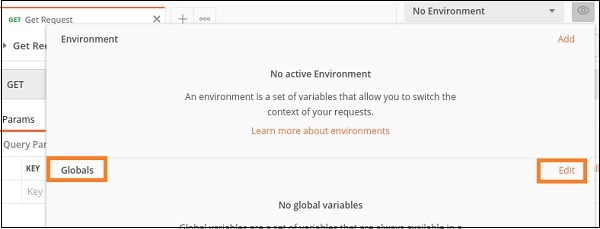
步骤 1 − 点击 Postman 应用程序右上角“环境”下拉菜单右侧的眼睛图标。

步骤 2 − 点击“全局变量”部分中的“编辑”链接。
步骤 3 − 弹出管理环境窗口。在“变量”字段中输入 URL,在“初始值”字段中输入 https://tutorialspoint.com。然后,点击保存。
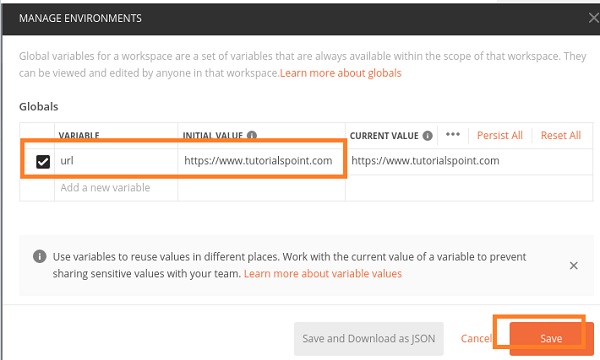
步骤 4 − 点击关闭按钮进入下一个屏幕。
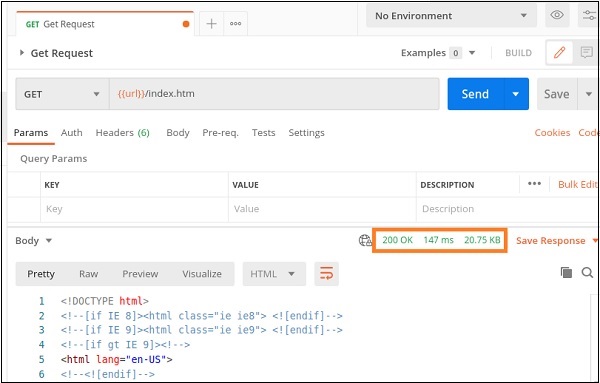
步骤 5 − 在 HTTP 请求选项卡中,在地址栏输入 {{url}}/index.htm。选择GET 方法,然后点击发送。

响应
发送请求后,我们可以看到响应代码 200 OK 已填充到响应中。这表示请求成功且端点正确。
广告