- WCF 教程
- WCF - 首页
- WCF - 概述
- WCF - 与Web服务的比较
- WCF - 开发人员工具
- WCF - 架构
- WCF - 创建WCF服务
- WCF - 托管WCF服务
- WCF - IIS 托管
- WCF - 自托管
- WCF - WAS 托管
- WCF - Windows 服务托管
- WCF - 使用WCF服务
- WCF - 服务绑定
- WCF - 实例管理
- WCF - 事务
- WCF - RIA 服务
- WCF - 安全性
- WCF - 异常处理
- WCF 资源
- WCF - 快速指南
- WCF - 有用资源
- WCF - 讨论
WCF - Windows 服务托管
Windows 服务托管的操作很简单。以下是解释该过程的步骤,包括必要的代码和屏幕截图,以简单易懂的方式进行说明。
步骤 1 − 现在让我们创建一个 WCF 服务。打开 Visual Studio 2008 并单击“新建”→“项目”,然后从模板中选择“类库”。
步骤 2 − 向项目添加 System.ServiceModel 引用。这是用于创建 WCF 服务的核心程序集。
步骤 3 − 接下来,我们可以创建 ISimpleCalulator 接口。添加服务和操作契约属性,如下所示:
using System;
using System.Collections.Generic;
using System.Linq;
using System.Text;
using System.ServiceModel;

namespace WindowsServiceHostedService{
   [ServiceContract]
   public interfaceISimpleCalculator {
      [OperationContract]
      int Add(int num1, int num2);

      [OperationContract]
      int Subtract(int num1, int num2);

      [OperationContract]
      int Multiply(int num1, int num2);

      [OperationContract]
      double Divide(int num1, int num2);
   }
}
步骤 4 − 实现 ISimpleCalculator 接口,如下所示:
using System;
using System.Collections.Generic;
using System.Linq;
using System.Text;

namespace WindowsServiceHostedService {
   Class SimpleCalulator : ISimpleCalculator {
      Public int Add(int num1, int num2) {
         return num1 + num2;
      }
      Public int Subtract(int num1, int num2) {
         return num1 - num2;
      }
      Public int Multiply(int num1, int num2) {
         return num1 * num2;
      }
      Public double Divide(int num1, int num2) {
         if (num2 != 0)
            return num1 / num2;
         else
            return 0;
      }
   }
}
步骤 5 − 构建项目并获取 dll。现在,我们已经准备好 WCF 服务。我们将了解如何在 Windows 服务中托管 WCF 服务。
注意 − 在此项目中,提到我们是在同一个项目中创建契约和服务(实现)。但是,如果将两者放在不同的项目中,始终是一个好习惯。
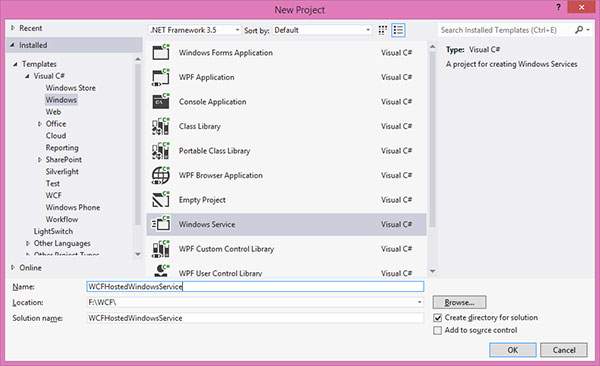
步骤 6 − 打开 Visual Studio 2008 并单击“新建”→“项目”,然后选择“Windows 服务”。
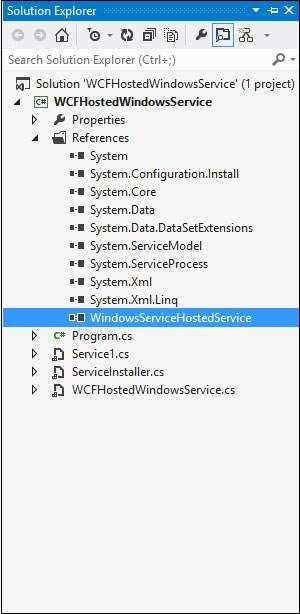
步骤 7 − 将 'WindowsServiceHostedService.dll' 添加为项目的引用。此程序集将充当服务。
步骤 8 − 服务的 OnStart 方法可用于编写 WCF 的托管代码。我们必须确保只使用一个服务主机对象。OnStop 方法用于关闭服务主机。以下代码显示如何在 Windows 服务中托管 WCF 服务。
using System;
using System.Collections.Generic;
using System.ComponentModel;
using System.Data;
using System.Diagnostics;
using System.Linq;
using System.ServiceProcess;
using System.Text;
using System.ServiceModel;
using System.ServiceModel.Description;

namespace WCFHostedWindowsService {
   Partial class WCFHostedWindowsService : ServiceBase {
      ServiceHostm_Host;

      Public WCFHostedWindowsService() {
         InitializeComponent();
      }
      Private void InitializeComponent() {
         thrownewNotImplementedException();
      }
      protectedoverridevoidOnStart(string[] args) {
         if (m_Host != null) {
            m_Host.Close();
         }

         //Create a URI to serve as the base address
         UrihttpUrl = newUri("https://:8090/WindowsServiceHostedService/SimpleCalculator");

         //Create ServiceHost
         m_Host = newServiceHost typeof(WindowsServiceHostedService.SimpleCalulator), httpUrl);

         //Add a service endpoint
         m_Host.AddServiceEndpoint (typeof(WindowsServiceHostedService.ISimpleCalculator), newWSHttpBinding(), "");

         //Enable metadata exchange
         ServiceMetadataBehaviorsmb = newServiceMetadataBehavior();
         smb.HttpGetEnabled = true;
         m_Host.Description.Behaviors.Add(smb);

         //Start the Service
         m_Host.Open();
      }
      protectedoverridevoidOnStop() {
         if (m_Host != null) {
            m_Host.Close();
            m_Host = null;
         }
      }
      staticvoid Main() {
         ServiceBase[] ServicesToRun;
         ServicesToRun = newServiceBase[] {
            newWCFHostedWindowsService();
         }
         ServiceBase.Run(ServicesToRun);
      }
   }
}
步骤 9 − 为了安装服务,我们需要 Windows 服务的 Installer 类。因此,向项目添加一个新的 Installer 类,该类继承自 Installer 类。以下代码显示服务的名称、启动类型等。
using System;
using System.Collections.Generic;
using System.Text;
using System.ServiceProcess;
using System.Configuration.Install;
using System.ComponentModel;
using System.Configuration;

namespace WCFHostedWindowsService {
   [RunInstaller(true)]
   Public class WinServiceInstaller : Installer {
      Private ServiceProcessInstaller process;
      Private ServiceInstaller service;

      Public WinServiceInstaller() {
         process = newServiceProcessInstaller();
         process.Account = ServiceAccount.NetworkService;
         service = newServiceInstaller();

         service.ServiceName = "WCFHostedWindowsService";
         service.DisplayName = "WCFHostedWindowsService";
         service.Description = "WCF Service Hosted";
         service.StartType = ServiceStartMode.Automatic;

         Installers.Add(process);
         Installers.Add(service);
      }
   }
}
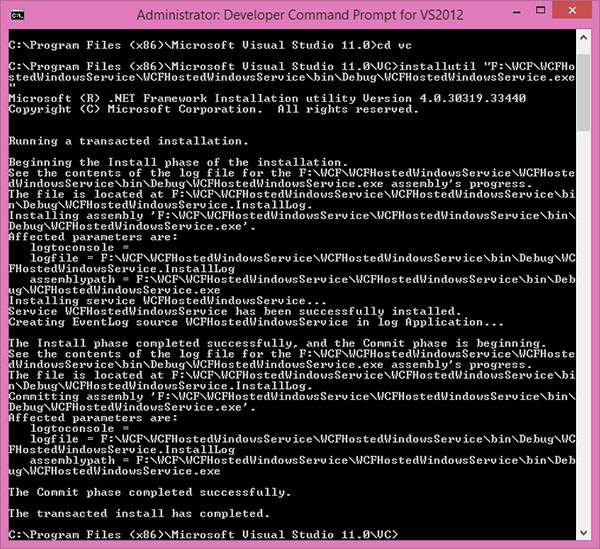
步骤 10 − 构建项目以获取可执行文件 WCFHostedWindowsService.exe。接下来,我们需要使用 Visual Studio 命令提示符安装服务。因此,通过单击“开始”→“所有程序”→“Microsoft Visual Studio 2008”→“Visual Studio 工具”→“Visual Studio 命令提示符”打开命令提示符。使用 installutil 实用程序应用程序,您可以安装服务,如下所示: