
- wxPython 教程
- wxPython - 首页
- wxPython - 简介
- wxPython - 环境配置
- wxPython - Hello World
- wxPython - GUI 构建工具
- wxPython - 主要类
- wxPython - 事件处理
- wxPython - 布局管理
- wxPython - 按钮
- wxPython - 可停靠窗口
- 多文档界面
- wxPython - 绘图 API
- wxPython - 拖放操作
- wxPython 资源
- wxPython - 快速指南
- wxPython - 有用资源
- wxPython - 讨论
wxPython - 单选按钮 & 单选框
单选按钮通常表示用户在一个组中可以选择的多选按钮之一。每个按钮都是一个 wx.RadioButton 类的对象,旁边带有圆形按钮的文本标签。
为了创建一个互斥选择的按钮组,第一个 wxRadioButton 对象的 style 参数设置为 wx.RB_GROUP。后续的按钮对象添加到该组。
wxPython API 还包含 wx.RadioBox 类。它的对象为该组提供边框和标签。组中的按钮可以水平或垂直排列。
wx.RadioButton 构造函数如下:
Wx.RadioButton(parent, id, label, pos, size, style)
style 参数仅存在于组中的第一个按钮。其值为 wx.RB_GROUP。对于组中的后续按钮,可以选择使用 wx.RB_SINGLE style 参数。
wx.RadioButton 事件绑定器 wx.EVT_RADIOBUTTON 在每次单击组中的任何按钮时都会触发关联的处理程序。
wx.RadioButton 类的两个重要方法是 SetValue() - 以编程方式选择或取消选择按钮 - 和 GetValue() - 如果按钮被选中则返回 true,否则返回 false。
wx.RadioBox 将一系列互斥按钮放置在静态框中。组中的每个按钮都从充当 wx.RadioBox 构造函数“choices”参数的 List 对象中获取其标签。
RadioBox 中的按钮以行方式或列方式排列。为此,构造函数的“style”参数应为 wx.RA_SPECIFY_ROWS 或 wx.RA_SPECIFY_COLS。行/列的数量由“majordimensions”参数的值决定。
wx.RadioBox 构造函数的原型为:
Wx.RadioBox(parent, id, label, pos, size, choices[], initialdimensions, style)
以下是 wx.RadioBox 类中的重要方法:
| 序号 | 方法 & 描述 |
|---|---|
| 1 | GetSelection() 返回所选项目的索引 |
| 2 | SetSelection() 以编程方式选择一个项目 |
| 3 | GetString() 返回所选项目的标签 |
| 4 | SetString() 为所选项目分配标签 |
| 5 | Show() 显示或隐藏给定索引的项目 |
与 wx.RadioBox 对象关联的事件绑定器是 wx.EVT_RADIOBOX。关联的事件处理程序识别按钮选择并对其进行处理。
示例
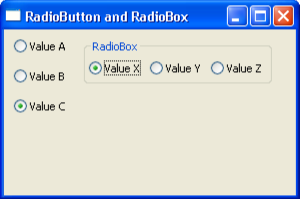
以下示例演示了 RadioBox 和 RadioButton 的用法。首先,在面板上放置三个 RadioButtons,通过指定 wx.RB_GROUP 样式进行分组。
self.rb1 = wx.RadioButton(pnl,11, label = 'Value A', pos = (10,10), style = wx.RB_GROUP)
self.rb2 = wx.RadioButton(pnl,22, label = 'Value B',pos = (10,40))
self.rb3 = wx.RadioButton(pnl,33, label = 'Value C',pos = (10,70))
另一方面,RadioBox 从 lblList[] 对象读取其按钮的标签。
lblList = ['Value X', 'Value Y', 'Value Z']
self.rbox = wx.RadioBox(pnl,label = 'RadioBox', pos = (80,10), choices = lblList ,
   majorDimension = 1, style = wx.RA_SPECIFY_ROWS)
声明了两个事件绑定器,一个用于单选按钮组,另一个用于 RadioBox。
self.Bind(wx.EVT_RADIOBUTTON, self.OnRadiogroup)
self.rbox.Bind(wx.EVT_RADIOBOX,self.onRadioBox)
相应的事件处理程序识别所选按钮并在控制台窗口中显示消息。
def OnRadiogroup(self, e):
   rb = e.GetEventObject()
   print rb.GetLabel(),' is clicked from Radio Group'

def onRadioBox(self,e):
   print self.rbox.GetStringSelection(),' is clicked from Radio Box'
完整的代码如下:
import wx

class Example(wx.Frame):

   def __init__(self, parent, title):
      super(Example, self).__init__(parent, title = title,size = (300,200))

      self.InitUI()

   def InitUI(self):
      pnl = wx.Panel(self)

      self.rb1 = wx.RadioButton(pnl,11, label = 'Value A',
         pos = (10,10), style = wx.RB_GROUP)
      self.rb2 = wx.RadioButton(pnl,22, label = 'Value B',pos = (10,40))
      self.rb3 = wx.RadioButton(pnl,33, label = 'Value C',pos = (10,70))
      self.Bind(wx.EVT_RADIOBUTTON, self.OnRadiogroup)

      lblList = ['Value X', 'Value Y', 'Value Z']

      self.rbox = wx.RadioBox(pnl, label = 'RadioBox', pos = (80,10), choices = lblList,
         majorDimension = 1, style = wx.RA_SPECIFY_ROWS)
      self.rbox.Bind(wx.EVT_RADIOBOX,self.onRadioBox)

      self.Centre()
      self.Show(True)

   def OnRadiogroup(self, e):
      rb = e.GetEventObject()
      print rb.GetLabel(),' is clicked from Radio Group'

   def onRadioBox(self,e):
      print self.rbox.GetStringSelection(),' is clicked from Radio Box'

ex = wx.App()
Example(None,'RadioButton and RadioBox')
ex.MainLoop()
以上代码产生以下输出:
从单选按钮组中单击了值 B
从单选按钮组中单击了值 C
从单选框中单击了值 Y
从单选框中单击了值 X