- wxPython 教程
- wxPython - 首页
- wxPython - 简介
- wxPython - 环境配置
- wxPython - Hello World
- wxPython - GUI构建工具
- wxPython - 主要类
- wxPython - 事件处理
- wxPython - 布局管理
- wxPython - 按钮
- wxPython - 可停靠窗口
- 多文档界面
- wxPython - 绘图API
- wxPython - 拖放操作
- wxPython 资源
- wxPython - 快速指南
- wxPython - 有用资源
- wxPython - 讨论区
wxPython - 工具栏类
一个或多个包含带有文本标题或图标的按钮的水平工具栏条通常放置在顶级框架的菜单栏正下方。
如果wx.Toolbar对象的style参数设置为wx.TB_DOCKABLE,则它变为可停靠的。也可以使用wxPython的AUIToolBar类构建浮动工具栏。
不带任何参数的构造函数会创建一个具有默认参数的工具栏。可以按如下方式将附加参数传递给wx.ToolBar类构造函数:
Wx.ToolBar(parent, id, pos, size, style)
为wx.ToolBar定义的样式参数包括以下常量:
| 序号 | 参数及说明 |
|---|---|
| 1 | wx.TB_FLAT 使工具栏外观扁平化 |
| 2 | wx.TB_HORIZONTAL 指定水平布局(默认) |
| 3 | wxTB_VERTICAL 指定垂直布局 |
| 4 | wx.TB_DEFAULT_STYLE 组合wxTB_FLAT和wxTB_HORIZONTAL |
| 5 | wx.TB_DOCKABLE 使工具栏可浮动和可停靠 |
| 6 | wx.TB_NO_TOOLTIPS 当鼠标悬停在工具上时,不显示工具的简短帮助提示 |
| 7 | wx.TB_NOICONS 指定工具栏按钮中没有图标;默认情况下显示图标 |
| 8 | wx.TB_TEXT 显示工具栏按钮中的文本;默认情况下仅显示图标 |
可以将具有不同功能的工具按钮添加到工具栏中。Wx.ToolBar类具有以下有用的方法:
| 序号 | 方法及说明 |
|---|---|
| 1 | AddTool() 向工具栏添加工具按钮。工具的类型由kind参数指定 |
| 2 | AddRadioTool() 添加属于互斥按钮组的按钮 |
| 3 | AddCheckTool() 向工具栏添加切换按钮 |
| 4 | AddLabelTool() 添加带有图标和标签的工具 |
| 5 | AddSeparator() 添加分隔符以表示工具按钮组 |
| 6 | AddControl() 向工具栏添加任何控件。例如,wx.Button、wx.Combobox等。 |
| 7 | ClearTools() 从工具栏中删除所有按钮 |
| 8 | RemoveTool() 从工具栏中删除给定的工具按钮 |
| 9 | Realize() 应该在添加工具按钮后调用 |
AddTool()方法至少需要三个参数:
AddTool(parent, id, bitmap)
父参数是添加按钮的工具栏。图像图标由bitmap参数指定。
常规工具按钮发出EVT_TOOL事件。如果向工具栏添加其他控件,则必须通过相应的CommandEvent绑定器将其绑定到事件处理程序。
示例
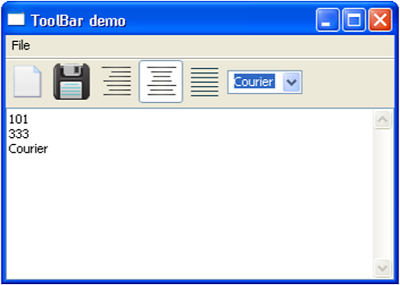
在下面的示例中,工具栏显示两个普通工具按钮、三个单选工具按钮和一个组合框。
首先,激活工具栏对象。
tb = wx.ToolBar( self, -1 )
self.ToolBar = tb
使用AddTool()方法,添加了两个带有“新建”和“保存”图标的工具。
tb.AddTool( 101, wx.Bitmap("new.png") )
tb.AddTool(102,wx.Bitmap("save.png"))
然后向工具栏添加一组RadioTools,一次只能选择其中一个。
right = tb.AddRadioTool(222,wx.Bitmap("right.png"))
center = tb.AddRadioTool(333,wx.Bitmap("center.png"))
justify = tb.AddRadioTool(444,wx.Bitmap("justify.png"))
现在使用AddControl()方法向工具栏添加一个wx.ComboBox控件。组合框列表包含字体名称。
self.combo = wx.ComboBox(tb, 555, value = "Times", choices = ["Arial","Times","Courier"])
需要调用Realize()方法才能完成工具栏的构建。
tb.Realize()
最后,注册工具栏和组合框的事件绑定器。
tb.Bind(wx.EVT_TOOL, self.Onright)
tb.Bind(wx.EVT_COMBOBOX,self.OnCombo)
各个事件处理程序的追加方法处理事件源。EVT_TOOL事件的ID显示在工具栏下方的文本框中,当EVT_COMBOBOX事件触发时,所选字体名称将添加到其中。
def Onright(self, event):
   self.text.AppendText(str(event.GetId())+"\n")

def OnCombo(self,event):
   self.text.AppendText( self.combo.GetValue()+"\n")
完整的代码如下:
import wx

class Mywin(wx.Frame):

   def __init__(self, parent, title):
      super(Mywin, self).__init__(parent, title = title)
      self.InitUI()

   def InitUI(self):
      menubar = wx.MenuBar()
      menu = wx.Menu()
      menubar.Append(menu,"File")
      self.SetMenuBar(menubar)

      tb = wx.ToolBar( self, -1 )
      self.ToolBar = tb

      tb.AddTool( 101, wx.Bitmap("new.png") )
      tb.AddTool(102,wx.Bitmap("save.png"))

      right = tb.AddRadioTool(222,wx.Bitmap("right.png"))
      center = tb.AddRadioTool(333,wx.Bitmap("center.png"))
      justify = tb.AddRadioTool(444,wx.Bitmap("justify.png"))

      tb.Bind(wx.EVT_TOOL, self.Onright)
      tb.Bind(wx.EVT_COMBOBOX,self.OnCombo)
      self.combo = wx.ComboBox( tb, 555, value = "Times", choices = ["Arial","Times","Courier"])

      tb.AddControl(self.combo )
      tb.Realize()
      self.SetSize((350, 250))

      self.text = wx.TextCtrl(self,-1, style = wx.EXPAND|wx.TE_MULTILINE)
      self.Centre()
      self.Show(True)

   def Onright(self, event):
      self.text.AppendText(str(event.GetId())+"\n")

   def OnCombo(self,event):
      self.text.AppendText( self.combo.GetValue()+"\n")

ex = wx.App()
Mywin(None,'ToolBar demo')
ex.MainLoop()
以上代码产生以下输出: