
- Apache POI 教程
- Apache POI - 主页
- Apache POI - 概述
- Apache POI - Java Excel API
- Apache POI - 环境
- Apache POI - 核心类
- Apache POI - 工作簿
- Apache POI - 电子表格
- Apache POI - 单元格
- Apache POI - 字体
- Apache POI - 公式
- Apache POI - 超链接
- Apache POI - 打印区域
- Apache POI - 数据库
- Apache POI 资源
- Apache POI - 问题和答案
- Apache POI - 快速指南
- Apache POI - 有用资源
- Apache POI - 讨论
Apache POI - 字体
本章将说明如何在 Excel 电子表格内设置不同的字体、应用样式和以不同的角度方向显示文本。
每个系统都附带一个巨大的字体集合,例如 Arial、Impact、Times New Roman 等。如有需要,还可以使用新字体更新集合。同样,也可以使用多种样式显示字体,例如粗体、斜体、下划线、删除线等。
字体和字体样式
以下代码用于将特定字体和样式应用到单元格内容。
import java.io.File;
import java.io.FileOutputStream;
import org.apache.poi.hssf.util.IndexedColors;
import org.apache.poi.xssf.usermodel.XSSFCell;
import org.apache.poi.xssf.usermodel.XSSFCellStyle;
import org.apache.poi.xssf.usermodel.XSSFFont;
import org.apache.poi.xssf.usermodel.XSSFRow;
import org.apache.poi.xssf.usermodel.XSSFSheet;
import org.apache.poi.xssf.usermodel.XSSFWorkbook;

public class FontStyle {
   public static void main(String[] args)throws Exception {
      XSSFWorkbook workbook = new XSSFWorkbook();
      XSSFSheet spreadsheet = workbook.createSheet("Fontstyle");
      XSSFRow row = spreadsheet.createRow(2);

      //Create a new font and alter it.
      XSSFFont font = workbook.createFont();
      font.setFontHeightInPoints((short) 30);
      font.setFontName("IMPACT");
      font.setItalic(true);
      font.setColor(IndexedColors.BRIGHT_GREEN.index);

      //Set font into style
      XSSFCellStyle style = workbook.createCellStyle();
      style.setFont(font);

      // Create a cell with a value and set style to it.
      XSSFCell cell = row.createCell(1);
      cell.setCellValue("Font Style");
      cell.setCellStyle(style);

      FileOutputStream out = new FileOutputStream(new File("fontstyle.xlsx"));
      workbook.write(out);
      out.close();
      System.out.println("fontstyle.xlsx written successfully");
   }
}
我们将在一个名为 FontStyle.java 的文件中保存以上代码。从命令提示符按如下操作编译和执行代码 −
$javac FontStyle.java
$java FontStyle
它将在当前目录中生成一个名为 fontstyle.xlsx 的 Excel 文件,并在命令提示符上显示以下输出。
fontstyle.xlsx written successfully
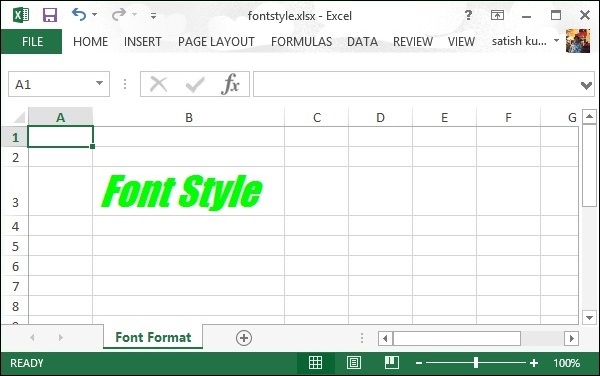
fontstyle.xlsx 文件如下所示 −
文本方向
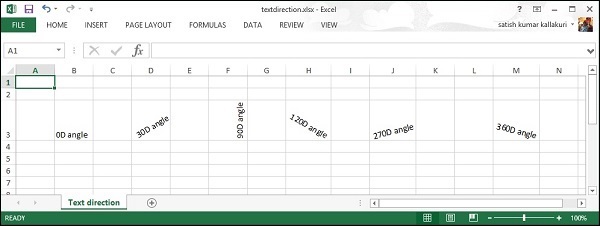
在此,你可以了解如何以不同的角度设置文本方向。通常,单元格内容以从左到右的水平方式在 00 角度显示;但是,如果需要,可以使用以下代码旋转文本方向。
import java.io.File;
import java.io.FileOutputStream;

import org.apache.poi.xssf.usermodel.XSSFCell;
import org.apache.poi.xssf.usermodel.XSSFCellStyle;
import org.apache.poi.xssf.usermodel.XSSFRow;
import org.apache.poi.xssf.usermodel.XSSFSheet;
import org.apache.poi.xssf.usermodel.XSSFWorkbook;

public class TextDirection {
   public static void main(String[] args)throws Exception {
      XSSFWorkbook workbook = new XSSFWorkbook();
      XSSFSheet spreadsheet = workbook.createSheet("Text direction");
      XSSFRow row = spreadsheet.createRow(2);
      XSSFCellStyle myStyle = workbook.createCellStyle();
      myStyle.setRotation((short) 0);
      XSSFCell cell = row.createCell(1);
      cell.setCellValue("0D angle");
      cell.setCellStyle(myStyle);

      //30 degrees
      myStyle = workbook.createCellStyle();
      myStyle.setRotation((short) 30);
      cell = row.createCell(3);
      cell.setCellValue("30D angle");
      cell.setCellStyle(myStyle);

      //90 degrees
      myStyle = workbook.createCellStyle();
      myStyle.setRotation((short) 90);
      cell = row.createCell(5);
      cell.setCellValue("90D angle");
      cell.setCellStyle(myStyle);

      //120 degrees
      myStyle = workbook.createCellStyle();
      myStyle.setRotation((short) 120);
      cell = row.createCell(7);
      cell.setCellValue("120D angle");
      cell.setCellStyle(myStyle);

      //270 degrees
      myStyle = workbook.createCellStyle();
      myStyle.setRotation((short) 270);
      cell = row.createCell(9);
      cell.setCellValue("270D angle");
      cell.setCellStyle(myStyle);

      //360 degrees
      myStyle = workbook.createCellStyle();
      myStyle.setRotation((short) 360);
      cell = row.createCell(12);
      cell.setCellValue("360D angle");
      cell.setCellStyle(myStyle);

      FileOutputStream out = new FileOutputStream(new File("textdirection.xlsx"));
      workbook.write(out);
      out.close();
      System.out.println("textdirection.xlsx written successfully");
   }
}
将以上代码保留在 TextDirectin.java 文件中,然后从命令提示符按如下操作编译和执行代码 −
$javac TextDirection.java
$java TextDirection
它将编译和执行,并在当前目录中生成一个名为 textdirection.xlsx 的 Excel 文件,并在命令提示符上显示以下输出。
textdirection.xlsx written successfully
textdirection.xlsx 文件如下所示 −
广告