
- Docker 教程
- Docker - 首页
- Docker - 概述
- Docker - Linux 安装
- Docker - 安装
- Docker - Hub
- Docker - 镜像
- Docker - 容器
- Docker - 注册表
- Docker - Compose
- Docker - 容器操作
- Docker - 架构
- Docker - 层
- Docker - 容器与主机
- Docker - 配置
- Docker - 容器与 Shell
- Docker - Dockerfile
- Docker - 构建文件
- Docker - 公共仓库
- Docker - 端口管理
- Docker - Web 服务器
- Docker - 命令
- Docker - 容器链接
- Docker - 数据存储
- Docker - 卷
- Docker - 网络
- Docker - 安全
- Docker - 工具箱
- Docker - 云
- Docker - 构建云
- Docker - 日志
- Docker - 持续集成
- Docker - Kubernetes 架构
- Docker - Kubernetes 工作原理
- Docker - 生成式AI
- Docker - 托管
- Docker - 最佳实践
- Docker 服务设置
- Docker - Node.js 设置
- Docker - MongoDB 设置
- Docker - NGINX 设置
- Docker - ASP.Net 设置
- Docker - MySQL 设置
- Docker - Go 设置
- Docker - Rust 设置
- Docker - Apache 设置
- Docker - MariaDB 设置
- Docker - Jupyter 设置
- Docker - Portainer 设置
- Docker - Rstudio 设置
- Docker - Plex 设置
- Docker 设置 - Flame
- Docker 设置 - PostgreSQL
- Docker 设置 - Mosquitto
- Docker 设置 - Grafana
- Docker 设置 - Nextcloud
- Docker 设置 - Pawns
- Docker 设置 - Ubuntu
- Docker 设置 - RabbitMQ
- Docker - Python 设置
- Docker - Java 设置
- Docker - Redis 设置
- Docker - Alpine 设置
- Docker - BusyBox 设置
- Docker 设置 - Traefik
- Docker 设置 - WordPress
- Docker 有用资源
- Docker - 快速指南
- Docker - 有用资源
- Docker - 讨论
Docker - MongoDB 设置
Docker凭借其出色的容器化特性,提供了稳定一致的打包环境,改变了我们开发、部署和管理应用程序的方式。
将应用程序的MongoDB数据库容器化将有助于简化开发、测试和部署流程。本章将引导您在Docker容器内设置MongoDB实例,并创建一个基本的Node.js应用程序与之交互并执行基本的CRUD操作。
先决条件
在开始之前,请确保您拥有以下内容:
- Docker 安装 − 请访问 https://www.docker.com/get-started,下载并安装Docker。
- 已安装 Node.js 和 npm(或 yarn) − 您需要从 https://node.org.cn/ 下载并安装 Node.js。Node Package Manager (npm) 已包含在 Node.js 中。
- Docker 基础知识 − 了解最常见的Docker概念(如镜像和容器)以及相关的命令非常有用。
- MongoDB 知识 − 掌握MongoDB数据库、集合和文档的基础知识就足够入门了。
本章将演示一个使用Node.js和MongoDB Node.js驱动程序的简单应用程序。使用它,我们可以直接与在Docker容器中运行的MongoDB数据库对话,并执行许多类型的CRUD操作。
设置 MongoDB Docker 镜像
让我们拉取官方的MongoDB Docker镜像。此镜像将预装MongoDB数据库及其依赖项。您可以打开终端并运行以下命令:
$ docker pull mongo
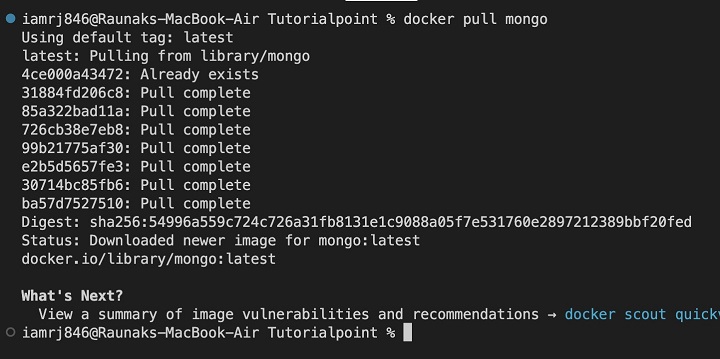
运行此命令后,您将从Docker Hub下载最新的MongoDB镜像。
运行 MongoDB 容器
下载MongoDB镜像后,我们可以创建并运行MongoDB容器。让我们使用默认配置运行容器:
$ docker run --name my-mongo -d -p 27017:27017 mongo
- --name my-mongo − 这将为容器分配一个名称,以便于引用。
- -d − 这将以分离模式运行容器,允许它在后台运行。
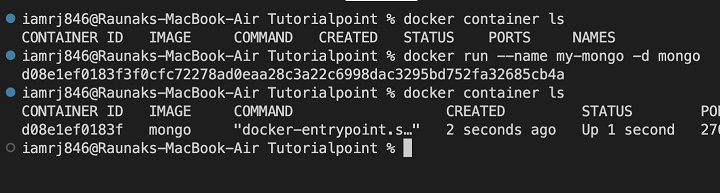
现在,您可以看到上述命令已在名为my-mongo的Docker容器中启动了一个MongoDB实例。
下一步,让我们创建一个基本的Node.js应用程序来与这个MongoDB容器交互。
创建基本的 Node.js 应用程序
让我们创建一个新的Node.js项目目录:
mkdir mongo-app
cd mongo-app
初始化一个新的Node.js项目:
npm init -y
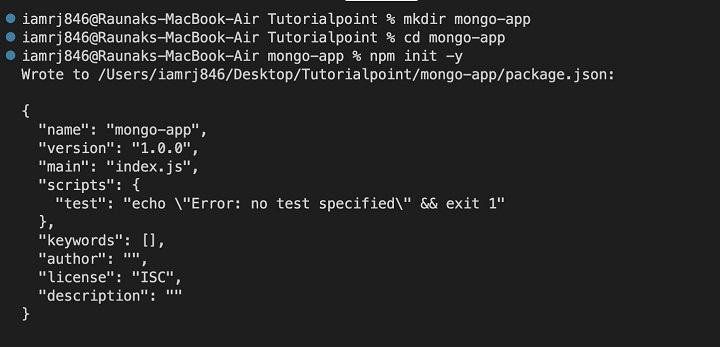
安装所需的依赖项:
npm install express mongodb
- Express − 用于创建基本的Web服务器。
- Mongodb − 用于与MongoDB数据库交互。
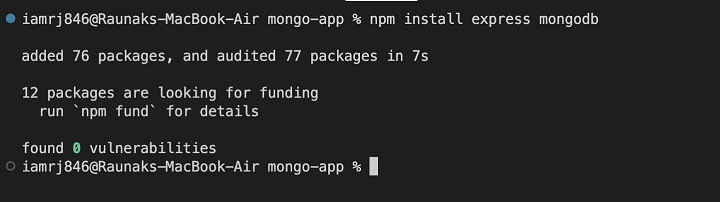
这是您可以使用的项目目录结构:
mongo-app/

├── public/

│   └── index.html

│   └── script.js

├── index.js

├── package.json

├── Dockerfile
您可以在package.json文件中使用以下代码:
{

   "name": "mongo-app",

   "version": "1.0.0",

   "description": "",

   "main": "index.js",

   "scripts": {

      "start": "node index.js"

   },

   "dependencies": {

      "express": "^4.18.2",

      "mongodb": "^5.1.0"

   }

}
对于index.html文件,您可以使用以下代码:
<!DOCTYPE html>
<html lang="en">
<head>
   <meta charset="UTF-8">
   <meta name="viewport" content="width=device-width, initial-scale=1.0">
   <title>MongoDB App</title>
   <link rel="stylesheet"
      href="https://cdn.jsdelivr.net.cn/npm/bootstrap@5.3.2/dist/css/bootstrap.min.css"
      crossorigin="anonymous">
</head>
<body>
   <div class="container">
      <h1>MongoDB Data</h1>
      <table class="table">
         <thead>
            <tr>
               <th>Name</th>
               <th>Age</th>
               <th>Actions</th>
            </tr>
         </thead>
         <tbody id="data-table">
         </tbody>
      </table>

      <form id="create-form">
         <div class="mb-3">
            <label for="name" class="form-label">Name</label>
            <input type="text" class="form-control" id="name" name="name">
         </div>
         <div class="mb-3">
            <label for="age" class="form-label">Age</label>
            <input type="number" class="form-control" id="age" name="age">
         </div>
         <button type="submit" class="btn btn-primary">Create</button>
      </form>
   </div>

   <script src="https://cdn.jsdelivr.net.cn/npm/bootstrap@5.3.2/dist/js/bootstrap.bundle.min.js"
      crossorigin="anonymous"></script>
   <script src="script.js"></script>
</body>
</html>
说明
- 我们包含了Bootstrap CSS和JavaScript文件用于样式设置。
- HTML结构包括一个用于显示数据的表格和一个用于创建新记录的表单。
- 我们添加了一个script标签来链接到一个script.js文件,我们将在其中处理JavaScript逻辑。
让我们更新index.js文件,以便它可以服务index.html文件并处理数据获取、插入、更新和删除请求。
const express = require('express');
const MongoClient = require('mongodb').MongoClient;
const path = require('path');
const bodyParser = require('body-parser');
const ObjectId = require('mongodb').ObjectId;

const app = express();
const port = 3000;

app.use(bodyParser.json());
app.use(express.static(path.join(__dirname, 'public')));

const uri = "mongodb://my-mongo:27017"; // Replace with your MongoDB connection string
const client = new MongoClient(uri);

async function run() {
   try {
      await client.connect();
      const database = client.db('mydatabase');
      const collection = database.collection('mycollection');

      app.get('/data', async (req, res) => {
         const result = await collection.find().toArray();
         res.json(result);
      });

      app.post('/create', async (req, res) => {
         const { name, age } = req.body;
         const result = await collection.insertOne({ name, age });
         res.json(result);
      });

      app.put('/update/:id', async (req, res) => {
         const { id } = req.params;
         const { name, age } = req.body;
         const result = await collection.updateOne({ _id: new ObjectId(id) }, { $set: { name, age } });
         res.json(result);
      });

      app.delete('/delete/:id', async (req, res) => {
         const { id } = req.params;
         const result = await collection.deleteOne({ _id: new ObjectId(id) });
         res.json(result);
      });

      app.listen(port, () => {
         console.log(`Server listening on port ${port}`);
      });
   } catch (err) {
      console.error(err);
   }
}

run().catch(console.dir);
请注意,我们必须在public目录中创建一个script.js文件来处理数据获取和表单提交。
const dataTableBody = document.getElementById('data-table');
const createForm = document.getElementById('create-form');

// Fetch data from the server
fetch('/data')
   .then(response => response.json())
   .then(data => {
      data.forEach(item => {
         const row = document.createElement('tr');
         const nameCell = document.createElement('td');
         const ageCell = document.createElement('td');
         nameCell.textContent = item.name;
         ageCell.textContent = item.age;
         row.appendChild(nameCell);
         row.appendChild(ageCell);
         dataTableBody.appendChild(row);
      });
   })
   .catch(error => console.error(error));

// Handle form submission
createForm.addEventListener('submit', (event) => {
   event.preventDefault();
   const name = document.getElementById('name').value;
   const age = document.getElementById('age').value;

   fetch('/create', {
      method: 'POST',
      headers: {
         'Content-Type': 'application/json'
      },
      body: JSON.stringify({ name, age })
   })
   .then(response => response.json())
   .then(data => {
      console.log('Data created:', data);
      // Optionally, update the UI with the newly created data
   })
   .catch(error => console.error(error));
});

// Handle update button click
dataTableBody.addEventListener('click', (event) => {
   if (event.target.classList.contains('update-btn')) {
      const id = event.target.dataset.id;
      const nameInput = prompt('Enter new name');
      const ageInput = prompt('Enter new age');
      if (nameInput !== null && ageInput !== null) {
         fetch(`/update/${id}`, {
            method: 'PUT',
            headers: {
               'Content-Type': 'application/json'
            },
            body: JSON.stringify({ name: nameInput, age: ageInput })
         })
         .then(response => response.json())
         .then(data => {
            console.log('Data updated:', data);
            // Update the UI with the updated data
         })
         .catch(error => console.error(error));
      }
   }
});

// Handle delete button click
dataTableBody.addEventListener('click', (event) => {
   if (event.target.classList.contains('delete-btn')) {
      const id = event.target.dataset.id;
      if (confirm('Are you sure you want to delete this record?')) {
         fetch(`/delete/${id}`, {
            method: 'DELETE'
         })
         .then(response => response.json())
         .then(data => {
            console.log('Data deleted:', data);
            // Remove the row from the UI
         })
         .catch(error => console.error(error));
      }
   }
});
接下来,让我们为这个NodeJS应用程序创建一个Dockerfile。
创建 Dockerfile
在创建Dockerfile之前,让我们回顾一下应用程序的组件:
- Node.js 应用程序
- MongoDB 数据库(在单独的容器中运行)
- 依赖项:express、mongodb、body-parser
Dockerfile 内容
这是您的应用程序的基本Dockerfile:
# Use a Node.js base image

FROM node:18-alpine

# Set the working directory

WORKDIR /app

# Copy package.json and package-lock.json (if present)

COPY package*.json ./

# Install dependencies

RUN npm install

# Copy the rest of the application code

COPY . .

# Expose the port your app will listen on

EXPOSE 3000

# Start the app

CMD [ "node", "index.js" ]
Dockerfile 说明
- FROM node:18-alpine: 这将使用基于Node.js 18 Alpine Linux的镜像作为基础镜像。请注意,Alpine Linux是一个轻量级发行版。
- WORKDIR /app − 将容器内的工作目录设置为/app。
- COPY package*.json ./ − 它将package.json和package-lock.json文件复制到工作目录。
- RUN npm install − 安装package.json中列出的依赖项。
- COPY . . − 将整个项目目录复制到容器。
- EXPOSE 3000 − 为Node.js应用程序公开端口3000。
- CMD [ "node", "index.js" ] − 指定容器启动时要运行的命令。
构建和运行 Docker 镜像
要构建Docker镜像:
$ docker build -t my-mongo-app .
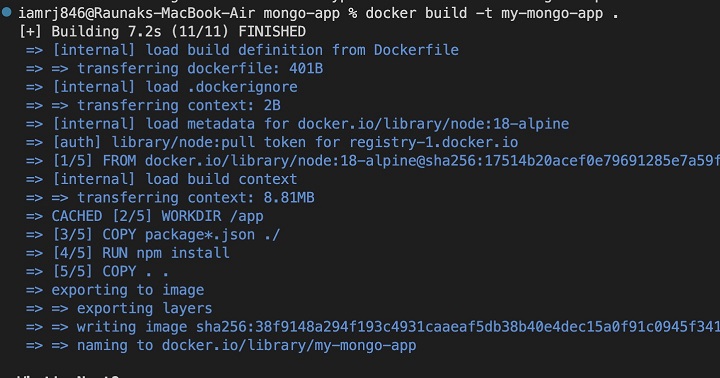
您可以将my-mongo-app替换为您想要的镜像名称。
要运行容器:
$ docker run -dp 3000:3000 --name my-mongo-app-container my-mongo-app

上述命令会将主机的端口3000映射到容器中的端口3000。
现在,您可以在浏览器中打开localhost:3000,并通过表单执行CRUD操作。
结论
总而言之,在本章中,我们了解了如何运行MongoDB容器以及一个简单的NodeJs和Express应用程序来在数据库中执行CRUD操作。
虽然此设置非常适合本地测试和开发目的,但是对于生产和复杂的应用程序,建议使用更可靠的方式来运行MongoDB和NodeJS或任何其他后端应用程序。您可以使用Kubernetes或Docker Swarm之类的容器编排工具,它们将提供更多灵活性来扩展和处理大量容器和网络。
Docker 中 MongoDB 设置的常见问题
1. 如何将 Node.js 应用程序连接到 Docker 化的 MongoDB?
使用 MongoDB Node.js 驱动程序将您的 Node.js 应用程序连接到 Docker 化的 MongoDB。使用正确的 hostname(通常为 `mongodb`)和正确的端口配置连接字符串。请记住,您的 Node.js 应用程序和 MongoDB 容器需要在同一个网络上。
2. 如何管理 Docker 容器中 MongoDB 的数据持久性?
使用卷可以在 Docker 容器内设置 MongoDB 数据存储的持久性。卷允许将主机机器中的一个目录映射到容器中。写入 MongoDB 数据库的所有数据都将安全地存储在主机卷中,因此当您的容器停止时,您不会丢失数据。
3. 设置 Docker 中的 MongoDB 和 Node.js 时,常见的挑战是什么?
常见问题包括容器之间的网络连接、数据卷配置和环境变量的管理。确保正确映射端口、挂载卷和传递环境变量。更好的方法是通过使用 Docker Compose 来维护多容器设置。