
 数据结构
数据结构 网络
网络 RDBMS
RDBMS 操作系统
操作系统 Java
Java MS Excel
 iOS
iOS HTML
HTML CSS
CSS Android
 Python
 C 语言编程
 C++
C++ C#
C# MongoDB
 MySQL
MySQL Javascript
 PHP
PHP 物理学
物理学 化学
化学 生物学
生物学 数学
数学 英语
英语 经济学
经济学 心理学
心理学 社会研究
社会研究 时尚研究
时尚研究 法律研究
法律研究如何在 tkinter 中创建一个模态对话框?
对话框是任何应用程序中非常重要的组件。它通常用于用户和应用程序界面交互。我们可以使用顶级窗口和其他小部件为任何 tkinter 应用程序创建对话框。顶级窗口会弹出高于所有其他窗口的内容。因此,我们可以在顶级窗口中添加更多内容来构建对话框。
示例
在此示例中,我们创建了一个模态对话框,它包含两部分,
- 顶级窗口的初始化。
- 弹出对话框事件的函数定义。
- 在顶级窗口中添加小部件。
- 对话框选项的函数定义。
# Import required libraries
from tkinter import *
from tkinter import ttk

# Create an instance of tkinter frame
win = Tk()

# Set the window size
win.geometry("700x350")
style = ttk.Style()
style.theme_use('clam')

# Define a function to implement choice function
def choice(option):
   pop.destroy()
   if option == "yes":
      label.config(text="Hello, How are You?")
   else:
      label.config(text="You have selected No")
      win.destroy()
def click_fun():
   global pop
   pop = Toplevel(win)
   pop.title("Confirmation")
   pop.geometry("300x150")
   pop.config(bg="white")
   # Create a Label Text
   label = Label(pop, text="Would You like to Proceed?",
   font=('Aerial', 12))
   label.pack(pady=20)
   # Add a Frame
   frame = Frame(pop, bg="gray71")
   frame.pack(pady=10)
   # Add Button for making selection
   button1 = Button(frame, text="Yes", command=lambda: choice("yes"), bg="blue", fg="white")
   button1.grid(row=0, column=1)
   button2 = Button(frame, text="No", command=lambda: choice("no"), bg="blue", fg="white")
   button2.grid(row=0, column=2)
# Create a Label widget
label = Label(win, text="", font=('Aerial', 14))
label.pack(pady=40)

# Create a Tkinter button
ttk.Button(win, text="Click Here", command=click_fun).pack()

win.mainloop()
输出
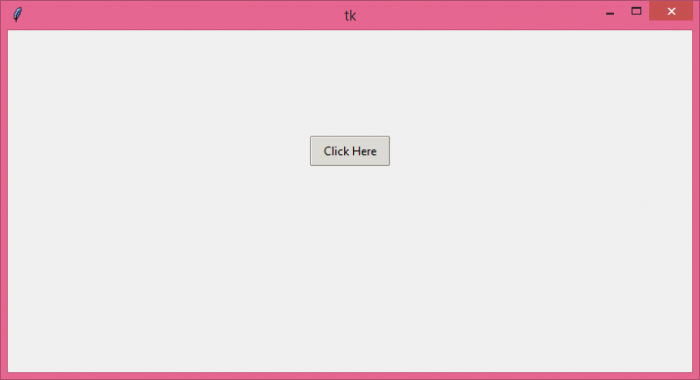
当我们运行以上代码时,它将显示一个带按钮的窗口,用于打开模态对话框。
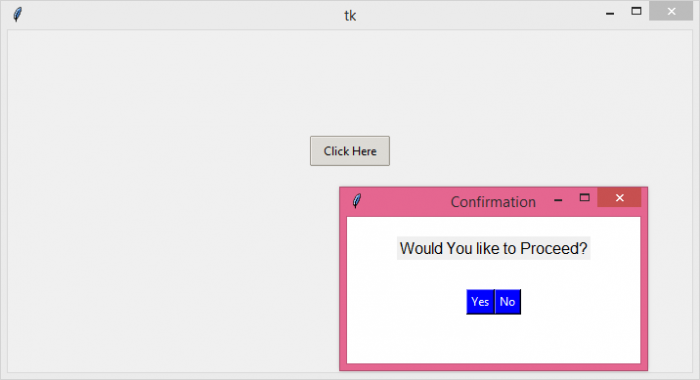
单击按钮将打开模态对话框。

上次更新时间: 08-Jun-2021
5K+ 浏览量

广告