
 数据结构
数据结构 网络
网络 RDBMS
RDBMS 操作系统
操作系统 Java
Java MS Excel
 iOS
iOS HTML
HTML CSS
CSS Android
 Python
 C 编程
C 编程 C++
C++ C#
C# MongoDB
 MySQL
MySQL Javascript
 PHP
PHP 物理
物理 化学
化学 生物
生物 数学
数学 英语
英语 经济学
经济学 心理学
心理学 社会学
社会学 时尚研究
时尚研究 法律研究
法律研究如何创建一个 Tkinter 开关按钮?
Python 拥有丰富且功能齐全的库和模块,可用来构建应用程序的各种组件。Tkinter 是另一个用于创建和开发基于 GUI 的应用程序的著名 Python 库。Tkinter 提供了许多小组件、函数和模块,用于为应用程序的可视化效果增添生机。我们可以创建按钮小组件来执行应用程序中的某些任务。
在此应用程序中,我们将创建一个切换按钮,该按钮将开启或关闭应用程序的夜间和白天模式。要创建一个切换按钮,我们必须先在标签中渲染图像。
我们定义按钮和函数来更改窗口的背景颜色。由于这些按钮需要反复更改,所以我们必须声明一个全局变量 is_on=True,此变量有助于控制函数。
示例
# Import tkinter in the notebook
from tkinter import *

# Create an instance of window of frame
win = Tk()

# set Title
win.title('Toggle Button Demonstration')

# Set the Geometry
win.geometry("700x400")
win.resizable(0, 0)

# Create a variable to turn on the button initially
is_on = True

# Create Label to display the message
label = Label(win, text="Night Mode is On", bg="white", fg="black", font=("Poppins bold", 22))
label.pack(pady=20)

# Define our switch function
def button_mode():
   global is_on

   # Determine it is on or off
   if is_on:
      on_.config(image=off)
      label.config(text="Day Mode is On", bg="white", fg="black")
      is_on = False
   else:
      on_.config(image=on)
      label.config(text="Night Mode is On", fg="black")
      is_on = True

# Define Our Images
on = PhotoImage(file="on.png")
off = PhotoImage(file="off.png")

# Create A Button
on_ = Button(win, image=on, bd=0, command=button_mode)
on_.pack(pady=50)

# Keep Running the window
win.mainloop()
输出
如果执行上述代码,将显示一个包含有切换按钮的窗口。
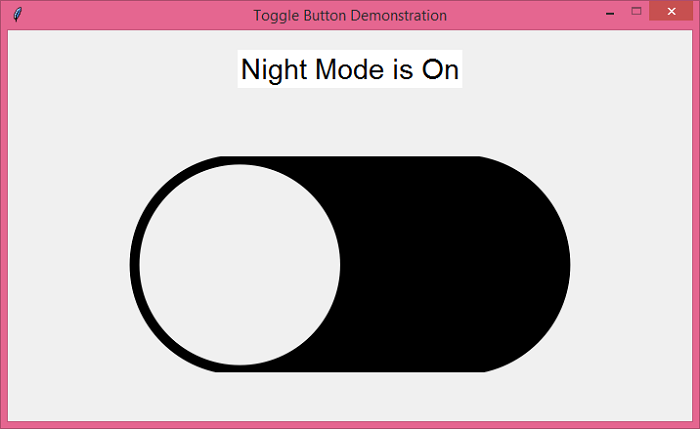
如果单击按钮,它将更改窗口的颜色。


更新时间: 2021 年 6 月 18 日
4 千次以上观看

广告