
 数据结构
数据结构 网络
网络 关系型数据库管理系统
 操作系统
操作系统 Java
Java MS Excel
 iOS
iOS HTML
HTML CSS
CSS Android
 Python
 C 编程
C 编程 C++
C++ C#
C# MongoDB
 MySQL
MySQL Javascript
 PHP
PHP 物理学
物理学 化学
化学 生物学
生物学 数学
数学 英语
英语 经济学
经济学 心理学
心理学 社会学
社会学 服装设计
服装设计 法律研究
法律研究如何在 Android 中使用 Firebase Firestore 创建动态底部弹窗对话框?
Android 中的动态底部弹窗指的是一种用户界面组件,它从屏幕底部向上滑动以显示其他信息、选项或操作。与具有固定内容的静态底部弹窗不同,动态底部弹窗从 Firebase Firestore 等来源检索数据,允许开发人员使用相关数据动态填充弹窗。这使得能够进行实时更新和定制,而无需修改应用程序的代码。动态底部弹窗通过以有用且视觉上吸引人的方式提供相关且最新的内容(例如用户配置文件、产品详细信息或菜单选项)来增强用户交互,从而提高整体用户体验和应用程序功能。
使用的方法
手动实现
手动实现
在使用 Firebase Firestore 创建 Android 动态底部弹窗对话框的上下文中,手动实现是指使用编程技术手动编码和定义弹窗对话框的功能和行为的方法。与依赖预构建库或框架不同,开发人员可以完全控制从头开始设计和实现动态底部弹窗。手动实现包括从 Firebase Firestore 检索数据、动态填充弹窗内容、处理用户交互以及管理对话框的流程和转换等任务。这种方法提供了灵活性和定制选项,允许开发人员创建独特且定制的底部弹窗对话框,以适应其应用程序的设计和需求。
算法
启动应用程序。
初始化 Firebase Firestore 并配置必要的依赖项。
为动态底部弹窗对话框创建布局文件。
为底部弹窗对话框片段定义一个类。
实现底部弹窗对话框片段的基本方法和监听器。
设置布局并显示底部弹窗对话框。
使用合适的查询从 Firebase Firestore 检索数据。
将检索到的数据映射到相应的对象。
根据检索到的数据使用动态内容填充底部弹窗。
处理底部弹窗对话框内的用户交互,例如按钮点击或项目选择。
根据用户输入更新 UI 或执行必要的操作。
测试应用程序以确保动态底部弹窗对话框按预期工作。
优化代码以提高性能和内存使用率。
优雅地处理任何潜在错误或特殊情况。
完成应用程序,进行全面测试,并根据用户反馈或错误报告进行必要的修改。
示例
XML 程序
<?xml version="1.0" encoding="utf-8"?>
<RelativeLayout xmlns:android="http://schemas.android.com/apk/res/android"
   android:id="@+id/idRLBottomSheet"
   android:layout_width="match_parent"
   android:layout_height="wrap_content"
   android:background="@color/white"
   android:padding="20dp">

   <!-- ImageView for displaying our image -->
   <ImageView
      android:id="@+id/idIVimage"
      android:layout_width="120dp"
      android:layout_height="120dp"
      android:layout_margin="10dp"
      android:padding="5dp"
      android:src="@drawable/your_image" />

   <!-- Text view for displaying a heading text -->
   <TextView
      android:id="@+id/idTVtext"
      android:layout_width="match_parent"
      android:layout_height="wrap_content"
      android:layout_margin="10dp"
      android:layout_toRightOf="@id/idIVimage"
      android:padding="5dp"
      android:text="Updated Message One"
      android:textColor="@color/black"
      android:textSize="20sp"
      android:textStyle="bold" />

   <!-- Text View for displaying description text -->
   <TextView
      android:id="@+id/idTVtextTwo"
      android:layout_width="match_parent"
      android:layout_height="wrap_content"
      android:layout_below="@id/idTVtext"
      android:layout_margin="10dp"
      android:layout_marginTop="10dp"
      android:layout_toEndOf="@id/idIVimage"
      android:padding="5dp"
      android:text="Updated Message Two"
      android:textColor="@color/black"
      android:textSize="16sp" />

   <!-- Add a border to the RelativeLayout -->
   <RelativeLayout
      android:layout_width="match_parent"
      android:layout_height="wrap_content"
      android:layout_below="@id/idTVtextTwo"
      android:background="@drawable/border"
      android:padding="10dp">

      <!-- Add more text views with different colors -->
      <TextView
         android:id="@+id/idTVtextThree"
         android:layout_width="wrap_content"
         android:layout_height="wrap_content"
         android:layout_alignParentStart="true"
         android:text="Updated Message Three"
         android:textColor="@color/blue"
         android:textSize="14sp" />

      <TextView
         android:id="@+id/idTVtextFour"
         android:layout_width="wrap_content"
         android:layout_height="wrap_content"
         android:layout_below="@id/idTVtextThree"
         android:layout_marginTop="10dp"
         android:layout_toEndOf="@id/idTVtextThree"
         android:text="Updated Message Four"
         android:textColor="@color/red"
         android:textSize="14sp" />

      <!-- Add a button with a background color -->
      <Button
         android:layout_width="wrap_content"
         android:layout_height="wrap_content"
         android:layout_below="@id/idTVtextFour"
         android:background="@drawable/button_background"
         android:text="Button"
         android:textColor="@color/white" />

   </RelativeLayout>

</RelativeLayout>
主题的 XML 程序
<style name="BottomSheetDialogTheme" parent="Theme.Design.Light.BottomSheetDialog">
   <item name="bottomSheetStyle">@style/BottomSheetStyle</item>
</style>

<style name="BottomSheetStyle" parent="Widget.Design.BottomSheet.Modal">
	<item name="android:background">@android:color/transparent</item>
</style>
Java 程序
import android.os.Bundle;
import android.view.LayoutInflater;
import android.view.View;
import android.widget.ImageView;
import android.widget.RelativeLayout;
import android.widget.TextView;
import android.widget.Toast;

import androidx.annotation.Nullable;
import androidx.appcompat.app.AppCompatActivity;

import com.google.android.material.bottomsheet.BottomSheetDialog;
import com.google.firebase.firestore.DocumentReference;
import com.google.firebase.firestore.DocumentSnapshot;
import com.google.firebase.firestore.EventListener;
import com.google.firebase.firestore.FirebaseFirestore;
import com.google.firebase.firestore.FirebaseFirestoreException;
import com.squareup.picasso.Picasso;

public class MainActivity extends AppCompatActivity {

   // Variables for Firebase Firestore and bottom sheet RelativeLayout
   private FirebaseFirestore db;
   private RelativeLayout bottomSheetRL;

   @Override
   protected void onCreate(Bundle savedInstanceState) {
      super.onCreate(savedInstanceState);
      setContentView(R.layout.activity_main);

      // Initializing Firebase Firestore and bottom sheet RelativeLayout
      db = FirebaseFirestore.getInstance();
      bottomSheetRL = findViewById(R.id.idRLBottomSheet);

      // Calling method to display the bottom sheet
        displayBottomSheet();
   }

   private void displayBottomSheet() {

      // Creating a BottomSheetDialog
      final BottomSheetDialog bottomSheetDialog = new BottomSheetDialog(MainActivity.this, R.style.BottomSheetDialogTheme);

      // Inflating the layout file for the bottom sheet dialog
      View layout = LayoutInflater.from(MainActivity.this).inflate(R.layout.bottom_sheet_layout, bottomSheetRL);

      // Setting the inflated layout file to the bottom sheet dialog
      bottomSheetDialog.setContentView(layout);

      // Making the bottom sheet dialog cancelable and set to be canceled on touch outside
      bottomSheetDialog.setCancelable(true);
      bottomSheetDialog.setCanceledOnTouchOutside(true);

      // Displaying the bottom sheet dialog
      bottomSheetDialog.show();

      // Initializing the image view and text views from the inflated layout
      ImageView imageIV = layout.findViewById(R.id.idIVimage);
      TextView textOneTV = layout.findViewById(R.id.idTVtext);
      TextView textTwoTV = layout.findViewById(R.id.idTVtextTwo);

      // Creating a document reference for our Firestore collection and document
      DocumentReference documentReference = db.collection("BottomSheetDialog").document("Data");

      // Adding a snapshot listener to the document reference
      documentReference.addSnapshotListener(new EventListener<DocumentSnapshot>() {
         @Override
         public void onEvent(@Nullable DocumentSnapshot value, @Nullable FirebaseFirestoreException error) {
            // Inside the onEvent method
            if (error != null) {
               // Handling the error if it's not null
               Toast.makeText(MainActivity.this, "Error: " + error.getMessage(), Toast.LENGTH_SHORT).show();
               return;
            }

            if (value != null && value.exists()) {
               // Retrieving data from the Firestore document and setting it to the views
               textOneTV.setText(value.getString("textOne"));
               Picasso.get().load(value.getString("Image")).into(imageIV);
               textTwoTV.setText(value.getString("textTwo"));
            }
         }
      });
   }
}
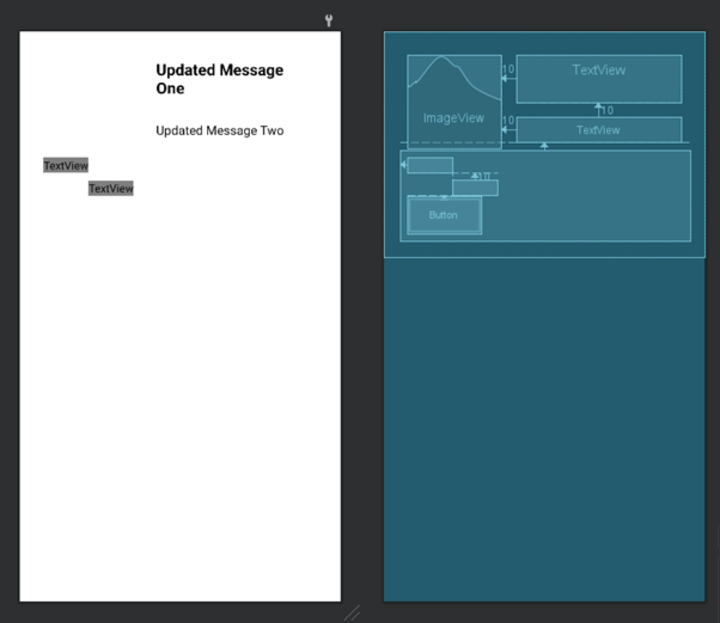
输出
结论
本文提供了关于使用 Firebase Firestore 在 Android 中创建动态底部弹窗的全面指南。动态底部弹窗是一种用户界面组件,它从屏幕底部向上滑动,显示从 Firebase Firestore 获取的相关实时数据。通过采用手动实现方法,开发人员可以完全控制设计和实现弹窗对话框的功能。本文概述了关键步骤,包括初始化 Firebase Firestore、定义布局、实现基本方法和监听器、从 Firestore 检索数据、使用动态内容填充底部弹窗、处理用户交互、测试功能以及优化代码。总的来说,本文提供了关于在 Android 中创建动态底部弹窗对话框的实用且详细的解释。

575 次浏览
