
 数据结构
数据结构 网络
网络 关系型数据库管理系统
 操作系统
操作系统 Java
Java MS Excel
 iOS
iOS HTML
HTML CSS
CSS Android
 Python
 C 编程
C 编程 C++
C++ C#
C# MongoDB
 MySQL
MySQL Javascript
 PHP
PHP 物理学
物理学 化学
化学 生物学
生物学 数学
数学 英语
英语 经济学
经济学 心理学
心理学 社会学
社会学 时尚研究
时尚研究 法律研究
法律研究如何在 Python Plotly 中鼠标悬停在点上显示图像?
Plotly 是 Python 中一个开源绘图库,可以生成多种不同类型的图表。Python 用户可以使用 Plotly 创建交互式的基于 Web 的可视化效果,这些可视化效果可以在 Jupyter notebook 中显示,保存到独立的 HTML 文件中,或者作为使用 Dash 的 Web 应用程序的一部分进行服务。Plotly 也可以用于静态文档发布和桌面编辑器,如 PyCharm 和 Spyder。
Dash 是一个 Python 框架,用于创建交互式的基于 Web 的仪表板应用程序。dash 库向基于 Web 的仪表板应用程序添加了所有必需的库。
在本教程中,我们将展示如何在单个浏览器页面上向 Plotly Dash 应用程序添加多个图形。
请按照以下步骤在单个页面上生成 Dash 应用程序。
步骤 1
导入 Dash 库。
import dash
步骤 2
导入 Dash 核心组件,dcc 和 html。我们将使用 dcc.Graph() 方法来设置高度和宽度坐标的样式。
from dash import dcc, html
步骤 3
使用以下模块导入 dash 依赖项。
from dash.dependencies import Input, Output
步骤 4
导入 plotly.express 模块并将其别名为 px。我们将使用此方法生成图形。
import plotly.express as px
步骤 5
使用 Pandas 模块生成数据集。
#generate dataframe
df = pd.DataFrame(
   dict(
      x=[1, 2],
      y=[2, 4],
      images=[dogImage,catImage],
   )
)
步骤 6
从特定 URL 设置图像。下面定义了示例 URL:
dogImage = "data:image/png;base64,
catImage = "data:image/png;base64,
步骤 7
创建具有 X 和 Y 坐标的散点图:
# create scatter plot with x and y coordinates
fig = px.scatter(df, x="x", y="y",custom_data=["images"])
步骤 8
创建 main 函数以使用以下命令运行 App 服务器:
app = dash.Dash(__name__)
if __name__ == '__main__':
   app.run_server(debug=True)
步骤 9
使用 update_layout() 方法执行点击模式,并设置 update_traces() 方法执行标记大小。
# Update layout and update traces
fig.update_layout(clickmode='event+select')
fig.update_traces(marker_size=20)
步骤 10
生成 App 布局以显示 Dash 图表。它定义如下:
# Create app layout to show dash graph
app.layout = html.Div(
   [
      dcc.Graph(
         id="graph_interaction",
         figure=fig,
      ),
      html.Img(id='image', src='')
   ]
)
步骤 11
创建 callback() 函数以将数据悬停在特定坐标上,如下所示:
@app.callback(
   Output('image', 'src'),
   Input('graph_interaction', 'hoverData'))

def open_url(hoverData):
   if hoverData:
      return hoverData["points"][0]["customdata"][0]
   else:
      raise PreventUpdate

# Create app layout to show dash graph
app.layout = html.Div(
   [
      dcc.Graph(
         id="graph_interaction",
         figure=fig,
      ),
      html.Img(id='image', src='')
   ]
)
示例
在悬停 dash 图表上显示图像的完整代码:
import dash
from dash.exceptions import PreventUpdate
from dash import dcc, html
from dash.dependencies import Input, Output
import plotly.express as px
import pandas as pd

# Create dash app
app = dash.Dash(__name__)

# Set dog and cat images
dogImage = "https://www.iconexperience.com/_img/v_collection_png/256x256/shadow/dog.png"
catImage = "https://d2ph5fj80uercy.cloudfront.net/06/cat3602.jpg"

# Generate dataframe
df = pd.DataFrame(
   dict(
      x=[1, 2],
      y=[2, 4],
      images=[dogImage,catImage],
   )
)

# Create scatter plot with x and y coordinates
fig = px.scatter(df, x="x", y="y",custom_data=["images"])

# Update layout and update traces
fig.update_layout(clickmode='event+select')
fig.update_traces(marker_size=20)

# Create app layout to show dash graph
app.layout = html.Div(
   [
      dcc.Graph(
         id="graph_interaction",
         figure=fig,
      ),
      html.Img(id='image', src='')
   ]
)

# html callback function to hover the data on specific coordinates
@app.callback(
   Output('image', 'src'),
   Input('graph_interaction', 'hoverData'))
   def open_url(hoverData):
   if hoverData:
      return hoverData["points"][0]["customdata"][0]
   else:
      raise PreventUpdate

if __name__ == '__main__':
   app.run_server(debug=True)
输出
它将在控制台上显示以下输出。
Dash is running on http://127.0.0.1:8050/

* Serving Flask app 'main'
* Debug mode: on
点击 URL,它将在浏览器上显示输出:
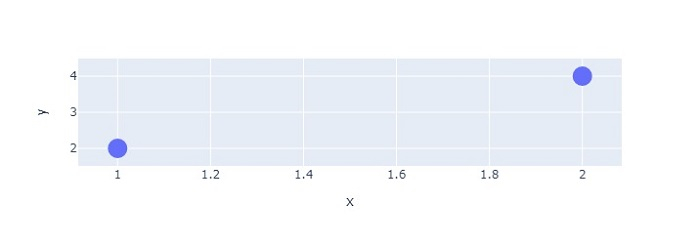
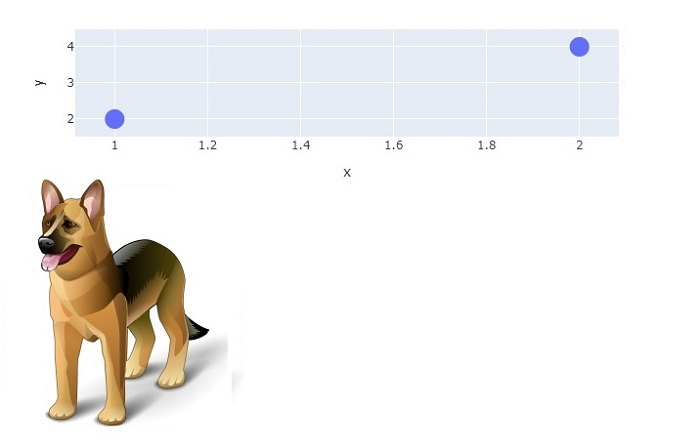
现在,将鼠标悬停在坐标 (1,2) 上,您将看到以下输出:
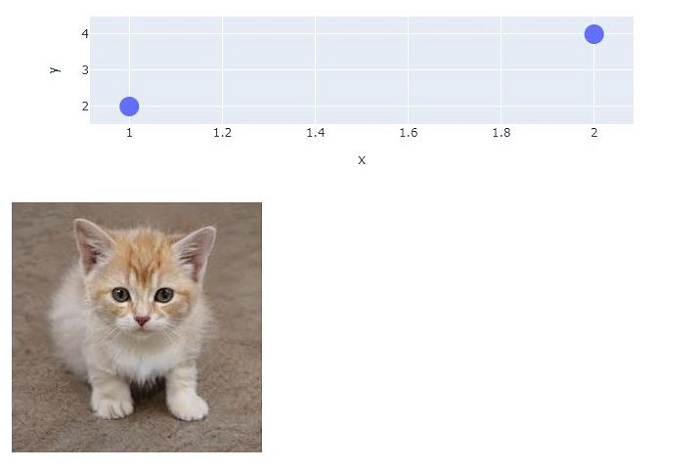
同样,当您将鼠标悬停在第二个点上时,它将产生以下输出:

5K+ 次浏览
