
 数据结构
数据结构 网络
网络 关系型数据库管理系统
 操作系统
操作系统 Java
Java MS Excel
 iOS
iOS HTML
HTML CSS
CSS Android
 Python
 C 语言编程
 C++
C++ C#
C# MongoDB
 MySQL
MySQL Javascript
 PHP
PHP 物理学
物理学 化学
化学 生物学
生物学 数学
数学 英语
英语 经济学
经济学 心理学
心理学 社会学
社会学 服装设计
服装设计 法律学
法律学使用 OpenCV 将图像转换为灰度
将图像转换为灰度包括将彩色图像转换为灰度图像。通过使用OpenCV库中的各种方法,我们可以将彩色图像(具有多个颜色通道)转换为灰度图像(具有单个通道)。以下是使用 OpenCV 将图像转换为灰度的一些常用方法。
-
cv2.cvtColor():此函数用于将图像从一个颜色空间转换为另一个颜色空间。
-
像素操作:它涉及手动取颜色通道的平均值以创建灰度图像。
-
去饱和度方法:此方法尝试通过考虑分量的最大值和最小值来保留图像的对比度。
使用 cv2.cvtColor()
cv2.cvtColor() 使用颜色通道的加权和将图像转换为灰度,以反映人类的感知。
示例
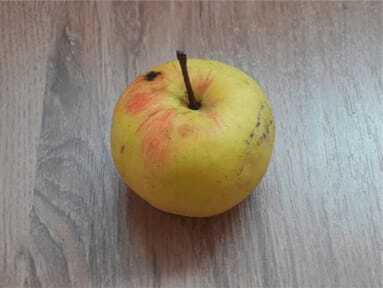
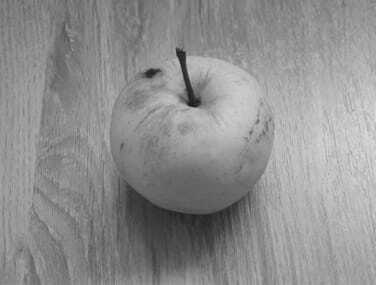
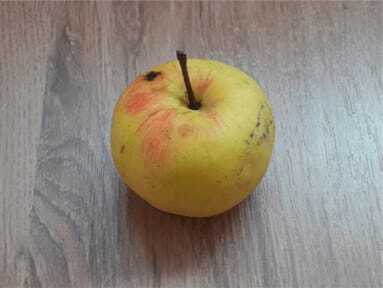
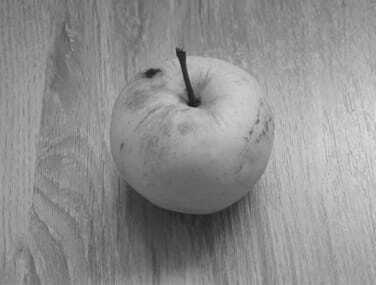
在下面的示例代码中,cv2.imread() 函数加载图像,并使用 cv2.cvtColor() 函数将其转换为灰度。
import cv2

# Read the image
image = cv2.imread('apple.jpg')

# Convert the image to grayscale
gray_image = cv2.cvtColor(image, cv2.COLOR_BGR2GRAY)

# Display the grayscale image (optional)
cv2.imshow('Grayscale Image', gray_image)
cv2.waitKey(0)
cv2.destroyAllWindows()
输出
输入图像
灰度图像
使用像素操作
这种像素操作方法也称为平均方法,它涉及通过手动计算每个像素的红色、绿色和蓝色通道的强度平均值来计算灰度值。
示例
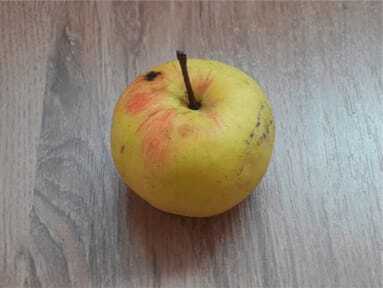
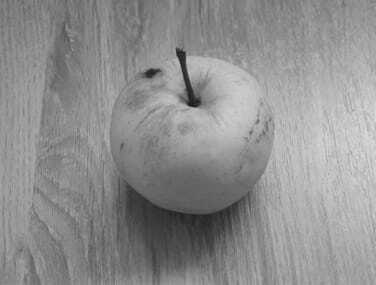
手动平均是指通过计算每个像素的 B、G 和 R 通道的平均值来计算灰度值。
import cv2
import numpy as np

# Read the image
image = cv2.imread('apple.jpg')

# Manually convert to grayscale using the average method
gray_image = np.zeros(image.shape[:2], dtype='uint8')

for i in range(image.shape[0]):
   for j in range(image.shape[1]):
      # Calculate the average of the B, G, R values
      gray_image[i, j] = np.mean(image[i, j])

# Display the grayscale image
cv2.imshow('Grayscale Image', gray_image)
cv2.waitKey(0)
cv2.destroyAllWindows()
输出
输入图像
灰度图像
使用去饱和度
此方法取每个像素的红色、绿色和蓝色通道的最大值和最小值的平均值,并通过同时考虑最暗和最亮的分量来保留对比度。
示例
灰度值计算为 gray=Max(R, B, G)+Min(R, B, G)/2。由于其对真实亮度的表示,此方法与cv2.cvtColor()使用的加权方法相比,可能会返回不太准确的灰度图像。
import cv2
import numpy as np

image = cv2.imread('apple.jpg')
max_channel = np.max(image, axis=2)
min_channel = np.min(image, axis=2)
gray_image = ((max_channel + min_channel) / 2).astype(np.uint8)
cv2.imwrite('desaturation_gray_image.jpg', gray_image)
输出
输入图像
灰度图像

更新于: 2024年11月13日
3K+ 浏览量

广告