
 数据结构
数据结构 联网
联网 关系数据库管理系统
 操作系统
操作系统 Java
Java MS Excel
 iOS
iOS HTML
HTML CSS
CSS Android
 Python
 C 编程
C 编程 C++
C++ C#
C# MongoDB
 MySQL
MySQL Javascript
 PHP
PHP 物理
物理 化学
化学 生物
生物 数学
数学 英语
英语 经济
经济 心理学
心理学 社会研究
社会研究 时尚研究
时尚研究 法律研究
法律研究如何使用 Selenium WebDriver 单击谷歌搜索?
我们可以用 Selenium webdriver 点击谷歌搜索。首先,我们需要使用任意一个定位器,如 id、类、名称、xpath 或 css 来识别搜索编辑框。
接下来,我们将使用 sendKeys() 方法输入一些文本。接下来,我们必须使用任意一个定位器,如 id、类、名称、xpath 或 css 来识别搜索按钮,最后应用 click() 方法或直接应用 submit() 方法。我们将等待在满足 presenceOfElementLocated 预期条件的情况下出现搜索结果。
我们需要 import org.openqa.selenium.support.ui.ExpectedConditions and import org.openqa.selenium.support.ui.WebDriverWait 来纳入期望条件和 WebDriverWait** 类。此概念源自同步中的显式等待条件。
让我们尝试实现以下场景。
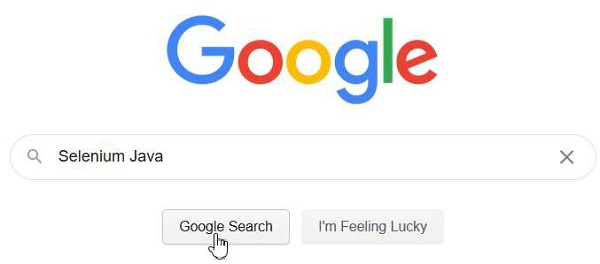
示例
import org.openqa.selenium.By;
import org.openqa.selenium.WebDriver;
import org.openqa.selenium.WebElement;
import org.openqa.selenium.chrome.ChromeDriver;
import java.util.concurrent.TimeUnit;
import org.openqa.selenium.support.ui.WebDriverWait;
import org.openqa.selenium.support.ui.ExpectedConditions;

public class SearchAction{
   public static void main(String[] args) {
System.setProperty("webdriver.chrome.driver","C:\Users\ghs6kor\Desktop\Java\chromedriver.exe");
      WebDriver driver = new ChromeDriver();
      driver.manage().timeouts().implicitlyWait(5, TimeUnit.SECONDS);
      driver.get("https://www.google.com/");
      // identify element
      WebElement p=driver.findElement(By.name("q"));
      //enter text with sendKeys() then apply submit()
      p.sendKeys("Selenium Java");
      // Explicit wait condition for search results
      WebDriverWait w = new WebDriverWait(driver, 5);
      w.until(ExpectedConditions.presenceOfElementLocated(By.xpath("//ul")));
      p.submit();
      driver.close();
   }
}
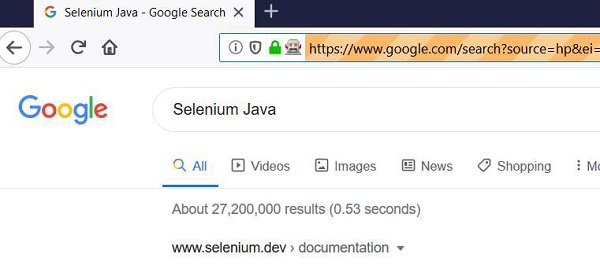
输出

更新日期:2020 年 9 月 18 日
14K+ 浏览次数

广告