
 数据结构
数据结构 网络
网络 关系型数据库管理系统
 操作系统
操作系统 Java
Java MS Excel
 iOS
iOS HTML
HTML CSS
CSS Android
 Python
 C 编程
C 编程 C++
C++ C#
C# MongoDB
 MySQL
MySQL Javascript
 PHP
PHP 物理
物理 化学
化学 生物
生物 数学
数学 英语
英语 经济学
经济学 心理学
心理学 社会学
社会学 时尚研究
时尚研究 法律研究
法律研究将 Tkinter 程序转换为 exe 文件
假设我们想要使用 tkinter 创建一个独立的应用程序(可执行应用程序)。我们可以使用 Python 中的 **PyInstaller** 包将任何 tkinter 应用程序转换为与 **exe** 兼容的文件格式。
要使用 pyinstaller,首先使用以下命令在环境中安装该包:
pip install pyinstaller
安装完成后,我们可以按照以下步骤将 Python 脚本文件(包含 Tkinter 应用程序文件)转换为可执行文件。
在 Windows 操作系统中使用 **pip install pyinstaller** 安装 pyinstaller。现在,键入 **pyinstaller --onefile -w filename** 并按 Enter。
现在,检查文件(脚本文件)的位置,您将找到一个 **dist** 文件夹,其中包含可执行文件。
当我们运行该文件时,它将显示 tkinter 应用程序的窗口。
示例
main.py
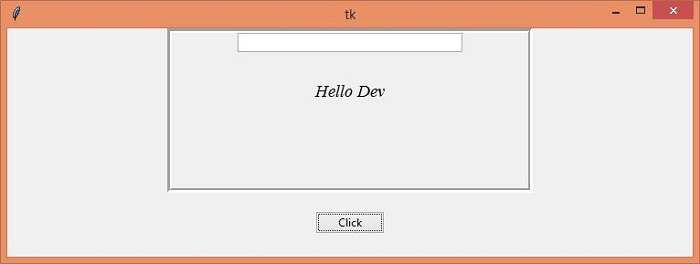
在这个例子中,我们创建了一个应用程序,它将通过在屏幕上显示消息来向用户问好。
#Import the required Libraries
from tkinter import *
from tkinter import ttk
#Create an instance of tkinter frame
win = Tk()
#Set the geometry of tkinter frame
win.geometry("750x250")

#Define a function to show a message
def myclick():
   message= "Hello "+ entry.get()
   label= Label(frame, text= message, font= ('Times New Roman', 14, 'italic'))
   entry.delete(0, 'end')
   label.pack(pady=30)

#Creates a Frame
frame = LabelFrame(win, width= 400, height= 180, bd=5)
frame.pack()
#Stop the frame from propagating the widget to be shrink or fit
frame.pack_propagate(False)

#Create an Entry widget in the Frame
entry = ttk.Entry(frame, width= 40)
entry.insert(INSERT, "Enter Your Name")
entry.pack()
#Create a Button
ttk.Button(win, text= "Click", command= myclick).pack(pady=20)
win.mainloop()
现在,运行上述命令将给定的代码转换为可执行文件。它将影响目录(**dist** 文件夹),所有可执行文件将自动放置在其中。
输出
当我们运行 **exe** 文件时,它将显示一个包含输入小部件的窗口。如果我们点击“点击”按钮,它将在屏幕上显示一条问候语。

更新于: 2021年5月3日
20K+ 浏览量

广告