
 数据结构
数据结构 网络
网络 RDBMS
RDBMS 操作系统
操作系统 Java
Java MS Excel
 iOS
iOS HTML
HTML CSS
CSS Android
 Python
 C 编程
C 编程 C++
C++ C#
C# MongoDB
 MySQL
MySQL JavaScript
 PHP
PHP 物理学
物理学 化学
化学 生物学
生物学 数学
数学 英语
英语 经济学
经济学 心理学
心理学 社会学
社会学 时尚
时尚 法律
法律如何使用 Python Tkinter 更改 MessageBox 的位置
假设我们想使用 tkinter创建一个对话框。要创建对话框,我们可以使用 MessageBox 库,其中包含许多函数,可以快速创建多种对话框类型。
要调整所创建的对话框的位置,我们可以使用其“toplevel”属性,该属性尤其先于当前窗口且将所有其他进程保留在后端。
它包含一些其他函数,如标题、消息和详细信息。要改变 MessageBox 小部件的位置,我们将使用geometry方法。
示例
#import the tkinter library

from tkinter import *

#define the messagebox function
def messagebox():

#toplevel function creates MessageBox dialog which appears on top of the screen
   top=Toplevel(win)
   top.title("Click Me")
   #Define the position of the MessageBox
   x_position = 600
   y_position = 400
   top.geometry(f"600x200+{x_position}+{y_position}")
   #Define the property of the messageBox
   l1=Label(top, text= "Hello! TutorialsPoint",bg= "green", fg=
"white",font=('Times New Roman', 24),height=50, width= 50).pack()

#Create an instance of the tkinter frame
#And resize the frame
win = Tk()
win.geometry("600x200")
win.title("Window-1")
Button(win, text="Click Me", command=messagebox,
width=8).pack(pady=80)

win.mainloop()
输出
运行以上代码将生成以下窗口输出。

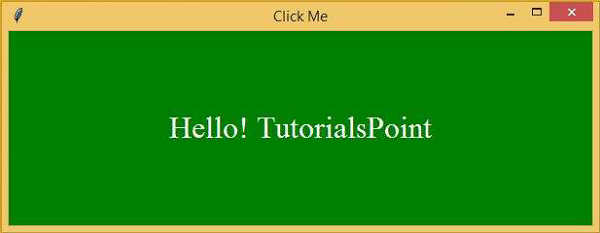
单击“单击我”按钮时,将打开以下对话框,可以稍后对其进行定位。

更新于:2021 年 3 月 4 日
2K+ 查看

广告