
 数据结构
数据结构 网络
网络 RDBMS
RDBMS 操作系统
操作系统 Java
Java MS Excel
 iOS
iOS HTML
HTML CSS
CSS Android
 Python
 C 编程
C 编程 C++
C++ C#
C# MongoDB
 MySQL
MySQL Javascript
 PHP
PHP 物理
物理 化学
化学 生物
生物 数学
数学 英语
英语 经济
经济 心理学
心理学 社会学
社会学 时装学
时装学 法律
法律Python Tkinter 中的鼠标位置
在大型应用程序中,“事件”非常有助于执行和管理多项任务。我们可以使用 bind('handler', 'callback') 方法将特定事件与键盘按钮或鼠标按钮绑定在一起。为了构建屏幕保护程序、2D 或 3D 游戏,通常会追踪鼠标指针及其运动。为了打印指针的坐标,我们必须将 Motion 与一个回调函数绑定在一起,该回调函数获取指针在 x 和 y 变量中的位置。
示例
#Import tkinter library
from tkinter import *
#Create an instance of tkinter frame or window
win= Tk()
#Set the geometry of tkinter frame
win.geometry("750x250")
def callback(e):
   x= e.x
   y= e.y
   print("Pointer is currently at %d, %d" %(x,y))
win.bind('<Motion>',callback)
win.mainloop()
输出
运行以上代码,只要我们在窗口上悬停,就会打印指针的实际位置。
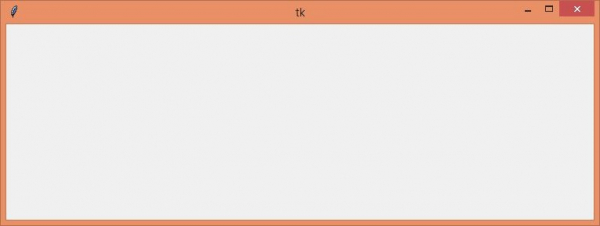
在控制台中,当你在屏幕上移动鼠标时,将看到鼠标指针的实际位置。
Pointer is currently at 452, 225
Pointer is currently at 426, 200
Pointer is currently at 409, 187
Pointer is currently at 392, 174
Pointer is currently at 382, 168
Pointer is currently at 378, 163
Pointer is currently at 376, 159
Pointer is currently at 369, 150
Pointer is currently at 366, 141
Pointer is currently at 362, 130

更新于:2021-4-22
8K+ 次浏览

广告