
 数据结构
数据结构 网络
网络 关系数据库管理系统
 操作系统
操作系统 Java
Java MS Excel
 iOS
iOS HTML
HTML CSS
CSS Android
 Python
 C 编程
C 编程 C++
C++ C#
C# MongoDB
 MySQL
MySQL Javascript
 PHP
PHP 物理学
物理学 化学
化学 生物学
生物学 数学
数学 英语
英语 经济学
经济学 心理学
心理学 社会学
社会学 时尚研究
时尚研究 法律研究
法律研究如何在 Android 中实现文档扫描功能?
简介
在许多 Android 应用中,我们可以看到其中存在文档扫描功能,该功能允许应用拍摄文档照片,并根据需要从四边裁剪文档图像,然后以图像形式显示该文档。我们还可以向该图像添加过滤器,例如黑白和其他过滤器。在本文中,我们将探讨如何在 Android 中实现文档扫描功能?
实现
我们将创建一个简单的应用,其中将显示一个 TextView 用于显示应用标题。之后,我们将创建一个 ImageView 用于显示扫描后裁剪的图像。应用启动时将显示一个文档扫描仪。此扫描仪将扫描文档,能够裁剪它并显示文档的裁剪图像到我们的 ImageView 中。现在让我们转到 Android Studio 创建一个新的项目。
步骤 1:在 Android Studio 中创建一个新项目
导航到 Android Studio,如下面的屏幕截图所示。在下面的屏幕截图中,点击“新建项目”以创建一个新的 Android Studio 项目。
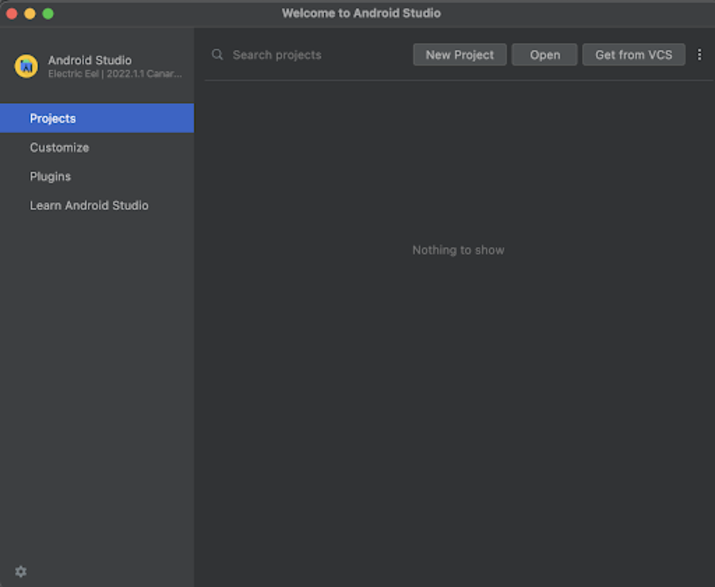
点击“新建项目”后,您将看到下面的屏幕。
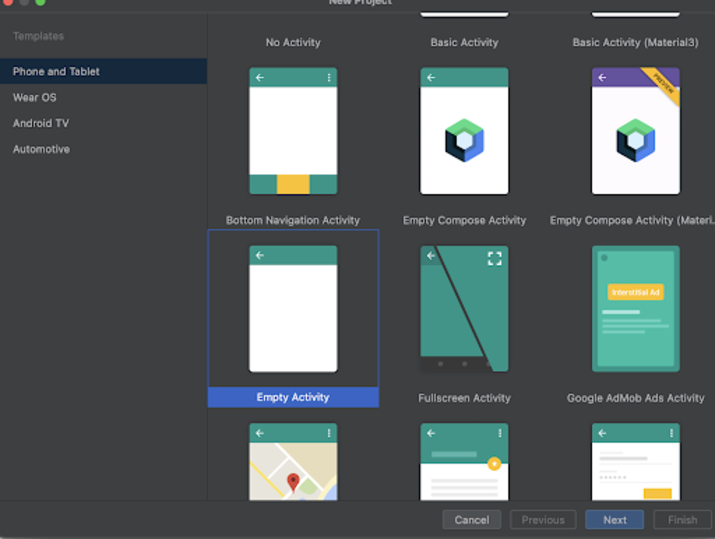
在此屏幕中,我们只需选择“空活动”并点击“下一步”。点击“下一步”后,您将看到下面的屏幕。
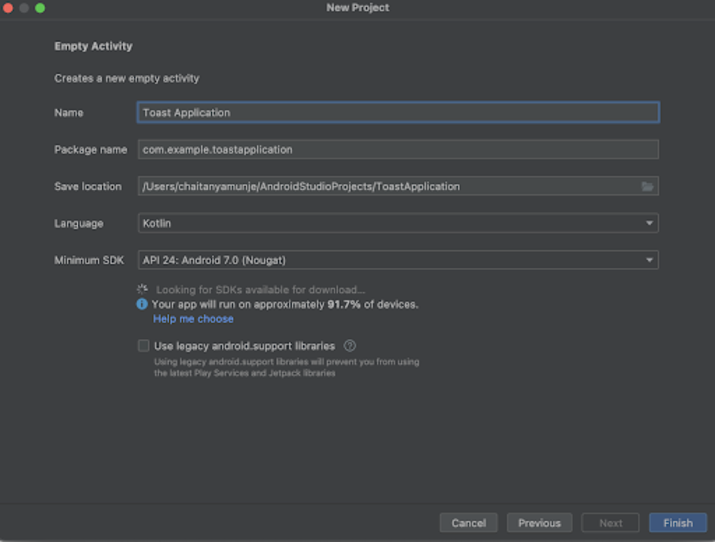
在此屏幕中,我们只需指定项目名称。然后包名将自动生成。
注意 - 确保选择 Kotlin 作为语言。
指定所有详细信息后,点击“完成”以创建一个新的 Android Studio 项目。
项目创建完成后,我们将看到两个打开的文件,即 activity_main.xml 和 MainActivity.kt 文件。
步骤 2:在 build.gradle 文件中添加文档扫描仪依赖项。
导航到 app>build.gradle 文件(项目级)并在 dependencies 部分添加以下依赖项。
implementation 'com.websitebeaver:documentscanner:1.0.0'
添加上述依赖项后,只需点击“同步现在”选项即可安装它。
步骤 3:使用 activity_main.xml
导航到 activity_main.xml。如果此文件不可见,要打开此文件,在左侧窗格中导航到 app>res>layout>activity_main.xml 以打开此文件。打开此文件后,向其中添加以下代码。代码中添加了注释以便详细了解。
<?xml version="1.0" encoding="utf-8"?>
<RelativeLayout xmlns:android="http://schemas.android.com/apk/res/android"
   xmlns:tools="http://schemas.android.com/tools"
   android:layout_width="match_parent"
   android:layout_height="match_parent"
   tools:context=".MainActivity">
   <!-- creating a text view for displaying the heading of the application -->
   <TextView
       android:layout_width="match_parent"
       android:layout_height="wrap_content"
       android:layout_above="@id/idIVImage"
       android:layout_centerHorizontal="true"
       android:layout_margin="10dp"
       android:padding="4dp"
       android:text="Document Scanner Application"
       android:textAlignment="center"
       android:textColor="@color/black"
       android:textSize="20sp"
       android:textStyle="bold" />
   <!-- creating an image view for displaying the scanned document -->
   <ImageView
       android:id="@+id/idIVImage"
       android:layout_width="match_parent"
       android:layout_height="400dp"
       android:layout_centerInParent="true"
       android:layout_margin="10dp"
       android:padding="4dp" />
</RelativeLayout>
说明:在上面的代码中,我们创建了一个根布局作为 RelativeLayout。在此布局内,我们创建了一个 TextView 用于显示应用标题。之后,我们创建了一个 ImageView,我们将在其中显示文档的图像,一旦我们完成文档的扫描,我们将能够看到该图像。
步骤 4:使用 MainActivity.kt 文件
导航到 MainActivity.kt。如果此文件不可见,要打开此文件,在左侧窗格中导航到 app>res>layout>MainActivity.kt 以打开此文件。打开此文件后,向其中添加以下代码。代码中添加了注释以便详细了解。
package com.example.kotlintestapplication
import android.graphics.BitmapFactory
import androidx.appcompat.app.AppCompatActivity
import android.os.Bundle
import android.util.Log
import android.view.animation.AnimationUtils
import android.widget.ImageView
import android.widget.Toast
import com.websitebeaver.documentscanner.DocumentScanner
class MainActivity : AppCompatActivity() {
   // on below line creating a variable for image view.
   private lateinit var docImageView: ImageView
   // on below line creating a variable for document scanner and initializing it.
   private val documentScanner = DocumentScanner(
       this,
       // on below line calling a method to display the cropped image results.
       { croppedImageResults ->
           // on below line getting the cropped image and displaying that image in our image view.
           // on below line setting image bitmap for our image view.
           docImageView.setImageBitmap(
               // on below line calling decode file to decode the file from cropped image results and display it in image view.
               BitmapFactory.decodeFile(croppedImageResults.first())
           )
       },
       {
           // on below line displaying an error message.
               errorMessage ->
           // displaying a toast message for error.
           Toast.makeText(this,"Fail to get document : "+ errorMessage,Toast.LENGTH_SHORT).show()
       },
       {
           // below method is called when the user cancelled the document scan.
           Toast.makeText(this,"Document Scanning has been cancelled by the user. ",Toast.LENGTH_SHORT).show()
       }
   )
   // on below line calling the default on create method to initialize our variables.
   override fun onCreate(savedInstanceState: Bundle?) {
       super.onCreate(savedInstanceState)
       setContentView(R.layout.activity_main)
       // on below line initializing the variable for image view.
       docImageView = findViewById(R.id.idIVImage)
       // on below line calling start scan method to start the document scan.
       documentScanner.startScan()
   }
}
说明:在上面的代码中,首先我们为我们的 ImageView 创建变量。之后,我们为文档扫描仪创建一个变量并对其进行初始化。在此 Document Scanner 变量内部,我们调用了三种不同的方法。
当我们从文档扫描仪获得一些结果时,将调用第一种方法。在此方法中,我们将从文档扫描仪获得的结果设置到我们创建的 ImageView 中。
当我们从文档扫描仪获得一些错误时,将调用第二种方法。在此方法中,我们只是显示一个 Toast 消息以显示错误消息。
当用户取消文档扫描时,将调用第三种方法。在这种情况下,我们也显示 Toast 消息“用户已取消扫描”。
现在我们将看到 onCreate 方法。这是每个 Android 应用的默认方法。当应用视图创建时,将调用此方法。在此方法中,我们设置内容视图,即名为 activity_main.xml 的布局文件,以从该文件中设置 UI。在 onCreate 方法中,我们使用我们在 activity_main.xml 文件中提供的 id 初始化 ImageView 变量。之后,我们调用 startScan 方法以启动我们的文档扫描仪,以便我们可以扫描文档。
添加上述代码后,我们只需点击顶部的绿色图标即可在移动设备上运行我们的应用。
注意 - 确保您已连接到您的真实设备或模拟器。
输出

结论
在本文中,我们探讨了如何在 Android 应用中实现文档扫描功能。

1K+ 阅读量
