
 数据结构
数据结构 网络
网络 关系数据库管理系统 (RDBMS)
 操作系统
操作系统 Java
Java MS Excel
 iOS
iOS HTML
HTML CSS
CSS Android
 Python
 C语言编程
C语言编程 C++
C++ C#
C# MongoDB
 MySQL
MySQL Javascript
 PHP
PHP 物理
物理 化学
化学 生物
生物 数学
数学 英语
英语 经济学
经济学 心理学
心理学 社会学
社会学 服装学
服装学 法学
法学如何在Android中使用运行时权限读取外部存储中的txt文件?
此示例演示如何在Android中使用运行时权限读取外部存储中的txt文件(我们已经在外部存储中创建了一个名为text的文件夹和一个sample.txt文件)。
步骤1 - 在Android Studio中创建一个新项目,转到文件⇒新建项目,并填写所有必需的详细信息以创建一个新项目。
步骤2 - 将以下代码添加到res/layout/activity_main.xml。
<?xml version = "1.0" encoding = "utf-8"?>
<LinearLayout xmlns:android = "http://schemas.android.com/apk/res/android"
   xmlns:tools = "http://schemas.android.com/tools"
   android:layout_width = "match_parent"
   android:layout_height = "match_parent"
   tools:context = ".MainActivity"
   android:orientation = "vertical">
   <Button
      android:id = "@+id/read"
      android:text = "read"
      android:layout_width = "wrap_content"
      android:layout_height = "wrap_content" />
   <TextView
      android:id = "@+id/output"
      android:layout_width = "wrap_content"
      android:textSize = "25sp"
      android:layout_height = "wrap_content" />
</LinearLayout>
在上面的代码中,我们使用了TextView和Button。当用户点击按钮时,它将从外部存储获取数据并将数据附加到TextView。
步骤3 - 将以下代码添加到src/MainActivity.java
package com.example.andy.myapplication;

import android.content.pm.PackageManager;
import android.os.Build;
import android.os.Bundle;
import android.os.Environment;
import android.support.v4.app.ActivityCompat;
import android.support.v4.content.ContextCompat;
import android.support.v7.app.AppCompatActivity;
import android.util.Log;
import android.view.View;
import android.widget.Button;
import android.widget.EditText;
import android.widget.TextView;
import android.widget.Toast;

import java.io.BufferedReader;
import java.io.File;
import java.io.FileOutputStream;
import java.io.FileReader;
import java.io.IOException;

public class MainActivity extends AppCompatActivity {
   private static final int PERMISSION_REQUEST_CODE = 100;
   Button read;
   TextView output;

   @Override
   protected void onCreate(Bundle savedInstanceState) {
      super.onCreate(savedInstanceState);
      setContentView(R.layout.activity_main);
      output = findViewById(R.id.output);
      read = findViewById(R.id.read);
      read.setOnClickListener(new View.OnClickListener() {
         @Override
         public void onClick(View v) {
            String state = Environment.getExternalStorageState();
            if (Environment.MEDIA_MOUNTED.equals(state)) {
               if (Build.VERSION.SDK_INT > = 23) {
                  if (checkPermission()) {
                     File sdcard = Environment.getExternalStorageDirectory();
                     File dir = new File(sdcard.getAbsolutePath() + "/text/");
                     if(dir.exists()) {
                        File file = new File(dir, "sample.txt");
                        FileOutputStream os = null;
                        StringBuilder text = new StringBuilder();
                        try {
                           BufferedReader br = new BufferedReader(new FileReader(file));
                           String line;
                           while ((line = br.readLine()) ! = null) {
                              text.append(line);
                              text.append('
');
                           }
                           br.close();
                        } catch (IOException e) {
                           //You'll need to add proper error handling here
                        }
                        output.setText(text);
                     }
                  } else {
                     requestPermission(); // Code for permission
                  }
               } else {
                  File sdcard = Environment.getExternalStorageDirectory();
                  File dir = new File(sdcard.getAbsolutePath() + "/text/");
                  if(dir.exists()) {
                     File file = new File(dir, "sample.txt");
                     FileOutputStream os = null;
                     StringBuilder text = new StringBuilder();
                     try {
                        BufferedReader br = new BufferedReader(new FileReader(file));
                        String line;
                        while ((line = br.readLine()) ! = null) {
                           text.append(line);
                           text.append('
');
                        }
                        br.close();
                     } catch (IOException e) {
                        //You'll need to add proper error handling here
                     }
                     output.setText(text);
                  }
               }
            }
         }
      });
   }

   private boolean checkPermission() {
      int result = ContextCompat.checkSelfPermission(MainActivity.this, android.Manifest.permission.READ_EXTERNAL_STORAGE);
      if (result = = PackageManager.PERMISSION_GRANTED) {
         return true;
      } else {
         return false;
      }
   }
   private void requestPermission() {
      if (ActivityCompat.shouldShowRequestPermissionRationale(MainActivity.this, android.Manifest.permission.READ_EXTERNAL_STORAGE)) {
         Toast.makeText(MainActivity.this, "Write External Storage permission allows us to read files. Please allow this permission in App Settings.", Toast.LENGTH_LONG).show();
      } else {
         ActivityCompat.requestPermissions(MainActivity.this, new String[]{android.Manifest.permission.READ_EXTERNAL_STORAGE}, PERMISSION_REQUEST_CODE);
      }
   }

   @Override
   public void onRequestPermissionsResult(int requestCode, String permissions[], int[] grantResults) {
      switch (requestCode) {
         case PERMISSION_REQUEST_CODE:
         if (grantResults.length > 0 && grantResults[0] = = PackageManager.PERMISSION_GRANTED) {
            Log.e("value", "Permission Granted, Now you can use local drive .");
         } else {
            Log.e("value", "Permission Denied, You cannot use local drive .");
         }
         break;
      }
   }
}
步骤4 - 将以下代码添加到manifest.xml
<?xml version = "1.0" encoding = "utf-8"?>
<manifest xmlns:android = "http://schemas.android.com/apk/res/android"
   package = "com.example.andy.myapplication">
   <uses-permission android:name = "android.permission.WRITE_EXTERNAL_STORAGE"/>
   <uses-permission android:name = "android.permission.READ_EXTERNAL_STORAGE"/>
   <application
      android:allowBackup = "true"
      android:icon = "@mipmap/ic_launcher"
      android:label = "@string/app_name"
      android:roundIcon = "@mipmap/ic_launcher_round"
      android:supportsRtl = "true"
      android:theme = "@style/AppTheme">
      <activity android:name = ".MainActivity">
         <intent-filter>
            <action android:name = "android.intent.action.MAIN" />
            <category android:name = "android.intent.category.LAUNCHER" />
         </intent-filter>
      </activity>
   </application>
</manifest>
让我们尝试运行您的应用程序。我假设您已将您的实际Android移动设备连接到您的计算机。要从Android Studio运行应用程序,请打开您的项目活动文件之一,然后单击运行  工具栏中的图标。选择您的移动设备作为选项,然后检查您的移动设备,它将显示您的默认屏幕 -
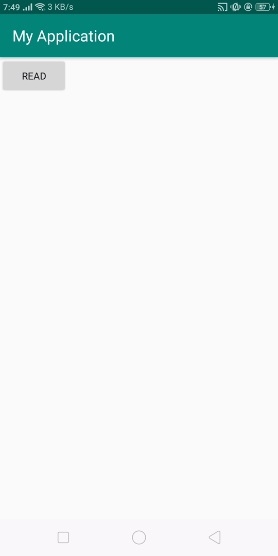
在上面的结果中,单击“读取”按钮以显示来自sample.txt的数据,如下所示:

点击 这里 下载项目代码

更新于:2019年7月30日
888 次浏览

广告