
 数据结构
数据结构 网络
网络 关系型数据库管理系统
 操作系统
操作系统 Java
Java MS Excel
 iOS
iOS HTML
HTML CSS
CSS Android
 Python
 C 编程
C 编程 C++
C++ C#
C# MongoDB
 MySQL
MySQL Javascript
 PHP
PHP 物理学
物理学 化学
化学 生物学
生物学 数学
数学 英语
英语 经济学
经济学 心理学
心理学 社会学
社会学 时尚研究
时尚研究 法律研究
法律研究如何使用 Python 可视化 API 结果
简介..
编写 API 最大的优势之一是提取当前/实时数据,即使数据快速变化,API 也会始终获取最新的数据。API 程序将使用非常具体的 URL 来请求某些信息,例如 Spotify 或 Youtube Music 中 2020 年播放次数最多的 100 首歌曲。请求的数据将以易于处理的格式返回,例如 JSON 或 CSV。
Python 允许用户向几乎任何你能想到的 URL 发送 API 调用。在本例中,我将展示如何提取 GitHub 的 API 结果并将其可视化。
注意 - 计划是展示 Spotify 的 API 结果,但 Spotify 需要更多先决条件,这可能需要不止一篇帖子,所以我们将在本帖中坚持使用 GitHUb。
Github,通常被称为开发者的 Facebook,允许我们编写 API 调用以提取各种数据。假设您想搜索星标数较多的 Javascript Github 存储库。GitHub 不需要 API 密钥,而其他 API 可能会需要。
如何操作..
1. 通过打开 Python 命令提示符并执行 pip install requests 来安装 requests 包。
import requests

# set the siteurl
site_url = 'https://api.github.com/search/repositories?q=language:javascript&sort=stars'

# set the headers
headers = {'Accept': 'application/vnd.github.v3+json'}

# call the url and save the response
response = requests.get(site_url, headers=headers)

# Get the response
print(f"Output \n *** Response from {site_url} is {response.status_code} ")
输出
*** Response from https://api.github.com/search/repositories?q=language:javascript&sort=stars is 200
2. API 以 JSON 格式返回信息,因此我们需要使用 json() 方法将信息转换为 Python 字典。
示例
response_json = response.json()
print(f"Output \n *** keys in the Json file \n {response_json.keys()} \n")

print(f" *** Total javascript repositories in GitHub \n {response_json['total_count']}" )
输出
*** keys in the Json file
dict_keys(['total_count', 'incomplete_results', 'items'])

*** Total javascript repositories in GitHub
11199577
因此,我们有 3 个键,其中我们可以忽略 incomplete_results。现在让我们检查一下我们的第一个存储库。
示例
repositories = response_json['items']
first_repo = repositories[0]

print(f"Output \n *** Repository information keys total - {len(first_repo)} - values are -\n")
for keys in sorted(first_repo.keys()):
print(keys)

print(f" *** Repository name - {first_repo['name']}, Owner - {first_repo['owner']['login']}, total watchers - {first_repo['watchers_count']} ")
输出
*** Repository information keys total - 74 - values are -

archive_url
archived
assignees_url
blobs_url
branches_url
clone_url
collaborators_url
comments_url
commits_url
compare_url
contents_url
contributors_url
created_at
default_branch
deployments_url
description
disabled
downloads_url
events_url
fork
forks
forks_count
forks_url
full_name
git_commits_url
git_refs_url
git_tags_url
git_url
has_downloads
has_issues
has_pages
has_projects
has_wiki
homepage
hooks_url
html_url
id
issue_comment_url
issue_events_url
issues_url
keys_url
labels_url
language
languages_url
license
merges_url
milestones_url
mirror_url
name
node_id
notifications_url
open_issues
open_issues_count
owner
private
pulls_url
pushed_at
releases_url
score
size
ssh_url
stargazers_count
stargazers_url
statuses_url
subscribers_url
subscription_url
svn_url
tags_url
teams_url
trees_url
updated_at
url
watchers
watchers_count
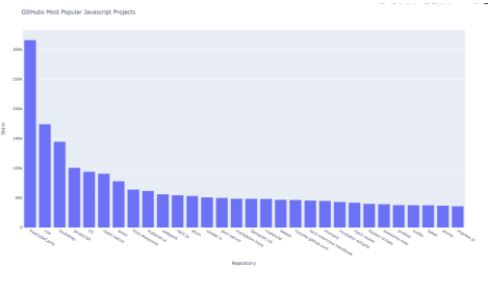
*** Repository name - freeCodeCamp, Owner - freeCodeCamp, total watchers - 316079
4. 可视化时间,有很多信息需要消化,所以最好的方法是将结果可视化。记住 - “一张图片胜过千言万语”。
我已经在其他帖子中介绍过 matplotlib,所以为了改变一下,我们将使用 plotly 绘制图表。
安装模块 - plotly。我们将从导入 plotly 开始。
示例
from plotly.graph_objs import Bar
from plotly import offline
6. 我们将使用存储库与星标数绘制条形图。星标越多,存储库越受欢迎。所以,这是一个查看谁排在顶端的好方法。因此,我们需要两个变量:存储库名称和星标数。
In[6]
示例
repo_names, repo_stars = [], []
for repo_info in repositories:
repo_names.append(repo_info['name'])
repo_stars.append(repo_info['stargazers_count'])
7. 通过准备数据列表开始可视化。这包含一个字典,它定义了绘图的类型并提供 x 和 y 值的数据。你可能已经猜到了,是的,我们将使用 x 轴绘制项目名称,使用 y 轴绘制星标数。
示例
data_plots = [{'type' : 'bar', 'x':repo_names , 'y': repo_stars}]8. 我们将添加 x 轴、y 轴以及整个图表的标题。
示例
layout = {'title': 'GItHubs Most Popular Javascript Projects',
'xaxis': {'title': 'Repository'},
'yaxis': {'title': 'Stars'}}
9. 绘制时间。
import requests
from plotly.graph_objs import Bar
from plotly import offline

site_url = 'https://api.github.com/search/repositories?q=language:javascript&sort=stars'

headers = {'Accept': 'application/vnd.github.v3+json'}
response = requests.get(site_url, headers=headers)
response_json = response.json()

repo_names, repo_stars = [], []
for repo_info in repositories:
repo_names.append(repo_info['name'])
repo_stars.append(repo_info['stargazers_count'])

data_plots = [{'type' : 'bar', 'x':repo_names , 'y': repo_stars}]
layout = {'title': 'GItHubs Most Popular Javascript Projects',
'xaxis': {'title': 'Repository'},
'yaxis': {'title': 'Stars'}}

fig = {'data': data_plots, 'layout': layout}
offline.plot(fig, filename='Most_Popular_JavaScript_Repos.html')
示例
'Most_Popular_JavaScript_Repos.html'
输出
Most_Popular_JavaScript_Repos.html 将与代码在同一目录中创建,输出如下所示。

1K+ 次浏览
