
- MVVM 教程
- MVVM - 首页
- MVVM – 简介
- MVVM - 优势
- MVVM - 职责
- MVVM - 第一个应用程序
- MVVM - 连接视图
- MVVM - 连接 ViewModel
- MVVM - WPF 数据绑定
- MVVM - WPF 数据模板
- MVVM - ViewModel 通信
- MVVM – 层次结构与导航
- MVVM - 验证
- MVVM - 依赖注入
- MVVM - 事件
- MVVM - 单元测试
- MVVM - 框架
- MVVM - 面试问题
- MVVM 有用资源
- MVVM - 快速指南
- MVVM - 有用资源
- MVVM - 讨论
MVVM – 层次结构与导航
构建 MVVM 应用程序时,通常会将复杂的信息屏幕分解成一组父视图和子视图,其中子视图包含在面板或容器控件中的父视图内,并形成自身使用的层次结构。
分解复杂的视图后,并不意味着您分离到其自身 XAML 文件中的每个子内容部分都需要成为 MVVM 视图。
内容块仅提供渲染内容到屏幕的结构,并且不支持用户对该内容的任何输入或操作。
它可能不需要单独的 ViewModel,而可能只是一个基于父 ViewModel 公开属性进行渲染的 XAML 块。
最后,如果您具有视图和 ViewModel 的层次结构,则父 ViewModel 可以成为通信中心,以便每个子 ViewModel 尽可能地与其他子 ViewModel 及其父级分离。
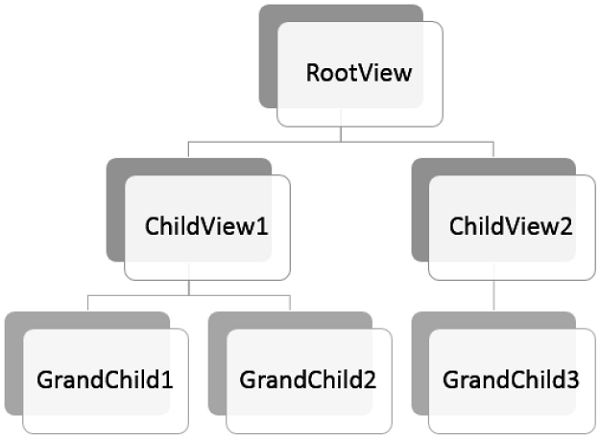
让我们来看一个定义不同视图之间简单层次结构的示例。创建一个新的 WPF 应用程序项目 MVVMHierarchiesDemo
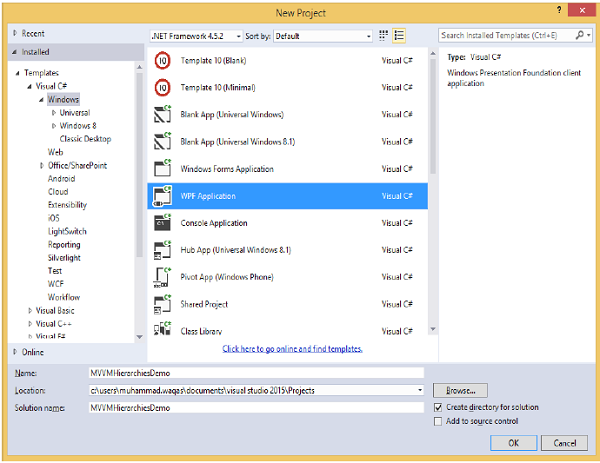
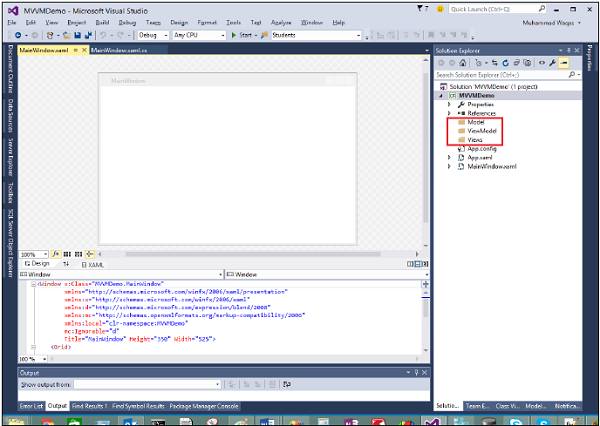
步骤 1 − 将三个文件夹(Model、ViewModel 和 Views)添加到您的项目中。
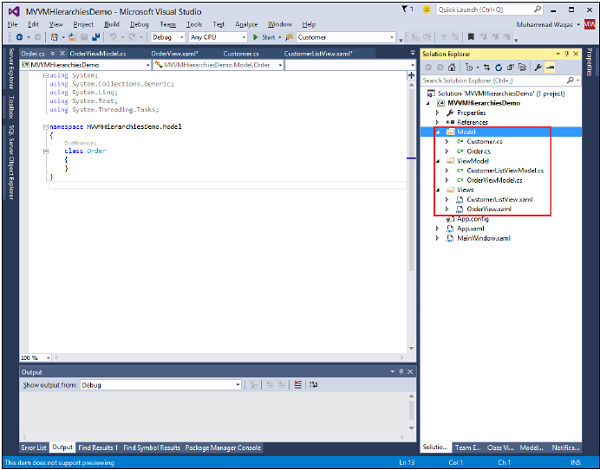
步骤 2 − 在 Model 文件夹中添加 Customer 和 Order 类,在 Views 文件夹中添加 CustomerListView 和 OrderView,在 ViewModel 文件夹中添加 CustomerListViewModel 和 OrderViewModel,如下面的图像所示。
步骤 3 − 在 CustomerListView 和 OrderView 中添加文本块。以下是 CustomerListView.xaml 文件。
<UserControl x:Class="MVVMHierarchiesDemo.Views.CustomerListView"
   xmlns = "http://schemas.microsoft.com/winfx/2006/xaml/presentation"
   xmlns:x = "http://schemas.microsoft.com/winfx/2006/xaml"
   xmlns:mc = "http://schemas.openxmlformats.org/markup-compatibility/2006"
   xmlns:d = "http://schemas.microsoft.com/expression/blend/2008"
   xmlns:local = "clr-namespace:MVVMHierarchiesDemo.Views"
   mc:Ignorable = "d"
   d:DesignHeight = "300" d:DesignWidth = "300">

   <Grid>
      <TextBlock Text = "Customer List View"/>
   </Grid>

</UserControl>
以下是 OrderView.xaml 文件。
<UserControl x:Class = "MVVMHierarchiesDemo.Views.OrderView"
   xmlns = "http://schemas.microsoft.com/winfx/2006/xaml/presentation"
   xmlns:x ="http://schemas.microsoft.com/winfx/2006/xaml"
   xmlns:mc ="http://schemas.openxmlformats.org/markup-compatibility/2006"
   xmlns:d ="http://schemas.microsoft.com/expression/blend/2008"
   xmlns:local = "clr-namespace:MVVMHierarchiesDemo.Views" mc:Ignorable = "d"
   d:DesignHeight = "300" d:DesignWidth = "300">

   <Grid>
      <TextBlock Text = "Order View"/>
   </Grid>

</UserControl>
现在我们需要一些东西来托管这些视图,在我们的 MainWindow 中这是一个好地方,因为它是一个简单的应用程序。我们需要一个容器控件,我们可以放置我们的视图并在导航方式中切换它们。为此,我们需要在我们的 MainWindow.xaml 文件中添加 ContentControl,我们将使用它的 content 属性并将其绑定到 ViewModel 引用。
现在在资源字典中为每个视图定义数据模板。以下是 MainWindow.xaml 文件。请注意每个数据模板如何将数据类型(ViewModel 类型)映射到相应的 View。
<Window x:Class = "MVVMHierarchiesDemo.MainWindow"
   xmlns = "http://schemas.microsoft.com/winfx/2006/xaml/presentation"
   xmlns:x = "http://schemas.microsoft.com/winfx/2006/xaml"
   xmlns:d = "http://schemas.microsoft.com/expression/blend/2008"
   xmlns:mc = "http://schemas.openxmlformats.org/markup-compatibility/2006"
   xmlns:local = "clr-namespace:MVVMHierarchiesDemo"
   xmlns:views = "clr-namespace:MVVMHierarchiesDemo.Views"
   xmlns:viewModels = "clr-namespace:MVVMHierarchiesDemo.ViewModel"
   mc:Ignorable = "d"
   Title = "MainWindow" Height = "350" Width = "525">

   <Window.DataContext>
      <local:MainWindowViewModel/>
   </Window.DataContext>

   <Window.Resources>
      <DataTemplate DataType = "{x:Type viewModels:CustomerListViewModel}">
         <views:CustomerListView/>
      </DataTemplate>

      <DataTemplate DataType = "{x:Type viewModels:OrderViewModel}">
         <views:OrderView/>
      </DataTemplate>
   </Window.Resources>

   <Grid>
      <ContentControl Content = "{Binding CurrentView}"/>
   </Grid>

</Window>
每当当前视图模型设置为 CustomerListViewModel 的实例时,它将呈现一个 CustomerListView,其中 ViewModel 已连接。它是一个订单 ViewModel,它将呈现 OrderView 等等。
我们现在需要一个 ViewModel,它具有 CurrentViewModel 属性以及一些逻辑和命令,以便能够切换属性内部的 ViewModel 的当前引用。
让我们为此 MainWindow 创建一个名为 MainWindowViewModel 的 ViewModel。我们可以从 XAML 创建 ViewModel 的实例并使用它来设置窗口的 DataContext 属性。为此,我们需要创建一个基类来封装我们 ViewModel 的 INotifyPropertyChanged 实现。
此类的主要思想是封装 INotifyPropertyChanged 实现并向派生类提供帮助器方法,以便它们可以轻松触发适当的通知。以下是 BindableBase 类的实现。
using System;
using System.Collections.Generic;
using System.ComponentModel;
using System.Linq;
using System.Runtime.CompilerServices;
using System.Text;
using System.Threading.Tasks;

namespace MVVMHierarchiesDemo {

   class BindableBase : INotifyPropertyChanged {

      protected virtual void SetProperty<T>(ref T member, T val,
         [CallerMemberName] string propertyName = null) {
            if (object.Equals(member, val)) return;

            member = val;
            PropertyChanged(this, new PropertyChangedEventArgs(propertyName));
      }

      protected virtual void OnPropertyChanged(string propertyName) {
         PropertyChanged(this, new PropertyChangedEventArgs(propertyName));
      }

      public event PropertyChangedEventHandler PropertyChanged = delegate { };
   }
}
现在是时候使用我们的 CurrentViewModel 属性开始进行一些视图切换了。我们只需要某种方式来驱动此属性的设置。我们将使其成为最终用户可以命令转到客户列表或订单视图。首先在您的项目中添加一个新类,该类将实现 ICommand 接口。以下是 ICommand 接口的实现。
using System;
using System.Windows.Input;

namespace MVVMHierarchiesDemo {

   public class MyICommand<T> : ICommand {

      Action<T> _TargetExecuteMethod;
      Func<T, bool> _TargetCanExecuteMethod;

      public MyICommand(Action<T> executeMethod) {
         _TargetExecuteMethod = executeMethod;
      }

      public MyICommand(Action<T> executeMethod, Func<T, bool> canExecuteMethod) {
         _TargetExecuteMethod = executeMethod;
         _TargetCanExecuteMethod = canExecuteMethod;
      }

      public void RaiseCanExecuteChanged() {
         CanExecuteChanged(this, EventArgs.Empty);
      }

      #region ICommand Members

      bool ICommand.CanExecute(object parameter) {

         if (_TargetCanExecuteMethod != null) {
            T tparm = (T)parameter;
            return _TargetCanExecuteMethod(tparm);
         }

         if (_TargetExecuteMethod != null) {
            return true;
         }

         return false;
      }

      // Beware - should use weak references if command instance lifetime is
         longer than lifetime of UI objects that get hooked up to command

      // Prism commands solve this in their implementation

      public event EventHandler CanExecuteChanged = delegate { };

      void ICommand.Execute(object parameter) {
         if (_TargetExecuteMethod != null) {
            _TargetExecuteMethod((T)parameter);
         }
      }

      #endregion
   }
}
现在我们需要为这些 ViewModel 设置一些顶级导航,并且切换的逻辑应该属于 MainWindowViewModel 内部。为此,我们将使用一个名为 on navigate 的方法,该方法接受一个字符串目标并返回 CurrentViewModel 属性。
private void OnNav(string destination) {

   switch (destination) {
      case "orders":
         CurrentViewModel = orderViewModelModel;
      break;
      case "customers":
      default:
         CurrentViewModel = custListViewModel;
      break;
   }
}
为了导航这些不同的视图,我们需要在我们的 MainWindow.xaml 文件中添加两个按钮。以下是完整的 XAML 文件实现。
<Window x:Class = "MVVMHierarchiesDemo.MainWindow"
   xmlns = "http://schemas.microsoft.com/winfx/2006/xaml/presentation"
   xmlns:x = "http://schemas.microsoft.com/winfx/2006/xaml"
   xmlns:d = "http://schemas.microsoft.com/expression/blend/2008"
   xmlns:mc = "http://schemas.openxmlformats.org/markup-compatibility/2006"
   xmlns:local = "clr-namespace:MVVMHierarchiesDemo"
   xmlns:views = "clr-namespace:MVVMHierarchiesDemo.Views"
   xmlns:viewModels = "clr-namespace:MVVMHierarchiesDemo.ViewModel"
   mc:Ignorable = "d"
   Title = "MainWindow" Height = "350" Width = "525">

   <Window.DataContext>
      <local:MainWindowViewModel/>
   </Window.DataContext>

   <Window.Resources>
      <DataTemplate DataType = "{x:Type viewModels:CustomerListViewModel}">
         <views:CustomerListView/>
      </DataTemplate>

      <DataTemplate DataType = "{x:Type viewModels:OrderViewModel}">
         <views:OrderView/>
      </DataTemplate>
   </Window.Resources>

   <Grid>
      <Grid.RowDefinitions>
         <RowDefinition Height = "Auto" />
         <RowDefinition Height = "*" />
      </Grid.RowDefinitions>

      <Grid x:Name = "NavBar">
         <Grid.ColumnDefinitions>
            <ColumnDefinition Width = "*" />
            <ColumnDefinition Width = "*" />
            <ColumnDefinition Width = "*" />
         </Grid.ColumnDefinitions>

         <Button Content = "Customers"
            Command = "{Binding NavCommand}"
            CommandParameter = "customers"
            Grid.Column = "0" />

         <Button Content = "Order"
            Command = "{Binding NavCommand}"
            CommandParameter = "orders"
            Grid.Column = "2" />
      </Grid>

      <Grid x:Name = "MainContent" Grid.Row = "1">
         <ContentControl Content = "{Binding CurrentViewModel}" />
      </Grid>

   </Grid>

</Window>
以下是完整的 MainWindowViewModel 实现。
using MVVMHierarchiesDemo.ViewModel;
using MVVMHierarchiesDemo.Views;

using System;
using System.Collections.Generic;
using System.Linq;
using System.Text;
using System.Threading.Tasks;

namespace MVVMHierarchiesDemo {

   class MainWindowViewModel : BindableBase {

      public MainWindowViewModel() {
         NavCommand = new MyICommand<string>(OnNav);
      }

      private CustomerListViewModel custListViewModel = new CustomerListViewModel();

      private OrderViewModel orderViewModelModel = new OrderViewModel();

      private BindableBase _CurrentViewModel;

      public BindableBase CurrentViewModel {
         get {return _CurrentViewModel;}
         set {SetProperty(ref _CurrentViewModel, value);}
      }

      public MyICommand<string> NavCommand { get; private set; }

      private void OnNav(string destination) {

         switch (destination) {
            case "orders":
               CurrentViewModel = orderViewModelModel;
               break;
            case "customers":
            default:
               CurrentViewModel = custListViewModel;
               break;
         }
      }
   }
}
从 BindableBase 类派生所有 ViewModel。当上述代码编译并执行时,您将看到以下输出。
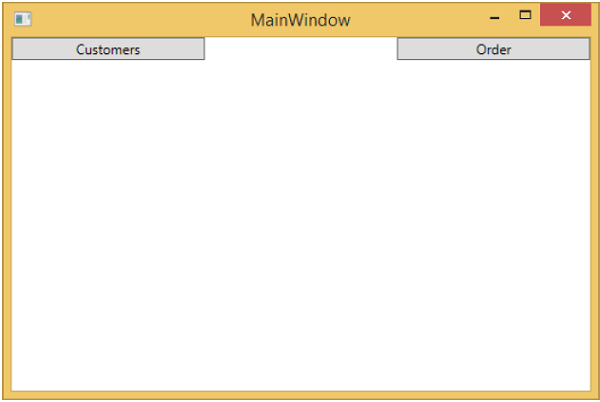
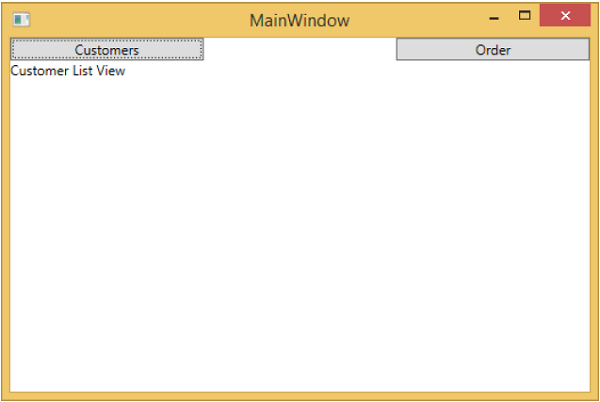
如您所见,我们只在 MainWindow 上添加了两个按钮和一个 CurrentViewModel。如果单击任何按钮,它将导航到该特定视图。让我们单击“客户”按钮,您将看到 CustomerListView 显示出来。
我们建议您逐步执行上述示例以更好地理解。