
- Flutter 教程
- Flutter - 首页
- Flutter - 简介
- Flutter - 安装
- 在 Android Studio 中创建简单的应用程序
- Flutter - 架构应用程序
- Dart 编程入门
- Flutter - Widget 入门
- Flutter - 布局入门
- Flutter - 手势入门
- Flutter - 状态管理
- Flutter - 动画
- Flutter - 编写 Android 特定代码
- Flutter - 编写 iOS 特定代码
- Flutter - 包入门
- Flutter - 访问 REST API
- Flutter - 数据库概念
- Flutter - 国际化
- Flutter - 测试
- Flutter - 部署
- Flutter - 开发工具
- Flutter - 编写高级应用程序
- Flutter - 结论
- Flutter 有用资源
- Flutter - 快速指南
- Flutter - 有用资源
- Flutter - 讨论
Flutter - 数据库概念
Flutter 提供了许多用于处理数据库的高级包。最重要的包是:
sqflite - 用于访问和操作 SQLite 数据库,以及
firebase_database - 用于访问和操作来自 Google 的云托管 NoSQL 数据库。
在本章中,我们将详细讨论每个包。
SQLite
SQLite 数据库是事实上的标准 SQL 基嵌入式数据库引擎。它是一个小型且经过时间考验的数据库引擎。sqflite 包提供了许多功能,可以高效地使用 SQLite 数据库。它提供标准方法来操作 SQLite 数据库引擎。sqflite 包提供的核心功能如下:
创建/打开 (openDatabase 方法) SQLite 数据库。
执行针对 SQLite 数据库的 SQL 语句 (execute 方法)。
高级查询方法 (query 方法) 以减少查询和获取 SQLite 数据库信息所需的代码。
让我们创建一个产品应用程序,使用 sqflite 包从标准 SQLite 数据库引擎存储和获取产品信息,并了解 SQLite 数据库和 sqflite 包背后的概念。
在 Android Studio 中创建一个新的 Flutter 应用程序,命名为 product_sqlite_app。
将默认启动代码 (main.dart) 替换为我们的 product_rest_app 代码。
将 product_nav_app 中的 assets 文件夹复制到 product_rest_app,并在 *pubspec.yaml` 文件中添加 assets。
flutter:
   assets:
      - assets/appimages/floppy.png
      - assets/appimages/iphone.png
      - assets/appimages/laptop.png
      - assets/appimages/pendrive.png
      - assets/appimages/pixel.png
      - assets/appimages/tablet.png
在 pubspec.yaml 文件中配置 sqflite 包,如下所示:
dependencies: sqflite: any
使用 sqflite 的最新版本号替换任何
在 pubspec.yaml 文件中配置 path_provider 包,如下所示:
dependencies: path_provider: any
这里,path_provider 包用于获取系统的临时文件夹路径和应用程序的路径。使用 sqflite 的最新版本号替换 any。
Android Studio 将提示 pubspec.yaml 已更新。

点击“获取依赖项”选项。Android Studio 将从互联网获取包并为应用程序正确配置它。
在数据库中,我们需要主键 id 作为附加字段,以及产品属性(如名称、价格等)。因此,在 Product 类中添加 id 属性。此外,添加一个新方法 toMap,用于将 product 对象转换为 Map 对象。fromMap 和 toMap 用于序列化和反序列化 Product 对象,它用于数据库操作方法。
class Product {
   final int id;
   final String name;
   final String description;
   final int price;
   final String image;
   static final columns = ["id", "name", "description", "price", "image"];
   Product(this.id, this.name, this.description, this.price, this.image);
   factory Product.fromMap(Map<String, dynamic> data) {
      return Product(
         data['id'],
         data['name'],
         data['description'],
         data['price'],
         data['image'],
      );
   }
   Map<String, dynamic> toMap() => {
      "id": id,
      "name": name,
      "description": description,
      "price": price,
      "image": image
   };
}
在 lib 文件夹中创建一个新文件 Database.dart,用于编写 SQLite 相关的功能。
在 Database.dart 中导入必要的导入语句。
import 'dart:async';
import 'dart:io';
import 'package:path/path.dart';
import 'package:path_provider/path_provider.dart';
import 'package:sqflite/sqflite.dart';
import 'Product.dart';
注意以下几点:
async 用于编写异步方法。
io 用于访问文件和目录。
path 用于访问与文件路径相关的 Dart 核心实用程序函数。
path_provider 用于获取临时路径和应用程序路径。
sqflite 用于操作 SQLite 数据库。
创建一个新类 SQLiteDbProvider
声明一个基于单例的静态 SQLiteDbProvider 对象,如下所示:
class SQLiteDbProvider {
   SQLiteDbProvider._();
   static final SQLiteDbProvider db = SQLiteDbProvider._();
   static Database _database;
}
可以通过静态变量 db 访问 SQLiteDBProvoider 对象及其方法。
SQLiteDBProvoider.db.<emthod>
创建一个方法来获取数据库 (Future 选项),类型为 Future<Database>。在数据库创建过程中创建产品表并加载初始数据。
Future<Database> get database async {
   if (_database != null)
   return _database;
   _database = await initDB();
   return _database;
}
initDB() async {
   Directory documentsDirectory = await getApplicationDocumentsDirectory();
   String path = join(documentsDirectory.path, "ProductDB.db");
   return await openDatabase(
      path,
      version: 1,
      onOpen: (db) {},
      onCreate: (Database db, int version) async {
         await db.execute(
            "CREATE TABLE Product ("
            "id INTEGER PRIMARY KEY,"
            "name TEXT,"
            "description TEXT,"
            "price INTEGER,"
            "image TEXT" ")"
         );
         await db.execute(
            "INSERT INTO Product ('id', 'name', 'description', 'price', 'image')
            values (?, ?, ?, ?, ?)",
            [1, "iPhone", "iPhone is the stylist phone ever", 1000, "iphone.png"]
         );
         await db.execute(
            "INSERT INTO Product ('id', 'name', 'description', 'price', 'image')
            values (?, ?, ?, ?, ?)",
            [2, "Pixel", "Pixel is the most feature phone ever", 800, "pixel.png"]
         );
         await db.execute(
            "INSERT INTO Product ('id', 'name', 'description', 'price', 'image')
            values (?, ?, ?, ?, ?)",
            [3, "Laptop", "Laptop is most productive development tool", 2000, "laptop.png"]\
         );
         await db.execute(
            "INSERT INTO Product ('id', 'name', 'description', 'price', 'image')
            values (?, ?, ?, ?, ?)",
            [4, "Tablet", "Laptop is most productive development tool", 1500, "tablet.png"]
         );
         await db.execute(
            "INSERT INTO Product
            ('id', 'name', 'description', 'price', 'image')
            values (?, ?, ?, ?, ?)",
            [5, "Pendrive", "Pendrive is useful storage medium", 100, "pendrive.png"]
         );
         await db.execute(
            "INSERT INTO Product
            ('id', 'name', 'description', 'price', 'image')
            values (?, ?, ?, ?, ?)",
            [6, "Floppy Drive", "Floppy drive is useful rescue storage medium", 20, "floppy.png"]
         );
      }
   );
}
这里,我们使用了以下方法:
getApplicationDocumentsDirectory - 返回应用程序目录路径
join - 用于创建系统特定的路径。我们用它来创建数据库路径。
openDatabase - 用于打开 SQLite 数据库
onOpen - 用于在打开数据库时编写代码
onCreate - 用于在第一次创建数据库时编写代码
db.execute - 用于执行 SQL 查询。它接受一个查询。如果查询有占位符 (?),则它在第二个参数中接受值作为列表。
编写一个方法来获取数据库中的所有产品:
Future<List<Product>> getAllProducts() async {
   final db = await database;
   List<Map>
   results = await db.query("Product", columns: Product.columns, orderBy: "id ASC");

   List<Product> products = new List();
   results.forEach((result) {
      Product product = Product.fromMap(result);
      products.add(product);
   });
   return products;
}
这里,我们做了以下工作:
使用 query 方法获取所有产品信息。query 提供了一种快捷方式来查询表信息,而无需编写整个查询。query 方法将使用我们的输入(如列、orderBy 等)自行生成正确的查询。
使用 Product 的 fromMap 方法通过循环 results 对象来获取产品详细信息,该对象保存表中的所有行。
编写一个方法来获取特定于 id 的产品
Future<Product> getProductById(int id) async {
   final db = await database;
   var result = await db.query("Product", where: "id = ", whereArgs: [id]);
   return result.isNotEmpty ? Product.fromMap(result.first) : Null;
}
这里,我们使用了 where 和 whereArgs 来应用过滤器。
创建三个方法 - insert、update 和 delete 方法,用于插入、更新和从数据库删除产品。
insert(Product product) async {
   final db = await database;
   var maxIdResult = await db.rawQuery(
      "SELECT MAX(id)+1 as last_inserted_id FROM Product");

   var id = maxIdResult.first["last_inserted_id"];
   var result = await db.rawInsert(
      "INSERT Into Product (id, name, description, price, image)"
      " VALUES (?, ?, ?, ?, ?)",
      [id, product.name, product.description, product.price, product.image]
   );
   return result;
}
update(Product product) async {
   final db = await database;
   var result = await db.update("Product", product.toMap(),
   where: "id = ?", whereArgs: [product.id]); return result;
}
delete(int id) async {
   final db = await database;
   db.delete("Product", where: "id = ?", whereArgs: [id]);
}
Database.dart 的最终代码如下:
import 'dart:async';
import 'dart:io';
import 'package:path/path.dart';
import 'package:path_provider/path_provider.dart';
import 'package:sqflite/sqflite.dart';
import 'Product.dart';

class SQLiteDbProvider {
   SQLiteDbProvider._();
   static final SQLiteDbProvider db = SQLiteDbProvider._();
   static Database _database;

   Future<Database> get database async {
      if (_database != null)
      return _database;
      _database = await initDB();
      return _database;
   }
   initDB() async {
      Directory documentsDirectory = await
      getApplicationDocumentsDirectory();
      String path = join(documentsDirectory.path, "ProductDB.db");
      return await openDatabase(
         path, version: 1,
         onOpen: (db) {},
         onCreate: (Database db, int version) async {
            await db.execute(
               "CREATE TABLE Product ("
               "id INTEGER PRIMARY KEY,"
               "name TEXT,"
               "description TEXT,"
               "price INTEGER,"
               "image TEXT"")"
            );
            await db.execute(
               "INSERT INTO Product ('id', 'name', 'description', 'price', 'image')
               values (?, ?, ?, ?, ?)",
               [1, "iPhone", "iPhone is the stylist phone ever", 1000, "iphone.png"]
            );
            await db.execute(
               "INSERT INTO Product ('id', 'name', 'description', 'price', 'image')
               values (?, ?, ?, ?, ?)",
               [2, "Pixel", "Pixel is the most feature phone ever", 800, "pixel.png"]
            );
            await db.execute(
               "INSERT INTO Product ('id', 'name', 'description', 'price', 'image')
               values (?, ?, ?, ?, ?)",
               [3, "Laptop", "Laptop is most productive development tool", 2000, "laptop.png"]
            );
            await db.execute(
               "INSERT INTO Product ('id', 'name', 'description', 'price', 'image')
               values (?, ?, ?, ?, ?)",
               [4, "Tablet", "Laptop is most productive development tool", 1500, "tablet.png"]
            );
            await db.execute(
               "INSERT INTO Product ('id', 'name', 'description', 'price', 'image')
               values (?, ?, ?, ?, ?)",
               [5, "Pendrive", "Pendrive is useful storage medium", 100, "pendrive.png"]
            );
            await db.execute(
               "INSERT INTO Product ('id', 'name', 'description', 'price', 'image')
               values (?, ?, ?, ?, ?)",
               [6, "Floppy Drive", "Floppy drive is useful rescue storage medium", 20, "floppy.png"]
            );
         }
      );
   }
   Future<List<Product>> getAllProducts() async {
      final db = await database;
      List<Map> results = await db.query(
         "Product", columns: Product.columns, orderBy: "id ASC"
      );
      List<Product> products = new List();
      results.forEach((result) {
         Product product = Product.fromMap(result);
         products.add(product);
      });
      return products;
   }
   Future<Product> getProductById(int id) async {
      final db = await database;
      var result = await db.query("Product", where: "id = ", whereArgs: [id]);
      return result.isNotEmpty ? Product.fromMap(result.first) : Null;
   }
   insert(Product product) async {
      final db = await database;
      var maxIdResult = await db.rawQuery("SELECT MAX(id)+1 as last_inserted_id FROM Product");
      var id = maxIdResult.first["last_inserted_id"];
      var result = await db.rawInsert(
         "INSERT Into Product (id, name, description, price, image)"
         " VALUES (?, ?, ?, ?, ?)",
         [id, product.name, product.description, product.price, product.image]
      );
      return result;
   }
   update(Product product) async {
      final db = await database;
      var result = await db.update(
         "Product", product.toMap(), where: "id = ?", whereArgs: [product.id]
      );
      return result;
   }
   delete(int id) async {
      final db = await database;
      db.delete("Product", where: "id = ?", whereArgs: [id]);
   }
}
更改 main 方法以获取产品信息。
void main() {
   runApp(MyApp(products: SQLiteDbProvider.db.getAllProducts()));
}
这里,我们使用了 getAllProducts 方法从数据库中获取所有产品。
运行应用程序并查看结果。它将与之前的示例“访问产品服务 API”类似,只是产品信息存储在本地 SQLite 数据库中并从中获取。
云 Firestore
Firebase 是一个 BaaS 应用开发平台。它提供了许多功能来加快移动应用程序的开发,例如身份验证服务、云存储等。Firebase 的主要功能之一是 Cloud Firestore,一个基于云的实时 NoSQL 数据库。
Flutter 提供了一个特殊的包 cloud_firestore 用于与 Cloud Firestore 编程。让我们在 Cloud Firestore 中创建一个在线产品商店,并创建一个应用程序来访问该产品商店。
在 Android Studio 中创建一个新的 Flutter 应用程序,命名为 product_firebase_app。
将默认启动代码 (main.dart) 替换为我们的 product_rest_app 代码。
将 product_rest_app 中的 Product.dart 文件复制到 lib 文件夹。
class Product {
   final String name;
   final String description;
   final int price;
   final String image;

   Product(this.name, this.description, this.price, this.image);
   factory Product.fromMap(Map<String, dynamic> json) {
      return Product(
         json['name'],
         json['description'],
         json['price'],
         json['image'],
      );
   }
}
将 product_rest_app 中的 assets 文件夹复制到 product_firebase_app,并在 pubspec.yaml 文件中添加 assets。
flutter:
   assets:
   - assets/appimages/floppy.png
   - assets/appimages/iphone.png
   - assets/appimages/laptop.png
   - assets/appimages/pendrive.png
   - assets/appimages/pixel.png
   - assets/appimages/tablet.png
在 pubspec.yaml 文件中配置 cloud_firestore 包,如下所示:
dependencies: cloud_firestore: ^0.9.13+1
这里,使用 cloud_firestore 包的最新版本。
Android Studio 将提示 pubspec.yaml 已更新,如下所示:

点击“获取依赖项”选项。Android Studio 将从互联网获取包并为应用程序正确配置它。
使用以下步骤在 Firebase 中创建一个项目:
通过在 https://firebase.google.com/pricing/. 选择免费计划来创建一个 Firebase 帐户。
创建 Firebase 帐户后,它将重定向到项目概述页面。它列出了所有基于 Firebase 的项目,并提供了一个创建新项目的选项。
点击“添加项目”,它将打开一个项目创建页面。
输入 products app db 作为项目名称,然后点击“创建项目”选项。
转到 *Firebase 控制台。
点击“项目概述”。它将打开项目概述页面。
点击 Android 图标。它将打开特定于 Android 开发的项目设置。
输入 Android 包名,com.tutorialspoint.flutterapp.product_firebase_app。
点击“注册应用”。它将生成一个项目配置文件,google_service.json。
下载 google_service.json,然后将其移动到项目的 android/app 目录。此文件是我们的应用程序和 Firebase 之间的连接。
打开 android/app/build.gradle 并包含以下代码:
apply plugin: 'com.google.gms.google-services'
打开 android/build.gradle 并包含以下配置:
buildscript {
   repositories {
      // ...
   }
   dependencies {
      // ...
      classpath 'com.google.gms:google-services:3.2.1' // new
   }
}
打开 android/app/build.gradle 并包含以下代码。
这里,插件和类路径用于读取 google_service.json 文件。
android {
   defaultConfig {
      ...
      multiDexEnabled true
   }
   ...
}
dependencies {
   ...
   compile 'com.android.support: multidex:1.0.3'
}
按照 Firebase 控制台中的其余步骤操作,或者跳过。
使用以下步骤在新创建的项目中创建一个产品商店:
转到 Firebase 控制台。
打开新创建的项目。
点击左侧菜单中的“数据库”选项。
点击“创建数据库”选项。
点击“以测试模式启动”,然后点击“启用”。
点击“添加集合”。输入 product 作为集合名称,然后点击“下一步”。
输入此处图像中显示的示例产品信息:
此依赖项使 Android 应用程序能够使用多 dex 功能。
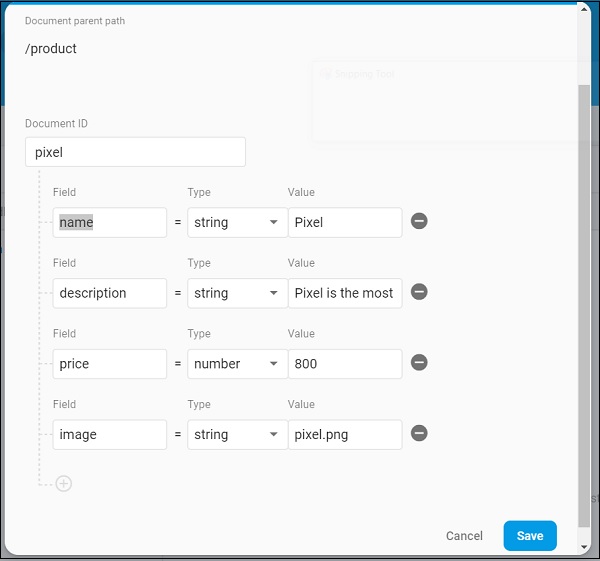
使用 添加文档 选项添加其他产品信息。
打开 main.dart 文件并导入 Cloud Firestore 插件文件,并删除 http 包。
import 'package:cloud_firestore/cloud_firestore.dart';
删除 parseProducts 并更新 fetchProducts 以从 Cloud Firestore 而不是产品服务 API 获取产品。
Stream<QuerySnapshot> fetchProducts() {
   return Firestore.instance.collection('product').snapshots(); }
这里,Firestore.instance.collection 方法用于访问云存储中可用的 product 集合。Firestore.instance.collection 提供了许多选项来过滤集合以获取必要的文档。但是,我们没有应用任何过滤器来获取所有产品信息。
Cloud Firestore 通过 Dart Stream 概念提供集合,因此将 MyApp 和 MyHomePage widget 中的产品类型从 Future<list<Product>> 修改为 Stream<QuerySnapshot>。
更改 MyHomePage widget 的 build 方法以使用 StreamBuilder 而不是 FutureBuilder。
@override
Widget build(BuildContext context) {
   return Scaffold(
      appBar: AppBar(title: Text("Product Navigation")),
      body: Center(
         child: StreamBuilder<QuerySnapshot>(
            stream: products, builder: (context, snapshot) {
               if (snapshot.hasError) print(snapshot.error);
               if(snapshot.hasData) {
                  List<DocumentSnapshot>
                  documents = snapshot.data.documents;

                  List<Product>
                  items = List<Product>();

                  for(var i = 0; i < documents.length; i++) {
                     DocumentSnapshot document = documents[i];
                     items.add(Product.fromMap(document.data));
                  }
                  return ProductBoxList(items: items);
               } else {
                  return Center(child: CircularProgressIndicator());
               }
            },
         ),
      )
   );
}
这里,我们已将产品信息作为 List<DocumentSnapshot> 类型获取。由于我们的 widget ProductBoxList 与文档不兼容,我们已将文档转换为 List<Product> 类型,然后进一步使用它。
最后,运行应用程序并查看结果。由于我们使用了与 SQLite 应用程序 相同的产品信息,并且仅更改了存储介质,因此生成的应用程序与 SQLite 应用程序 应用程序看起来相同。