- GraphQL 教程
- GraphQL - 首页
- GraphQL - 简介
- GraphQL - 环境设置
- GraphQL - 架构
- GraphQL - 应用程序组件
- GraphQL - 示例
- GraphQL - 类型系统
- GraphQL - 模式
- GraphQL - 解析器
- GraphQL - 查询
- GraphQL - 变异
- GraphQL - 验证
- GraphQL - JQuery 集成
- GraphQL - React 集成
- GraphQL - Apollo Client
- GraphQL - 客户端身份验证
- GraphQL - 缓存
- GraphQL 有用资源
- GraphQL - 快速指南
- GraphQL - 有用资源
- GraphQL - 讨论
GraphQL - 环境设置
在本章中,我们将学习 GraphQL 的环境设置。要执行本教程中的示例,您需要以下内容:
运行 Linux、macOS 或 Windows 的计算机。
一个网络浏览器,最好是最新版本的 Google Chrome。
已安装的最新版本的 Node.js。建议使用最新的 LTS 版本。
已安装 GraphQL for VSCode 扩展的 Visual Studio Code 或您选择的任何代码编辑器。
如何使用 Nodejs 构建 GraphQL 服务器
我们将逐步详细介绍如何使用 Nodejs 构建 GraphQL 服务器,如下所示:
步骤 1 - 验证 Node 和 Npm 版本
安装 NodeJs 后,使用以下命令在终端上验证 node 和 npm 的版本:
C:\Users\Admin>node -v
v8.11.3

C:\Users\Admin>npm -v
5.6.0
步骤 2 - 创建项目文件夹并在 VSCode 中打开
项目的根文件夹可以命名为 test-app。
使用以下说明使用 Visual Studio Code 编辑器打开文件夹:
C:\Users\Admin>mkdir test-app
C:\Users\Admin>cd test-app
C:\Users\Admin\test-app>code.
步骤 3 - 创建 package.json 并安装依赖项
创建一个 package.json 文件,其中将包含 GraphQL 服务器应用程序的所有依赖项。
{
   "name": "hello-world-server",
   "private": true,
   "scripts": {
      "start": "nodemon --ignore data/ server.js"
   },

   "dependencies": {
      "apollo-server-express": "^1.4.0",
      "body-parser": "^1.18.3",
      "cors": "^2.8.4",
      "express": "^4.16.3",
      "graphql": "^0.13.2",
      "graphql-tools": "^3.1.1"
   },

   "devDependencies": {
      "nodemon": "1.17.1"
   }
}
使用以下命令安装依赖项:
C:\Users\Admin\test-app>npm install
步骤 4 - 在 Data 文件夹中创建平面文件数据库
在此步骤中,我们使用平面文件来存储和检索数据。创建一个名为 data 的文件夹,并添加两个文件 **students.json** 和 **colleges.json**。
以下是 **colleges.json** 文件:
[
   {
      "id": "col-101",
      "name": "AMU",
      "location": "Uttar Pradesh",
      "rating":5.0
   },

   {
      "id": "col-102",
      "name": "CUSAT",
      "location": "Kerala",
      "rating":4.5
   }
]
以下是 **students.json** 文件:
[
   {
      "id": "S1001",
      "firstName":"Mohtashim",
      "lastName":"Mohammad",
      "email": "mohtashim.mohammad@tutorialpoint.org",
      "password": "pass123",
      "collegeId": "col-102"
   },

   {
      "id": "S1002",
      "email": "kannan.sudhakaran@tutorialpoint.org",
      "firstName":"Kannan",
      "lastName":"Sudhakaran",
      "password": "pass123",
      "collegeId": "col-101"
   },

   {
      "id": "S1003",
      "email": "kiran.panigrahi@tutorialpoint.org",
      "firstName":"Kiran",
      "lastName":"Panigrahi",
      "password": "pass123",
      "collegeId": "col-101"
   }
]
步骤 5 - 创建数据访问层
我们需要创建一个数据存储,用于加载数据文件夹的内容。在这种情况下,我们需要集合变量 students 和 colleges。每当应用程序需要数据时,它都会使用这些集合变量。
在项目文件夹中创建文件 db.js,如下所示:
const { DataStore } = require('notarealdb');

const store = new DataStore('./data');

module.exports = {
   students:store.collection('students'),
   colleges:store.collection('colleges')
};
步骤 6 - 创建模式文件 schema.graphql
在当前项目文件夹中创建一个模式文件,并添加以下内容:
type Query  {
   test: String
}
步骤 7 - 创建解析器文件 resolvers.js
在当前项目文件夹中创建一个解析器文件,并添加以下内容:
const Query = {
   test: () => 'Test Success, GraphQL server is up & running !!'
}
module.exports = {Query}
步骤 8 - 创建 Server.js 并配置 GraphQL
创建一个服务器文件并配置 GraphQL,如下所示:
const bodyParser = require('body-parser');
const cors = require('cors');
const express = require('express');
const db = require('./db');

const port = process.env.PORT || 9000;
const app = express();

const fs = require('fs')
const typeDefs = fs.readFileSync('./schema.graphql',{encoding:'utf-8'})
const resolvers = require('./resolvers')

const {makeExecutableSchema} = require('graphql-tools')
const schema = makeExecutableSchema({typeDefs, resolvers})

app.use(cors(), bodyParser.json());

const  {graphiqlExpress,graphqlExpress} = require('apollo-server-express')
app.use('/graphql',graphqlExpress({schema}))
app.use('/graphiql',graphiqlExpress({endpointURL:'/graphql'}))

app.listen(
   port, () => console.info(
      `Server started on port ${port}`
   )
);
步骤 9 - 运行应用程序并使用 GraphiQL 测试
验证项目 test-app 的文件夹结构,如下所示:
test-app /
   -->package.json
   -->db.js
   -->data
      students.json
      colleges.json
   -->resolvers.js
   -->schema.graphql
   -->server.js
运行命令 npm start,如下所示:
C:\Users\Admin\test-app>npm start
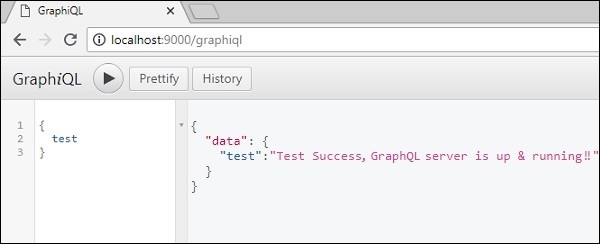
服务器在 9000 端口运行,因此我们可以使用 GraphiQL 工具测试应用程序。打开浏览器并输入 URL https://:9000/graphiql。在编辑器中键入以下查询:
{
   Test
}
服务器返回的响应如下所示:
{
   "data": {
      "test": "Test Success, GraphQL server is running !!"
   }
}