
 数据结构
数据结构 网络
网络 RDBMS
RDBMS 操作系统
操作系统 Java
Java MS Excel
 iOS
iOS HTML
HTML CSS
CSS Android
 Python
 C 编程
C 编程 C++
C++ C#
C# MongoDB
 MySQL
MySQL Javascript
 PHP
PHP 物理
物理 化学
化学 生物
生物 数学
数学 英语
英语 经济学
经济学 心理学
心理学 社会研究
社会研究 时尚研究
时尚研究 法律研究
法律研究如何在 JavaFX XY 图表中修改刻度的长度?
javafx.scene.XYChart 类是所有绘制在 x-y 平面图上的图表的基类。通过实例化该类的子类,您可以创建各种 XY 图表,如折线图、面积图、条形图、饼图、气泡图、散点图等。
在 XY 图中,给定的数据点绘制在 XY 平面图中。沿着 x 和 y 轴,会有标记和标记标签。标记表示具有统一间隔的各种值。
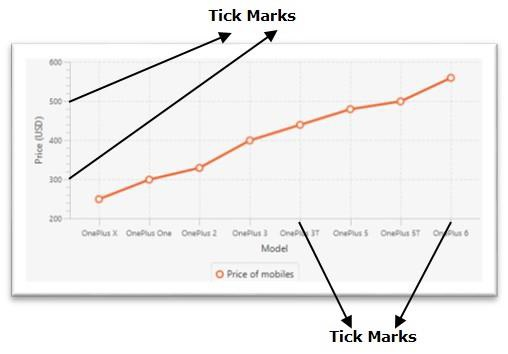
更改标记的长度
javafx.scene.chart.Axis 类(抽象类)是 XY 图表中所有轴的基类。要创建 X 和 Y 轴,您需要实例化这些类的子类
NumberAxis 类用于创建数值轴,而 CategoryAxis 类用于创建字符串分类的轴。
此类具有一个属性,名为刻度线长度(double),用于指定当前轴中所有刻度线的长度。可使用 setTickLength() 方法设置此属性的值。
要更改 XY 图表的刻度标记长度,请通过将所需长度作为参数来调用此方法。
示例
import javafx.application.Application;
import javafx.geometry.Insets;
import javafx.scene.Scene;
import javafx.scene.chart.BubbleChart;
import javafx.stage.Stage;
import javafx.scene.chart.NumberAxis;
import javafx.scene.chart.XYChart;
import javafx.scene.layout.StackPane;
public class TickMarkLength extends Application {
   public void start(Stage stage) {
      //Creating X and Y axes
      NumberAxis xAxis = new NumberAxis(0, 90, 10);
      NumberAxis yAxis = new NumberAxis(20, 90, 10);
      //Creating labels to the axes
      xAxis.setLabel("Age");
      yAxis.setLabel("Weight");
      //Creating the Bubble chart
      BubbleChart bubbleChart = new BubbleChart(xAxis, yAxis);
      //Preparing data for bubble chart
      XYChart.Series series = new XYChart.Series();
      series.getData().add(new XYChart.Data(10, 30, 4));
      series.getData().add(new XYChart.Data(25, 40, 5));
      series.getData().add(new XYChart.Data(40, 50, 6));
      series.getData().add(new XYChart.Data(55, 60, 8));
      series.getData().add(new XYChart.Data(70, 70, 9));
      //series.getData().add(new XYChart.Data(85, 80, 12));
      //Setting the data to bar chart
      bubbleChart.getData().add(series);
      //Setting name to the bubble chart
      series.setName("work");
      //Changing the length of the tickmark
      xAxis.setTickLength(25);
      yAxis.setTickLength(25);
      //Creating a stack pane to hold the chart
      StackPane pane = new StackPane(bubbleChart);
      pane.setPadding(new Insets(15, 15, 15, 15));
      pane.setStyle("-fx-background-color: BEIGE");
      //Setting the Scene
      Scene scene = new Scene(pane, 595, 350);
      stage.setTitle("JavaFX Example");
      stage.setScene(scene);
      stage.show();
   }
   public static void main(String args[]){
      launch(args);
   }
}
输出
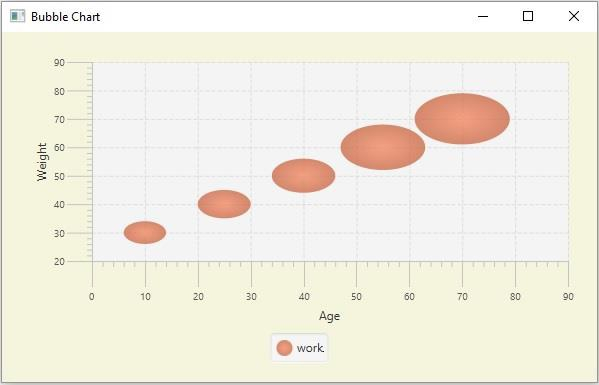

更新于:2020 年 5 月 20 日
375 次查看

广告