- iText 教程
- iText - 首页
- iText 画布
- iText - 绘制弧线
- iText - 绘制直线
- iText - 绘制圆形
- iText 有用资源
- iText - 快速指南
- iText - 有用资源
- iText - 讨论
iText - 格式化单元格内容
在本章中,我们将了解如何使用 iText 库创建 PDF 文档,添加表格以及格式化表格中单元格的内容。
格式化表格中的单元格
您可以通过实例化 Document 类来创建一个空的 PDF 文档。在实例化此类时,您需要将一个 PdfDocument 对象作为参数传递给它的构造函数。然后,要向文档添加表格,您需要实例化 Table 类并将此对象使用 add() 方法添加到文档中。您可以使用 Cell 类的不同方法来格式化表格中单元格的内容。
以下是格式化表格中单元格内容的步骤。
步骤 1:创建 PdfWriter 对象
PdfWriter 类表示 PDF 的 DocWriter。此类属于 com.itextpdf.kernel.pdf 包。此类的构造函数接受一个字符串,表示要创建 PDF 文件的路径。
通过将字符串值(表示您需要创建 PDF 的路径)传递给它的构造函数,实例化 PdfWriter 类,如下所示。
// Creating a PdfWriter
String dest = "C:/itextExamples/addingBackground.pdf";
PdfWriter writer = new PdfWriter(dest);
当此类型的对象传递给 PdfDocument(类)时,添加到此文档的每个元素都将写入指定的文件。
步骤 2:创建 PdfDocument 对象
PdfDocument 类是表示 iText 中 PDF 文档的类。此类属于 com.itextpdf.kernel.pdf 包。要实例化此类(在写入模式下),您需要将 PdfWriter 类的对象传递给它的构造函数。
通过将上面创建的 PdfWriter 对象传递给它的构造函数,实例化 PdfDocument 类,如下所示。
// Creating a PdfDocument
PdfDocument pdfDoc = new PdfDocument(writer);
创建 PdfDocument 对象后,您可以使用其类提供的相应方法添加各种元素,例如页面、字体、文件附件和事件处理程序。
步骤 3:创建 Document 对象
com.itextpdf.layout 包的 Document 类是创建自包含 PDF 时的根元素。此类的一个构造函数接受 PdfDocument 类的对象。
通过将上一步中创建的 PdfDocument 类的对象传递给它,实例化 Document 类,如下所示。
// Creating a Document
Document document = new Document(pdfDoc);
步骤 4:创建 Table 对象
Table 类表示一个由单元格填充的二维网格,按行和列排序。它属于 com.itextpdf.layout.element 包。
如下所示实例化 Table 类。
// Creating a table
float [] pointColumnWidths = {200F, 200F};
Table table = new Table(pointColumnWidths);
步骤 5:创建单元格
通过实例化 com.itextpdf.layout.element 包的 Cell 类来创建一个 cell 对象。使用 Cell 类的 add() 方法添加单元格的内容,如下所示。
// Adding cell 1 to the table
Cell cell1 = new Cell();     // Creating a cell
cell1.add("Name");           // Adding content to the cell

// Adding cell 2 to the table
Cell cell2 = new Cell();     // Creating a cell
cell2.add("Raju");           // Adding content to the cell
步骤 6:向单元格添加背景
创建单元格并向其中添加内容后,您可以格式化单元格。例如,您可以使用单元格类的不同方法(如 setBackgroundColor()、setBorder()、setTextAlignment())设置其背景、对齐单元格内的文本、更改文本颜色等。
您可以将背景颜色、边框和文本对齐方式设置为上一步中创建的单元格,如下所示。
c1.setBackgroundColor(Color.DARK_GRAY);    // Setting background color to cell1
c1.setBorder(Border.NO_BORDER);            // Setting border to cell1
c1.setTextAlignment(TextAlignment.CENTER); // Setting text alignment to cell1
步骤 7:将单元格添加到表格
最后,要将此单元格添加到表格,请调用 Table 类的 addCell() 方法并将 cell 对象作为参数传递给此方法,如下所示。
table.addCell(c1);
步骤 8:将表格添加到文档
使用 Document 类的 add() 方法添加上一步中创建的 table 对象,如下所示。
// Adding list to the document
document.add(table);
步骤 9:关闭文档
使用 Document 类的 close() 方法关闭文档,如下所示。
// Closing the document
document.close();
示例
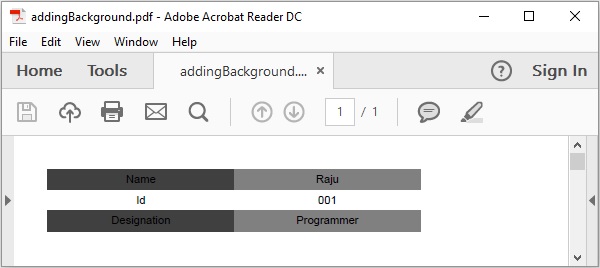
以下 Java 程序演示了如何使用 iText 库格式化表格中单元格的内容。它创建一个名为 addingBackground.pdf 的 PDF 文档,向其中添加一个表格,格式化其单元格的内容,并将其保存到 C:/itextExamples/ 路径。
将此代码保存在名为 BackgroundToTable.java 的文件中。
import com.itextpdf.kernel.color.Color;
import com.itextpdf.kernel.pdf.PdfDocument;
import com.itextpdf.kernel.pdf.PdfWriter;

import com.itextpdf.layout.Document;
import com.itextpdf.layout.border.Border;
import com.itextpdf.layout.element.Cell;
import com.itextpdf.layout.element.Table;
import com.itextpdf.layout.property.TextAlignment;

public class BackgroundToTable {
   public static void main(String args[]) throws Exception {
      // Creating a PdfWriter object
      String dest = "C:/itextExamples/addingBackground.pdf";
      PdfWriter writer = new PdfWriter(dest);

      // Creating a PdfDocument object
      PdfDocument pdfDoc = new PdfDocument(writer);

      // Creating a Document object
      Document doc = new Document(pdfDoc);

      // Creating a table
      float [] pointColumnWidths = {200F, 200F};
      Table table = new Table(pointColumnWidths);

      // Populating row 1 and adding it to the table
      Cell c1 = new Cell();                        // Creating cell 1
      c1.add("Name");                              // Adding name to cell 1
      c1.setBackgroundColor(Color.DARK_GRAY);      // Setting background color
      c1.setBorder(Border.NO_BORDER);              // Setting border
      c1.setTextAlignment(TextAlignment.CENTER);   // Setting text alignment
      table.addCell(c1);                           // Adding cell 1 to the table

      Cell c2 = new
      Cell();
      c2.add("Raju");
      c2.setBackgroundColor(Color.GRAY);
      c2.setBorder(Border.NO_BORDER);
      c2.setTextAlignment(TextAlignment.CENTER);
      table.addCell(c2);

      // Populating row 2 and adding it to the table
      Cell c3 = new Cell();
      c3.add("Id");
      c3.setBackgroundColor(Color.WHITE);
      c3.setBorder(Border.NO_BORDER);
      c3.setTextAlignment(TextAlignment.CENTER);
      table.addCell(c3);

      Cell c4 = new Cell();
      c4.add("001");
      c4.setBackgroundColor(Color.WHITE);
      c4.setBorder(Border.NO_BORDER);
      c4.setTextAlignment(TextAlignment.CENTER);
      table.addCell(c4);

      // Populating row 3 and adding it to the table
      Cell c5 = new Cell();
      c5.add("Designation");
      c5.setBackgroundColor(Color.DARK_GRAY);
      c5.setBorder(Border.NO_BORDER);
      c5.setTextAlignment(TextAlignment.CENTER);
      table.addCell(c5);

      Cell c6 = new Cell();
      c6.add("Programmer");
      c6.setBackgroundColor(Color.GRAY);
      c6.setBorder(Border.NO_BORDER);
      c6.setTextAlignment(TextAlignment.CENTER);
      table.addCell(c6);

      // Adding Table to document
      doc.add(table);

      // Closing the document
      doc.close();

      System.out.println("Background added successfully..");
   }
}
使用以下命令从命令提示符编译并执行保存的 Java 文件:
javac BackgroundToTable.java
java BackgroundToTable
执行后,上述程序将创建一个 PDF 文档,显示以下消息。
Background added successfully..
如果验证指定的路径,则可以找到创建的 PDF 文档,如下所示。