
- iOS 教程
- iOS - 首页
- iOS - 开始
- iOS - 环境设置
- iOS - Objective-C 基础
- iOS - 第一个 iPhone 应用程序
- iOS - 动作和出口
- iOS - 委托
- iOS - UI 元素
- iOS - 加速器
- iOS - 通用应用程序
- iOS - 相机管理
- iOS - 位置处理
- iOS - SQLite 数据库
- iOS - 发送电子邮件
- iOS - 音频和视频
- iOS - 文件处理
- iOS - 访问地图
- iOS - 应用内购买
- iOS - iAd 集成
- iOS - GameKit
- iOS - 故事板
- iOS - 自动布局
- iOS - Twitter 和 Facebook
- iOS - 内存管理
- iOS - 应用程序调试
- iOS 有用资源
- iOS - 快速指南
- iOS - 有用资源
- iOS - 讨论
iOS - 图像视图
图像视图使用
图像视图用于显示单个图像或图像的动画序列。
重要属性
- 图像
- 高亮图像
- userInteractionEnabled
- 动画图像
- 动画重复计数
重要方法
- (id)initWithImage:(UIImage *)image
- (id)initWithImage:(UIImage *)image highlightedImage: (UIImage *)highlightedImage
- (void)startAnimating
- (void)stopAnimating
添加自定义方法 addImageView
-(void)addImageView {
   UIImageView *imgview = [[UIImageView alloc]
   initWithFrame:CGRectMake(10, 10, 300, 400)];
   [imgview setImage:[UIImage imageNamed:@"AppleUSA1.jpg"]];
   [imgview setContentMode:UIViewContentModeScaleAspectFit];
   [self.view addSubview:imgview];
}
添加另一个自定义方法 addImageViewWithAnimation
此方法说明如何在图像视图中设置图像动画。
-(void)addImageViewWithAnimation {
   UIImageView *imgview = [[UIImageView alloc]
   initWithFrame:CGRectMake(10, 10, 300, 400)];

   // set an animation
   imgview.animationImages = [NSArray arrayWithObjects:
   [UIImage imageNamed:@"AppleUSA1.jpg"],
   [UIImage imageNamed:@"AppleUSA2.jpg"], nil];
   imgview.animationDuration = 4.0;
   imgview.contentMode = UIViewContentModeCenter;
   [imgview startAnimating];
   [self.view addSubview:imgview];
}
注意 −
我们必须将命名为“AppleUSA1.jpg”和“AppleUSA2.jpg”的图像添加到我们的项目中,这可以通过将图像拖到导航区域(我们项目的列出的文件)中来完成。
在 ViewController.m 中更新 viewDidLoad 如下 −
(void)viewDidLoad {
   [super viewDidLoad];
   [self addImageView];
}
输出
当我们运行该应用程序时,我们将获得以下输出 −
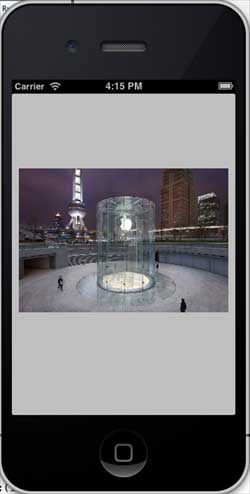
你可以尝试调用 addImageViewWithAnimation 方法,而不是 addImageView 方法,来看看图像视图的动画效果。
ios_ui_elements.htm
广告