- PyGTK 教程
- PyGTK - 首页
- PyGTK - 简介
- PyGTK - 环境配置
- PyGTK - Hello World
- PyGTK - 重要类
- PyGTK - 窗口类 (Window Class)
- PyGTK - 按钮类 (Button Class)
- PyGTK - 标签类 (Label Class)
- PyGTK - 输入框类 (Entry Class)
- PyGTK - 信号处理
- PyGTK - 事件处理
- PyGTK - 容器
- PyGTK - 箱式容器类 (Box Class)
- PyGTK - 按钮盒类 (ButtonBox Class)
- PyGTK - 对齐类 (Alignment Class)
- PyGTK - 事件盒类 (EventBox Class)
- PyGTK - 布局类 (Layout Class)
- PyGTK - 组合框类 (ComboBox Class)
- PyGTK - 切换按钮类 (ToggleButton Class)
- PyGTK - 复选框类 (CheckButton Class)
- PyGTK - 单选按钮类 (RadioButton Class)
- PyGTK - 菜单栏、菜单和菜单项 (MenuBar, Menu & MenuItem)
- PyGTK - 工具栏类 (Toolbar Class)
- PyGTK - 调整器类 (Adjustment Class)
- PyGTK - 范围类 (Range Class)
- PyGTK - 刻度类 (Scale Class)
- PyGTK - 滚动条类 (Scrollbar Class)
- PyGTK - 对话框类 (Dialog Class)
- PyGTK - 消息对话框类 (MessageDialog Class)
- PyGTK - 关于对话框类 (AboutDialog Class)
- PyGTK - 字体选择对话框
- PyGTK - 颜色选择对话框
- PyGTK - 文件选择对话框
- PyGTK - 笔记本类 (Notebook Class)
- PyGTK - 框架类 (Frame Class)
- PyGTK - 带比例的框架类 (AspectFrame Class)
- PyGTK - TreeView 类
- PyGTK - 分割窗格类 (Paned Class)
- PyGTK - 状态栏类 (Statusbar Class)
- PyGTK - 进度条类 (ProgressBar Class)
- PyGTK - 视口类 (Viewport Class)
- PyGTK - 滚动窗口类 (Scrolledwindow Class)
- PyGTK - 箭头类 (Arrow Class)
- PyGTK - 图片类 (Image Class)
- PyGTK - 绘图区类 (DrawingArea Class)
- PyGTK - 旋转按钮类 (SpinButton Class)
- PyGTK - 日历类 (Calendar Class)
- PyGTK - 剪贴板类 (Clipboard Class)
- PyGTK - 标尺类 (Ruler Class)
- PyGTK - 超时 (Timeout)
- PyGTK - 拖放
- PyGTK 有用资源
- PyGTK - 快速指南
- PyGTK - 有用资源
- PyGTK - 讨论
PyGTK - TreeView 类
TreeView 小部件显示实现 gtk.TreeModel 接口的模型的内容。PyGTK 提供以下类型的模型:
- gtk.ListStore
- gtk.TreeStore
- gtk.TreeModelSort
ListStore 是一个列表模型。当与 gtk.TreeView 小部件关联时,它会生成一个列表框,其中包含要从中选择的项目。gtk.ListStore 对象使用以下语法声明:
store = gtk.ListStore(column_type)
列表可以有多个列,预定义的类型常量为:
- gobject.TYPE_BOOLEAN
- gobject.TYPE_BOXED
- gobject.TYPE_CHAR
- gobject.TYPE_DOUBLE
- gobject.TYPE_ENUM
- gobject.TYPE_FLOAT
- gobject.TYPE_INT
- gobject.TYPE_LONG
- gobject.TYPE_NONE
- gobject.TYPE_OBJECT
- gobject.TYPE_STRING
- gobject.TYPE_UCHAR
- gobject.TYPE_UINT
- gobject.TYPE_ULONG
- gtk.gdk.pixbuf 等。
例如,声明一个用于存储字符串项目的 ListStore 对象:
store = gtk.ListStore(gobject.TYPE_STRING
为了向存储区添加项目,使用 append() 方法:
store.append (["item 1"])
TreeStore 是多列树形小部件的模型。例如,以下语句创建一个只有一个列(包含字符串项)的存储区。
Store = gtk.TreeStore(gobject.TYPE_STRING)
为了向 TreeStore 添加项目,使用 append() 方法。append() 方法有两个参数,parent 和 row。要添加顶级项目,parent 为 None。
row1 = store.append(None, ['row1'])
需要重复此语句以添加多行。
为了添加子行,将顶级行作为 parent 参数传递给 append() 方法:
childrow = store.append(row1, ['child1'])
需要重复此语句以添加多个子行。
现在,创建一个 TreeView 小部件并使用上面的 TreeStore 对象作为模型。
treeview = gtk.TreeView(store)
现在我们必须创建 TreeViewColumn 来显示存储数据。gtk.TreeViewColumn 的对象使用 gtk.CelRenderer 管理标题和单元格。TreeViewColumn 对象使用以下构造函数创建:
gtk.TreeViewColumn(title, cell_renderer,…)
除了标题和渲染器之外,它还接受零个或多个 attribute=column 对,以指定从哪个树模型列检索属性的值。这些参数也可以使用下面给出的 TreeViewColumn 类的使用方法来设置。
gtk.CellRenderer 是用于渲染不同类型数据的对象集的基类。派生类包括 CellRendererText、CellRendererPixBuf 和 CellRendererToggle。
TreeViewColumn 类的以下方法用于配置其对象:
TreeViewColumn.pack_start(cell, expand = True) - 此方法将 CellRenderer 对象打包到列的开头。如果 expand 参数设置为 True,则列的整个分配空间将分配给单元格。
TreeViewColumn.add_attribute(cell, attribute, column) - 此方法将属性映射添加到树列中的列表。column 是树模型的列。
TreeViewColumn.set_attributes() - 此方法使用attribute = column 对设置renderer 的属性位置。
TreeViewColumn.set_visible() - 如果为True,则 treeview 列可见。
TreeViewColumn.set_title() - 此方法将“标题”属性设置为指定的值。
TreeViewColumn.set_clickable() - 如果设置为 True,则标题可以获取键盘焦点并被单击。
TreeViewColumn.set_alignment(xalign) - 此方法将“对齐”属性设置为xalign 的值。
当用户单击treeviewcolumn 标题按钮时,将发出“clicked”信号。
配置 TreeViewColumn 对象后,可以使用 append_column() 方法将其添加到 TreeView 小部件。
以下是 TreeView 类的重要方法:
TreeView.set_model() - 这将设置 treeview 的“model”属性。如果 treeview 已经设置了模型,则此方法将在设置新模型之前将其删除。如果model 为None,它将取消设置旧模型。
TreeView.set_header_clickable() - 如果设置为 True,则可以单击列标题按钮。
TreeView.append_column() - 这会将指定的TreeViewColumn 附加到列列表。
TreeView.remove_column() - 这会从 treeview 中删除指定的列。
TreeView.insert_column() - 这会将指定的column 插入到 treeview 中,位置由position 指定。
TreeView 小部件发出以下信号:
| cursor-changed | 当光标移动或设置时发出此信号。 |
| expand-collapse-cursor-row | 当需要展开或折叠光标处的行时发出此信号。 |
| row-activated | 当用户双击treeview 行时发出此信号。 |
| row-collapsed | 当用户或程序操作折叠行时发出此信号。 |
| row-expanded | 当用户或程序操作展开行时发出此信号。 |
下面给出 TreeView 小部件的两个示例。第一个示例使用 ListStore 生成简单的 ListView。
这里创建一个 ListStore 对象并将字符串项添加到其中。此 ListStore 对象用作 TreeView 对象的模型:
store = gtk.ListStore(str)

treeView = gtk.TreeView()
treeView.set_model(store)
然后将 CellRendererText 添加到 TreeViewColumn 对象,并将其附加到 TreeView。
rendererText = gtk.CellRendererText()
column = gtk.TreeViewColumn("Name", rendererText, text = 0)
treeView.append_column(column)
通过将其添加到 Fixed 容器,TreeView 对象放置在顶级窗口上。
示例 1
观察以下代码:
import pygtk
pygtk.require('2.0')
import gtk

class PyApp(gtk.Window):
   def __init__(self):
      super(PyApp, self).__init__()
      self.set_title("TreeView with ListStore")
      self.set_default_size(250, 200)
      self.set_position(gtk.WIN_POS_CENTER)

      store = gtk.ListStore(str)
      store.append (["PyQt"])
      store.append (["Tkinter"])
      store.append (["WxPython"])
      store.append (["PyGTK"])
      store.append (["PySide"])

      treeView = gtk.TreeView()
      treeView.set_model(store)

      rendererText = gtk.CellRendererText()
      column = gtk.TreeViewColumn("Python GUI Libraries", rendererText, text=0)
      treeView.append_column(column)

      fixed = gtk.Fixed()
      lbl = gtk.Label("select a GUI toolkit")
      fixed.put(lbl, 25,75)
      fixed.put(treeView, 125,15)

      lbl2 = gtk.Label("Your choice is:")
      fixed.put(lbl2, 25,175)
      self.label = gtk.Label("")

      fixed.put(self.label, 125,175)
      self.add(fixed)

      treeView.connect("row-activated", self.on_activated)
      self.connect("destroy", gtk.main_quit)
      self.show_all()

   def on_activated(self, widget, row, col):

	  model = widget.get_model()
      text = model[row][0]
      self.label.set_text(text)

def main():
   gtk.main()
   return

if __name__ == "__main__":
   bcb = PyApp()
   main()
用户选择的项目显示在窗口中的标签上,因为调用了on_activated 回调函数。

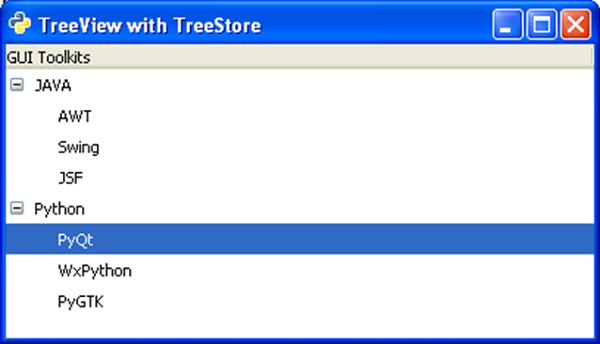
示例 2
第二个示例从 TreeStore 构建分层的 TreeView。该程序遵循构建存储区、将其设置为 TreeView 的模型、设计 TreeViewColumn 并将其附加到 TreeView 的相同顺序。
import gtk

class PyApp(gtk.Window):

   def __init__(self):
      super(PyApp, self).__init__()

	  self.set_title("TreeView with TreeStore")
      self.set_size_request(400,200)
      self.set_position(gtk.WIN_POS_CENTER)
      vbox = gtk.VBox(False, 5)

      # create a TreeStore with one string column to use as the model
      store = gtk.TreeStore(str)

      # add row
      row1 = store.append(None, ['JAVA'])

      #add child rows
      store.append(row1,['AWT'])
      store.append(row1,['Swing'])
      store.append(row1,['JSF'])

      # add another row
      row2 = store.append(None, ['Python'])
      store.append(row2,['PyQt'])
      store.append(row2,['WxPython'])
      store.append(row2,['PyGTK'])

      # create the TreeView using treestore
      treeview = gtk.TreeView(store)
      tvcolumn = gtk.TreeViewColumn('GUI Toolkits')
      treeview.append_column(tvcolumn)

      cell = gtk.CellRendererText()
      tvcolumn.pack_start(cell, True)
      tvcolumn.add_attribute(cell, 'text', 0)
      vbox.add(treeview)

      self.add(vbox)

	  self.connect("destroy", gtk.main_quit)
      self.show_all()

PyApp()
gtk.main()
以下 TreeView 显示为输出: