- Angular 4 教程
- Angular 4 - 首页
- Angular 4 – 概述
- Angular 4 – 环境搭建
- Angular 4 – 项目搭建
- Angular 4 – 组件
- Angular 4 – 模块
- Angular 4 – 数据绑定
- Angular 4 – 事件绑定
- Angular 4 – 模板
- Angular 4 – 指令
- Angular 4 – 管道
- Angular 4 – 路由
- Angular 4 – 服务
- Angular 4 – Http 服务
- Angular 4 – 表单
- Angular 4 – 动画
- Angular 4 – 材料(Material)
- Angular 4 – 命令行界面 (CLI)
- Angular 4 – 示例
- Angular 4 有用资源
- Angular 4 快速指南
- Angular 4 - 有用资源
- Angular 4 - 讨论
Angular 4 快速指南
Angular 4 - 概述
Angular 有三个主要版本。第一个发布的版本是 Angular1,也称为 AngularJS。Angular1 之后是 Angular2,与 Angular1 相比,它带来了许多变化。
Angular 的结构基于组件/服务架构。AngularJS 基于模型-视图-控制器。Angular 4 于 2017 年 3 月发布,是一个重大突破,是 Angular 团队继 Angular2 之后的最新版本。
Angular 4 几乎与 Angular 2 相同。它与 Angular 2 向后兼容。使用 Angular 2 开发的项目可以在 Angular 4 中无任何问题地运行。
现在让我们看看 Angular 4 中的新功能和更改。
为什么是 Angular4 而不是 Angular3?
Angular 团队在内部的模块版本控制方面遇到了一些问题,由于冲突,他们不得不继续并发布 Angular 的下一个版本——Angular4。
现在让我们看看 Angular 4 中添加的新功能:
ngIf
Angular2 只支持if条件。但是,Angular 4 也支持if else条件。让我们看看如何使用 ng-template 来实现。
<span *ngIf="isavailable; else condition1">Condition is valid.</span>
<ng-template #condition1>Condition is invalid</ng-template>
for 循环中的 as 关键字
借助as关键字,您可以存储值,如下所示:
<div *ngFor="let i of months | slice:0:5 as total">
   Months: {{i}} Total: {{total.length}}
</div>
变量 total 使用as关键字存储切片的结果。
动画包
Angular 4 中的动画作为一个单独的包提供,需要从 @angular/animations 导入。在 Angular2 中,它与 @angular/core 一起提供。为了向后兼容,它仍然保持不变。
模板
Angular 4 使用<ng-template>作为标签,而不是<template>;后者在 Angular2 中使用。Angular 4 将<template>更改为<ng-template>的原因是<template>标签与 html <template>标准标签的名称冲突。未来它将被完全弃用。这是 Angular 4 的主要变化之一。
TypeScript 2.2
Angular 4 更新到最新的 TypeScript 版本 2.2。这有助于提高速度并在项目中提供更好的类型检查。
管道标题大小写
Angular 4 添加了一个新的管道 title case,它将每个单词的首字母更改为大写。
<div>
   <h2>{{ 'Angular 4 titlecase' | titlecase }}</h2>
</div>
以上代码行生成以下输出:Angular 4 Titlecase。
Http 搜索参数
简化了 http get api 的搜索参数。我们不需要像在 Angular2 中那样调用URLSearchParams。
更小更快的应用
与 Angular2 相比,Angular 4 应用程序更小更快。它使用 TypeScript 2.2 版本(最新版本),使最终编译后的文件大小更小。
Angular 4 - 环境搭建
本章将讨论 Angular 4 所需的环境搭建。要安装 Angular 4,我们需要以下内容:
- Node.js
- npm
- Angular CLI
- 用于编写代码的 IDE
Node.js 版本必须高于 4,npm 版本必须高于 3。
Node.js
要检查系统中是否安装了 Node.js,请在终端中输入node –v。这将帮助您查看当前系统上安装的 Node.js 版本。
C:\>node –v
v6.11.0
如果没有任何输出,请在您的系统上安装 Node.js。要安装 Node.js,请访问 Node.js 的主页https://node.org.cn/en/download/并根据您的操作系统安装软件包。
Node.js 的主页如下所示:
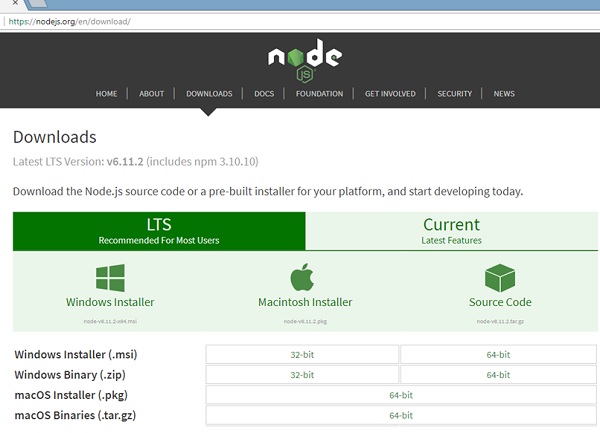
根据您的操作系统安装所需的软件包。安装 Node.js 后,npm 也会随之安装。要检查 npm 是否已安装,请在终端中输入 npm –v。它应该显示 npm 的版本。
C:\>npm –v
5.3.0
借助 Angular CLI,Angular 4 的安装非常简单。访问 Angular 的主页https://cli.angular.io/以获取命令的参考。
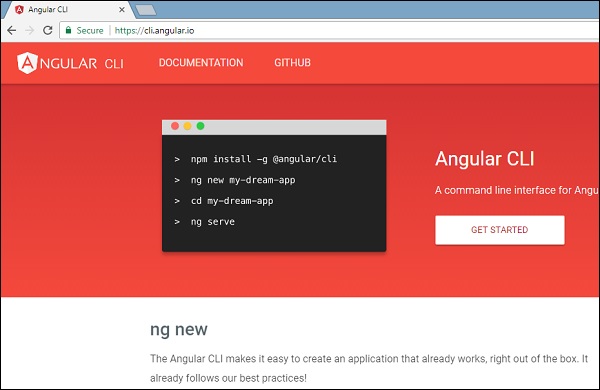
输入npm install –g @angular/cli,以在您的系统上安装 Angular CLI。
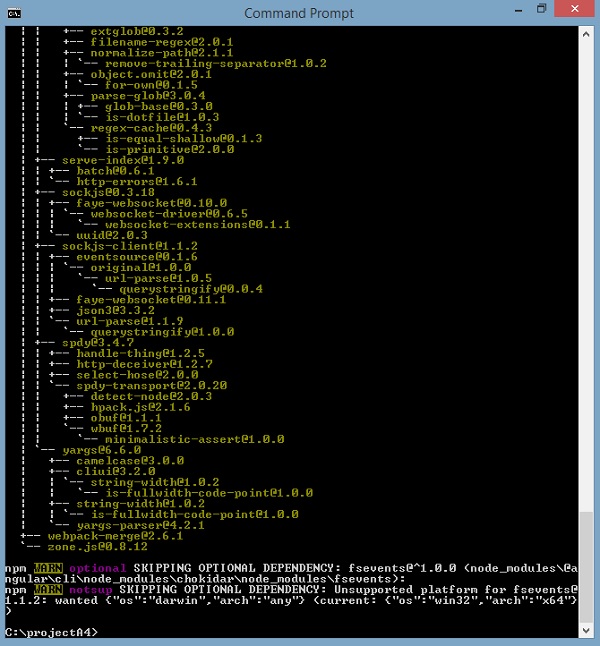
安装 Angular CLI 后,您将在终端中看到上述安装信息。您可以使用任何您选择的 IDE,例如 WebStorm、Atom、Visual Studio Code 等。
项目设置的详细信息将在下一章中解释。
Angular 4 - 项目搭建
AngularJS 基于模型-视图-控制器,而 Angular 2 基于组件结构。Angular 4 使用与 Angular2 相同的结构,但速度更快。
Angular4 使用 TypeScript 2.2 版本,而 Angular 2 使用 TypeScript 1.8 版本。这带来了很大的性能差异。
为了安装 Angular 4,Angular 团队推出了 Angular CLI,简化了安装过程。您需要运行几个命令来安装 Angular 4。
访问此网站https://cli.angular.io以安装 Angular CLI。
要开始安装,我们首先需要确保已安装最新版本的 Node.js 和 npm。npm 包会与 Node.js 一起安装。
访问 Node.js 网站https://node.org.cn/en/。
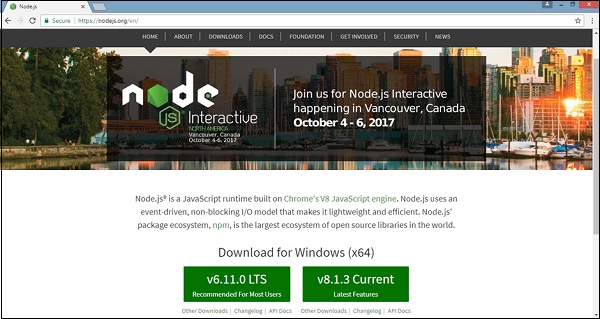
建议用户使用 Node.js v6.11.0 最新版本。已经安装了高于 4 的 Node.js 版本的用户可以跳过上述过程。安装 Node.js 后,您可以在命令行中使用命令 node –v 检查 Node 的版本,如下所示:
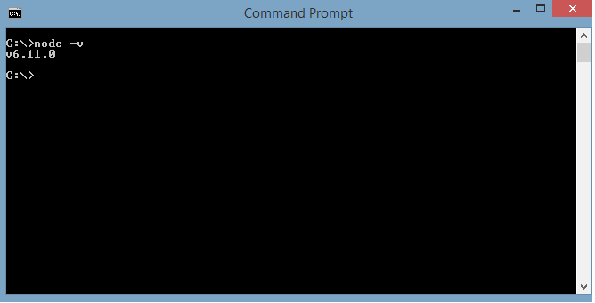
命令提示符显示 v6.11.0。安装 Node.js 后,npm 也会随之安装。
要检查 npm 的版本,请在终端中输入命令npm –v。它将显示 npm 的版本,如下所示。
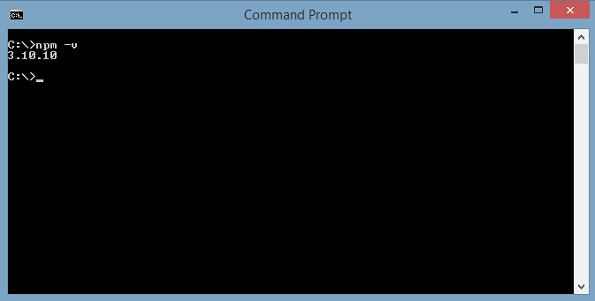
npm 的版本是 3.10.10。现在我们已经安装了 Node.js 和 npm,让我们运行 Angular CLI 命令来安装 Angular 4。您将在网页上看到以下命令:
npm install -g @angular/cli //command to install angular 4

ng new Angular 4-app // name of the project

cd my-dream-app

ng serve
让我们从命令行中的第一个命令开始,看看它是如何工作的。
首先,我们将创建一个空目录,在其中我们将运行 Angular CLI 命令。
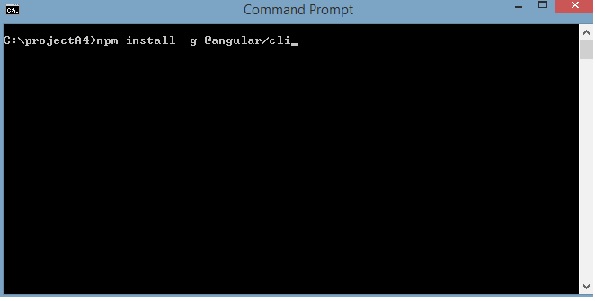
输入以上命令以安装 Angular 4。安装过程将开始,并需要几分钟才能完成。
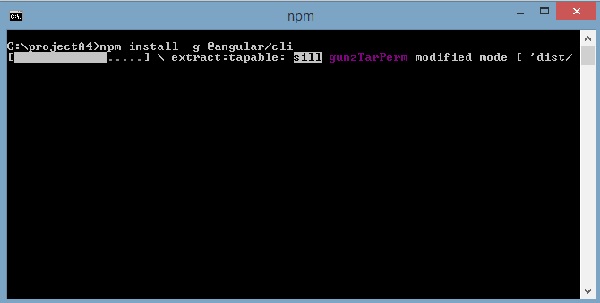
完成上述安装命令后,将出现以下命令提示符:
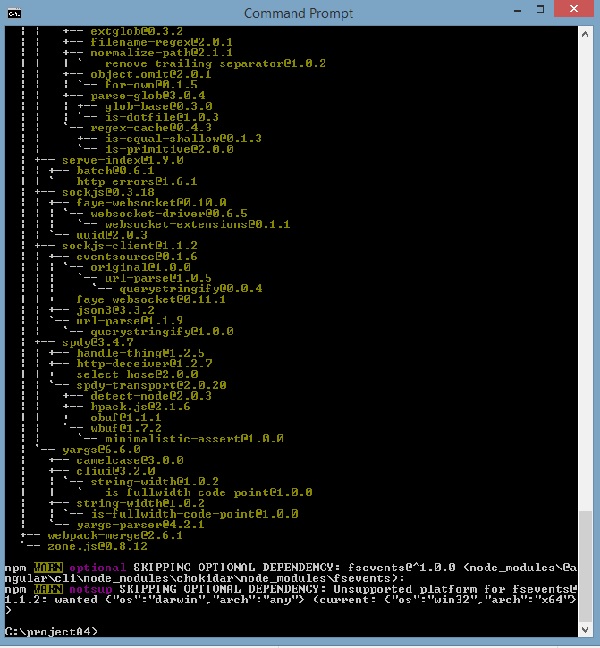
我们创建了一个空文件夹ProjectA4并安装了 Angular CLI 命令。我们还使用了-g全局安装 Angular CLI。现在,您可以在任何目录或文件夹中创建您的 Angular 4 项目,而无需按项目安装 Angular CLI,因为它已全局安装在您的系统上,您可以从任何目录使用它。
现在让我们检查 Angular CLI 是否已安装。要检查安装情况,请在终端中运行以下命令:
ng -v
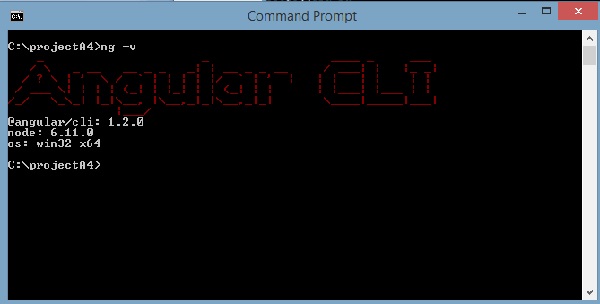
我们获得了 @angular/cli 版本,目前是 1.2.0。正在运行的 Node 版本是 6.11.0,还包括操作系统详细信息。以上详细信息告诉我们,我们已成功安装 Angular CLI,现在我们可以开始我们的项目了。
我们现在已经安装了 Angular 4。现在让我们在 Angular 4 中创建我们的第一个项目。要在 Angular 4 中创建项目,我们将使用以下命令:
ng new projectname
我们将项目命名为ng new Angular 4-app。
现在让我们在命令行中运行以上命令。
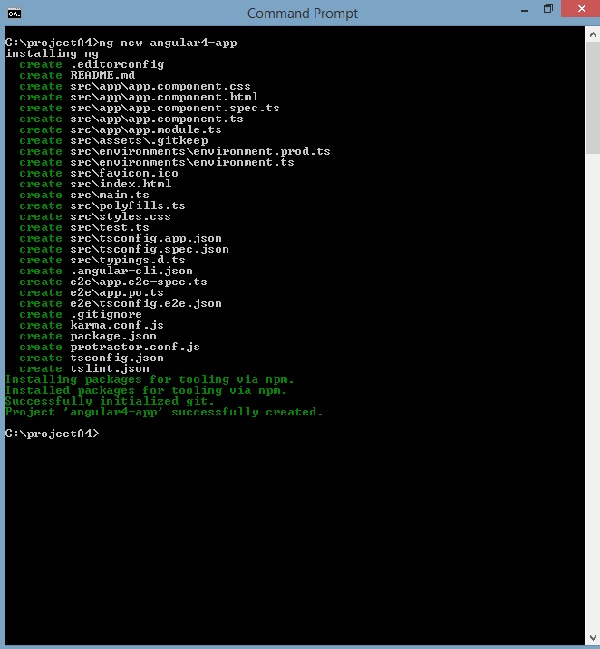
项目Angular 4-app已成功创建。它安装了项目在 Angular 4 中运行所需的所有必要软件包。现在让我们切换到已创建的项目,该项目位于目录Angular 4-app中。更改命令行中的目录 - cd Angular 4-app。
我们将使用 Visual Studio Code IDE 来处理 Angular 4;您可以使用任何 IDE,例如 Atom、WebStorm 等。
要下载 Visual Studio Code,请访问https://vscode.js.cn/并点击下载 Windows 版。
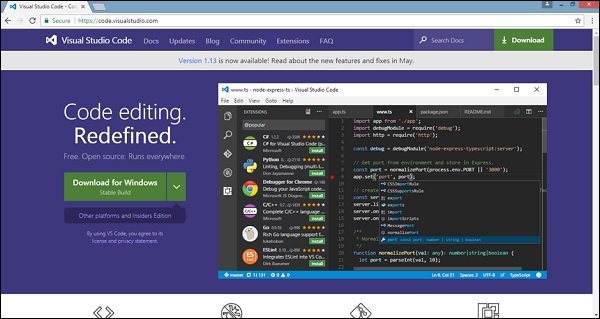
点击下载 Windows 版安装 IDE 并运行安装程序以开始使用 IDE。
编辑器如下所示:
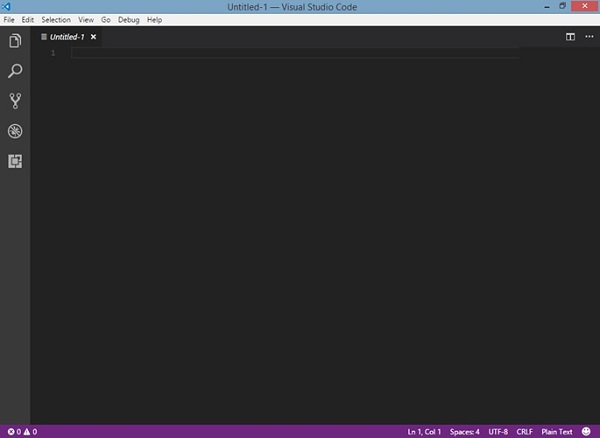
我们还没有在其中启动任何项目。现在让我们使用 angular-cli 创建的项目。
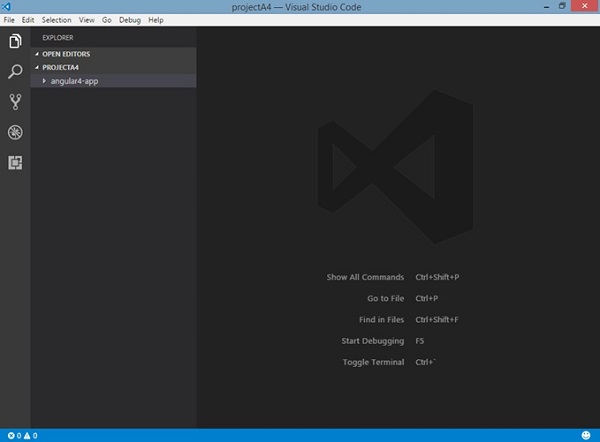
我们将考虑Angular 4-app项目。让我们打开 Angular 4-app 并查看文件夹结构。
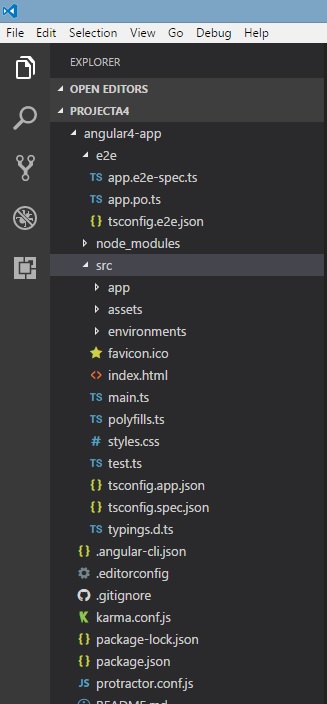
现在我们有了项目的文件夹结构,让我们使用以下命令编译我们的项目:
ng serve
ng serve命令构建应用程序并启动 Web 服务器。
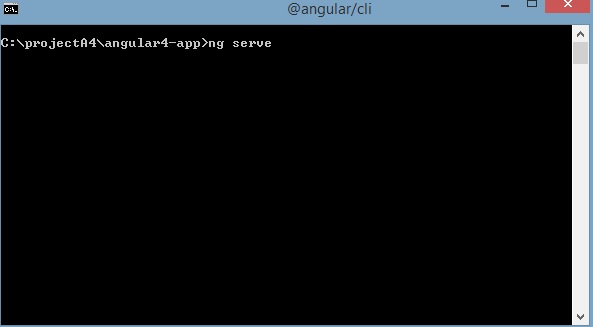
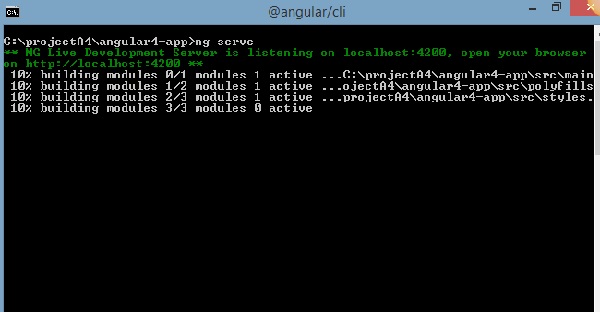
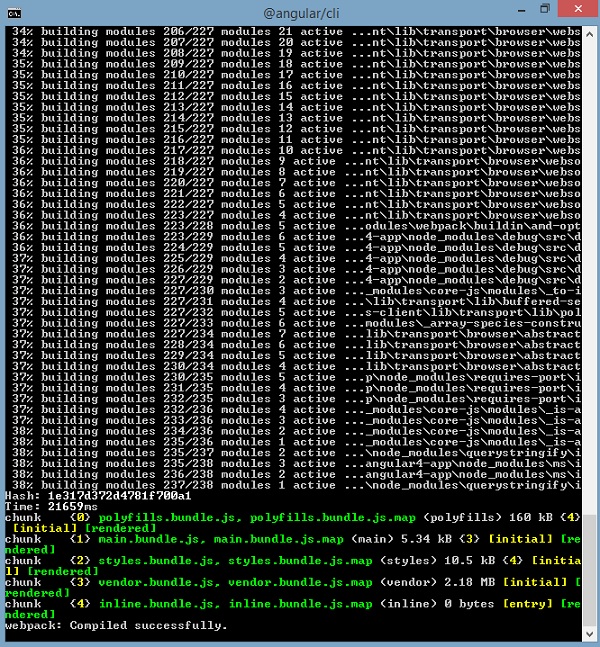
Web 服务器在端口 4200 上启动。在浏览器中输入 url https://:4200/并查看输出。项目编译完成后,您将收到以下输出:
在浏览器中运行https://:4200/后,您将被定向到以下屏幕:
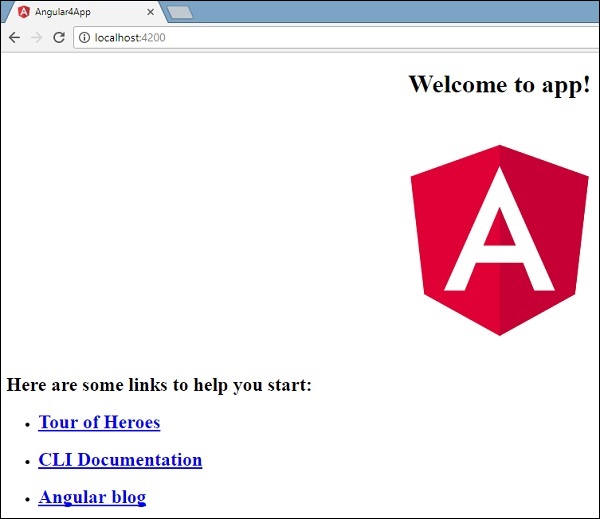
现在让我们进行一些更改以显示以下内容:
“欢迎来到 Angular 4 项目”

我们已经更改了文件——app.component.html和app.component.ts。我们将在后续章节中详细讨论。
让我们完成项目设置。如果您看到我们使用了端口 4200,这是 angular-cli 在编译时使用的默认端口。如果愿意,您可以使用以下命令更改端口:
ng serve --host 0.0.0.0 –port 4205
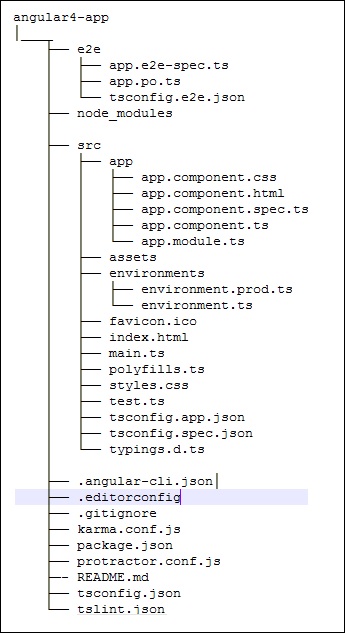
Angular 4 应用程序文件夹具有以下文件夹结构:
e2e - 端到端测试文件夹。e2e 主要用于集成测试,并有助于确保应用程序正常工作。
node_modules - 已安装的 npm 包是 node_modules。您可以打开文件夹并查看可用的包。
src - 我们将在其中使用 Angular 4 处理项目。
Angular 4 应用程序文件夹具有以下文件结构:
.angular-cli.json - 它基本上包含项目名称、cli 版本等。
.editorconfig - 这是编辑器的配置文件。
.gitignore - 为了与克隆存储库的任何其他用户共享忽略规则,应该将 .gitignore 文件提交到存储库中。
karma.conf.js - 这用于通过 protractor 进行单元测试。karma.conf.js 文件提供了项目所需的所有信息。
package.json - package.json 文件指示在运行 npm install 时将哪些库安装到 node_modules 中。
目前,如果您在编辑器中打开该文件,您将看到其中添加了以下模块。
"@angular/animations": "^4.0.0",
"@angular/common": "^4.0.0",
"@angular/compiler": "^4.0.0",
"@angular/core": "^4.0.0",
"@angular/forms": "^4.0.0",
"@angular/http": "^4.0.0",
"@angular/platform-browser": "^4.0.0",
"@angular/platform-browser-dynamic": "^4.0.0",
"@angular/router": "^4.0.0",
如果您需要添加更多库,您可以在此处添加这些库并运行 npm install 命令。
protractor.conf.js - 这是应用程序所需的测试配置。
tsconfig.json - 这基本上包含编译期间所需的编译器选项。
tslint.json - 这是包含编译时应考虑的规则的配置文件。
src 文件夹是主文件夹,内部具有不同的文件结构。
app
它包含下面描述的文件。这些文件默认情况下由 angular-cli 安装。
app.module.ts − 如果打开此文件,您会看到代码引用了不同的库,这些库已导入。Angular-cli 使用这些默认库进行导入 – angular/core、platform-browser。名称本身解释了库的用途。
它们被导入并保存到诸如declarations、imports、providers和bootstrap之类的变量中。
import { BrowserModule } from '@angular/platform-browser';
import { NgModule } from '@angular/core';
import { AppComponent } from './app.component';

@NgModule({
   declarations: [
      AppComponent
   ],
   imports: [
      BrowserModule
   ],
   providers: [],
   bootstrap: [AppComponent]
})

export class AppModule { }
declarations − 在 declarations 中,存储对组件的引用。AppComponent 是默认组件,每当启动新项目时都会创建它。我们将在另一节中学习创建新组件。
imports − 这将包含如上所示导入的模块。目前,BrowserModule 是 imports 的一部分,它从 @angular/platform-browser 导入。
providers − 这将包含对已创建服务的引用。服务将在后续章节中讨论。
bootstrap − 这包含对创建的默认组件的引用,即 AppComponent。
app.component.css − 您可以在此处编写 css 结构。目前,我们已将背景颜色添加到 div,如下所示。
.divdetails{
   background-color: #ccc;
}
app.component.html − html 代码将在此文件中可用。
<!--The content below is only a placeholder and can be replaced.-->
<div class = "divdetails">
   <div style = "text-align:center">
      <h1>
         Welcome to {{title}}!
      </h1>
      <img width = "300" src = "data:image/svg+xml;base64,PD94bWwgdmVyc2lvbj0iMS4wIiBlbmNv
      ZGluZz0idXRmLTgiPz4NCjwhLS0gR2VuZXJhdG9yOiBBZG9iZSBJbGx1c3RyYXRvciAxOS4xLjAsIFNWRyBFe
      HBvcnQgUGx1Zy1JbiAuIFNWRyBWZXJzaW9uOiA2LjAwIEJ1aWxkIDApICAtLT4NCjxzdmcgdmVyc2lvbj0iMS4
      xIiBpZD0iTGF5ZXJfMSIgeG1sbnM9Imh0dHA6Ly93d3cudzMub3JnLzIwMDAvc3ZnIiB4bWxuczp4bGluaz0iaH
      R0cDovL3d3dy53My5vcmcvMTk5OS94bGluayIgeD0iMHB4IiB5PSIwcHgiDQoJIHZpZXdCb3g9IjAgMCAyNTAg
      MjUwIiBzdHlsZT0iZW5hYmxlLWJhY2tncm91bmQ6bmV3IDAgMCAyNTAgMjUwOyIgeG1sOnNwYWNlPSJwcmVzZXJ2
      ZSI+DQo8c3R5bGUgdHlwZT0idGV4dC9jc3MiPg0KCS5zdDB7ZmlsbDojREQwMDMxO30NCgkuc3Qxe2ZpbGw6I0M
      zMDAyRjt9DQoJLnN0MntmaWxsOiNGRkZGRkY7fQ0KPC9zdHlsZT4NCjxnPg0KCTxwb2x5Z29uIGNsYXNzPSJzdD
      AiIHBvaW50cz0iMTI1LDMwIDEyNSwzMCAxMjUsMzAgMzEuOSw2My4yIDQ2LjEsMTg2LjMgMTI1LDIzMCAxMjUsMj
      MwIDEyNSwyMzAgMjAzLjksMTg2LjMgMjE4LjEsNjMuMiAJIi8+DQoJPHBvbHlnb24gY2xhc3M9InN0MSIgcG9pbn
      RzPSIxMjUsMzAgMTI1LDUyLjIgMTI1LDUyLjEgMTI1LDE1My40IDEyNSwxNTMuNCAxMjUsMjMwIDEyNSwyMzAgMj
      AzLjksMTg2LjMgMjE4LjEsNjMuMiAxMjUsMzAgCSIvPg0KCTxwYXRoIGNsYXNzPSJzdDIiIGQ9Ik0xMjUsNTIuMU
      w2Ni44LDE4Mi42aDBoMjEuN2gwbDExLjctMjkuMmg0OS40bDExLjcsMjkuMmgwaDIxLjdoMEwxMjUsNTIuMUwxMj
      UsNTIuMUwxMjUsNTIuMUwxMjUsNTIuMQ0KCQlMMTI1LDUyLjF6IE0xNDIsMTM1LjRIMTA4bDE3LTQwLjlMMTQyLD
      EzNS40eiIvPg0KPC9nPg0KPC9zdmc+DQo=">
   </div>
   <h2>Here are some links to help you start: </h2>
   <ul>
      <li>
         <h2>
            <a target = "_blank" href="https://angular.io/tutorial">Tour of Heroes</a>
         </h2>
      </li>
      <li>
         <h2>
            <a target = "_blank" href = "https://github.com/angular/angular-cli/wiki">
               CLI Documentation
            </a>
         </h2>
      </li>
      <li>
         <h2>
            <a target="_blank" href="http://angularjs.blogspot.ca/">Angular blog</a>
         </h2>
      </li>
   </ul>
</div>
这是项目创建时当前可用的默认 html 代码。
app.component.spec.ts − 这些是自动生成的文件,包含源组件的单元测试。
app.component.ts − 组件的类在此处定义。您可以在 .ts 文件中处理 html 结构。处理将包括连接数据库、与其他组件交互、路由、服务等活动。
文件结构如下所示:
import { Component } from '@angular/core';

@Component({
   selector: 'app-root',
   templateUrl: './app.component.html',
   styleUrls: ['./app.component.css']
})
export class AppComponent {
   title = 'app';
}
Assets
您可以在此文件夹中保存图像和 js 文件。
Environment
此文件夹包含生产或开发环境的详细信息。该文件夹包含两个文件。
- environment.prod.ts
- environment.ts
这两个文件都包含最终文件是否应在生产环境或开发环境中编译的详细信息。
Angular 4 app 文件夹的其他文件结构包括:
favicon.ico
这是一个通常位于网站根目录中的文件。
index.html
这是在浏览器中显示的文件。
<!doctype html>
<html lang = "en">
   <head>
      <meta charset = "utf-8">
      <title>HTTP Search Param</title>
      <base href = "/">
      <link href = "https://fonts.googleapis.ac.cn/icon?family=Material+Icons" rel="stylesheet">
      <link href = "https://fonts.googleapis.ac.cn/css?family=Roboto|Roboto+Mono" rel="stylesheet">
      <link href = "styles.c7c7b8bf22964ff954d3.bundle.css" rel="stylesheet">
      <meta name = "viewport" content="width=device-width, initial-scale=1">
      <link rel = "icon" type="image/x-icon" href="favicon.ico">
   </head>

   <body>
      <app-root></app-root>
   </body>
</html>
主体包含<app-root></app-root>。这是在app.component.ts文件中使用的选择器,并将显示来自 app.component.html 文件的详细信息。
main.ts
main.ts 是我们从那里开始项目开发的文件。它从导入我们需要的基本模块开始。现在,如果您看到 angular/core、angular/platform-browser-dynamic、app.module 和 environment,它们在 angular-cli 安装和项目设置期间默认导入。
import { enableProdMode } from '@angular/core';
import { platformBrowserDynamic } from '@angular/platform-browser-dynamic';

import { AppModule } from './app/app.module';
import { environment } from './environments/environment';

if (environment.production) {
   enableProdMode();
}
platformBrowserDynamic().bootstrapModule(AppModule);
platformBrowserDynamic().bootstrapModule(AppModule) 包含父模块引用AppModule。因此,当它在浏览器中执行时,调用的文件是 index.html。index.html 内部引用 main.ts,当以下代码执行时,它调用父模块,即 AppModule:
platformBrowserDynamic().bootstrapModule(AppModule);
调用 AppModule 时,它会调用 app.module.ts,后者根据 bootstrap 进一步调用 AppComponent:
bootstrap: [AppComponent]
在 app.component.ts 中,有一个selector: app-root,它用于 index.html 文件中。这将显示 app.component.html 中的内容。
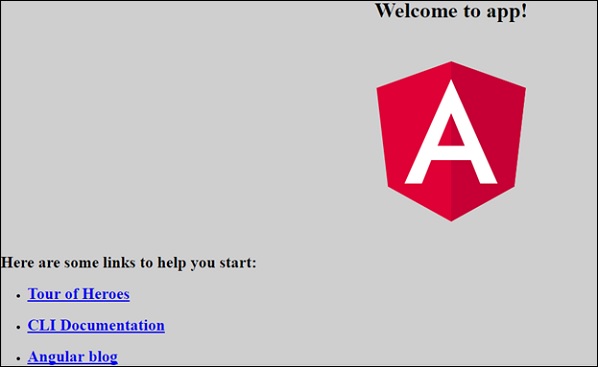
浏览器中将显示以下内容:
polyfill.ts
这主要用于向后兼容性。
styles.css
这是项目所需的样式文件。
test.ts
在这里,将处理用于测试项目的单元测试用例。
tsconfig.app.json
这在编译期间使用,它包含运行应用程序所需使用的配置详细信息。
tsconfig.spec.json
这有助于维护测试详细信息。
typings.d.ts
它用于管理 TypeScript 定义。
最终文件结构如下所示:
Angular 4 - 组件
使用 Angular 4 进行的大部分开发都在组件中完成。组件基本上是与组件的 .html 文件交互的类,该文件显示在浏览器上。我们在之前的章节中已经看到了文件结构。文件结构包含 app 组件,它包含以下文件:
app.component.css
app.component.html
app.component.spec.ts
app.component.ts
app.module.ts
使用 angular-cli 命令创建新项目时,以上文件默认创建。
如果打开app.module.ts文件,它会导入一些库,还会声明一个如下所示的 appcomponent:
import { BrowserModule } from '@angular/platform-browser';
import { NgModule } from '@angular/core';
import { AppComponent } from './app.component';

@NgModule({
   declarations: [
      AppComponent
   ],
   imports: [
      BrowserModule
   ],
   providers: [],
   bootstrap: [AppComponent]
})

export class AppModule { }
declarations 包含 AppComponent 变量,我们已经导入了它。这成为父组件。
现在,angular-cli 有一个命令来创建您自己的组件。但是,默认创建的 app 组件将始终保持为父组件,之后创建的下一个组件将构成子组件。
现在让我们运行命令来创建组件。
ng g component new-cmp
当您在命令行中运行上述命令时,您将收到以下输出:
C:\projectA4\Angular 4-app>ng g component new-cmp
installing component
   create src\app\new-cmp\new-cmp.component.css
   create src\app\new-cmp\new-cmp.component.html
   create src\app\new-cmp\new-cmp.component.spec.ts
   create src\app\new-cmp\new-cmp.component.ts
   update src\app\app.module.ts
现在,如果我们去检查文件结构,我们将在 src/app 文件夹下看到创建的新文件夹 new-cmp。
在新文件夹 new-cmp 中创建了以下文件:
new-cmp.component.css − 创建了新组件的 css 文件。
new-cmp.component.html − 创建了 html 文件。
new-cmp.component.spec.ts − 这可用于单元测试。
new-cmp.component.ts − 在这里,我们可以定义模块、属性等。
对 app.module.ts 文件进行了如下更改:
import { BrowserModule } from '@angular/platform-browser';
import { NgModule } from '@angular/core';
import { AppComponent } from './app.component';
import { NewCmpComponent } from './new-cmp/new-cmp.component';
// includes the new-cmp component we created

@NgModule({
   declarations: [
      AppComponent,
      NewCmpComponent // here it is added in declarations and will behave as a child component
   ],
   imports: [
      BrowserModule
   ],
   providers: [],
   bootstrap: [AppComponent] //for bootstrap the AppComponent the main app component is given.
})

export class AppModule { }
new-cmp.component.ts 文件生成如下:
import { Component, OnInit } from '@angular/core'; // here angular/core is imported .

@Component({
   // this is a declarator which starts with @ sign. The component word marked in bold needs to be the same.
   selector: 'app-new-cmp', //
   templateUrl: './new-cmp.component.html',
   // reference to the html file created in the new component.
   styleUrls: ['./new-cmp.component.css'] // reference to the style file.
})

export class NewCmpComponent implements OnInit {
   constructor() { }
   ngOnInit() {}
}
如果您看到上面的 new-cmp.component.ts 文件,它会创建一个名为 NewCmpComponent 的新类,它实现 OnInit。其中包含一个构造函数和一个名为 ngOnInit() 的方法。当类执行时,默认情况下会调用 ngOnInit。
让我们检查流程是如何工作的。现在,默认创建的 app 组件成为父组件。之后添加的任何组件都成为子组件。
当我们在https://:4200/浏览器中访问 url 时,它首先执行 index.html 文件,如下所示:
<!doctype html>
<html lang = "en">
   <head>
      <meta charset = "utf-8">
      <title>Angular 4App</title>
      <base href = "/">
      <meta name="viewport" content="width = device-width, initial-scale = 1">
      <link rel = "icon" type = "image/x-icon" href = "favicon.ico">
   </head>

   <body>
      <app-root></app-root>
   </body>
</html>
以上是普通的 html 文件,我们没有看到任何打印在浏览器上的内容。看一下 body 部分中的标签。
<app-root></app-root>
这是 Angular 默认创建的根标签。此标签在main.ts文件中引用。
import { enableProdMode } from '@angular/core';
import { platformBrowserDynamic } from '@angular/platform-browser-dynamic';
import { AppModule } from './app/app.module';
import { environment } from './environments/environment';

if (environment.production) {
   enableProdMode();
}

platformBrowserDynamic().bootstrapModule(AppModule);
AppModule 从主父模块的 app 中导入,并将相同的模块传递给 bootstrapModule,这使得 appmodule 加载。
现在让我们看看app.module.ts文件:
import { BrowserModule } from '@angular/platform-browser';
import { NgModule } from '@angular/core';
import { AppComponent } from './app.component';
import { NewCmpComponent } from './new-cmp/new-cmp.component';

@NgModule({
   declarations: [
      AppComponent,
      NewCmpComponent
   ],
   imports: [
      BrowserModule
   ],
   providers: [],
   bootstrap: [AppComponent]
})

export class AppModule { }
这里,AppComponent 是给定的名称,即用于存储app.Component.ts引用的变量,并将相同的变量传递给 bootstrap。现在让我们看看app.component.ts文件。
import { Component } from '@angular/core';

@Component({
   selector: 'app-root',
   templateUrl: './app.component.html',
   styleUrls: ['./app.component.css']
})

export class AppComponent {
   title = 'Angular 4 Project!';
}
导入 Angular core 并将其称为 Component,并在 Declarator 中使用它:
@Component({
   selector: 'app-root',
   templateUrl: './app.component.html',
   styleUrls: ['./app.component.css']
})
在声明器中,给出了选择器、templateUrl和styleUrl的引用。这里的选择器只不过是我们上面看到的 index.html 文件中放置的标签。
类 AppComponent 有一个名为 title 的变量,它显示在浏览器中。
@Component 使用名为 app.component.html 的 templateUrl,其内容如下:
<!--The content below is only a placeholder and can be replaced.-->
<div style="text-align:center">
   <h1>
      Welcome to {{title}}.
   </h1>
</div>
它只有 html 代码和花括号中的变量 title。它将替换为app.component.ts文件中存在的 value。这称为绑定。我们将在后续章节中讨论绑定的概念。
既然我们已经创建了一个名为new-cmp的新组件。当运行创建新组件的命令时,它会被包含在app.module.ts文件中。
app.module.ts包含对创建的新组件的引用。
现在让我们检查在新文件夹 new-cmp 中创建的文件。
new-cmp.component.ts
import { Component, OnInit } from '@angular/core';
@Component({
   selector: 'app-new-cmp',
   templateUrl: './new-cmp.component.html',
   styleUrls: ['./new-cmp.component.css']
})

export class NewCmpComponent implements OnInit {
   constructor() { }
   ngOnInit() {}
}
在这里,我们也必须导入 core。组件的引用在声明器中使用。
声明器包含名为app-new-cmp的选择器以及templateUrl和styleUrl。
名为new-cmp.component.html的 .html 如下所示:
<p>
   new-cmp works!
</p>
如上所示,我们有 html 代码,即 p 标签。样式文件为空,因为我们目前不需要任何样式。但是,当我们运行项目时,我们没有看到任何与新组件在浏览器中显示相关的内容。现在让我们添加一些内容,稍后可以在浏览器中看到这些内容。
需要在app.component.html文件中添加选择器,即app-new-cmp,如下所示:
<!--The content below is only a placeholder and can be replaced.-->
<div style="text-align:center">
   <h1>
      Welcome to {{title}}.
   </h1>
</div>

<app-new-cmp></app-new-cmp>
当添加<app-new-cmp></app-new-cmp>标签时,新组件的 .html 文件中存在的所有内容都将与父组件数据一起显示在浏览器上。
让我们看看new component .html文件和new-cmp.component.ts文件。
new-cmp.component.ts
import { Component, OnInit } from '@angular/core';

@Component({
   selector: 'app-new-cmp',
   templateUrl: './new-cmp.component.html',
   styleUrls: ['./new-cmp.component.css']
})

export class NewCmpComponent implements OnInit {
   newcomponent = "Entered in new component created";
   constructor() {}
   ngOnInit() { }
}
在类中,我们添加了一个名为 new component 的变量,其值为“Entered in new component created”。
上面的变量在.new-cmp.component.html文件中绑定如下:
<p>
   {{newcomponent}}
</p>

<p>
   new-cmp works!
</p>
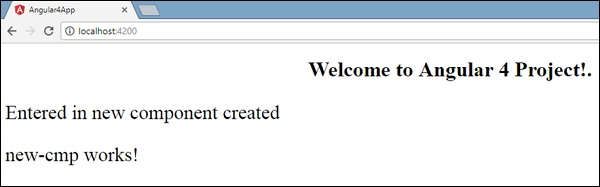
现在,由于我们在app.component.html(父组件的 .html)中包含了<app-new-cmp></app-new-cmp>选择器,因此新组件 .html 文件 (new-cmp.component.html) 中存在的内容将显示在浏览器上,如下所示:
同样,我们可以根据我们的需求创建组件并使用 app.component.html 文件中的选择器链接它们。
Angular 4 - 模块
Angular 中的模块是指您可以对与应用程序相关的组件、指令、管道和服务进行分组的地方。
如果您正在开发一个网站,则页眉、页脚、左侧、中心和右侧部分都成为模块的一部分。
要定义模块,我们可以使用NgModule。当您使用 Angular –cli 命令创建新项目时,ngmodule 默认在 app.module.ts 文件中创建,如下所示:
import { BrowserModule } from '@angular/platform-browser';
import { NgModule } from '@angular/core';
import { AppComponent } from './app.component';

@NgModule({
   declarations: [
      AppComponent
   ],
   imports: [
      BrowserModule
   ],
   providers: [],
   bootstrap: [AppComponent]
})

export class AppModule { }
需要导入 NgModule,如下所示:
import { NgModule } from '@angular/core';
ngmodule 的结构如下所示:
@NgModule({
   declarations: [
      AppComponent
   ],
   imports: [
      BrowserModule
   ],
   providers: [],
   bootstrap: [AppComponent]
})
它以@NgModule开头,包含一个对象,其中包含 declarations、imports、providers 和 bootstrap。
Declaration
这是一个已创建的组件数组。如果创建任何新组件,将首先导入它,并将引用包含在声明中,如下所示:
declarations: [
   AppComponent,
   NewCmpComponent
]
导入
这是一个应用程序需要使用的模块数组。声明数组中的组件也可以使用它。例如,现在在@NgModule中,我们看到导入了BrowserModule。如果您的应用程序需要表单,您可以按如下方式包含模块:
import { FormsModule } from '@angular/forms';
@NgModule中的导入将如下所示:
imports: [
   BrowserModule,
   FormsModule
]
提供程序
这将包含已创建的服务。
引导
这包括用于启动执行的主应用程序组件。
Angular 4 - 数据绑定
数据绑定从AngularJS、Angular 2开始就可用,现在在Angular 4中也可用。我们使用花括号进行数据绑定 - {{}}; 此过程称为插值。我们已经在之前的示例中看到了如何将值声明为变量title,并在浏览器中打印出来。
app.component.html文件中引用的变量为{{title}},title的值在app.component.ts文件中初始化,在app.component.html中显示值。
现在让我们在浏览器中创建一个月份下拉列表。为此,我们已在app.component.ts中创建了一个月份数组,如下所示:
import { Component } from '@angular/core';

@Component({
   selector: 'app-root',
   templateUrl: './app.component.html',
   styleUrls: ['./app.component.css']
})
export class AppComponent {
   title = 'Angular 4 Project!';
   // declared array of months.
   months = ["January", "Feburary", "March", "April", "May",
            "June", "July", "August", "September",
            "October", "November", "December"];
}
上面显示的月份数组将在浏览器中的下拉列表中显示。为此,我们将使用以下代码行:
<!--The content below is only a placeholder and can be replaced. -->
<div style="text-align:center">
   <h1>
      Welcome to {{title}}.
   </h1>
</div>

<div> Months :
   <select>
      <option *ngFor="let i of months">{{i}}</option>
   </select>
</div>
我们创建了带有选项的普通select标签。在option中,我们使用了for循环。for循环用于迭代月份数组,这将依次创建具有月份中存在的值的option标签。
Angular中的语法for是*ngFor = “let I of months”,要获取月份的值,我们将其显示在{{i}}中。
两个花括号有助于数据绑定。您在app.component.ts文件中声明变量,并且将使用花括号替换相同的变量。
让我们看看上面月份数组在浏览器中的输出
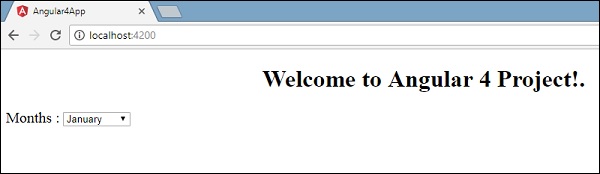
在app.component.ts中设置的变量可以使用花括号与app.component.html绑定;例如,{{}}。
现在让我们根据条件在浏览器中显示数据。在这里,我们添加了一个变量并将值设置为true。使用if语句,我们可以隐藏/显示要显示的内容。
示例
import { Component } from '@angular/core';

@Component({
   selector: 'app-root',
   templateUrl: './app.component.html',
   styleUrls: ['./app.component.css']
})

export class AppComponent {
   title = 'Angular 4 Project!';
   //array of months.
   months = ["January", "February", "March", "April",
            "May", "June", "July", "August", "September",
            "October", "November", "December"];
   isavailable = true;   //variable is set to true
}
<!--The content below is only a placeholder and can be replaced.-->
<div style = "text-align:center">
   <h1>
      Welcome to {{title}}.
   </h1>
</div>

<div> Months :
   <select>
      <option *ngFor = "let i of months">{{i}}</option>
   </select>
</div>
<br/>

<div>
   <span *ngIf = "isavailable">Condition is valid.</span>
   //over here based on if condition the text condition is valid is displayed.
   If the value of isavailable is set to false it will not display the text.
</div>
输出
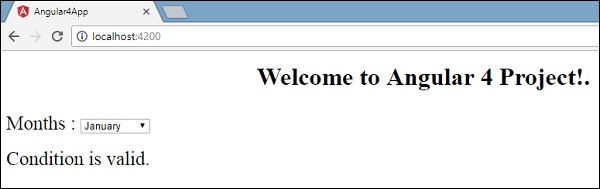
让我们使用IF THEN ELSE条件尝试上述示例。
示例
import { Component } from '@angular/core';

@Component({
   selector: 'app-root',
   templateUrl: './app.component.html',
   styleUrls: ['./app.component.css']
})

export class AppComponent {
   title = 'Angular 4 Project!';
   //array of months.
   months = ["January", "February", "March", "April",
            "May", "June", "July", "August", "September",
            "October", "November", "December"];
   isavailable = false;
}
在这种情况下,我们将isavailable变量设置为false。要打印else条件,我们将不得不创建ng-template,如下所示:
<ng-template #condition1>Condition is invalid</ng-template>
完整的代码如下所示:
<!--The content below is only a placeholder and can be replaced.-->
<div style="text-align:center">
   <h1>
      Welcome to {{title}}.
   </h1>
</div>

<div> Months :
   <select>
      <option *ngFor="let i of months">{{i}}</option>
   </select>
</div>
<br/>

<div>
   <span *ngIf="isavailable; else condition1">Condition is valid.</span>
   <ng-template #condition1>Condition is invalid</ng-template>
</div>
If与else条件一起使用,使用的变量为condition1。相同的值被赋值为ng-template的id,当available变量设置为false时,将显示文本Condition is invalid。
以下屏幕截图显示了浏览器中的显示。
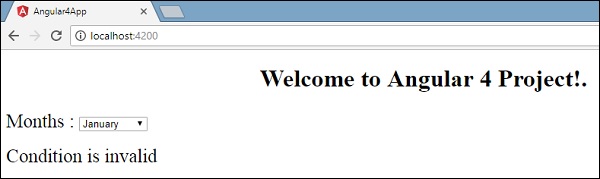
现在让我们使用if then else条件。
import { Component } from '@angular/core';

@Component({
   selector: 'app-root',
   templateUrl: './app.component.html',
   styleUrls: ['./app.component.css']
})

export class AppComponent {
   title = 'Angular 4 Project!';
   //array of months.
   months = ["January", "February", "March", "April",
            "May", "June", "July", "August", "September",
            "October", "November", "December"];
   isavailable = true;
}
现在,我们将变量isavailable设置为true。在html中,条件如下所示:
<!--The content below is only a placeholder and can be replaced.-->
<div style="text-align:center">
   <h1>
   Welcome to {{title}}.
   </h1>
</div>

<div> Months :
   <select>
      <option *ngFor="let i of months">{{i}}</option>
   </select>
</div>
<br/>

<div>
   <span *ngIf="isavailable; then condition1 else condition2">Condition is valid.</span>
   <ng-template #condition1>Condition is valid</ng-template>
   <ng-template #condition2>Condition is invalid</ng-template>
</div>
如果变量为true,则为condition1,否则为condition2。现在,创建了两个带有id #condition1和#condition2的模板。
浏览器中的显示如下:
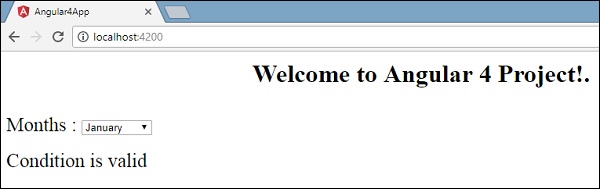
Angular 4 - 事件绑定
在本章中,我们将讨论Angular 4中事件绑定是如何工作的。当用户以键盘移动、鼠标点击或鼠标悬停的形式与应用程序交互时,它会生成一个事件。需要处理这些事件才能执行某种操作。这就是事件绑定发挥作用的地方。
让我们考虑一个示例来更好地理解这一点。
app.component.html
<!--The content below is only a placeholder and can be replaced.-->
<div style = "text-align:center">
   <h1>
      Welcome to {{title}}.
   </h1>
</div>

<div> Months :
   <select>
      <option *ngFor = "let i of months">{{i}}</option>
   </select>
</div>
<br/>

<div>
   <span *ngIf = "isavailable; then condition1 else condition2">
      Condition is valid.
   </span>
   <ng-template #condition1>Condition is valid</ng-template>
   <ng-template #condition2>Condition is invalid</ng-template>
</div>
<button (click)="myClickFunction($event)">
   Click Me
</button>
在app.component.html文件中,我们定义了一个按钮并使用click事件向其添加了一个函数。
以下是定义按钮并向其添加函数的语法。
(click)="myClickFunction($event)"
该函数在.ts文件中定义:app.component.ts
import { Component } from '@angular/core';

@Component({
   selector: 'app-root',
   templateUrl: './app.component.html',
   styleUrls: ['./app.component.css']
})

export class AppComponent {
   title = 'Angular 4 Project!';
   //array of months.
   months = ["January", "Feburary", "March", "April",
      "May", "June", "July", "August", "September",
      "October", "November", "December"];
   isavailable = true;
   myClickFunction(event) {
      //just added console.log which will display the event details in browser on click of the button.
      alert("Button is clicked");
      console.log(event);
   }
}
单击按钮后,控件将进入函数myClickFunction,并出现一个对话框,显示the Button is clicked,如下面的屏幕截图所示:
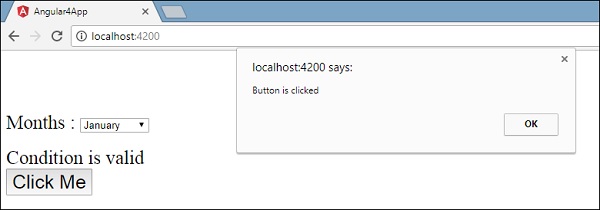
现在让我们向下拉菜单添加change事件。
以下代码行将帮助您向下拉菜单添加change事件:
<!--The content below is only a placeholder and can be replaced.-->
<div style = "text-align:center">
   <h1>
      Welcome to {{title}}.
   </h1>
</div>

<div> Months :
   <select (change) = "changemonths($event)">
      <option *ngFor = "let i of months">{{i}}</option>
   </select>
</div>
<br/>

<div>
   <span *ngIf = "isavailable; then condition1 else condition2">
      Condition is valid.
   </span>
   <ng-template #condition1>Condition is valid</ng-template>
   <ng-template #condition2>Condition is invalid</ng-template>
</div>

<button (click) = "myClickFunction($event)">Click Me</button>
该函数在app.component.ts文件中声明:
import { Component } from '@angular/core';

@Component({
   selector: 'app-root',
   templateUrl: './app.component.html',
   styleUrls: ['./app.component.css']
})

export class AppComponent {
   title = 'Angular 4 Project!';
   //array of months.
   months = ["January", "Feburary", "March", "April",
      "May", "June", "July", "August", "September",
      "October", "November", "December"];
   isavailable = true;
   myClickFunction(event) {
      alert("Button is clicked");
      console.log(event);
   }
   changemonths(event) {
      console.log("Changed month from the Dropdown");
      console.log(event);
   }
}
控制台消息“Changed month from the Dropdown”与事件一起显示在控制台中。
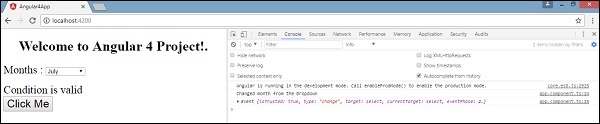
当下拉列表中的值更改时,让我们在app.component.ts中添加一个警报消息,如下所示:
import { Component } from '@angular/core';

@Component({
   selector: 'app-root',
   templateUrl: './app.component.html',
   styleUrls: ['./app.component.css']
})

export class AppComponent {
   title = 'Angular 4 Project!';
   //array of months.
   months = ["January", "February", "March", "April",
         "May", "June", "July", "August", "September",
         "October", "November", "December"];

   isavailable = true;
   myClickFunction(event) {
      //just added console.log which will display the event details in browser
      on click of the button.
      alert("Button is clicked");
      console.log(event);
   }
   changemonths(event) {
      alert("Changed month from the Dropdown");
   }
}
当下拉列表中的值更改时,将出现一个对话框,并显示以下消息:“Changed month from the Dropdown”。
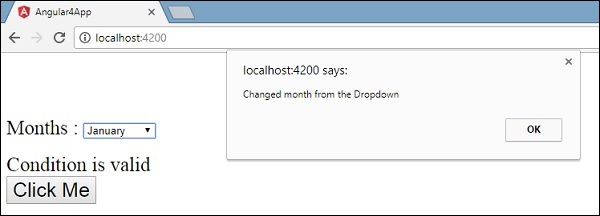
Angular 4 - 模板
Angular 4使用<ng-template>作为标签,而不是Angular 2中使用的<template>。Angular 4将<template>更改为<ng-template>的原因是<template>标签与html <template>标准标签之间存在命名冲突。它将完全弃用。这是Angular 4中的主要变化之一。
现在让我们将模板与if else条件一起使用,并查看输出。
app.component.html
<!--The content below is only a placeholder and can be replaced.-->
<div style = "text-align:center">
   <h1>
      Welcome to {{title}}.
   </h1>
</div>

<div> Months :
   <select (change) = "changemonths($event)" name = "month">
      <option *ngFor = "let i of months">{{i}}</option>
   </select>
</div>
<br/>

<div>
   <span *ngIf = "isavailable;then condition1 else condition2">Condition is valid.</span>
   <ng-template #condition1>Condition is valid from template</ng-template>
   <ng-template #condition2>Condition is invalid from template</ng-template>
</div>
<button (click) = "myClickFunction($event)">Click Me</button>
对于Span标签,我们添加了带有else条件的if语句,并将调用模板condition1,否则调用condition2。
模板的调用方式如下:
<ng-template #condition1>Condition is valid from template</ng-template>
<ng-template #condition2>Condition is invalid from template</ng-template>
如果条件为真,则调用condition1模板,否则调用condition2。
app.component.ts
import { Component } from '@angular/core';

@Component({
   selector: 'app-root',
   templateUrl: './app.component.html',
   styleUrls: ['./app.component.css']
})
export class AppComponent {
   title = 'Angular 4 Project!';
   //array of months.
   months = ["January", "February", "March", "April",
            "May", "June", "July", "August", "September",
            "October", "November", "December"];
   isavailable = false;
   myClickFunction(event) {
      this.isavailable = false;
   }
   changemonths(event) {
      alert("Changed month from the Dropdown");
      console.log(event);
   }
}
浏览器中的输出如下所示:
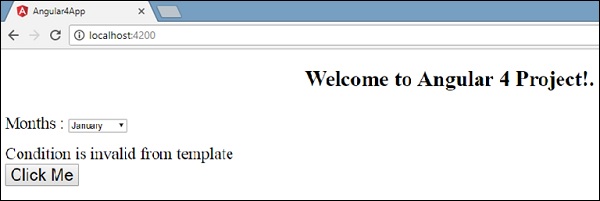
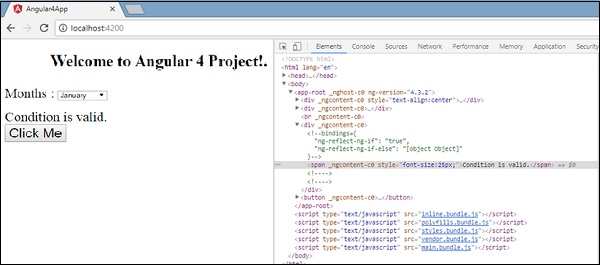
变量isavailable为false,因此打印condition2模板。如果您单击按钮,将调用相应的模板。如果您检查浏览器,您会发现您从未在dom中获得span标签。以下示例将帮助您理解这一点。
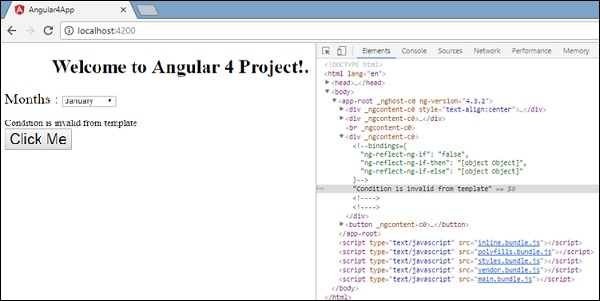
如果您检查浏览器,您会看到dom中没有span标签。它在dom中具有Condition is invalid from template。
html中的以下代码行将帮助我们在dom中获得span标签。
<!--The content below is only a placeholder and can be replaced.-->
<div style = "text-align:center">
   <h1>
      Welcome to {{title}}.
   </h1>
</div>

<div> Months :
   <select (change) = "changemonths($event)" name = "month">
      <option *ngFor = "let i of months">{{i}}</option>
   </select>
</div>
<br/>

<div>
   <span *ngIf = "isavailable; else condition2">Condition is valid.</span>
   <ng-template #condition1>Condition is valid from template</ng-template>
   <ng-template #condition2>Condition is invalid from template</ng-template>
</div>

<button (click)="myClickFunction($event)">Click Me</button>
如果我们删除then条件,我们将在浏览器中获得“Condition is valid”消息,并且span标签也可用在dom中。例如,在app.component.ts中,我们将isavailable变量设置为true。
Angular 4 - 指令
Angular中的指令是一个js类,声明为@directive。我们在Angular中有3个指令。指令列在下面:
组件指令
这些构成了主类,其中包含有关如何在运行时处理、实例化和使用组件的详细信息。
结构指令
结构指令基本上处理操作dom元素。结构指令在指令前有一个*号。例如,*ngIf和*ngFor。
属性指令
属性指令用于更改dom元素的外观和行为。您可以创建自己的指令,如下所示。
如何创建自定义指令?
在本节中,我们将讨论要在组件中使用的自定义指令。自定义指令由我们创建,而不是标准的。
让我们看看如何创建自定义指令。我们将使用命令行创建指令。使用命令行创建指令的命令是:
ng g directive nameofthedirective

e.g

ng g directive changeText
这在命令行中的样子
C:\projectA4\Angular 4-app>ng g directive changeText
installing directive
   create src\app\change-text.directive.spec.ts
   create src\app\change-text.directive.ts
   update src\app\app.module.ts
上面创建的文件,即change-text.directive.spec.ts和change-text.directive.ts,以及app.module.ts文件已更新。
app.module.ts
import { BrowserModule } from '@angular/platform-browser';
import { NgModule } from '@angular/core';
import { AppComponent } from './app.component';

import { NewCmpComponent } from './new-cmp/new-cmp.component';
import { ChangeTextDirective } from './change-text.directive';

@NgModule({
   declarations: [
      AppComponent,
      NewCmpComponent,
      ChangeTextDirective
   ],

   imports: [
      BrowserModule
   ],

   providers: [],
   bootstrap: [AppComponent]
})

export class AppModule { }
ChangeTextDirective类包含在上面文件中的声明中。该类也从下面给出的文件中导入。
change-text.directive
import { Directive } from '@angular/core';
@Directive({
   selector: '[changeText]'
})

export class ChangeTextDirective {
   constructor() { }
}
上面的文件有一个指令,它还有一个selector属性。我们在selector中定义的内容必须与我们在其中分配自定义指令的视图匹配。
在app.component.html视图中,让我们按如下方式添加指令:
<div style="text-align:center">
   <span changeText >Welcome to {{title}}.</span>
</div>
我们将按如下方式在change-text.directive.ts文件中编写更改:
change-text.directive.ts
import { Directive, ElementRef} from '@angular/core';
@Directive({
   selector: '[changeText]'
})

export class ChangeTextDirective {
   constructor(Element: ElementRef) {
      console.log(Element);
      Element.nativeElement.innerText="Text is changed by changeText Directive. ";
   }
}
在上面的文件中,有一个名为ChangeTextDirective的类和一个构造函数,它采用类型为ElementRef的元素,这是必需的。该元素包含应用Change Text指令的所有详细信息。
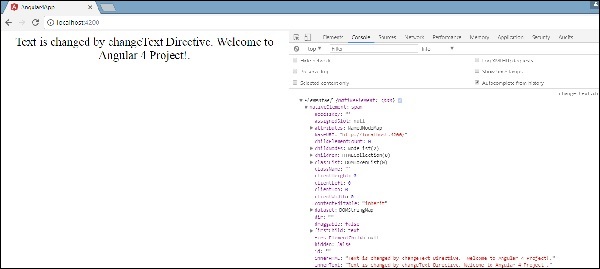
我们添加了console.log元素。可以在浏览器控制台中看到它的输出。元素的文本也如上所示更改。
现在,浏览器将显示以下内容。
Angular 4 - 管道
在本章中,我们将讨论Angular 4中的管道是什么。管道在Angular 1中以前称为过滤器,在Angular 2和4中称为管道。
| 字符用于转换数据。以下是相同的语法
{{ Welcome to Angular 4 | lowercase}}
它以整数、字符串、数组和日期作为输入,用|分隔,以所需的格式进行转换,并在浏览器中显示。
让我们考虑一些使用管道的示例。
在这里,我们想将给定的文本显示为大写。这可以使用管道按如下方式完成:
在app.component.ts文件中,我们定义了title变量:
app.component.ts
import { Component } from '@angular/core';
@Component({
   selector: 'app-root',
   templateUrl: './app.component.html',
   styleUrls: ['./app.component.css']
})

export class AppComponent {
   title = 'Angular 4 Project!';
}
以下代码行进入app.component.html文件。
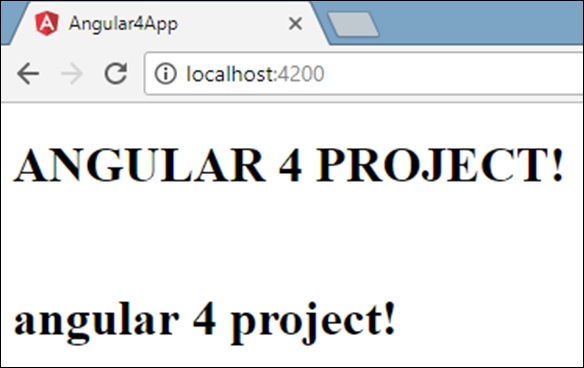
<b>{{title | uppercase}}</b><br/>
<b>{{title | lowercase}}</b>
浏览器显示如下面的屏幕截图所示:
Angular 4提供了一些内置管道。管道列在下面:
- Lowercasepipe
- Uppercasepipe
- Datepipe
- Currencypipe
- Jsonpipe
- Percentpipe
- Decimalpipe
- Slicepipe
我们已经看到了lowercase和uppercase管道。现在让我们看看其他管道是如何工作的。
以下代码行将帮助我们在app.component.ts文件中定义所需的变量:
import { Component } from '@angular/core';

@Component({
   selector: 'app-root',
   templateUrl: './app.component.html',
   styleUrls: ['./app.component.css']
})

export class AppComponent {
   title = 'Angular 4 Project!';
   todaydate = new Date();
   jsonval = {name:'Rox', age:'25', address:{a1:'Mumbai', a2:'Karnataka'}};
   months = ["Jan", "Feb", "Mar", "April", "May", "Jun",
             "July", "Aug", "Sept", "Oct", "Nov", "Dec"];
}
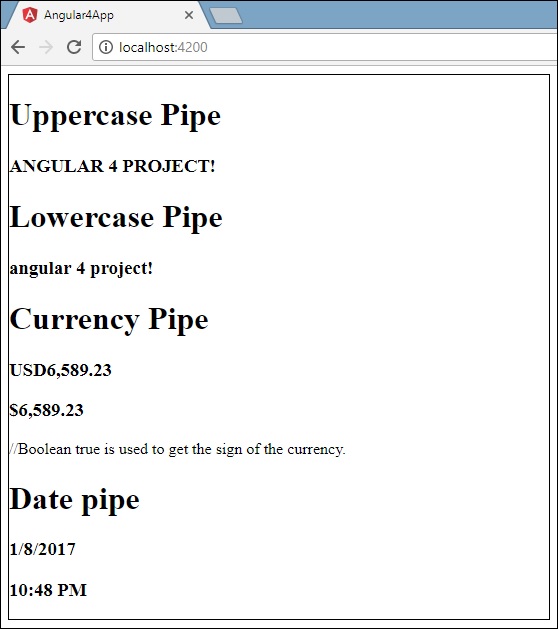
我们将在app.component.html文件中使用管道。
<!--The content below is only a placeholder and can be replaced.-->
<div style = "width:100%;">
   <div style = "width:40%;float:left;border:solid 1px black;">
      <h1>Uppercase Pipe</h1>
      <b>{{title | uppercase}}</b><br/>

      <h1>Lowercase Pipe</h1>
      <b>{{title | lowercase}}</b>

      <h1>Currency Pipe</h1>
      <b>{{6589.23 | currency:"USD"}}</b><br/>
      <b>{{6589.23 | currency:"USD":true}}</b> //Boolean true is used to get the sign of the currency.

      <h1>Date pipe</h1>
      <b>{{todaydate | date:'d/M/y'}}</b><br/>
      <b>{{todaydate | date:'shortTime'}}</b>

      <h1>Decimal Pipe</h1>
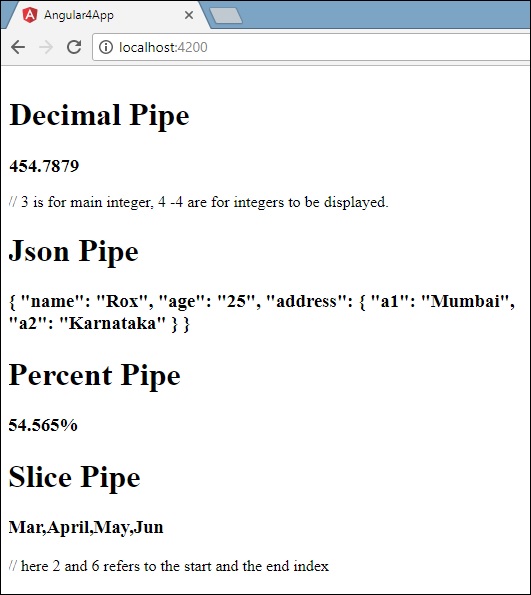
      <b>{{ 454.78787814 | number: '3.4-4' }}</b> // 3 is for main integer, 4 -4 are for integers to be displayed.
   </div>

   <div style = "width:40%;float:left;border:solid 1px black;">
      <h1>Json Pipe</h1>
      <b>{{ jsonval | json }}</b>
      <h1>Percent Pipe</h1>
      <b>{{00.54565 | percent}}</b>
      <h1>Slice Pipe</h1>
      <b>{{months | slice:2:6}}</b>
      // here 2 and 6 refers to the start and the end index
   </div>
</div>
以下屏幕截图显示每个管道的输出:
如何创建自定义管道?
要创建自定义管道,我们创建了一个新的ts文件。在这里,我们想创建sqrt自定义管道。我们为文件指定了相同的名称,它如下所示:
app.sqrt.ts
import {Pipe, PipeTransform} from '@angular/core';
@Pipe ({
   name : 'sqrt'
})
export class SqrtPipe implements PipeTransform {
   transform(val : number) : number {
      return Math.sqrt(val);
   }
}
要创建自定义管道,我们必须从Angular/core导入Pipe和PipeTransform。在@Pipe指令中,我们必须为我们的管道命名,这将在我们的.html文件中使用。由于我们正在创建sqrt管道,我们将将其命名为sqrt。
随着我们的进一步推进,我们必须创建该类,并且类名为SqrtPipe。此类将实现PipeTransform。
在类中定义的transform方法将参数作为数字,并在开平方后返回该数字。
由于我们创建了一个新文件,我们需要在app.module.ts中添加它。操作如下:
import { BrowserModule } from '@angular/platform-browser';
import { NgModule } from '@angular/core';
import { AppComponent } from './app.component';

import { NewCmpComponent } from './new-cmp/new-cmp.component';
import { ChangeTextDirective } from './change-text.directive';
import { SqrtPipe } from './app.sqrt';

@NgModule({
   declarations: [
      SqrtPipe,
      AppComponent,
      NewCmpComponent,
      ChangeTextDirective
   ],

   imports: [
      BrowserModule
   ],
   providers: [],
   bootstrap: [AppComponent]
})
export class AppModule { }
我们创建了app.sqrt.ts类。我们必须在app.module.ts中导入它并指定文件的路径。它也必须包含在声明中,如上所示。
现在让我们看看在app.component.html文件中对sqrt管道的调用。
<h1>Custom Pipe</h1>
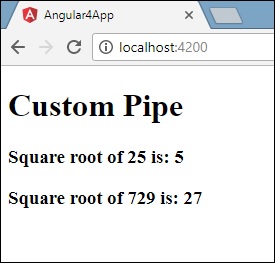
<b>Square root of 25 is: {{25 | sqrt}}</b>
<br/>
<b>Square root of 729 is: {{729 | sqrt}}</b>
输出如下所示:
Angular 4 - 路由
路由基本上意味着在页面之间导航。您已经看到许多带有链接的站点,这些链接会将您定向到新页面。这可以使用路由来实现。这里我们引用的页面将以组件的形式存在。我们已经看到了如何创建组件。现在让我们创建一个组件,并看看如何使用路由。
在主父组件app.module.ts中,我们现在需要包含路由模块,如下所示:
import { BrowserModule } from '@angular/platform-browser';
import { NgModule } from '@angular/core';
import { RouterModule} from '@angular/router';

import { AppComponent } from './app.component';
import { NewCmpComponent } from './new-cmp/new-cmp.component';
import { ChangeTextDirective } from './change-text.directive';
import { SqrtPipe } from './app.sqrt';
@NgModule({
   declarations: [
      SqrtPipe,
      AppComponent,
      NewCmpComponent,
      ChangeTextDirective
   ],
   imports: [
      BrowserModule,
      RouterModule.forRoot([
         {
            path: 'new-cmp',
            component: NewCmpComponent
         }
      ])
   ],
   providers: [],
   bootstrap: [AppComponent]
})
export class AppModule { }
import { RouterModule} from '@angular/router'
这里,RouterModule 从 angular/router 导入。该模块包含在 imports 中,如下所示:
RouterModule.forRoot([
   {
      path: 'new-cmp',
      component: NewCmpComponent
   }
])
RouterModule 指的是forRoot,它接收一个数组作为输入,该数组又包含路径和组件的对象。路径是路由器的名称,组件是类的名称,即创建的组件。
现在让我们看看创建的组件文件:
New-cmp.component.ts
import { Component, OnInit } from '@angular/core';

@Component({
   selector: 'app-new-cmp',
   templateUrl: './new-cmp.component.html',
   styleUrls: ['./new-cmp.component.css']
})

export class NewCmpComponent implements OnInit {
   newcomponent = "Entered in new component created";
   constructor() {}
   ngOnInit() { }
}
突出显示的类在主模块的 imports 中被提及。
New-cmp.component.html
<p>
   {{newcomponent}}
</p>

<p>
   new-cmp works!
</p>
现在,我们需要在需要时或从主模块点击时显示html文件中的上述内容。为此,我们需要在app.component.html中添加路由详细信息。
<h1>Custom Pipe</h1>
<b>Square root of 25 is: {{25 | sqrt}}</b><br/>
<b>Square root of 729 is: {{729 | sqrt}}</b>

<br />
<br />
<br />
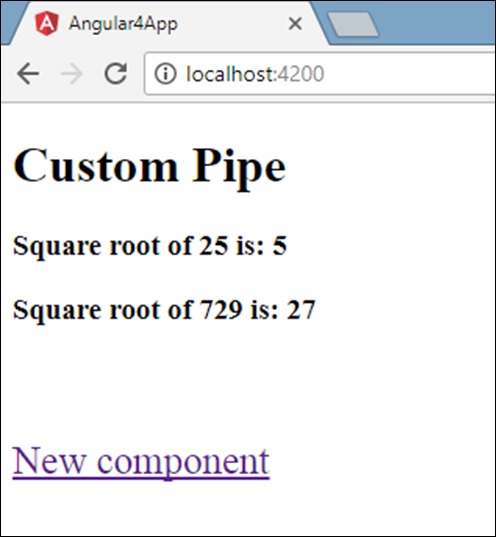
<a routerLink = "new-cmp">New component</a>

<br />
<br/>
<router-outlet></router-outlet>
在上面的代码中,我们创建了锚链接标签,并将其routerLink设置为“new-cmp”。这在app.module.ts中作为路径被引用。
当用户点击new component时,页面应该显示内容。为此,我们需要以下标签 - <router-outlet> </router-outlet>。
上面的标签确保当用户点击new component时,new-cmp.component.html中的内容将显示在页面上。
现在让我们看看输出如何在浏览器中显示。
当用户点击New component时,您将在浏览器中看到以下内容。
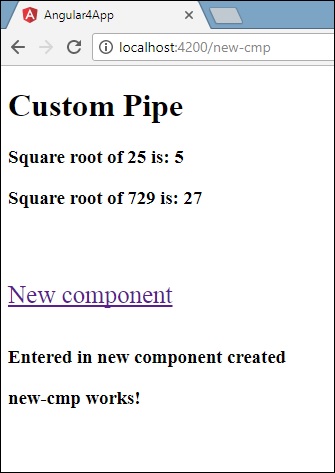
url 包含https://:4200/new-cmp。这里,new-cmp 附加到原始 url,这是app.module.ts中给出的路径和app.component.html中的router-link。
当用户点击New component时,页面不会刷新,内容会显示给用户而无需重新加载。只有点击时,网站代码的特定部分才会重新加载。当页面上有大量内容需要根据用户交互加载时,此功能很有帮助。此功能还提供了良好的用户体验,因为页面不会重新加载。
Angular 4 - 服务
本章我们将讨论Angular 4中的服务。
我们可能会遇到需要在页面上的任何地方使用某些代码的情况。它可以用于需要跨组件共享的数据连接等。服务帮助我们实现这一点。使用服务,我们可以访问整个项目中其他组件的方法和属性。
要创建一个服务,我们需要使用命令行。相应的命令是:
C:\projectA4\Angular 4-app>ng g service myservice
installing service
   create src\app\myservice.service.spec.ts
   create src\app\myservice.service.ts
   WARNING Service is generated but not provided, it must be provided to be used

   C:\projectA4\Angular 4-app>
文件如下在app文件夹中创建:
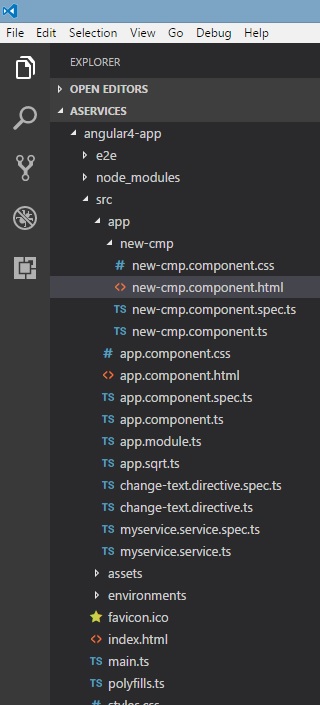
以下是底部创建的文件:myservice.service.specs.ts 和 myservice.service.ts。
myservice.service.ts
import { Injectable } from '@angular/core';

@Injectable()
export class MyserviceService {
   constructor() { }
}
这里,Injectable 模块从@angular/core导入。它包含@Injectable方法和一个名为MyserviceService的类。我们将在这个类中创建我们的服务函数。
在创建新服务之前,我们需要在主父app.module.ts中包含已创建的服务。
import { BrowserModule } from '@angular/platform-browser';
import { NgModule } from '@angular/core';
import { RouterModule} from '@angular/router';
import { AppComponent } from './app.component';

import { MyserviceService } from './myservice.service';
import { NewCmpComponent } from './new-cmp/new-cmp.component';
import { ChangeTextDirective } from './change-text.directive';
import { SqrtPipe } from './app.sqrt';

@NgModule({
   declarations: [
      SqrtPipe,
      AppComponent,
      NewCmpComponent,
      ChangeTextDirective
   ],
   imports: [
      BrowserModule,
      RouterModule.forRoot([
         {
            path: 'new-cmp',
            component: NewCmpComponent
         }
      ])
   ],
   providers: [MyserviceService],
   bootstrap: [AppComponent]
})

export class AppModule { }
我们已经使用类名导入了服务,并且在 providers 中使用了相同的类。现在让我们切换回服务类并创建一个服务函数。
在服务类中,我们将创建一个函数来显示今天的日期。我们可以在主父组件app.component.ts以及上一章中创建的新组件new-cmp.component.ts中使用相同的函数。
现在让我们看看该函数在服务中的外观以及如何在组件中使用它。
import { Injectable } from '@angular/core';
@Injectable()
export class MyserviceService {
   constructor() { }
   showTodayDate() {
      let ndate = new Date();
      return ndate;
   }
}
在上面的服务文件中,我们创建了一个函数showTodayDate。现在我们将返回新创建的Date()。让我们看看如何在组件类中访问此函数。
app.component.ts
import { Component } from '@angular/core';
import { MyserviceService } from './myservice.service';

@Component({
   selector: 'app-root',
   templateUrl: './app.component.html',
   styleUrls: ['./app.component.css']
})

export class AppComponent {
   title = 'Angular 4 Project!';
   todaydate;
   constructor(private myservice: MyserviceService) {}
   ngOnInit() {
      this.todaydate = this.myservice.showTodayDate();
   }
}
ngOnInit函数在创建的任何组件中默认被调用。日期从服务中获取,如上所示。要获取服务的更多详细信息,我们需要首先在组件ts文件中包含该服务。
我们将在.html文件中显示日期,如下所示:
{{todaydate}}
<app-new-cmp></app-new-cmp>
// data to be displayed to user from the new component class.
现在让我们看看如何在创建的新组件中使用服务。
import { Component, OnInit } from '@angular/core';
import { MyserviceService } from './../myservice.service';

@Component({
   selector: 'app-new-cmp',
   templateUrl: './new-cmp.component.html',
   styleUrls: ['./new-cmp.component.css']
})

export class NewCmpComponent implements OnInit {
   todaydate;
   newcomponent = "Entered in new component created";
   constructor(private myservice: MyserviceService) {}

   ngOnInit() {
      this.todaydate = this.myservice.showTodayDate();
   }
}
在我们创建的新组件中,我们需要首先导入我们想要的服务并访问其方法和属性。请参见突出显示的代码。todaydate 在组件 html 中显示如下:
<p>
   {{newcomponent}}
</p>
<p>
   Today's Date : {{todaydate}}
</p>
新组件的选择器用于app.component.html文件。来自上述 html 文件的内容将显示在浏览器中,如下所示:
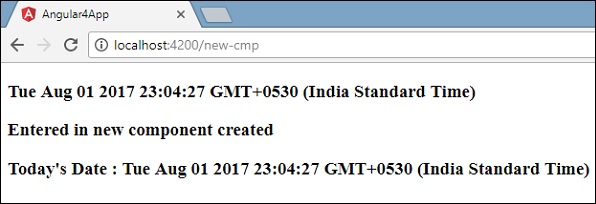
如果更改任何组件中服务的属性,则其他组件中的属性也会发生更改。现在让我们看看这是如何工作的。
我们将在服务中定义一个变量,并在父组件和新组件中使用它。我们将再次更改父组件中的属性,并将查看新组件中是否也更改了。
在myservice.service.ts中,我们创建了一个属性并在其他父组件和新组件中使用了它。
import { Injectable } from '@angular/core';

@Injectable()
export class MyserviceService {
   serviceproperty = "Service Created";
   constructor() { }
   showTodayDate() {
      let ndate = new Date();
      return ndate;
   }
}
现在让我们在其他组件中使用serviceproperty变量。在app.component.ts中,我们访问变量的方式如下:
import { Component } from '@angular/core';
import { MyserviceService } from './myservice.service';
@Component({
   selector: 'app-root',
   templateUrl: './app.component.html',
   styleUrls: ['./app.component.css']
})

export class AppComponent {
   title = 'Angular 4 Project!';
   todaydate;
   componentproperty;
   constructor(private myservice: MyserviceService) {}
   ngOnInit() {
      this.todaydate = this.myservice.showTodayDate();
      console.log(this.myservice.serviceproperty);
      this.myservice.serviceproperty = "component created"; // value is changed.
      this.componentproperty = this.myservice.serviceproperty;
   }
}
我们现在将获取变量并在console.log中处理。在下一行,我们将变量的值更改为“component created”。我们将在new-cmp.component.ts中执行相同的操作。
import { Component, OnInit } from '@angular/core';
import { MyserviceService } from './../myservice.service';

@Component({
   selector: 'app-new-cmp',
   templateUrl: './new-cmp.component.html',
   styleUrls: ['./new-cmp.component.css']
})

export class NewCmpComponent implements OnInit {
   todaydate;
   newcomponentproperty;
   newcomponent = "Entered in newcomponent";
   constructor(private myservice: MyserviceService) {}
   ngOnInit() {
      this.todaydate = this.myservice.showTodayDate();
      this.newcomponentproperty = this.myservice.serviceproperty;
   }
}
在上面的组件中,我们没有更改任何内容,而是直接将属性赋值给组件属性。
现在,当您在浏览器中执行它时,服务属性将被更改,因为它的值在app.component.ts中已更改,并且对于new-cmp.component.ts也将显示相同的值。
更改之前,请检查控制台中的值。
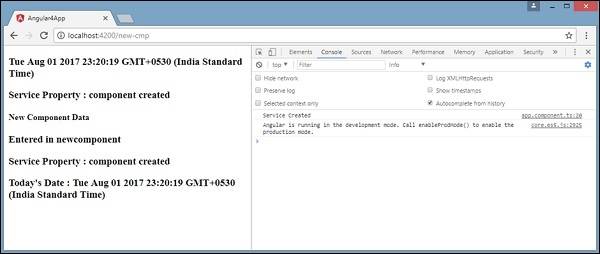
Angular 4 - Http 服务
Http 服务将帮助我们获取外部数据、向其发布数据等。我们需要导入 http 模块才能使用 http 服务。让我们考虑一个例子来了解如何使用 http 服务。
要开始使用 http 服务,我们需要在app.module.ts中导入模块,如下所示:
import { BrowserModule } from '@angular/platform-browser';
import { NgModule } from '@angular/core';
import { BrowserAnimationsModule } from '@angular/platform-browser/animations';
import { HttpModule } from '@angular/http';
import { AppComponent } from './app.component';

@NgModule({
   declarations: [
      AppComponent
   ],
   imports: [
      BrowserModule,
      BrowserAnimationsModule,
      HttpModule
   ],
   providers: [],
   bootstrap: [AppComponent]
})
export class AppModule { }
如果您看到突出显示的代码,我们已经从@angular/http导入了HttpModule,并且它也添加到imports数组中。
现在让我们在app.component.ts中使用http服务。
import { Component } from '@angular/core';
import { Http } from '@angular/http';
import 'rxjs/add/operator/map';

@Component({
   selector: 'app-root',
   templateUrl: './app.component.html',
   styleUrls: ['./app.component.css']
})

export class AppComponent {
   constructor(private http: Http) { }
   ngOnInit() {
      this.http.get("http://jsonplaceholder.typicode.com/users").
      map((response) ⇒ response.json()).
      subscribe((data) ⇒ console.log(data))
   }
}
让我们了解上面突出显示的代码。我们需要导入http才能使用该服务,方法如下:
import { Http } from '@angular/http';
在类AppComponent中,创建一个构造函数和类型为Http的私有变量http。要获取数据,我们需要使用http提供的get API,如下所示
this.http.get();
它将要获取的 url 作为参数,如代码中所示。
我们将使用测试 url - https://jsonplaceholder.typicode.com/users 来获取 json 数据。在获取的 url 数据上执行两个操作:map 和 subscribe。Map 方法有助于将数据转换为 json 格式。要使用 map,我们需要导入它,如下所示:
import 'rxjs/add/operator/map';
完成 map 后,subscribe 将在控制台中记录输出,如浏览器中所示:
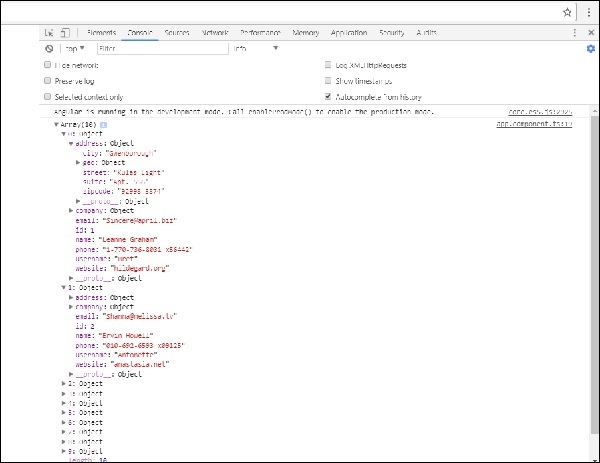
如果您看到,json 对象显示在控制台中。这些对象也可以显示在浏览器中。
要将对象显示在浏览器中,请按如下方式更新app.component.html和app.component.ts中的代码:
import { Component } from '@angular/core';
import { Http } from '@angular/http';
import 'rxjs/add/operator/map';

@Component({
   selector: 'app-root',
   templateUrl: './app.component.html',
   styleUrls: ['./app.component.css']
})
export class AppComponent {
   constructor(private http: Http) { }
   httpdata;
   ngOnInit() {
      this.http.get("http://jsonplaceholder.typicode.com/users").
      map(
         (response) ⇒ response.json()
      ).
      subscribe(
         (data) ⇒ {this.displaydata(data);}
      )
   }
   displaydata(data) {this.httpdata = data;}
}
在app.component.ts中,使用 subscribe 方法,我们将调用 display data 方法并将获取的数据作为参数传递给它。
在 display data 方法中,我们将数据存储在一个名为 httpdata 的变量中。使用for循环遍历此httpdata变量,在app.component.html文件中显示数据。
<ul *ngFor = "let data of httpdata">
   <li>Name : {{data.name}} Address: {{data.address.city}}</li>
</ul>
json 对象如下所示:
{
   "id": 1,
   "name": "Leanne Graham",
   "username": "Bret",
   "email": "Sincere@april.biz",

   "address": {
      "street": "Kulas Light",
      "suite": "Apt. 556",
      "city": "Gwenborough",
      "zipcode": "92998-3874",
      "geo": {
         "lat": "-37.3159",
         "lng": "81.1496"
      }
   },

   "phone": "1-770-736-8031 x56442",
   "website": "hildegard.org",
   "company": {
      "name": "Romaguera-Crona",
      "catchPhrase": "Multi-layered client-server neural-net",
      "bs": "harness real-time e-markets"
   }
}
该对象具有 id、name、username、email 和 address 等属性,address 内部包含 street、city 等以及与电话、网站和公司相关的其他详细信息。使用for循环,我们将在浏览器中显示名称和城市详细信息,如app.component.html文件中所示。
这就是在浏览器中显示的方式:

现在让我们添加搜索参数,它将根据特定数据进行过滤。我们需要根据传递的搜索参数来获取数据。
以下是app.component.html和app.component.ts文件中所做的更改:
app.component.ts
import { Component } from '@angular/core';
import { Http } from '@angular/http';
import 'rxjs/add/operator/map';

@Component({
   selector: 'app-root',
   templateUrl: './app.component.html',
   styleUrls: ['./app.component.css']
})
export class AppComponent {
   title = 'app';
   searchparam = 2;
   jsondata;
   name;
   constructor(private http: Http) { }
   ngOnInit() {
      this.http.get("http://jsonplaceholder.typicode.com/users?id="+this.searchparam).
      map(
         (response) ⇒ response.json()
      ).
      subscribe((data) ⇒ this.converttoarray(data))
   }
   converttoarray(data) {
      console.log(data);
      this.name = data[0].name;
   }
}
对于get api,我们将添加搜索参数 id = this.searchparam。searchparam 等于 2。我们需要 json 文件中id=2的详细信息。
app.component.html
{{name}}
这就是浏览器显示的方式:
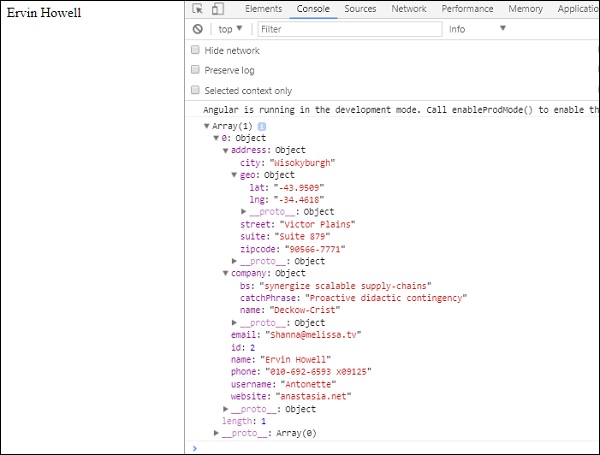
我们在浏览器中输出了从http接收到的数据。它显示在浏览器控制台中。浏览器中显示了json中id=2的名称。
Angular 4 - 表单
本章我们将了解如何在Angular 4中使用表单。我们将讨论两种处理表单的方式:模板驱动表单和模型驱动表单。
模板驱动表单
使用模板驱动表单,大部分工作都在模板中完成;使用模型驱动表单,大部分工作都在组件类中完成。
现在让我们考虑处理模板驱动表单。我们将创建一个简单的登录表单,并在表单中添加电子邮件 ID、密码和提交按钮。首先,我们需要从@angular/core导入FormsModule,在app.module.ts中如下所示:
import { BrowserModule } from '@angular/platform-browser';
import { NgModule } from '@angular/core';
import { RouterModule} from '@angular/router';

import { HttpModule } from '@angular/http';
import { FormsModule } from '@angular/forms';
import { AppComponent } from './app.component';

import { MyserviceService } from './myservice.service';
import { NewCmpComponent } from './new-cmp/new-cmp.component';
import { ChangeTextDirective } from './change-text.directive';
import { SqrtPipe } from './app.sqrt';

@NgModule({
   declarations: [
      SqrtPipe,
      AppComponent,
      NewCmpComponent,
      ChangeTextDirective
   ],
   imports: [
      BrowserModule,
      HttpModule,
      FormsModule,
      RouterModule.forRoot([
         {path: 'new-cmp',component: NewCmpComponent}
      ])
   ],
   providers: [MyserviceService],
   bootstrap: [AppComponent]
})

export class AppModule { }
所以在app.module.ts中,我们导入了FormsModule,并在imports数组中添加了它,如突出显示的代码所示。
现在让我们在app.component.html文件中创建表单。
<form #userlogin = "ngForm" (ngSubmit) = "onClickSubmit(userlogin.value)" >
   <input type = "text" name = "emailid" placeholder = "emailid" ngModel>
   <br/>
   <input type = "password" name = "passwd" placeholder = "passwd" ngModel>
   <br/>
   <input type = "submit" value = "submit">
</form>
我们创建了一个简单的表单,其中包含具有电子邮件 ID、密码和提交按钮的输入标签。我们为其分配了类型、名称和占位符。
在模板驱动表单中,我们需要通过添加ngModel指令和name属性来创建模型表单控件。因此,无论我们希望 Angular 从表单中访问我们的数据,都要在该标签中添加 ngModel,如上所示。现在,如果我们必须读取 emailid 和 passwd,我们需要在其上添加 ngModel。
如果您看到,我们还将 ngForm 添加到#userlogin。需要将ngForm指令添加到我们创建的表单模板中。我们还添加了函数onClickSubmit并为其分配了userlogin.value。
现在让我们在app.component.ts中创建函数并获取表单中输入的值。
import { Component } from '@angular/core';
import { MyserviceService } from './myservice.service';

@Component({
   selector: 'app-root',
   templateUrl: './app.component.html',
   styleUrls: ['./app.component.css']
})

export class AppComponent {
   title = 'Angular 4 Project!';
   todaydate;
   componentproperty;
   constructor(private myservice: MyserviceService) { }
   ngOnInit() {
      this.todaydate = this.myservice.showTodayDate();
   }
   onClickSubmit(data) {
      alert("Entered Email id : " + data.emailid);
   }
}
在上面的app.component.ts文件中,我们定义了函数onClickSubmit。当您点击表单提交按钮时,控制将转到上面的函数。
这就是浏览器显示的方式:
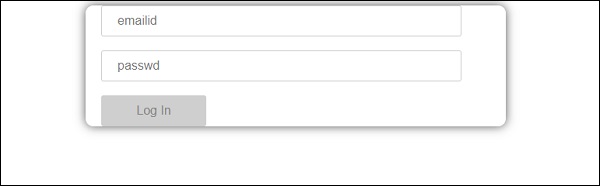
表单如下所示。让我们在其中输入数据,在提交函数中,电子邮件 ID 已经输入。
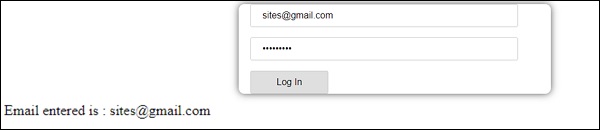
电子邮件 ID 在底部显示,如上面的屏幕截图所示。
模型驱动表单
在模型驱动表单中,我们需要从@angular/forms导入ReactiveFormsModule,并在imports数组中使用它。
app.module.ts中有一个更改。
import { BrowserModule } from '@angular/platform-browser';
import { NgModule } from '@angular/core';
import { RouterModule} from '@angular/router';

import { HttpModule } from '@angular/http';
import { ReactiveFormsModule } from '@angular/forms';
import { AppComponent } from './app.component';

import { MyserviceService } from './myservice.service';
import { NewCmpComponent } from './new-cmp/new-cmp.component';
import { ChangeTextDirective } from './change-text.directive';
import { SqrtPipe } from './app.sqrt';

@NgModule({
   declarations: [
      SqrtPipe,
      AppComponent,
      NewCmpComponent,
      ChangeTextDirective
   ],
   imports: [
      BrowserModule,
      HttpModule,
      ReactiveFormsModule,
      RouterModule.forRoot([
         {
            path: 'new-cmp',
            component: NewCmpComponent
         }
      ])
   ],
   providers: [MyserviceService],
   bootstrap: [AppComponent]
})
export class AppModule { }
在app.component.ts中,我们需要为模型驱动表单导入一些模块。例如,import { FormGroup, FormControl } from '@angular/forms'。
import { Component } from '@angular/core';
import { MyserviceService } from './myservice.service';
import { FormGroup, FormControl } from '@angular/forms';

@Component({
   selector: 'app-root',
   templateUrl: './app.component.html',
   styleUrls: ['./app.component.css']
})
export class AppComponent {
   title = 'Angular 4 Project!';
   todaydate;
   componentproperty;
   emailid;
   formdata;
   constructor(private myservice: MyserviceService) { }
   ngOnInit() {
      this.todaydate = this.myservice.showTodayDate();
      this.formdata = new FormGroup({
         emailid: new FormControl("angular@gmail.com"),
         passwd: new FormControl("abcd1234")
      });
   }
   onClickSubmit(data) {this.emailid = data.emailid;}
}
变量 formdata 在类的开头初始化,并如上所示使用 FormGroup 初始化。变量 emailid 和 passwd 初始化为默认值,以便在表单中显示。如果需要,可以将其保留为空。
这就是值在表单 UI 中显示的方式。
我们使用 formdata 初始化表单值;我们需要在表单 UI app.component.html中使用它。
<div>
   <form [formGroup]="formdata" (ngSubmit) = "onClickSubmit(formdata.value)" >
      <input type="text" class="fortextbox" name="emailid" placeholder="emailid"
      formControlName="emailid">
      <br/>

      <input type="password" class="fortextbox" name="passwd"
      placeholder="passwd" formControlName="passwd">
      <br/>

      <input type="submit" class="forsubmit" value="Log In">
   </form>
</div>
<p>
   Email entered is : {{emailid}}
</p>
在 .html 文件中,我们使用方括号中的 formGroup 来表示表单;例如,[formGroup]=”formdata”。提交时,调用函数 **onClickSubmit**,并传入 **formdata.value**。
使用了输入标签 **formControlName**。它被赋予了一个我们在 **app.component.ts** 文件中使用的值。
单击提交后,控制权将传递给 **app.component.ts** 文件中定义的 **onClickSubmit** 函数。
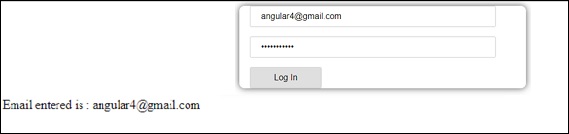
单击“登录”后,将显示以上截图所示的值。
表单验证
现在让我们讨论一下使用模型驱动表单进行表单验证。您可以使用内置的表单验证,也可以使用自定义验证方法。我们将在表单中同时使用这两种方法。我们将继续使用我们在前面章节中创建的同一个示例。在 Angular 4 中,我们需要从 **@angular/forms** 导入 Validators,如下所示:
import { FormGroup, FormControl, Validators} from '@angular/forms'
Angular 具有内置的验证器,例如 **必填字段、最小长度、最大长度** 和 **模式**。这些验证器可以通过 Validators 模块访问。
您可以只添加所需的验证器或验证器数组,以告知 Angular 特定字段是否为必填字段。
现在让我们在一个输入文本框(即电子邮件 ID)上尝试一下。对于电子邮件 ID,我们添加了以下验证参数:
- 必填
- 模式匹配
这就是 **app.component.ts** 中代码的验证方式。
import { Component } from '@angular/core';
import { FormGroup, FormControl, Validators} from '@angular/forms';

@Component({
   selector: 'app-root',
   templateUrl: './app.component.html',
   styleUrls: ['./app.component.css']
})

export class AppComponent {
   title = 'Angular 4 Project!';
   todaydate;
   componentproperty;
   emailid;
   formdata;
   ngOnInit() {
      this.formdata = new FormGroup({
         emailid: new FormControl("", Validators.compose([
            Validators.required,
            Validators.pattern("[^ @]*@[^ @]*")
         ])),
         passwd: new FormControl("")
      });
   }
   onClickSubmit(data) {this.emailid = data.emailid;}
}
在 **Validators.compose** 中,您可以添加要在输入字段上验证的各项内容的列表。目前,我们添加了 **必填** 和 **模式匹配** 参数,以仅接受有效的电子邮件。
在 **app.component.html** 中,如果任何表单输入无效,则提交按钮将被禁用。操作方法如下:
<div>
   <form [formGroup] = "formdata" (ngSubmit) = "onClickSubmit(formdata.value)" >
      <input type = "text" class = "fortextbox" name = "emailid" placeholder = "emailid"
         formControlName = "emailid">
      <br/>
      <input type = "password" class = "fortextbox" name = "passwd"
         placeholder = "passwd" formControlName = "passwd">
      <br/>
      <input type = "submit" [disabled] = "!formdata.valid" class = "forsubmit"
         value = "Log In">
   </form>
</div>

<p>
   Email entered is : {{emailid}}
</p>
对于提交按钮,我们在方括号中添加了 disabled 属性,其值为 **!formdata.valid**。因此,如果 formdata.valid 无效,则按钮将保持禁用状态,用户将无法提交。
让我们看看它在浏览器中的运行方式:
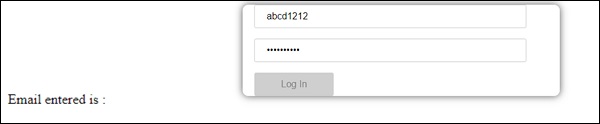
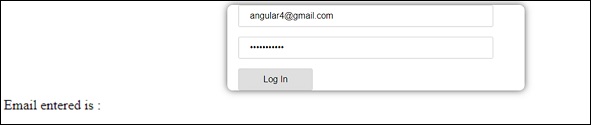
在上述情况下,输入的电子邮件 ID 无效,因此登录按钮被禁用。现在让我们尝试输入有效的电子邮件 ID 并查看区别。
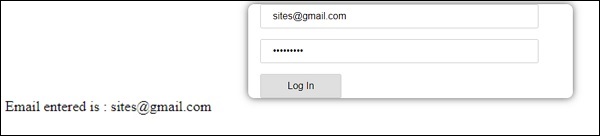
现在,输入的电子邮件 ID 有效。因此,我们可以看到登录按钮已启用,用户可以提交它。提交后,输入的电子邮件 ID 将显示在底部。
现在让我们尝试使用相同的表单进行自定义验证。对于自定义验证,我们可以定义我们自己的自定义函数并在其中添加所需细节。我们现在将看到一个示例。
import { Component } from '@angular/core';
import { FormGroup, FormControl, Validators} from '@angular/forms';

@Component({
   selector: 'app-root',
   templateUrl: './app.component.html',
   styleUrls: ['./app.component.css']
})

export class AppComponent {
   title = 'Angular 4 Project!';
   todaydate;
   componentproperty;
   emailid;
   formdata;
   ngOnInit() {
      this.formdata = new FormGroup({
         emailid: new FormControl("", Validators.compose([
            Validators.required,
            Validators.pattern("[^ @]*@[^ @]*")
         ])),
         passwd: new FormControl("", this.passwordvalidation)
      });
   }
   passwordvalidation(formcontrol) {
      if (formcontrol.value.length <'; 5) {
         return {"passwd" : true};
      }
   }
   onClickSubmit(data) {this.emailid = data.emailid;}
}
在上面的示例中,我们创建了一个函数 **password validation**,并在前面章节的 formcontrol 中使用了它 - **passwd: new FormControl("", this.passwordvalidation)**。
在我们创建的函数中,我们将检查输入字符的长度是否合适。如果字符少于五个,它将返回 passwd 为 true,如上所示 - **return {"passwd" : true};**。如果字符多于五个,则认为它有效,并且登录将被启用。
现在让我们看看它在浏览器中的显示方式:
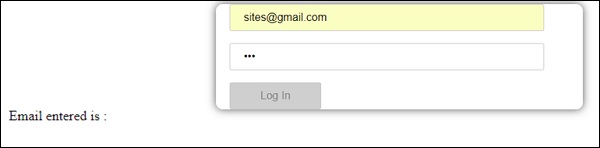
我们在密码中只输入了三个字符,登录被禁用。要启用登录,我们需要五个以上的字符。现在让我们输入有效长度的字符并检查。
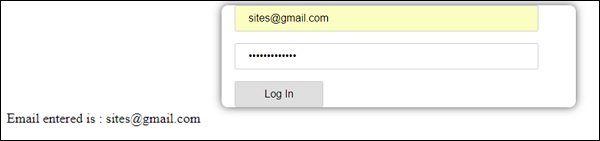
由于电子邮件 ID 和密码均有效,因此登录已启用。登录后,电子邮件将显示在底部。
Angular 4 - 动画
动画增加了 html 元素之间的许多交互。Angular 2 也提供了动画功能。Angular 4 与 Angular 2 的区别在于,动画不再是 **@angular/core** 库的一部分,而是一个需要在 **app.module.ts** 中导入的单独包。
首先,我们需要导入库,如下所示:
import { BrowserAnimationsModule } from '@angular/platform-browser/animations';
需要将 **BrowserAnimationsModule** 添加到 **app.module.ts** 中的导入数组中,如下所示:
app.module.ts
import { BrowserModule } from '@angular/platform-browser';
import { NgModule } from '@angular/core';

import { BrowserAnimationsModule } from '@angular/platform-browser/animations';
import { AppComponent } from './app.component';

@NgModule({
   declarations: [
      AppComponent
   ],
   imports: [
      BrowserModule,
      BrowserAnimationsModule
   ],
   providers: [],
   bootstrap: [AppComponent]
})
export class AppModule { }
在 **app.component.html** 中,我们添加了需要进行动画处理的 html 元素。
<div>
   <button (click)="animate()">Click Me</button>
   <div [@myanimation] = "state" class="rotate">
      <img src="assets/images/img.png" width="100" height="100">
   </div>
</div>
对于主 div,我们添加了一个按钮和一个带有图像的 div。有一个点击事件,为此调用 animate 函数。对于 div,添加了 **@myanimation** 指令,并将其值设置为 state。
现在让我们看看定义动画的 **app.component.ts**。
import { Component } from '@angular/core';
import { trigger, state, style, transition, animate } from '@angular/animations';

@Component({
   selector: 'app-root',
   templateUrl: './app.component.html',
   styleUrls: ['./app.component.css'],
   styles:[`
      div{
         margin: 0 auto;
         text-align: center;
         width:200px;
      }
      .rotate{
         width:100px;
         height:100px;
         border:solid 1px red;
      }
   `],
   animations: [
      trigger('myanimation',[
         state('smaller',style({
            transform : 'translateY(100px)'
         })),
         state('larger',style({
            transform : 'translateY(0px)'
         })),
         transition('smaller <=> larger',animate('300ms ease-in'))
      ])
   ]
})

export class AppComponent {
   state: string = "smaller";
   animate() {
      this.state= this.state == 'larger' ? 'smaller' : 'larger';
   }
}
我们必须导入要在 .ts 文件中使用的动画函数,如上所示。
import { trigger, state, style, transition, animate } from '@angular/animations';
在这里,我们从 @angular/animations 导入了 trigger、state、style、transition 和 animate。
现在,我们将动画属性添加到 @Component() 装饰器中:
animations: [
   trigger('myanimation',[
      state('smaller',style({
         transform : 'translateY(100px)'
      })),
      state('larger',style({
         transform : 'translateY(0px)'
      })),
      transition('smaller <=> larger',animate('300ms ease-in'))
   ])
]
Trigger 定义动画的开始。它的第一个参数是需要应用动画的 html 标签要赋予的动画名称。第二个参数是我们导入的函数 - state、transition 等。
**state** 函数包含动画步骤,元素将在这些步骤之间进行转换。现在我们定义了两个状态,smaller 和 larger。对于 smaller 状态,我们给出了样式 **transform:translateY(100px)** 和 **transform:translateY(100px)**。
Transition 函数向 html 元素添加动画。第一个参数采用状态,即开始和结束;第二个参数接受 animate 函数。animate 函数允许您定义转换的长度、延迟和缓动。
现在让我们看看 .html 文件,了解 transition 函数是如何工作的
<div>
   <button (click)="animate()">Click Me</button>
   <div [@myanimation] = "state" class="rotate">
      <img src="assets/images/img.png" width="100" height="100">
   </div>
</div>
在 **@component** 指令中添加了一个 style 属性,它将 div 居中对齐。让我们考虑以下示例来理解这一点:
styles:[`
   div{
      margin: 0 auto;
      text-align: center;
      width:200px;
   }
   .rotate{
      width:100px;
      height:100px;
      border:solid 1px red;
   }
`],
这里,使用特殊字符 [``] 来添加 html 元素的样式(如果有)。对于 div,我们给出了在 app.component.ts 文件中定义的动画名称。
单击按钮时,它将调用 animate 函数,该函数在 app.component.ts 文件中定义如下:
export class AppComponent {
   state: string = "smaller";
   animate() {
      this.state= this.state == ‘larger’? 'smaller' : 'larger';
   }
}
定义了 state 变量,并将其默认值设置为 smaller。animate 函数在点击时更改状态。如果状态为 larger,它将转换为 smaller;如果状态为 smaller,它将转换为 larger。
这就是浏览器 (**https://:4200/**) 中的输出外观:
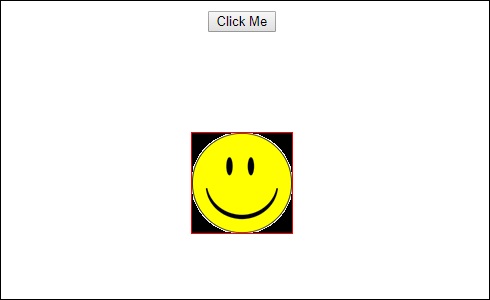
单击“单击我”按钮后,图像的位置将发生更改,如下面的屏幕截图所示:
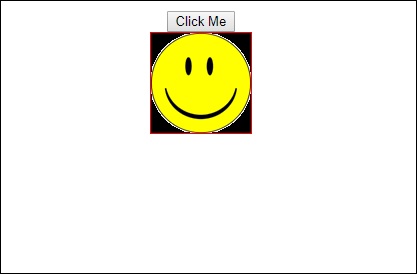
transform 函数应用于 **y** 方向,当单击“单击我”按钮时,它从 0 更改为 100px。图像存储在 **assets/images** 文件夹中。
Angular 4 - 材料设计
**材料设计** 为您的项目提供了许多内置模块。自动完成、日期选择器、滑块、菜单、网格和工具栏等功能可用于 Angular 4 中的材料设计。
要使用材料设计,我们需要导入包。Angular 2 也具有上述所有功能,但它们作为 @angular/core 模块的一部分提供。Angular 4 提供了一个单独的模块 **@angular/materials**。这有助于用户导入所需的材料设计组件。
要开始使用材料设计,您需要安装两个包 - 材料设计和 cdk。材料设计组件依赖于动画模块才能实现高级功能,因此您需要相应的动画包,即 @angular/animations。该包已在上一章中更新。
npm install --save @angular/material @angular/cdk
现在让我们看看 package.json。已安装 **@angular/material** 和 **@angular/cdk**。
{
   "name": "angularstart",
   "version": "0.0.0",
   "license": "MIT",
   "scripts": {
      "ng": "ng",
      "start": "ng serve",
      "build": "ng build",
      "test": "ng test",
      "lint": "ng lint",
      "e2e": "ng e2e"
   },

   "private": true,

   "dependencies": {
      "@angular/animations": "^4.0.0",
      "@angular/cdk": "^2.0.0-beta.8",
      "@angular/common": "^4.0.0",
      "@angular/compiler": "^4.0.0",
      "@angular/core": "^4.0.0",
      "@angular/forms": "^4.0.0",

      "@angular/http": "^4.0.0",
      "@angular/material": "^2.0.0-beta.8",
      "@angular/platform-browser": "^4.0.0",
      "@angular/platform-browser-dynamic": "^4.0.0",
      "@angular/router": "^4.0.0",
      "core-js": "^2.4.1",
      "rxjs": "^5.1.0",
      "zone.js": "^0.8.4"
   },

   "devDependencies": {
      "@angular/cli": "1.2.0",
      "@angular/compiler-cli": "^4.0.0",
      "@angular/language-service": "^4.0.0",
      "@types/jasmine": "~2.5.53",
      "@types/jasminewd2": "~2.0.2",
      "@types/node": "~6.0.60",
      "codelyzer": "~3.0.1",
      "jasmine-core": "~2.6.2",
      "jasmine-spec-reporter": "~4.1.0",

      "karma": "~1.7.0",
      "karma-chrome-launcher": "~2.1.1",
      "karma-cli": "~1.0.1",
      "karma-coverage-istanbul-reporter": "^1.2.1",
      "karma-jasmine": "~1.1.0",
      "karma-jasmine-html-reporter": "^0.2.2",

      "protractor": "~5.1.2",
      "ts-node": "~3.0.4",
      "tslint": "~5.3.2",
      "typescript": "~2.3.3"
   }
}
我们重点介绍了安装以与材料设计一起使用的包。
我们现在将在父模块 - **app.module.ts** 中导入模块,如下所示。
import { BrowserModule } from '@angular/platform-browser';
import { NgModule } from '@angular/core';

import { BrowserAnimationsModule } from '@angular/platform-browser/animations';
import { MdButtonModule, MdMenuModule, MdSidenavModule } from '@angular/material';

import { FormsModule } from '@angular/forms';
import { AppComponent } from './app.component';

@NgModule({
   declarations: [
      AppComponent
   ],
   imports: [
      BrowserModule,
      BrowserAnimationsModule,
      MdButtonModule,
      MdMenuModule,
      FormsModule,
      MdSidenavModule
   ],
   providers: [],
   bootstrap: [AppComponent]
})
export class AppModule { }
在上面的文件中,我们从 @angular/materials 导入了以下模块。
import { MdButtonModule, MdMenuModule, MdSidenavModule } from '@angular/material';
并在 imports 数组中使用它们,如下所示:
imports: [
   BrowserModule,
   BrowserAnimationsModule,
   MdButtonModule,
   MdMenuModule,
   FormsModule,
   MdSidenavModule
]
**app.component.ts** 如下所示:
import { Component } from '@angular/core';

@Component({
   selector: 'app-root',
   templateUrl: './app.component.html',
   styleUrls: ['./app.component.css']
})

export class AppComponent {
   myData: Array<any>;
   constructor() {}
}
现在让我们在 **app.component.html** 中添加材料设计组件。
<button md-button [mdMenuTriggerFor]="menu">Menu</button>
<md-menu #menu="mdMenu">
   <button md-menu-item>
      File
   </button>
   <button md-menu-item>
      Save As
   </button>
</md-menu>

<md-sidenav-container class="example-container">
   <md-sidenav #sidenav class="example-sidenav">
      Angular 4
   </md-sidenav>

   <div class="example-sidenav-content">
      <button type="button" md-button  (click)="sidenav.open()">
         Open sidenav
      </button>
   </div>
</md-sidenav-container>
在上面的文件中,我们添加了 Menu 和 SideNav。
菜单
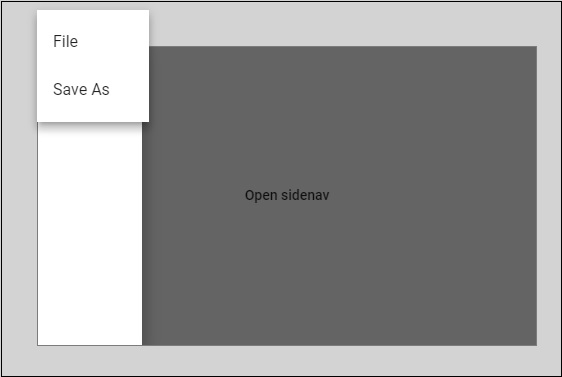
要添加菜单,使用 **<md-menu></md-menu>**。**文件** 和 **另存为** 项目添加到 **md-menu** 下的按钮中。添加了一个主按钮 **菜单**。通过使用 **[mdMenuTriggerFor]=”menu”** 并使用带有 **# 的 <md-menu>** 将其引用赋予 <md-menu>。
侧边导航栏
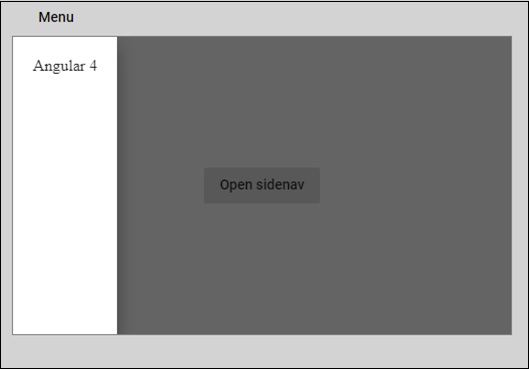
要添加 sidenav,我们需要 **<md-sidenav-container></md-sidenav-container>**。**<md-sidenav></md-sidenav>** 作为子元素添加到容器中。添加了另一个 div,它通过使用 **(click)=”sidenav.open()”** 来触发 sidenav。以下是菜单和 sidenav 在浏览器中的显示:
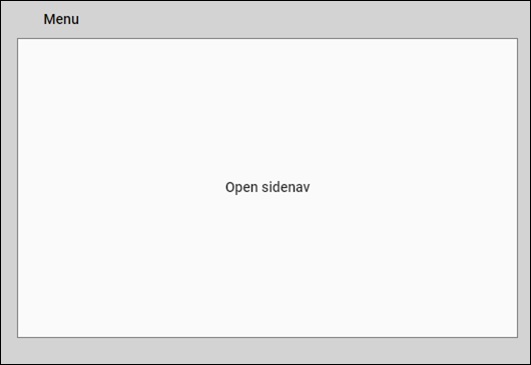
单击 **opensidenav** 后,它将显示侧边栏,如下所示:
单击菜单后,您将获得两个项目 **文件** 和 **另存为**,如下所示:
现在让我们使用材料设计添加日期选择器。要添加日期选择器,我们需要导入显示日期选择器所需的模块。
在 **app.module.ts** 中,我们导入了以下模块,如下所示,用于日期选择器。
import { BrowserModule } from '@angular/platform-browser';
import { NgModule } from '@angular/core';
import { BrowserAnimationsModule } from '@angular/platform-browser/animations';

import { MdDatepickerModule, MdInputModule, MdNativeDateModule } from '@angular/material';
import { FormsModule } from '@angular/forms';
import { AppComponent } from './app.component';

@NgModule({
   declarations: [
      AppComponent
   ],
   imports: [
      BrowserModule,
      BrowserAnimationsModule,
      FormsModule,
      MdDatepickerModule,
      MdInputModule,
      MdNativeDateModule
   ],
   providers: [],
   bootstrap: [AppComponent]
})
export class AppModule { }
在这里,我们导入了 **MdDatepickerModule、MdInputModule** 和 **MdNativeDateModule** 等模块。
现在,**app.component.ts** 如下所示:
import { Component } from '@angular/core';
@Component({
   selector: 'app-root',
   templateUrl: './app.component.html',
   styleUrls: ['./app.component.css']
})

export class AppComponent {
   myData: Array<any>;
   constructor() {}
}
**app.component.html** 如下所示:
<md-input-container>
   <input mdInput [mdDatepicker]="picker" placeholder="Choose a date">
   <button mdSuffix [mdDatepickerToggle]="picker"></button>
</md-input-container>

<md-datepicker #picker></md-datepicker>
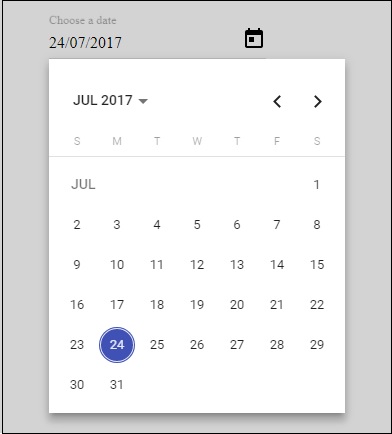
这就是日期选择器在浏览器中的显示方式:
Angular 4 - CLI
Angular CLI 使启动任何 Angular 项目变得容易。Angular CLI 附带的命令可以帮助我们快速创建和启动项目。现在让我们了解一下可用于创建项目、组件和服务、更改端口等的命令。
要使用 Angular CLI,我们需要在系统上安装它。让我们使用以下命令:
npm install -g @angular/cli
要创建一个新项目,我们可以在命令行中运行以下命令,然后将创建该项目。
ng new PROJECT-NAME
cd PROJECT-NAME
ng serve //
ng serve // 将编译,您可以在浏览器中看到项目的输出:
https://:4200/
创建新项目时使用 4200 作为默认端口。您可以使用以下命令更改端口:
ng serve --host 0.0.0.0 --port 4201
下表列出了使用 Angular 4 项目时所需的一些重要命令。
| 组件 | ng g component new-component |
| 指令 | ng g directive new-directive |
| 管道 | ng g pipe new-pipe |
| 服务 | ng g service new-service |
| 模块 | ng g module my-module |
每当创建新的模块、组件或服务时,都会在父模块 **app.module.ts** 中更新其引用。
Angular 4 - 示例
在本章中,我们将讨论一些与 Angular 4 相关的示例。
首先,我们创建了一个示例,该示例显示一个登录表单,其输入为 **用户名** 和 **密码**。输入正确的值后,它将进入内部并显示另一个表单,您可以在其中输入客户详细信息。此外,我们还创建了四个组件 - header、footer、userlogin 和 mainpage。
组件是使用以下命令创建的:
ng g component header
C:\ngexamples\aexamples>ng g component header
installing component
   create src\app\header\header.component.css
   create src\app\header\header.component.html
   create src\app\header\header.component.spec.ts
   create src\app\header\header.component.ts
   update src\app\app.module.ts
ng g component footer
C:\ngexamples\aexamples>ng g component footer
installing component
   create src\app\footer\footer.component.css
   create src\app\footer\footer.component.html
   create src\app\footer\footer.component.spec.ts
   create src\app\footer\footer.component.ts
   update src\app\app.module.ts
ng g component userlogin
C:\ngexamples\aexamples>ng g component userlogin
installing component
   create src\app\userlogin\userlogin.component.css
   create src\app\userlogin\userlogin.component.html
   create src\app\userlogin\userlogin.component.spec.ts
   create src\app\userlogin\userlogin.component.ts
   update src\app\app.module.ts
ng g component mainpage
C:\ngexamples\aexamples>ng g component mainpage
installing component
   create src\app\mainpage\mainpage.component.css
   create src\app\mainpage\mainpage.component.html
   create src\app\mainpage\mainpage.component.spec.ts
   create src\app\mainpage\mainpage.component.ts
   update src\app\app.module.ts
在 **app.module.ts** 中,父模块在创建时添加了所有组件。该文件如下所示:
import { BrowserModule } from '@angular/platform-browser';
import { NgModule } from '@angular/core';
import { ReactiveFormsModule } from '@angular/forms';

import { RouterModule, Routes} froms '@angular/router';
import { BrowserAnimationsModule } from '@angular/platform-browser/animations';
import {MdTableModule} from '@angular/material';

import {HttpModule} from "@angular/http";
import {MdInputModule} from '@angular/material';
import { AppComponent } from './app.component';

import { HeaderComponent } from './header/header.component';
import { FooterComponent } from './footer/footer.component';
import { UserloginComponent } from './userlogin/userlogin.component';
import { MainpageComponent } from './mainpage/mainpage.component';

const appRoutes: Routes = [
   {
      path: '',
      component: UserloginComponent
   },
   {
      path: 'app-mainpage',
      component: MainpageComponent
   }
];

@NgModule({
   declarations: [
      AppComponent,
      HeaderComponent,
      FooterComponent,
      UserloginComponent,
      MainpageComponent
   ],

   imports: [
      BrowserModule,
      ReactiveFormsModule,
      RouterModule.forRoot(appRoutes),
      BrowserAnimationsModule,
      HttpModule,
      MdTableModule,
      MdInputModule
   ],

   providers: [],
   bootstrap: [AppComponent]
})
export class AppModule { }
添加了上面创建的组件:
import { HeaderComponent } from './header/header.component';
import { FooterComponent } from './footer/footer.component';
import { UserloginComponent } from './userlogin/userlogin.component';
import { MainpageComponent } from './mainpage/mainpage.component';
这些组件也添加到 declarations 中:
declarations: [
   AppComponent,
   HeaderComponent,
   FooterComponent,
   UserloginComponent,
   MainpageComponent
],
在父 **app.component.html** 中,我们添加了用户将看到的该文件的主要结构。
<div class="mainpage">
   <app-header></app-header>
   <router-outlet></router-outlet>
   <app-footer></app-footer>
</div>
我们创建了一个 div 并添加了 **<app-header></app-header>**、**<router-outlet></router-outlet>** 和 **<app-footer></app-footer>**。
**<router-outlet></router-outlet>** 用于在页面之间导航。在这里,页面是登录表单,一旦成功,它将重定向到 mainpage,即客户表单。
要首先获取登录表单,然后获取 mainpage.component.html,需要在 **app.module.ts** 中进行如下所示的更改:
import { BrowserModule } from '@angular/platform-browser';
import { NgModule } from '@angular/core';
import { ReactiveFormsModule } from '@angular/forms';

import { RouterModule, Routes} from '@angular/router';
import { BrowserAnimationsModule } from '@angular/platform-browser/animations';
import {MdTableModule} from '@angular/material';

import {HttpModule} from "@angular/http";
import {MdInputModule} from '@angular/material';
import { AppComponent } from './app.component';

import { HeaderComponent } from './header/header.component';
import { FooterComponent } from './footer/footer.component';
import { UserloginComponent } from './userlogin/userlogin.component';
import { MainpageComponent } from './mainpage/mainpage.component';

const appRoutes: Routes = [
   {
      path: '',
      component: UserloginComponent
   },
   {
      path: 'app-mainpage',
      component: MainpageComponent
   }
];

@NgModule({
   declarations: [
      AppComponent,
      HeaderComponent,
      FooterComponent,
      UserloginComponent,
      MainpageComponent
   ],

   imports: [
      BrowserModule,
      ReactiveFormsModule,
      RouterModule.forRoot(appRoutes),
      BrowserAnimationsModule,
      HttpModule,
      MdTableModule,
      MdInputModule
   ],
   providers: [],
   bootstrap: [AppComponent]
})
export class AppModule { }
我们从 **@anuglar/router** 导入了 **RouterModule** 和 **Routes**。在 imports 中,RouterModule 以 appRoutes 作为参数,该参数在上面定义为:
const appRoutes: Routes = [
   {
      path: '',
      component: UserloginComponent
   },
   {
      path: 'app-mainpage',
      component: MainpageComponent
   }
];
Routes 获取组件数组,默认情况下调用 userloginComponent。
在**userlogin.component.ts**文件中,我们导入了路由器,并根据如下所示的条件跳转到mainpage.component.html。
import { Component, OnInit } from '@angular/core';
import { FormGroup, FormControl, Validators} from '@angular/forms';
import { Router} from '@angular/router';

@Component({
   selector: 'app-userlogin',
   templateUrl: './userlogin.component.html',
   styleUrls: ['./userlogin.component.css']
})

export class UserloginComponent implements OnInit {
   formdata;
   constructor(private router: Router) { }
   ngOnInit() {
      this.formdata = new FormGroup({
         uname: new FormControl("", Validators.compose([
            Validators.required,
            Validators.minLength(6)
         ])),
         passwd: new FormControl("", this.passwordvalidation)
      });
   }

   passwordvalidation(formcontrol) {
      if (formcontrol.value.length < 5) {
         return {"passwd" : true};
      }
   }

   onClickSubmit(data) {
      console.log(data.uname);
      if (data.uname=="systemadmin" && data.passwd=="admin123") {
         alert("Login Successful");
         this.router.navigate(['app-mainpage'])
      } else {
         alert("Invalid Login");
         return false;
      }
   }
}
以下是**app.component.ts**的.ts文件。其中只有默认细节。
import { Component } from '@angular/core';

@Component({
   selector: 'app-root',
   templateUrl: './app.component.html',
   styleUrls: ['./app.component.css']
})
export class AppComponent {title = 'app';}
现在让我们显示每个组件文件的细节。首先,我们来看一下头部组件。对于新的组件,创建了四个文件:**header.component.ts、header.component.html、header.component.css和header.component.spec.ts**。
header.component.ts
import { Component, OnInit } from '@angular/core';

@Component({
   selector: 'app-header',
   templateUrl: './header.component.html',
   styleUrls: ['./header.component.css']
})

export class HeaderComponent implements OnInit {
   constructor() { }
   ngOnInit() {}
}
header.component.html
<div>
   <hr />
</div>
我们没有添加任何css样式。这使得header.component.css文件为空。同样,由于此处未考虑测试用例,**header.compoent.spec.ts**文件也为空。
对于头部,我们将绘制一条水平线。可以添加徽标或其他细节,使头部看起来更具创意。
现在让我们考虑创建一个页脚组件。
对于页脚组件,创建了**footer.component.ts、footer.component.html、footer.component.spec.ts和footer.component.css**文件。
footer.component.ts
import { Component, OnInit } from '@angular/core';

@Component({
   selector: 'app-footer',
   templateUrl: './footer.component.html',
   styleUrls: ['./footer.component.css']
})

export class FooterComponent implements OnInit {
   constructor() { }
   ngOnInit() { }
}
footer.component.html
<hr/>
由于我们没有添加任何css样式,**footer.component.css**文件为空。同样,由于此处未考虑测试用例,**footer.compoent.spec.ts**文件也为空。
对于页脚,我们只绘制一条水平线,如.html文件中所示。
现在让我们看看userlogin组件是如何工作的。为userlogin组件创建的文件有**userlogin.component.css、userlogin.component.html、userlogin.component.ts和userlogin.component.spec.ts**。
文件的详细信息如下:
userlogin.component.html
<div class="form_container">
   <form [formGroup]="formdata" (ngSubmit) = "onClickSubmit(formdata.value)" >
      <header>Login</header>
      <label>Username <span>*</span></label>
      <input type="text" name="uname" formControlName="uname"/>

      <div class="help">At least 6 character</div>
      <label>Password <span>*</span></label>
      <input type="password" class="fortextbox" name="passwd" formControlName="passwd"/>

      <div class="help">Use upper and lowercase lettes as well</div>
      <button [disabled]="!formdata.valid" value="Login">Login</button>
   </form>
</div>
在这里,我们创建了一个包含两个输入控件**用户名**和**密码**的表单。这是一种模型驱动表单方法,其详细信息在第14章 - 表单中解释。
我们将用户名和密码视为必填项,因此在ts文件中添加了相应的验证。点击提交按钮后,控制权将传递给在ts文件中定义的**onClickSubmit**函数。
userlogin.component.ts
import { Component, OnInit } from '@angular/core';
import { FormGroup, FormControl, Validators} from '@angular/forms';
import { Router} from '@angular/router';

@Component({
   selector: 'app-userlogin',
   templateUrl: './userlogin.component.html',
   styleUrls: ['./userlogin.component.css']
})

export class UserloginComponent implements OnInit {
   formdata;
   constructor(private router: Router) { }
   ngOnInit() {
      this.formdata = new FormGroup({
         uname: new FormControl("", Validators.compose([
            Validators.required,
            Validators.minLength(6)
         ])),
         passwd: new FormControl("", this.passwordvalidation)
      });
   }
   passwordvalidation(formcontrol) {
      if (formcontrol.value.length < 5) {
         return {"passwd" : true};
      }
   }
   onClickSubmit(data) {
      console.log(data.uname);
      if (data.uname == "systemadmin" && data.passwd == "admin123") {
         alert("Login Successful");
         this.router.navigate(['app-mainpage'])
      }
   }
}
对于表单控件和验证,模块按如下所示导入:
import { FormGroup, FormControl, Validators} from '@angular/forms';
当用户名和密码正确时,我们需要一个路由器来导航到不同的组件。为此,路由器按如下所示导入:
import { Router} from '@angular/router';
在**ngOnInit**中,对表单进行验证。我们需要用户名超过六个字符,并且该字段是必填项。密码也适用相同的条件。
点击提交后,我们可以检查用户名是否为**systemadmin**,密码是否为**admin123**。如果是,则会出现一个显示**登录成功**的对话框,并且路由器会导航到app-mainpage,这是mainpage组件的选择器。
在**userlogin.component.css**文件中为表单添加了css样式:
.form_container{
   margin : 0 auto;
   width:600px;
}

form {
   background: white;
   width: 500px;
   box-shadow: 0px 0px 20px rgba(0, 0, 0, 0.7);
   font-family: lato;
   position: relative;
   color: #333;
   border-radius: 10px;
}

form header {
   background: #FF3838;
   padding: 30px 20px;
   color: white;
   font-size: 1.2em;
   font-weight: 600;
   border-radius: 10px 10px 0 0;
}

form label {
   margin-left: 20px;
   display: inline-block;
   margin-top: 30px;
   margin-bottom: 5px;
   position: relative;
}

form label span {
   color: #FF3838;
   font-size: 2em;
   position: absolute;
   left: 2.3em;
   top: -10px;
}
form input {
   display: block;
   width: 50%;
   margin-left: 20px;
   padding: 5px 20px;
   font-size: 1em;
   border-radius: 3px;
   outline: none;
   border: 1px solid #ccc;
}

form .help {
   margin-left: 20px;
   font-size: 0.8em;
   color: #777;
}

form button {
   position: relative;
   margin-top: 30px;
   margin-bottom: 30px;
   left: 50%;
   transform: translate(-50%, 0);
   font-family: inherit;
   color: white;
   background: #FF3838;
   outline: none;
   border: none;
   padding: 5px 15px;
   font-size: 1.3em;
   font-weight: 400;
   border-radius: 3px;
   box-shadow: 0px 0px 10px rgba(51, 51, 51, 0.4);
   cursor: pointer;
   transition: all 0.15s ease-in-out;
}
form button:hover {
   background: #ff5252;
}
**userlogin.component.spec.ts**文件为空,因为目前没有测试用例。
现在让我们讨论mainpage组件是如何工作的。为mainpage组件创建的文件有**mainpage.component.ts、mainpage.component.html、mainpage.component.css和mainpage.component.spect.ts**。
mainpage.component.ts
import { Component, OnInit, ViewChild} from '@angular/core';
import { FormGroup, FormControl, Validators} from '@angular/forms';

import {Http, Response, Headers, RequestOptions } from "@angular/http";
import 'rxjs/add/operator/map';

@Component({
   selector: 'app-mainpage',
   templateUrl: './mainpage.component.html',
   styleUrls: ['./mainpage.component.css']
})

export class MainpageComponent implements OnInit {
   formdata;
   cutomerdata;
   constructor(private http: Http) { }
   stateCtrl: FormControl;
   ngOnInit() {
      this.formdata = new FormGroup({
         fname: new FormControl("", Validators.compose([
            Validators.required,
            Validators.minLength(3)
         ])),
         lname: new FormControl("", Validators.compose([
            Validators.required,
            Validators.minLength(3)
         ])),
         address:new FormControl(""),
         phoneno:new FormControl("")
      });
   }
   onClickSubmit(data) {
      document.getElementById("custtable").style.display="";
      this.cutomerdata = [];
      for (var prop in data) {
         this.cutomerdata.push(data[prop]);
      }
      console.log(this.cutomerdata);
   }
}
我们创建了一个包含名字、姓氏、地址和电话号码的客户表单。使用**ngOnInit**函数对表单进行验证。点击提交后,控制权将传递到**onClickSubmit**函数。在这里,用于显示输入详细信息的表格将可见。
customerdata从json转换为数组,以便我们可以在.html文件中使用ngFor在表格中使用它,如下所示。
mainpage.component.html
<div class="form_container">
   <form [formGroup]="formdata" (ngSubmit) = "onClickSubmit(formdata.value)" >
      <header>Customer Details</header>
      <label>FirstName <span>*</span></label>
      <input type="text" name="fname" formControlName="fname"/>
      <label>LastName <span>*</span></label>

      <input type="text" name="lname" formControlName="lname"/>
      <label>Address <span></span></label>
      <input type="text" name="address" formControlName="address"/>
      <label>Phone No <span></span></label>
      <input type="text" name="phoneno" formControlName="phoneno"/>
      <button [disabled]="!formdata.valid" value="Submit">Submit</button>
   </form>
</div>
<br/>

<div id="custtable" style="display:none;margin:0 auto;">
   <table>
      <tr>
         <td>FirstName</td>
         <td>LastName</td>
         <td>Address</td>
         <td>Phone No</td>
      </tr>
      <tr>
         <td *ngFor="let data of cutomerdata">
            <h5>{{data}}</h5>
         </td>
      </tr>
   </table>
</div>
这里,第一个div包含客户详细信息,第二个div包含表格,该表格将显示输入的详细信息。用户登录和客户详细信息的显示如下所示。这是一个带有登录表单、头部和页脚的页面。
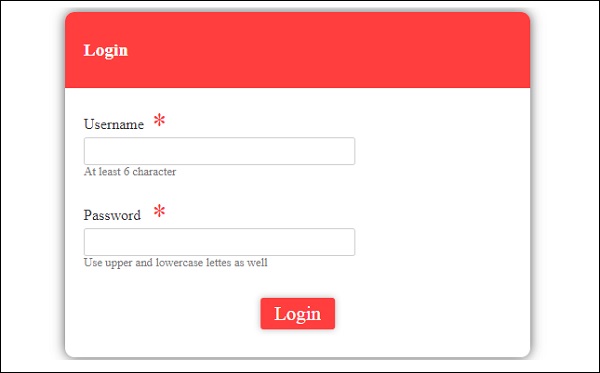
输入详细信息后,显示如下所示
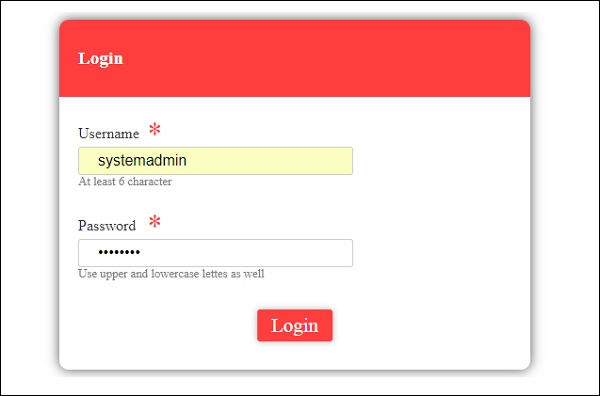
点击提交后,会出现一个显示“登录成功”的对话框。
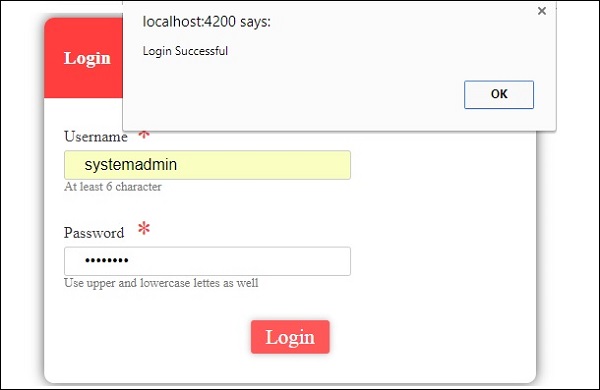
如果详细信息无效,则会出现一个显示“登录无效”的对话框,如下所示:
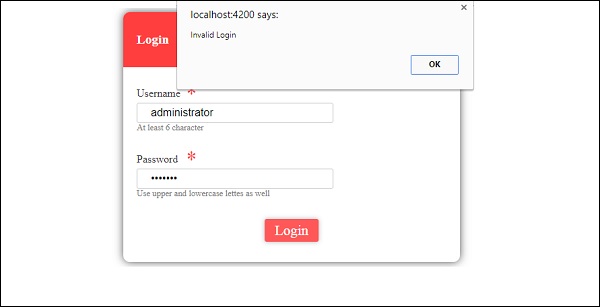
如果登录成功,则将继续进行客户详细信息的下一个表单,如下所示:
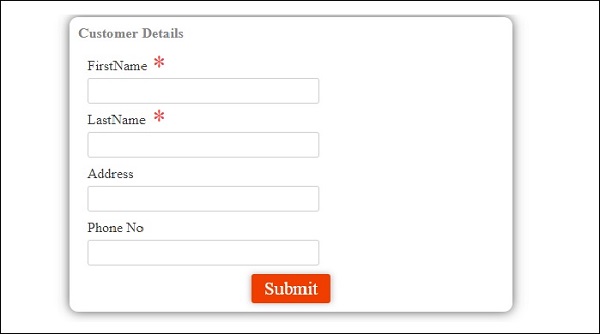
输入并提交详细信息后,会出现一个显示“客户详细信息已添加”的对话框,如下面的屏幕截图所示:
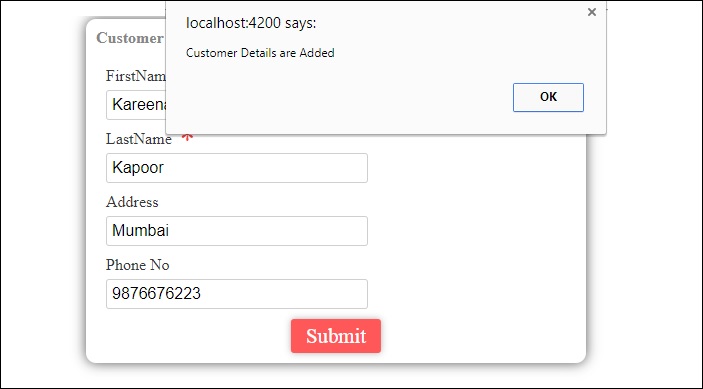
在上面的屏幕截图中点击“确定”后,详细信息将显示如下面的屏幕截图所示: